You reach to swipe down your notifications or tap that app icon on the side. Nothing happens. Your phone’s touch screen ignores your finger right near the edges, turning simple tasks into a real hassle.
This problem hits many smartphone users. It builds frustration fast, especially when you need quick access during a busy day. The good news? Simple fixes often solve it without a trip to the repair shop.
Common culprits include screen protectors that block signals, dirt or grime buildup along the sides, odd settings like developer mode, and even software glitches from apps. Tight phone cases can press too hard on the edges too.
Don’t worry. You’ll learn step-by-step fixes here, starting with easy ones like removing your case and protector, cleaning the screen, and restarting your device.
Next come checks for safe mode, software updates, and more. These steps work for most smartphones, from Android to iPhone. Follow along, and get your full touch control back in minutes.
Common Causes of Touch Issues at Phone Edges
Your smartphone’s touch screen works well in the center but fails near the edges. This leaves you tapping in frustration. Several everyday factors cause these dead zones. Let’s break down the main ones so you can pinpoint the issue fast.
Screen Protectors and Cases Causing Problems
Old screen protectors often lift at the edges or trap tiny bubbles. These block the touch sensors right where you need them most. Dust or grime under the film adds to the problem. It creates an uneven surface that your finger can’t register properly.
Thick phone cases make things worse. Their raised edges squeeze the screen and interfere with capacitance detection. Even curved displays on newer models suffer if the case overlaps too much.
New phones face this too. Factory-applied films or cheap aftermarket protectors peel quickly from daily use. Here’s how to check:
- Peel off the protector slowly from one corner.
- Run your finger along the edges without it. Does touch respond now?
- Remove your case next. Press gently on the sides and test swipes.
If taps work after these steps, replace with a precise-fit protector that matches your model’s curve. Clean the screen first to avoid new bubbles.
Game Mode Blocking Corner Touches
Many smartphones have game modes like Game Genie on Samsung devices. These shrink the touch area at the edges during play. The goal? Prevent accidental swipes that pause your game or hit the home button.
It kicks in automatically when you launch a game app. Corners stay dead to keep your thumbs from bumping controls. Spot it by these signs:
- Touches fail only in games, not other apps.
- A small black bar appears at screen edges.
- Restarting the app or toggling game mode fixes it right away.
Disable it in your phone’s game launcher settings. Go to the game tools app, find the mode toggle, and turn it off. Your full screen returns for normal use.
Dirt, Grime, or Moisture in the Edges
Edges trap more dirt than the flat center. Tiny gaps around speakers, cameras, and bezels collect sweat, oils, or cleaning spray. This buildup shorts the touch circuits and kills response.
Sweat from workouts soaks in fast during grip-heavy tasks. Harsh cleaners leave residue that mimics water interference. Why edges specifically? Design curves and ports funnel gunk right there.
Wipe with a microfiber cloth dampened in distilled water. Avoid sprays. Dry thoroughly, then test. Repeat if needed, but don’t rub hard.
Software Settings Gone Wrong
Wrong tweaks mess up touch across your smartphone. High touch sensitivity boosts response for wet fingers or thick protectors. Without them, it overreacts and ignores light edge taps.
Gestures like full-screen swipes steal priority from edge zones. They confuse the system during navigation pulls. Quick signs point to software:
- Issue starts after an update or app install.
- Restart helps briefly, then fails again.
- Safe mode (hold power, tap restart option) makes it work.
Fix by heading to Settings > Display. Turn off touch sensitivity. Switch navigation to buttons if gestures cause trouble. Update your OS too. These changes restore normal behavior without hardware swaps.
Quick Fixes to Try First
Start with these basic steps before you move to deeper troubleshooting. They solve touch issues at the edges on most phones in under five minutes. Dirt, protectors, and glitches cause many problems, and these actions target them directly.
Clean Your Screen the Right Way
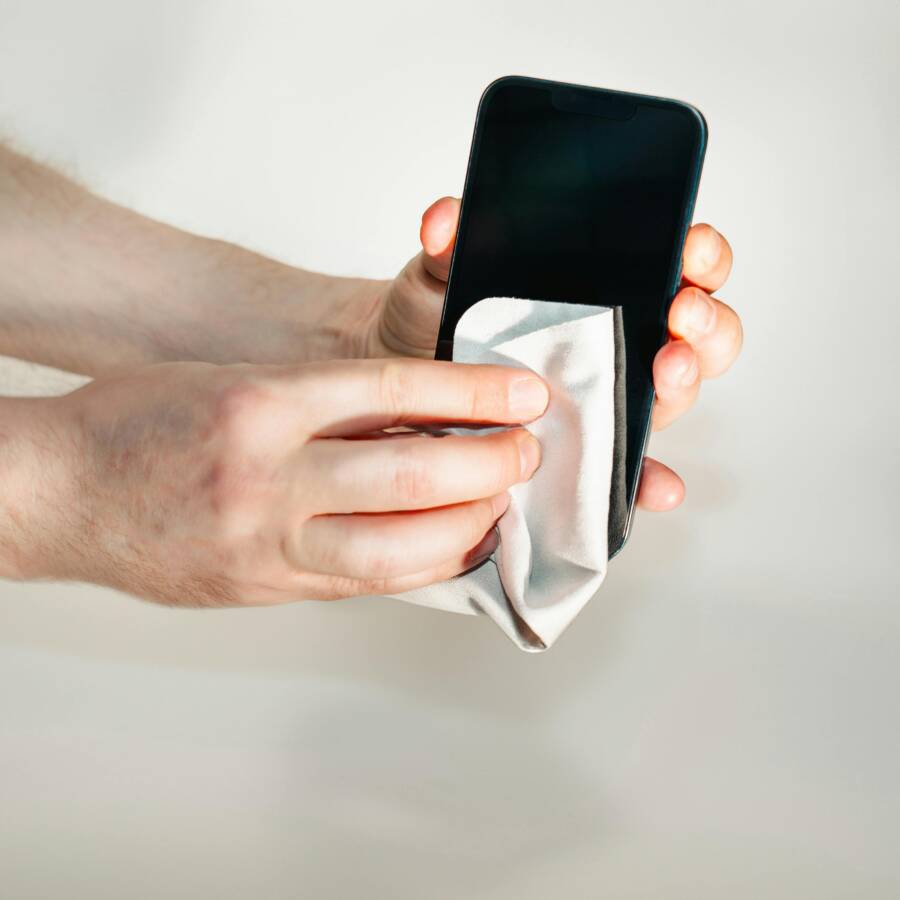
Grime builds up fast along the edges of your screen. It blocks touch sensors and creates dead spots. A proper clean often restores full response right away.
Follow these steps to do it safely:
- Turn off your phone first. This prevents accidental taps.
- Use a dry microfiber cloth to wipe the entire screen. Focus extra time on the edges near the bezels and curves. Gently rub in circular motions.
- If smudges remain, dampen the cloth with distilled water or a screen-safe cleaner. Never spray liquid directly on the phone. Wipe again, then dry completely with a fresh dry section of the cloth.
Skip paper towels, tissues, or rough fabrics. They leave scratches or lint. Avoid alcohol wipes, household cleaners, or compressed air too. Those damage the oleophobic coating and spread residue.
This fix works because oils from your fingers and pocket dust coat the capacitive layer. Clean edges let your finger’s electrical charge register properly. Test taps after drying. You’ll notice smoother swipes.
 Photo by Jakub Zerdzicki
Remove and Check Your Screen Protector
A screen protector that’s lifting or bubbled at the edges interferes with touch detection. Your smartphone’s sensors can’t read through imperfections there.
Peel it off carefully to avoid residue:
- Heat the edges with a hairdryer on low for 20 seconds. This loosens the adhesive.
- Lift one corner with your fingernail. Pull slowly and evenly at a 30-degree angle.
- Clean both the phone screen and protector back with a microfiber cloth and isopropyl alcohol on a cotton swab. Let everything dry.
Test the bare screen. If touches work, the protector caused the issue. Reapply a new one cut precisely for your model, or skip it if you prefer. Replace cheap films with tempered glass that fits flush.
Check your phone case next. Thick ones press on edges and disrupt signals. Remove it, test swipes, and try a slimmer fit if needed. These steps fix over half of edge problems from accessories.
Restart Your Phone for a Fresh Start
Software glitches freeze touch zones temporarily. A restart clears the phone’s memory and resets sensors without losing data.
Power cycle works on both iPhone and Android. Here’s how:
For iPhone:
- Normal restart: Go to Settings > General > Shut Down, slide to turn off, wait 30 seconds, then hold the Side button until the Apple logo appears.
- Force restart (best for touch issues):
| Model | Steps |
|---|---|
| iPhone 8 and later | 1. Press and release Volume Up. 2. Press and release Volume Down. 3. Hold Side button until the logo shows (10-20 seconds). |
| iPhone 7/7 Plus | Hold Volume Down + Side button until logo. |
| iPhone 6s or older | Hold Home + Top/Side button until logo. |
For Android:
- Normal restart: Hold the Power button, tap Restart.
- Force restart: Hold Volume Down + Power for 10-30 seconds until it vibrates and reboots. On Samsung, use Volume Down + Side/Power. Google Pixel: Volume Up + Power.
This refreshes the system processes that handle touch input. Glitches from apps or updates vanish, and edges respond like new. Charge your phone first if the battery sits low. Test after the logo appears.
Adjust Settings to Fix Touch Response
Your smartphone’s touch problems at the edges often stem from built-in settings meant to help in specific situations. These features boost protection or sensitivity but can create dead zones during normal use. Adjust them one by one to regain full control. Start with game mode tweaks, then move through sensitivity and navigation options.
Turn Off Game Mode Corner Blocks
Game modes on phones like Samsung create blocked zones at screen corners. They stop accidental taps during play. This helps gamers but blocks edges in everyday apps too.
Check your game launcher app first. Open it from your app drawer or quick settings. Look for touch protection or corner block options. Set them to off or never activate.
Follow these steps on Samsung devices:
- Swipe down the notification shade and tap the settings icon.
- Go to Apps, then select Game Booster.
- Find Auto touch protection and toggle it off. Or set it to Never.
- Disable floating shortcuts if they overlay the screen.
Test in a game or app right after. Edges respond fully now. Other Android phones have similar tools in their game apps. Turn off edge guards there.
Lower Touch Sensitivity Settings
High touch sensitivity helps with screen protectors or gloves. Without them, it ignores light taps at the edges on your smartphone.
Head to Settings > Display. Scroll to touch sensitivity or increased touch sensitivity. Toggle it off.
On most Android phones, the path stays simple:
- Open Settings.
- Tap Display.
- Switch off Touch sensitivity.
iPhones call it Touch Accommodations under Accessibility > Touch. Lower the hold duration or turn it off.
Restart your phone after the change. Light swipes register better along the sides. This fix shines when no protector sits on the screen.
Switch from Gesture Navigation to Buttons
Gesture navigation uses edge swipes for back, home, and recent apps. These pulls claim space near the borders and confuse sensors.
Buttons take less room and free up those areas. Switch back for instant relief.
Change it like this on Android:
- Go to Settings > System > Gestures (or Display > Navigation bar).
- Select 3-button navigation.
- Confirm the switch.
Pixels and Samsungs label it Navigation mode or Gesture settings. Pick Buttons.
iPhones stick with gestures mostly. But tweak Haptic Touch speed in Settings > Accessibility > Touch if edges lag.
Edges light up right away. Gestures suit some users, but buttons fix most edge woes.
Disable Developer Options
Developer options unlock advanced tweaks. They alter touch response and create edge glitches if left on.
Turn them off to reset to defaults. First, check if active.
Steps to disable:
- Open Settings > About phone.
- Tap Build number seven times if needed (it enables them).
- Go back to Settings. Developer options appear at the bottom or under System.
- Toggle the switch off at the top.
Restart your phone now. Sensors refresh and edges work smooth. Keep developer mode off unless you tweak apps often. Your smartphone runs best in standard setup.
Advanced Steps and When to Get Help
You’ve tried the basics like cleaning, restarting, and tweaking settings. Edge touches still fail. Time to dig deeper with these next-level checks. They target software buildup, charging faults, and hidden flaws. Follow them in order. If nothing works, know the red flags that mean a pro repair shop visit.
Update Software and Free Up Space
Outdated software or full storage clogs your phone’s touch system. Bugs in old versions ignore edge inputs. Low space slows processes and skips sensor checks.
Update first. On Android, open Settings > System > System update (or Software update on Samsung). Tap Download and install. For iPhone, go to Settings > General > Software Update. Install any available patches.
Free up space next. Packed storage causes glitches.
Clear junk this way:
- Delete unused apps from your home screen or Settings > Apps.
- Offload photos and videos to cloud storage like Google Photos or iCloud.
- Wipe cache: Android users, go to Settings > Storage > Free up space. Pick cached files. iPhones auto-manage but restart to clear temp data.
Aim for 20% free space. Your smartphone runs smoother. Test edges after a reboot. Fresh code fixes many lingering issues.
Test with Another Charger
Charging sometimes kills edge response. Faulty cables or adapters overheat components near the screen. This disrupts touch circuits, especially on the sides.
Why does it happen? Poor chargers spike voltage. Heat warps flex cables inside. Loose ports add resistance.
Swap chargers to confirm. Grab a known good one (original if possible, or certified USB-C/Lightning).
- Unplug your phone.
- Connect the new charger. Charge for 10 minutes.
- Test swipes along edges while plugged in.
If touches work now, replace the bad charger. Avoid cheap knockoffs. Certified ones prevent repeats. Unplug during tests too. Stable power restores full sensitivity.
Run a Full Screen Touch Test
Isolate dead zones with a dedicated test. Manual checks miss subtle spots. Apps light up every inch so you see failures clearly.
Start simple. Open a drawing app like Notes. Draw slow circles around all edges. Tap each corner 10 times. Note unresponsive areas.
Use pro apps for proof. Download from official stores.
Android picks:
- Touch Screen Test by Microsys: Tap to fill blue rectangles across the full screen. Multi-touch tests up to 10 fingers.
- Display Tester by Brain_trapp: Covers the whole display. Spots dead areas fast.
iPhone choice:
- TouchScreenCheck: Tap anywhere. See coordinates and touch count change colors.
Or try online at TouchscreenTest.com. Drag over the grid. Green means good; gaps show problems. Screenshot results for records. Run tests in airplane mode. Your phone reveals exact flaws.
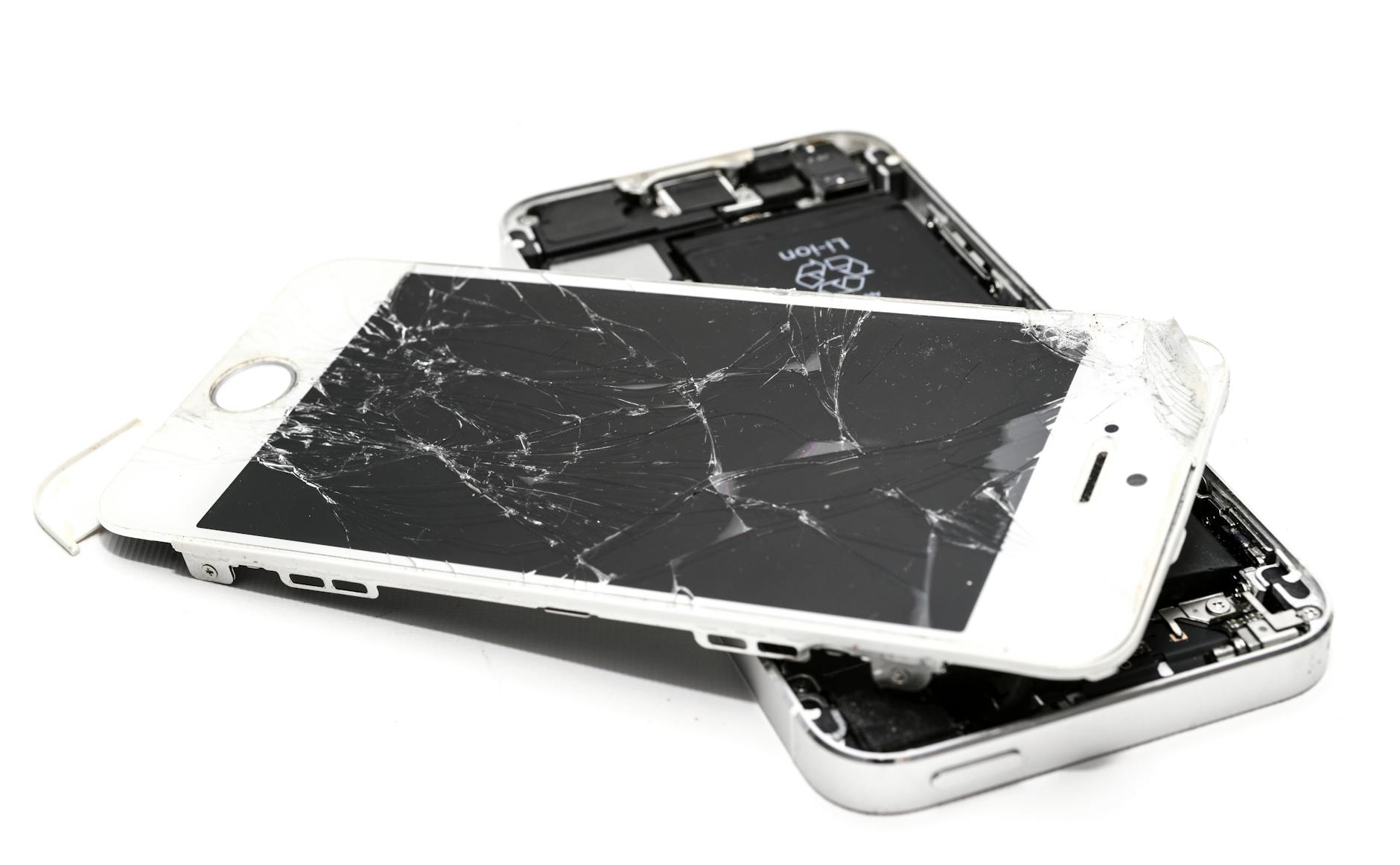
Photo by ClickerHappy
Signs You Need Pro Repair
Home fixes fail when hardware damage strikes. Persistent dead zones signal deeper trouble. Don’t wait. Pros fix it right.
Watch for these clues:
- Dead zones stay after all steps. Software clears, but edges ignore taps.
- Cracks or dents. Even hairline ones short circuits inside.
- Water exposure history. Moisture corrodes edge sensors over time.
Other hints include random restarts during touch or lines on the screen. Take it to an authorized service center. They diagnose with tools you lack. Expect screen replacement for $100-300, depending on model. Back up data first. Quick pro work saves your smartphone from early grave.
Conclusion
You now hold the tools to fix touch issues near your phone’s edges. Start by cleaning the screen with a microfiber cloth. Remove screen protectors and cases next. Restart your device, then tweak settings like game mode, touch sensitivity, gestures, and developer options. Update software, free up space, test with a new charger, and run a full screen check. Most problems vanish with these steps.
Try them right now. Your smartphone deserves smooth swipes along every edge. Prevent repeats by picking precise-fit protectors that hug curves without bubbles. Clean weekly to stop grime buildup. Skip thick cases that squeeze sides.
These home fixes work for the majority of users. No shop visit needed. Share your success in the comments below. What step saved your screen? Your tip might help someone else today.