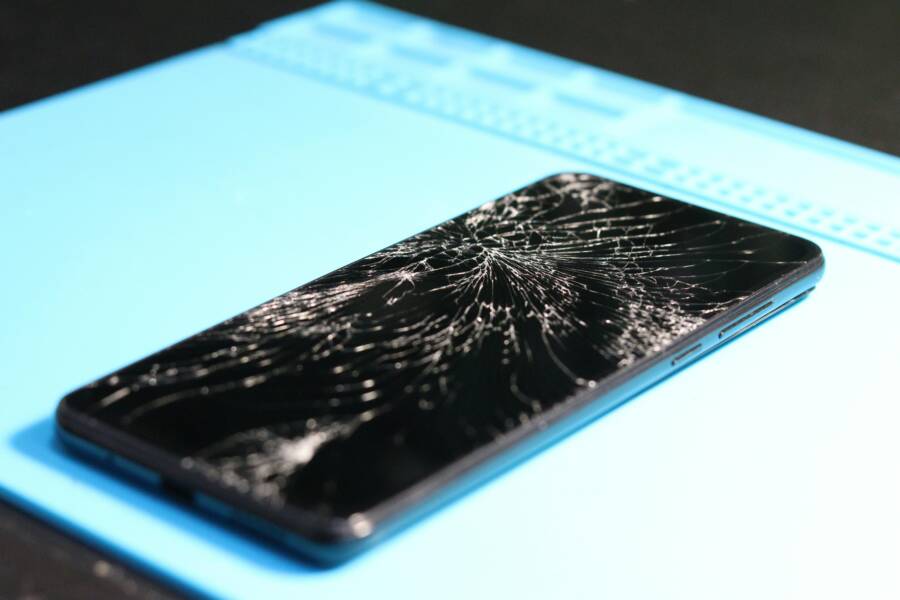
You just got a new screen on your phone. It looks sharp and bright. But now every tap lags, and swipes feel sluggish. That touch delay turns simple tasks into a chore.
Touch delay means a noticeable lag between your finger tap and the screen’s response. It hits right after replacement because the new hardware often mismatches the phone’s software. Loose connections during install or low-quality parts make it worse.
Many users face this on Android devices and iPhones after DIY or shop repairs. Common culprits include poor flex cable seats, static damage, or even thick cases pressing down. Software glitches add to the mix too.
This post breaks down the main causes first. Then it walks you through fixes, from quick checks like restarts and updates to deeper steps like safe mode or resets. These methods help most smartphones without needing a pro.
You’ve seen reports from Samsung and Pixel owners, plus iPhone users, who fixed it this way. No fancy tools required. Follow along, and you’ll get your phone responsive again.
Common Causes of Touch Delay After Screen Replacement
Touch delay often starts the moment you power on your phone after a screen swap. The new display looks great, but taps hesitate and gestures stutter. You might blame the hardware right away. In truth, multiple issues team up to create this frustration. Hardware mismatches top the list, but software hiccups play a role too. Spotting the root cause helps you fix it fast.

Photo by Vlad
Poor Screen Quality or Bad Installation
Cheap replacement screens promise savings but deliver headaches. These parts often lack the precise touch sensors built into original displays. Your smartphone expects a specific digitizer layer to detect finger contact instantly. Off-brand screens cut corners here, so signals take longer to register.
Incompatible screens confuse the system even more. They might not match the phone’s calibration, leading to inconsistent response times across the display. iPhones and Samsung models suffer most from this mismatch.
Bad installation compounds the problem. Air bubbles trapped under the screen block capacitive signals, much like fog on a window obscures your view. Misalignment shifts the touch layer away from the glass, forcing your taps to travel extra distance.
Check for these signs yourself. Tilt your phone under bright light. Look for bubbles or gaps around the edges. If you spot them, the screen needs reseating or replacement. Users report full recovery after swapping to quality OEM parts.
Loose Cables or Connections
Inside your phone, a thin flex cable links the screen to the motherboard. It carries touch signals at high speed. During replacement, this cable can shift out of place. DIY fixes or rushed shop jobs make it common.
A loose connection doesn’t cut signals entirely. Instead, it slows them down. Data packets arrive late, creating that annoying lag. Pixel phones and older Androids show this issue often after screen swaps.
The good news? It’s fixable without much hassle. Power off your device. Open the back if you’re comfortable. Gently reseat the cable and secure it with tape. Many owners regain smooth touch this way. If static damaged the cable during install, though, you may need a new one.
Dirt, Damage, or Extra Pressure
Your new screen arrives clean, but it picks up trouble fast. Fingerprints and dust settle on the surface. Capacitive touch relies on clean electrical contact between your skin and the glass. Grime disrupts this flow, delaying every interaction.
Scratches or minor damage from handling worsen it. Even a fresh screen can suffer if tools nick the digitizer during install. Test by wiping the display with a microfiber cloth and isopropyl alcohol. If response improves, dirt was the culprit.
Cases and protectors add pressure too. Thick edges press unevenly on the screen, warping the touch field. Remove them for a quick check. Swipes should feel snappier right away. Tight tempered glass with poor fit creates the same effect. Opt for slim options matched to your model.
Software Glitches or Overload
Hardware gets the blame, but software often shares fault. Your phone’s OS may not fully recognize the new screen. It treats the touch input as foreign, adding processing delays. This hits after non-OEM replacements on iPhones and Androids.
Recent updates can glitch too. They tweak touch drivers without accounting for changed hardware. Too many background apps hog resources, slowing signal handling. Low storage fills the cache, making everything lag.
Restart clears temporary glitches. Boot into safe mode to test app overload. Free up space by deleting junk files. Most smartphones bounce back with these steps. If not, a software recalibration tool in settings might help certain models.
Quick Fixes to Try First for Fast Results
Before you dive into hardware tweaks or software resets, start with these simple steps. They fix most touch delays right after a screen replacement. You’ll see results in minutes, often without tools. Many smartphone users skip them and regret it later.
Clean the Screen the Right Way
Dirt from handling or install residue builds up fast on your new screen. It blocks the electrical signals your finger sends. A quick clean restores smooth touch.
Follow these steps to do it right:
- Power off your phone completely. This prevents shorts and keeps you safe.
- Wipe the screen gently with a soft microfiber cloth. Use a 70% isopropyl alcohol solution on the cloth, not directly on the screen. Move in straight lines, no circles, to avoid streaks.
- Dry it fully with a clean, dry section of the cloth. Wait two minutes if needed; moisture slows touch response.
- Test in different apps. Turn the phone back on. Open the home screen, browser, and a game. Tap buttons and swipe. If lag drops, dirt was the issue.
Users report instant fixes this way. Your smartphone’s capacitive layer needs clear contact to work at full speed.
Restart Your Phone Properly
A full restart clears memory glitches that confuse the new screen. Your phone’s software adapts poorly at first, treating touch inputs as unstable. This step resets those temporary errors.
Here’s how for each system:
For Android:
- Press and hold the power button until the menu appears.
- Tap Restart. Wait for a full boot cycle, about 30 seconds.
For iOS (iPhone):
- Press and hold the side button plus volume down until the slider shows.
- Slide to power off. Wait 30 seconds, then press the side button to restart.
Why it works: The restart flushes cached data from the old screen. It lets drivers sync with the replacement. Test touch right after. Swipe through apps. If it’s snappier, you’ve nailed a common glitch. Repeat daily for the first week post-repair.
Remove Case and Screen Protector
Thick cases or mismatched protectors press on screen edges. This warps the touch field, like a heavy blanket muffling sounds. Signals distort, causing delays.
Take them off for a test:
- Peel away the protector slowly from one corner.
- Slide off the case. Hold your phone bare for 10 minutes.
- Use it normally: scroll feeds, type texts, pinch-zoom photos.
Compare response. Bare screens often feel crisp and quick. Thick silicone cases squeeze the digitizer cable indirectly. Poor-fit glass adds air gaps that scatter signals. Stick to slim, model-specific options if you add them back. This check rules out accessories fast and saves time.
Advanced Troubleshooting Steps to Restore Touch Response
Quick fixes like cleaning and restarts often solve touch delay on your new screen. When they fall short, move to these advanced steps. They target software conflicts that arise after replacement. Your smartphone’s system might struggle to adapt to the new display. Follow them in order for the best shot at smooth response.
Update Your Phone’s Software
Outdated software fails to sync with replacement screens. It causes drivers to misread touch inputs. An update refreshes these files and often restores full speed.
Check for updates now. The process takes minutes and requires Wi-Fi.
For Android devices:
- Open Settings > System > System Update (or Software Update on Samsung).
- Tap Check for update or Download and install.
- Install any available version, then reboot your phone.
For iPhone:
- Go to Settings > General > Software Update.
- Tap Download and Install if an update appears.
- Enter your passcode and let it complete before rebooting.
Reboot clears old caches too. Test touch in apps right after. Many users fix lag this way, as fresh code better handles new hardware. If your smartphone still lags, the issue runs deeper.
Manage Apps and Storage
Too many apps drain resources. They slow touch processing, especially with a new screen that demands quick calibration. Low storage clogs the system further. Freeing space lets your phone prioritize inputs.
Start by closing background tasks. Swipe up from the bottom (or use the recent apps button) and clear all. Do this daily post-repair.
Next, reclaim storage:
- Delete unused apps via Settings > Apps (Android) or Settings > General > iPhone Storage (iOS).
- Clear cache in app info screens.
- Offload photos to cloud or computer.
Aim for at least 20% free space. Overload worsens new screen issues because the OS juggles old data with fresh touch signals. Your smartphone runs faster once cleared. Swipe through menus to confirm.
Boot into Safe Mode
Safe mode loads only core software. It blocks third-party apps that might interfere with the new screen. If touch works fine here, an app causes the delay.
Enter safe mode on Android:
- Press and hold the power button until the menu shows.
- Long-press Restart until “Safe mode” appears.
- Tap OK. The phone reboots with a safe mode label at the bottom.
Use it for 10 minutes. Test taps, swipes, and typing. Smooth response proves an app conflict.
Exit by restarting normally. Uninstall suspects:
- Recent downloads.
- Apps updated before the screen swap.
- Games or tools that tweak display settings.
This isolates problems fast. Your phone’s base system shines without extras.
Disable Extra Features
Accessibility tools and tweaks overload touch detection. They add layers that delay signals on replacement screens. Turn them off to test.
Key items to disable:
TalkBack (screen reader):
- Android: Settings > Accessibility > TalkBack > Off.
- iPhone: Settings > Accessibility > VoiceOver > Off.
Gesture navigation:
- Android: Settings > System > Gestures > Turn off advanced gestures.
- iPhone: Settings > Accessibility > Touch > Off if customized.
Developer options:
- Android: Settings > System > Developer options > Off (tap the build number seven times to access if hidden).
- Restart after changes.
These features suit specific needs but slow general use. Disable them one by one, test touch each time. Your smartphone responds best in stock mode. Re-enable later if needed.
Last Resorts and When to Call a Pro
You’ve tried restarts, updates, safe mode, and more. Touch still lags on your new screen. These final steps push your smartphone harder. They fix stubborn issues but carry risks. If they fail, pros step in with tools you lack.
Recalibrate the Touchscreen
Recalibration fine-tunes touch sensitivity when software mismatches the new display. Free apps handle this best on Android. iPhones lack direct options, so tweaks come through settings.
Android users, grab apps like Touchscreen Calibration or Touchscreen Repair by RedPi Apps from Google Play. They test taps, swipes, and pinches to adjust response.
Follow these steps:
- Download and open the app.
- Tap Calibrate or Repair.
- Complete on-screen tests with your fingers.
- Note the accuracy score, then restart your phone.
Older Androids offer built-in tools in Settings > Language & keyboard > Touch Input > Calibration. Clean the screen first and remove your case. Many fix lag this way after replacements.
For iPhone, check Settings > Accessibility > Touch > Touch Accommodations. Turn on Hold Duration or Ignore Repeat, then slide to adjust. Restart after. These steps mimic calibration without apps. Test in apps to confirm.
Do a Factory Reset
A factory reset wipes software glitches tied to the new screen. It restores default settings and drivers. But it erases all data, apps, and customizations. Back up everything first through cloud or computer.
Weigh the risk. If other fixes worked halfway, skip this. Proceed only if touch fails everywhere.
Android steps:
- Back up via Settings > System > Backup.
- Go to Settings > System > Reset options > Erase all data.
- Tap Reset phone and confirm.
- Set up fresh after reboot.
iPhone steps:
- Back up to iCloud or computer.
- Open Settings > General > Transfer or Reset iPhone > Erase All Content and Settings.
- Enter passcode and Apple ID.
- Restore from backup later.
Expect a full hour for setup. Test touch immediately. Smooth response means software caused the delay. Your smartphone acts like new.
Get Professional Hardware Help
When resets fail, hardware hides the problem. Techs at repair shops or authorized centers diagnose deep issues. They open your phone safely and check key spots.
Pros inspect these:
- Flex cable seating: Reseat or replace if loose.
- Screen quality: Test digitizer with tools; swap non-OEM parts.
- Motherboard pins: Clean corrosion or damage from static.
- Ground connections: Fix poor grounding that slows signals.
Bring your receipt and note symptoms. Expect costs from $50 for checks to $200 for parts. Apple Genius Bar handles iPhones best with genuine screens.
Prevent future trouble. Buy OEM screens from trusted sellers. Let pros install if you’re not skilled. Avoid thick cases right after repair. Handle tools with anti-static gloves. These habits keep touch crisp long-term.
Conclusion
Most touch delays after screen replacement clear up with basic steps. Clean the screen well, restart your phone, and remove any case or protector. These quick checks fix dirt buildup, glitches, and pressure issues that slow taps and swipes. If lag persists, run software updates, boot into safe mode, or manage apps and storage. Your smartphone adapts better once cleared of overload.
Advanced options like touchscreen calibration or a factory reset tackle deeper software mismatches. But save those for last; they work after basics fail. Hardware problems, such as loose cables or poor screens, need pro attention.
Prevent future headaches. Pick quality OEM screens from trusted sellers. Let repair shops handle installs if you lack tools. Skip thick cases at first to let touch settle.
Try these steps today on your phone. You will likely get smooth response fast. Share your results in the comments below. What fixed your touch delay? Smooth scrolling awaits.