How to Fix Phone Stuck on Logo Screen (Android & iPhone)
You wake up, grab your phone, and it sits there frozen on the logo screen. No apps load. It just restarts over and over in a boot loop.
This glitch hits Android phones and iPhones alike. Software bugs cause most cases. Your smartphone acts up after a bad update or rogue app install.
Common culprits include failed updates, app conflicts, low storage, or corrupted files. Hardware issues play a role less often.
Don’t worry. You’ll fix it with simple steps that avoid data loss first. We cover force restarts, cache wipes, and recovery mode.
Later sections tackle factory resets, PC tools, and pro repairs if needed. Follow our guide for both Android and iPhone. Get your device back fast.
Why Does Your Phone Get Stuck on the Logo Screen?
When a phone freezes at the logo, it feels like a hardware fault, but most cases point to software or minor hardware hiccups. The device tries to boot, finds an incompatible file or a stalled process, and restarts in a loop. Knowing what tends to fail helps you decide which step to try first. In many situations, a quick check of recent software changes can save you hours of troubleshooting. If the problem began after an update or a new app, the odds are high that software is to blame. Clear patterns emerge once you map the symptoms to the likely culprits, so you can act fast and avoid data loss.
Spot Software Problems Fast
Software issues account for the majority of boot loop scenarios on both Android and iPhone. Start by inspecting what happened just before the problem started. A failed update is a common trigger, especially when the update stalls or completes with errors. A rogue app install or a recent app update can also clash with the system during startup. Look for recent installs or updates and consider uninstalling suspicious apps. If your device allows it, try a safe mode or recovery option to bypass problematic software and see if the phone can boot normally again. For many users, a cache wipe or reinstall of the system software restores normal operation without data loss. If you want a refresher on typical boot loop causes and fixes, see guides like the Android recovery overview and iPhone boot loop discussions for real-world context.
- Example symptoms to watch: sudden restart after a software update, apps closing unexpectedly on startup, or storage filling up right before the logo appears.
- Quick checks: verify storage space, remove recently added apps, and attempt a forced restart. If the problem persists, boot into recovery or safe mode to isolate the issue.
- Pro tip: back up your data regularly; fixes often involve resets or reinstallation that can erase information.
For a practical walkthrough with concrete steps and visuals, you can review hands-on guides that cover Android and iPhone boot problems and recovery options. https://www.mobikin.com/android-recovery/fix-android-phone-stuck-on-logo.html If you’re tackling an iPhone after an update, a discussion thread on the Apple Support community can offer relevant user anecdotes and troubleshooting steps. https://discussions.apple.com/thread/255565392
Rule Out Hardware Troubles
Hardware faults show up as a drained battery, heat buildup, or a drop that damages internal components. Start with safe, non-invasive checks: place the phone on a stable charger with a known good cable and power adapter to rule out charging issues. Feel for unusual warmth during startup; excessive heat can throttle the device and trigger protective shutdowns. If the phone has taken a hit or has been dropped, inspect for loose connections or screen damage, and consider professional inspection if you notice swelling, flickering, or irregular blank screens. Battery health also matters; a failing battery can prevent the phone from reaching the boot phase. In short, rule out basic power and physical issues before diving deeper into software fixes. For context on common hardware factors contributing to boot problems, see hardware-focused guides and user reports.
Try These Quick Fixes First No Data Lost
When your phone is stuck on the logo screen, the goal is to restore normal startup without wiping your data. These quick fixes focus on software glitches and minor issues that often resolve boot problems. They’re safe to try first, and in most cases they don’t require professional help. If you’re reading this, you’re likely hoping to recover speed and access without losing photos, messages, or apps. Start with the simplest step and work your way up. If one method doesn’t work, move to the next. You’ll often find that a straightforward restart or cache wipe makes all the difference.
Force Restart iPhone Button Combo
If your iPhone is refusing to boot past the logo, a force restart can clear a stuck process without touching your data. Here’s how to do it by model:
- iPhone 8 and later (including the iPhone SE 2nd/3rd gen): quickly press and release the Volume Up button, then the Volume Down button. Immediately press and hold the Side button until the Apple logo reappears. This may take longer than 10 seconds, so keep holding.
- iPhone 7 and earlier with no Home button: press and hold the Volume Down and Sleep/Wake buttons together until the Apple logo shows.
- iPhone models with a Home button (older devices): press and hold the Home button and the top (or side) button until the Apple logo appears.
If the logo screen returns after a reboot, repeat once. If nothing happens after several attempts, try charging the device for at least an hour and then repeat the force restart. This method avoids data loss and can clear transient software glitches that block the boot sequence. For additional guidance from Apple’s official support, see their force restart instructions and troubleshooting steps. You can review the official guide here and the general force restart page here. Apple’s support article for devices that won’t turn on or stay powered is also a solid reference for next steps if the phone remains unresponsive after a forced restart.
- Quick tip: keep your iPhone connected to a reliable charger during troubleshooting. A low battery can mimic a startup failure and complicate the process.
For more context on iPhone restart methods and safe recovery paths, consider exploring Apple’s official resources and user discussions that reflect real-world experiences. For example, the Apple Support community often contains practical tips and anecdotes that align with what you’re facing when the device stalls at the logo.
Force Restart Android Phones
Android devices share a similar approach to force restarting when the normal boot process stalls. The standard method works across most brands, with minor timing differences.
- Press and hold the power button for 10 to 20 seconds. If the device powers off, wait a moment, then press the power button again to boot normally.
- If a simple long-press doesn’t respond, try a combination like Power + Volume Up or Power + Volume Down for 10 to 15 seconds. On some devices the sequence is Power + Volume Up, and then release after the logo appears.
- After the device restarts, observe whether the boot proceeds normally. If the screen remains stuck, move to the next step in the guide set.
Android models from Samsung, Google Pixel, OnePlus, and others often recognize the same basic restart approach. If you’re unsure about your device’s exact sequence, check the manufacturer’s support page or a trusted setup guide. In many cases a forced restart resolves a boot stall without data loss. If you want a quick checklist tailored to your brand, you can compare brand-specific guides and video tutorials to decide the best path.
- Pro tip: after a forced restart, you may want to clear recent app caches or consider a safe mode boot if you suspect a rogue app is the cause.
For further insights, you can find practical demonstrations and brand-specific tips through reputable sources that cover boot loop fixes and forced restarts. Useful guides and discussions can help you decide whether a force restart is sufficient or if you should proceed to more advanced methods. Always pair these steps with a data-friendly backup routine so you’re protected if deeper repairs become necessary.
Boot Android in Safe Mode
Safe mode is a built-in diagnostic path that starts Android with only essential apps and services. It’s a quick way to determine if a third-party app is causing the boot problem.
- Power down the device, then press and hold the power button to turn it back on.
- When you see the manufacturer logo, release the power button and immediately press and hold the Volume Down button until the device finishes booting.
- In Safe Mode, you’ll know you’re in this mode when you see “Safe Mode” in the bottom corner of the screen.
Once in Safe Mode, you can identify problematic apps more easily. If the phone boots normally in Safe Mode, uninstall the most recently installed or updated apps one by one, then reboot to test each change. It’s common for one rogue or incompatible app to trigger a boot loop or logo stall. After removing suspect apps, a normal reboot should return you to full functionality. If Safe Mode doesn’t resolve the issue, consider clearing the cache partition or performing a factory reset as a last resort, while ensuring your data is backed up. If you want a practical overview of Safe Mode and related recovery options, consult Android recovery guides and boot loop tutorials for context. For additional reading, check out trusted resources that explain how Safe Mode helps diagnose startup problems.
- Quick note: Safe Mode testing is a safe, data-preserving step before more drastic measures. If the problem persists, you’ll have a clearer path to decide between cache wipes, recovery options, or a full reset. For broader context on safe mode and boot issues, see reliable Android recovery guides and user discussions that illustrate real-world outcomes.
- Example scenario: a user notices the phone boots to the logo, then quickly enters Safe Mode after a forced restart. In Safe Mode, they uninstall a recently updated camera app and then reboot. The device starts normally, confirming the app conflict as the root cause.
- If you’d like expert guidance on Android boot loops, you can explore detailed guides from reputable sources that explain how to navigate safe mode, cache partitions, and other non-destructive steps. A curated set of resources and troubleshooting steps can help you pick the right path for your device.
External references for this section include brand-specific recovery and boot loop guides that show step-by-step actions for Android devices. For example, a practical Android boot loop guide offers a structured approach to diagnosing and resolving startup issues. You can also find community discussions that share real-world experiences with boot loops on various devices, which can help set expectations during troubleshooting. The sources provide different perspectives on safe mode, cache wiping, and when to escalate to factory resets.
- Android safe mode: helpful for isolating software conflicts and rogue apps. See reputable guides for step-by-step procedures and brand variations. If you’re curious about common causes of boot loops on Android, many guides explain issues related to corrupted cache, faulty updates, and app conflicts that can trigger a restart loop. For a practical, user-friendly read, consider sources that walk through the exact steps and outcomes you can expect when using Safe Mode to troubleshoot a stuck logo.
- If you want more hands-on instructions on safe mode and other Android recovery steps, helpful tutorials and community threads offer additional context and real-world tips. They can also provide visuals and alternative methods tailored to specific devices.
iPhone Stuck on Apple Logo Fix Guide
If your iPhone freezes on the Apple logo, you’re not alone. This section focuses on two targeted paths: entering Recovery Mode with a computer to try a standard restore, and performing a DFU mode restore as a last resort. Both methods aim to get your device back to a healthy boot without guessing at random fixes. We’ll keep the steps concise, with practical tips so you can move quickly from a stuck logo to a usable phone. Remember, DFU restores erase all data, so back up if possible before you start.
Enter Recovery Mode with Computer
If the logo stalls, your first move is often to boot into recovery mode via a connected computer. This approach lets Finder (macOS) or iTunes (Windows or older macOS) reinstall iOS while preserving as much data as possible. Start by connecting your iPhone to your computer with a reliable cable. Then force restart the device while you hold the appropriate button sequence until you see the recovery screen. On macOS, open Finder; on Windows or older macOS, open iTunes and follow the prompts to update or restore. Choose Update first to reinstall iOS without wiping your data; if Update fails, a full Restore may be necessary. If your device remains stuck, recovery mode gives you a clean path to reinstall the system while keeping user data intact in many cases. For official guidance on recovery mode and related steps, see Apple Support: If your iPhone is stuck on the Apple logo and If you can’t update or restore your iPhone or iPod touch. https://support.apple.com/en-us/102474 https://support.apple.com/en-us/118106
Restore iPhone in DFU Mode
A DFU (Device Firmware Update) restore is the deepest, most comprehensive reset you can perform on an iPhone. It reinstalls the firmware and iOS from scratch, which is why data loss is a real possibility. Use DFU only after recovery mode fails to recover the device. Before you begin, back up your data if you can, then connect the iPhone to your computer. DFU steps vary by model, but the general flow is consistent: connect the device, initiate the appropriate force-restart sequence that places the iPhone in DFU mode, and use Finder or iTunes to restore. If successful, your iPhone will boot to a freshly installed iOS with the option to restore from a backup. This method is a last resort for stubborn boot loops or corrupted firmware. For authoritative steps and caveats, review Apple’s DFU guidance and related recovery resources. https://support.apple.com/en-us/118106 https://www Gazelle The Horn/articles/how-to-put-your-iphone-into-dfu-mode
Android Boot Loop Solutions That Save Data
Boot loops and logos stuck on startup can be terrifying, but you can often recover data without a full wipe. This section lays out practical, low-risk steps you can take on Android devices. It’s designed to be fast to scan and easy to follow, with clear expectations about data safety and typical outcomes. As you work through these steps, keep in mind that many issues come from software quirks or minor hardware interactions. A careful sequence often resolves the problem, letting you breathe easy about your photos, messages, and apps.
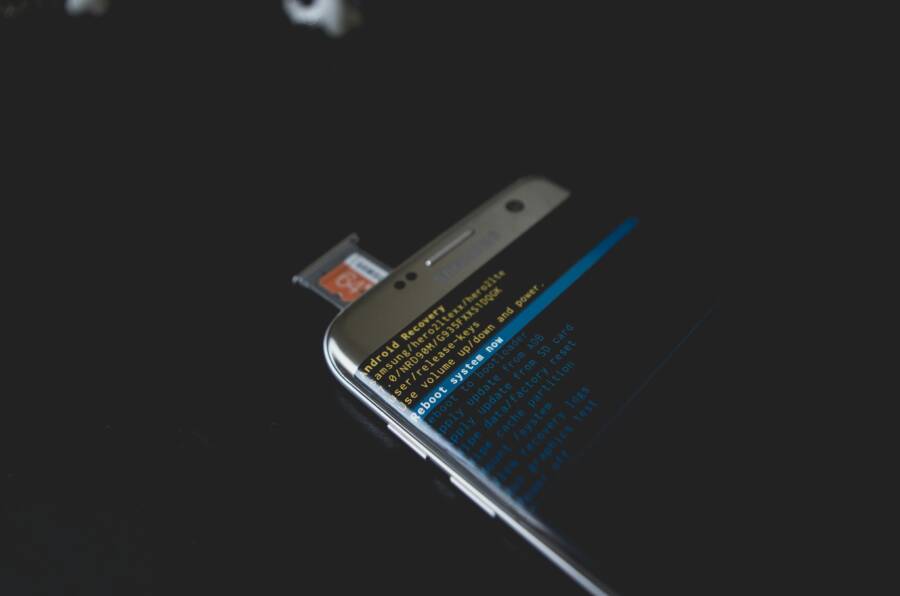
 Photo by Kelvin Valerio
Clear Cache Partition in Recovery
Wiping the cache partition cleans temporary boot files without touching your personal data. It’s like sweeping the dust from the engine bay, not rebuilding the engine. To start, power off the device. Then press and hold the combination to enter Recovery Mode (commonly Volume Up + Power, or Volume Up + Volume Down + Power, depending on the model). Use the volume keys to navigate to “Wipe cache partition” and select it with the Power button. The operation is fast, and you’ll usually see the screen return to the main menu within a minute. After the wipe, choose “Reboot system now” and let the device start fresh.
Keep in mind some models label the option differently or place it under a sub-menu, so if you don’t see it right away, try the general recovery route or consult your brand’s guide. Wiping cache is a safe first step that often clears corrupted boot files without erasing user data. If you want a deeper dive, check brand-specific recovery guides and user discussions for nuances on your device. For context, see discussions on what wiping the cache accomplishes and when it’s appropriate.
- Related reading: a practical overview of recovery mode steps and the role of cache in boot processes. See the Android community guides discussing how to access and use the cache wipe option.
Link: https://forums.androidcentral.com/threads/what-exactly-is-wipe-cache-partition.343560/ - Quick note: if the option isn’t visible, some devices require a different recovery path or a reboot into a related menu. A second attempt after a fresh boot often reveals the correct option.
If you’d like more hands-on context, brand-specific tutorials and forum threads offer real-world walkthroughs for different Android models. A reliable starter is a step-by-step guide that covers how to access Recovery Mode on various devices, including common button combos and timing tips.
Link: https://www.wikihow.com/Enter-Recovery-Mode-on-Android-Smartphones
Factory Reset as Last Step
If the boot loop persists after cache clearing, a factory reset from Recovery Mode becomes necessary. This step erases all user data, so back up first if possible. From Recovery, select “Wipe data/factory reset” and confirm. After the reset completes, choose “Reboot system now.” If you have recent backups, you can restore your apps and files from the cloud or a computer backup.
Think of this as a last-resort clean slate. It fixes deeper firmware or system partition issues that wipe cache cannot touch. If you’re not ready to erase everything, consider Safe Mode or a targeted reinstallation of the system software first. For more guidance, explore factory reset guidance and brand-specific restoration steps. A solid reference discusses how to perform a factory reset from Recovery Mode across Android devices.
Link: https://discuss.grapheneos.org/d/9538-how-to-factory-reset-from-recovery-mode
- Backup reminder: before you start, verify you have essential data saved. If you can access a PC or cloud storage, copy photos, contacts, and documents. This simple step saves headaches later.
- Brand notes: some OEMs provide PC utilities that reinstall firmware with data preservation options. If you want to explore those, Samsung Smart Switch and similar tools can be a safer route for reinstallation with options tailored to specific models. See brand-supported methods and their caveats to understand when a data-preserving reinstall is possible.
Link: https://www.androidauthority.com/samsung-smartthings-galaxy-bootloop-fix-3487828/
Use Brand PC Repair Tools
If you prefer a guided, safer reinstallation path, brand PC repair tools can reflash the firmware without risking your data through arbitrary flashing. Tools like Samsung Smart Switch help reinstall the device’s firmware in a controlled way, which can fix boot loop issues caused by corrupted software. This approach is a safer alternative to a blind factory reset and often preserves user data, though outcomes vary by device and scenario. Always follow official instructions and perform a backup if feasible before starting.
When using PC repair tools, ensure you download the correct firmware for your exact model and region. Mismatched firmware can worsen boot problems. If you’re unsure, consult the manufacturer’s support pages or trusted community guides for model-specific steps. In many cases, these tools provide a safe path to recover a phone without a data wipe.
- Practical option examples include: Samsung Smart Switch for Samsung devices, and similar official utilities from other brands.
Link: https://www.samsung.com/us/support/troubleshoot/TSG10001548/ - If you want broader guidance on brand-specific repair paths, look for up-to-date brand recovery guides and user-tested tutorials. They often include step-by-step images and timing notes that simplify the process.
Link: https://www.imobie.com/android-system-recovery/fix-android-boot-loop-issue.htm - A word on safety: always verify firmware compatibility and origin. Avoid unofficial tools that promise miracle fixes, as they can brick your device or expose data.
Images and practical visuals can help you navigate these steps. If you want to see a real-world sequence, search for a visual guide that walks through Recovery Mode entry and cache wipe on your specific model. A common starter resource explains how to access Recovery Mode across Android devices and check the available options.
Link: https://www.wikihow.com/Enter-Recovery-Mode-on-Android-Smartphones
Note: Data preservation during these steps depends on the device and method. If a method requires a data wipe, back up as soon as you regain access to the device. For additional brand-specific tips and troubleshooting, you can review official support pages and reputable guides that focus on boot loop resolution and safe recovery paths.
- Related resources discuss factory resets, safe mode, and non-destructive recovery options for Android devices.
Link: https://support.totalwireless.com/en/brands/Samsung/TWSAS260DC/faq/1651176/ - If you’re exploring non-destructive methods beyond cache wipes, a 2025 guide outlines steps to fix boot loops with minimal data loss and clear instructions.
Link: https://www.imobie.com/android-system-recovery/fix-android-boot-loop-issue.htm
Quick validation after each step
- Reboot the device and watch for a normal startup.
- If the logo returns, note any new behavior, such as longer boot times or different error messages.
- If you reach the home screen, back up immediately to avoid future data loss.
In many cases, combining these steps resolves the issue without a full factory reset. If you still face a stubborn boot loop, it may be time to consult a professional or pursue a deeper firmware repair option. For more context, brand-specific support pages and community forums can provide model-tailored advice and real-world outcomes.
- Community example: Galaxy devices facing boot loop after updates sometimes benefit from a targeted reflash or Safe Mode checks. See Samsung support and user discussions for practical paths.
Link: https://www.samsung.com/us/support/troubleshoot/TSG10001548/ - For broader Android boot loop strategies, a recent guide covers multiple routes from non-destructive wipes to complete firmware reinstalls.
Link: https://xdaforums.com/t/help-needed-smart-switch-kies-cant-fix-boot-loop.3220898/
Stock image credits
Photo by Kelvin Valerio on Pexels.
Prevent Future Logo Stucks and Know When to Get Help
You don’t have to live with boot loops forever. A mix of smart habits, routine checks, and knowing when to escalate can prevent future logo stalls and save you time. This section lays out practical, non‑alarmist steps you can take to reduce the chances of a repeat problem and clear signs that it’s time to involve a pro.
Build a simple prevention habit
A little regular maintenance goes a long way. Think of your device like a car: small, consistent care keeps it running smoothly. Start with these easy practices:
- Keep software up to date. Small patches often fix boot issues caused by bugs.
- Manage storage proactively. Aim to leave 10–15% free space so the system can write and manage caches without strain.
- Install trusted apps only. Stick to well‑reviewed apps from official stores and avoid sideloading risky software.
- Back up regularly. A simple routine makes factory resets less painful if problems pop up.
A steady routine reduces the odds you’ll face a boot loop after a routine update or a new app. If you want a quick reference, use a small checklist you can review each month before your device starts behaving oddly.
Safeguard against software conflicts
Software conflicts are the common culprit behind logo stalls. The goal is to keep startup processes lean and predictable.
- Review recent changes before trouble starts. If a problem begins after a specific app or update, that item should be the first you suspect.
- Use safe modes for diagnosis. Safe mode runs only essential software, helping you confirm whether third-party apps are the issue.
- Test with a clean slate when possible. A cache wipe or a clean reinstall of the system software can restore normal startup without data loss in many cases.
- Favor official channels for fixes. Use manufacturer tools or official recovery options rather than third‑party fixes that may worsen the problem.
If you’d like extra context, check out in‑depth guides that explain how boot processes can be derailed by corrupted cache or failed updates. These resources offer brand‑specific nuances that help you choose the right path without unnecessary risk. For Android recovery basics, sample guides can illuminate how safe mode and cache handling interact with boot behavior. For iPhone users, official Apple support articles provide clear steps on recovery and restore paths.
Prioritize dependable backups
Backing up is less about avoiding a problem and more about reducing the pain when one happens. A robust backup habit ensures you don’t fear data loss if a factory reset or firmware reinstall becomes necessary.
- Use multiple backup locations. Cloud storage plus a local computer backup gives you options.
- Schedule automatic backups for photos and documents. Critical data is often the most painful to replace after a reset.
- Verify backups periodically. A quick restore test confirms your data is accessible if you need it.
When you have solid backups, you’re more confident trying non-destructive fixes. You can experiment with cache wipes or safe mode without sweating over lost memories or important files.
Recognize the signs you need professional help
Most boot problems can be resolved at home, but some scenarios benefit from expert eyes. Seek professional help when you notice any of these:
- Hardware symptoms beyond software hints. Rapid overheating, swollen battery, or visible damage after a drop warrant a professional check.
- Recurrent boot loops after multiple repair attempts. If Safe Mode, cache wipes, and soft resets keep failing, a deeper issue is likely present.
- DFU or hardware‑level restore becomes necessary. If recovery mode and standard reinstalls don’t fix the problem, a specialized firmware repair may be required.
- Data remains inaccessible after attempts. If your backups aren’t usable or you can’t access critical data, pro help can guide you safely.
Professional support can include brand‑specific diagnostics, firmware reflashing with preserved data when possible, or more involved hardware service. When in doubt, contact the device manufacturer or visit an authorized service center for an assessment.
A practical, step‑by‑step quick-check routine
To keep things moving, use this lightweight routine before you commit to more invasive steps. It’s designed to be finished in a short break and helps you decide your next move.
- Confirm the problem scope. Is the phone stuck at the logo on startup every time, or only after a specific event like an update?
- Free up space and reboot. Ensure you have a bit of free storage, then perform a force restart if needed.
- Enter Safe Mode. If the device boots in Safe Mode, remove recently installed or updated apps.
- Clear non‑essential caches. Wipe the cache partition if the option is available on your device.
- Back up and evaluate. If data feels at risk, back up first and consider a non-destructive approach before a reset.
- Decide on the next step. If nothing else works, compare a data‑preserving reinstall with a full factory reset.
This routine helps you stay in control and avoid rushing into drastic measures.
How to work with brand tools and official guides
Many manufacturers offer safe, structured ways to repair boot problems without unnecessary data loss. For example, brand PC recovery tools can reflash firmware in a controlled way, often preserving data. Always use official tools and firmware that match your exact model and region. This reduces the risk of bricking the device and speeds up the path back to a normal startup.
- Brand utilities like Samsung Smart Switch are designed to reestablish device health with minimal data loss.
- If you’re unsure, consult official support pages or trusted guides that focus on model‑specific steps. They often include step‑by‑step images and timing tips that simplify the process.
When you rely on trusted tools and sources, you can fix boot loops quickly while keeping your data safe. If you want real‑world context, many brand guides and user discussions offer practical insights that reflect how these tools perform on different devices.
Quick reference resources to keep on hand
- For iPhone recovery paths and firm guidance, Apple’s official support articles provide clear steps for recovery mode and standard restores. They outline when to update versus restore and what to expect during a DFU restore as a last resort. Use these as a safety net when a simple restart isn’t enough.
- For Android devices, community guides and official manufacturer pages explain how to access recovery menus, wipe caches, and perform safe mode testing. These sources often include timing notes and device‑specific key combinations that save time during troubleshooting.
- Practical walkthroughs and forum discussions can give you real‑world context on boot loops, safe mode testing, and data preservation strategies.
If you want to explore more context on these topics, reliable sources cover boot loop resolution and safe recovery paths. They offer practical steps that fit real‑world use and help you decide when to push for professional help.
External references and practical guides can be valuable anchors as you navigate a stuck logo. They provide concrete steps, real‑world examples, and brand‑specific recommendations to keep you moving without unnecessary risk.
- Useful context on Android boot loops and safe mode: a practical overview of recovery mode steps and the role of cache in boot processes.
Link: https://forums.androidcentral.com/threads/what-exactly-is-wipe-cache-partition.343560/ - How to enter Recovery Mode on Android devices: step-by-step guidance for common button combos.
Link: https://www.wikihow.com/Enter-Recovery-Mode-on-Android-Smartphones - Samsung brand tools and recovery guidance: official support for reinstallation paths.
Link: https://www.samsung.com/us/support/troubleshoot/TSG10001548/
By adopting these preventive practices and knowing when to escalate, you can reduce the frequency of boot problems and keep your smartphone experience smooth. If you want a quick, real‑world checklist you can print or pin near your workstation, I can tailor one to your device model and usage pattern.
Conclusion
Recovering a phone that sticks on the logo is usually a software issue, not a fate set in stone. Start with the light fixes: a force restart, then ensure the battery is healthy by charging for at least 30 minutes. A quick power cycle can clear transient glitches that block boot.
If those steps don’t help, move to safer options that preserve data. Boot into Recovery or Safe Mode to clear caches, remove recent apps, or perform a data friendly reset. Backup now if possible, because some fixes require a data erase.
When the basics fail, you can use brand supported tools to reinstall firmware without a full wipe. These official options minimize data loss and often restore normal startup. If your device still won’t boot, a DFU or recovery restore on iPhone or a factory reset on Android becomes the last resort. Back up first, then proceed.
A clear backup habit saves stress when deep repairs become necessary. Use cloud and local copies, verify you can restore, and treat backups as your safety net before any non destructive move. If repair work hits a wall, professional help is a smart option.
Share your fix story below to help others facing the same smartphone headache. With the right steps and backup discipline, a stubborn boot loop can become a quick memory, and you’ll be back to normal faster than you expect.