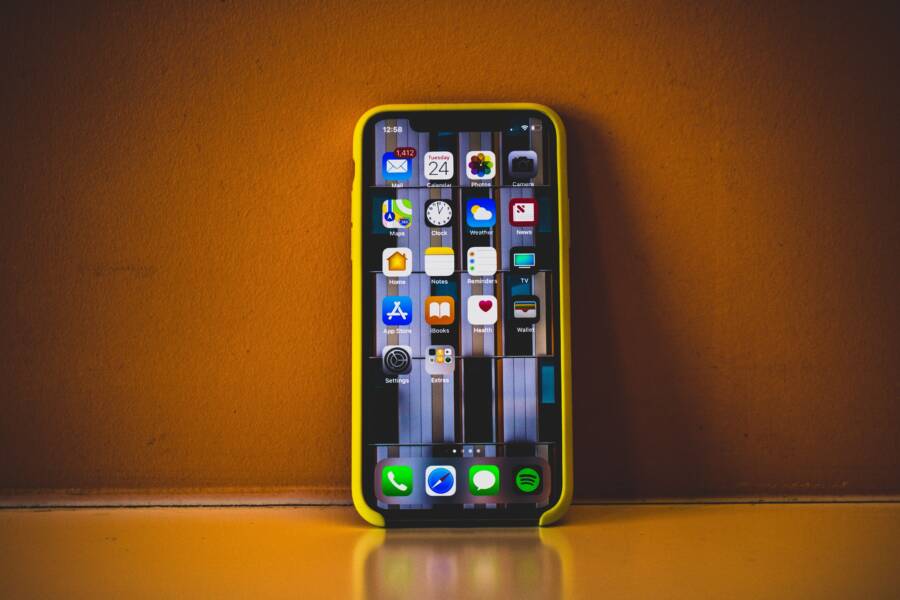
A unresponsive screen after a repair is stressful, but it rarely means your device is broken. Most issues occur because of a loose internal cable or a software calibration error rather than a faulty replacement part.
You likely don’t need a new phone or a professional technician to fix this. Often, a simple reset or checking the internal connections resolves the problem.
Follow these steps to safely troubleshoot your smartphone and restore your touch functionality.
First Steps to Troubleshoot Your Smartphone Screen
Before you assume the new part is defective, you must rule out basic software and physical issues. Often, a simple error in the startup process or a small piece of debris causes the screen to ignore your touch. Performing a systematic check saves you time and prevents unnecessary re-disassembly of your smartphone.
Why a Force Restart Is Your Best Friend
A force restart works by cutting power to the processor and clearing the temporary memory. When you install a new screen, the system might fail to communicate with the digitizer correctly during the initial boot. A hard reset forces the operating system to re-initialize all hardware signals, which often fixes unresponsive areas immediately.
For iPhone models with Face ID or the iPhone 8 and later, press and quickly release the volume up button. Press and quickly release the volume down button. Then, hold the side button until the Apple logo appears on the screen.
Android devices vary by manufacturer, but a hard reset usually involves holding specific keys. Press and hold the power button and the volume down button simultaneously for about 10 to 15 seconds. The device will shut down and restart, potentially resolving software conflicts that mimic hardware failures.
Checking for Physical Interference and Cleanliness
Sometimes the issue is far simpler than a faulty ribbon cable. Even a microscopic layer of adhesive residue, dust, or a misaligned screen protector can interfere with the digitizer layer. Your touch input relies on precise electrical contact, and foreign objects easily disrupt this process.
Remove your screen protector if you applied one after the repair. These layers sometimes contain static or air pockets that block touch signals from reaching the display. If the screen is still unresponsive, inspect the edges of the frame for any excess adhesive. You can use a small amount of isopropyl alcohol on a microfiber cloth to gently clean the perimeter, but avoid letting liquid seep into the device.
If you suspect internal pressure, look for small bulges under the screen. A slightly misaligned bracket or a trapped piece of debris can push against the display from the inside. This pressure creates dead zones where the glass cannot register your touch. If you notice uneven gaps around the edges of your smartphone, you should loosen the display and ensure it sits flush in the frame before tightening the screws again.
How to Safely Check Internal Connections
If a force restart does not fix your unresponsive touchscreen, a loose internal cable is the most likely culprit. Smartphone screens connect to the logic board via delicate ribbon cables that rely on a perfect mechanical fit. Even a slight gap in the connection prevents the touch controller from receiving signals from the digitizer. Opening your device to check these ribbons is a standard part of the repair process, but you must be careful to avoid damaging the small connectors.
Ensuring Flex Cables Are Properly Seated
The touch digitizer cable is usually the smallest ribbon cable attached to your screen assembly. Because it is small, it often lacks the structural stability of the larger display or camera cables. If the cable is not seated squarely in its socket, the pins cannot make complete contact. This misalignment frequently causes intermittent touch issues where some areas of the screen work while others remain completely dead.
Follow these steps to check the cable seating on your smartphone:
- Power off the device completely and remove the screen assembly.
- Locate the digitizer ribbon cable, which typically sits near the top or side of the logic board.
- Use a plastic spudger to gently lift the connector end of the cable from its socket.
- Inspect the socket for any bent pins, dust, or debris that might block the signal.
- Align the connector directly over the port and press down firmly but gently until you feel a soft click.
- Reattach any protective metal plates or brackets that hold the cables in place, as these prevent the connectors from popping loose during daily use.
When the cable sits at a slight angle, the pins may only connect intermittently. You might notice the screen works after you press on a specific corner of the phone, only to stop working once you put the device in your pocket. Proper seating keeps the electrical connection stable and prevents these fluctuations in performance.
Avoiding Static Damage During Inspection
Static electricity is a hidden danger that can permanently fry the sensitive components inside your smartphone. Even a tiny spark you cannot feel or see is strong enough to destroy the logic board or the new screen display. You should eliminate the risk of static discharge before you touch any metal pins or internal connectors.
The best way to stay safe is to use an anti-static wrist strap, which draws excess charge away from your body. Clip the metal end of the strap to an unpainted metal surface, such as the casing of a desktop computer or a dedicated grounding mat. If you do not have a strap, you can manually discharge yourself by touching a large, grounded metal object like a radiator or a door frame.
Work on a non-conductive surface, such as a wooden or plastic table, rather than a carpeted floor. Avoid wearing synthetic clothing like polyester, as these materials generate high amounts of static as you move. By maintaining a neutral electrical state, you protect the delicate circuits of your smartphone from accidental failure during your repair.
Software Solutions and Calibration Issues
Some screen replacements require a software handshake before the display functions correctly. Modern hardware often contains a unique serial number that the logic board must recognize. If the system fails to verify this component, it may block touch input as a security precaution. This issue frequently affects high-end smartphone models that track display authenticity.
Addressing Firmware Calibration Errors
When you install a new assembly, the internal controller might run on outdated firmware. Your device expects specific communication protocols from the original screen. If the replacement part uses a different version, the touch sensor will likely fail to register your input. You can resolve this conflict through a few targeted steps.
- Check your settings for any pending system updates. Sometimes, the operating system includes a patch that bridges the gap between hardware versions.
- Restart the phone after installing an update. This forces the system to scan for new hardware signatures again.
- If the phone supports an official diagnostic tool, run the utility to re-sync the display with the board.
Manufacturers often release these updates to support third-party repairs. Keeping your software current prevents the system from locking out components that it does not recognize immediately.
Understanding the Importance of Component Pairing
Many smartphones now use encrypted data links between the display and the logic board. This process, often called component pairing, prevents unauthorized parts from accessing private data. If you replace the screen yourself, the system might disable touch features because it detects a mismatch in the security chip.
This behavior is not a defect in your new part. It is a protective measure designed to deter theft and hardware tampering. You can identify this issue if the screen shows a warning message about an unknown part during the boot sequence. If this notification appears, the touchscreen will often remain frozen until you restore the link.
In these scenarios, you may need a specialized calibration machine to transfer the original serial number to the new screen. Many repair shops provide this service for a fee. If you prefer to handle the repair independently, search for third-party programmers compatible with your specific smartphone model. These tools allow you to copy the data from your old digitizer and write it to the replacement, which typically restores touch functionality instantly.
When to Seek Professional Help
You should contact a repair technician if standard troubleshooting steps fail to restore touch input on your smartphone. While home repairs save money, some hardware issues require specialized tools or replacement parts that are not available to the public. Attempting to force a fix on internal hardware can lead to permanent damage if you lack the right equipment.
Recognizing When Internal Components Fail
A replacement screen can arrive with manufacturing defects that are invisible to the naked eye. If you have reseated all cables and performed a factory reset without success, the digitizer layer of the new display might be faulty. Technicians can test your smartphone with a known working screen to confirm whether the issue stems from your new part or the phone itself.
Physical damage to the logic board is another possibility. You might have accidentally bumped a surface-mount component while opening the device. These tiny parts are nearly impossible to repair without a microscope and professional soldering gear. A technician can inspect the board for cracks or broken connectors to pinpoint the source of the failure.
Dealing with Complex Security Restrictions
Some modern smartphone models block third-party repairs through software locks. If your phone displays persistent warnings about unverified parts after your screen swap, the system may have disabled touch input for security. You might need an authorized repair provider to run an official calibration tool that links your new screen to the device firmware.
Trying to bypass these software locks requires advanced programming software that many hobbyists do not possess. If you reach a point where the phone recognizes the new hardware but refuses to accept input, professional software authentication is likely the only solution.
Knowing Your Limits to Prevent Further Damage
Repairing a smartphone involves working with glass, thin adhesives, and extremely fragile ribbons. If you feel uncomfortable during the process, stop immediately. It is better to pay for a professional repair than to pay for a completely new device because a slip of the hand ruined the logic board or camera sensors.
Consider taking your smartphone to a shop if you encounter these signs:
- The screen shows physical cracks or lines despite your careful handling.
- You smell something burning or notice the device getting hot near the battery.
- The display remains black even though the phone vibrates or makes sounds when you receive a call.
- You are unable to remove stripped screws or pry open the frame without using excessive force.
Asking for help is a sign of a smart repair strategy. A professional technician brings years of experience and specialized diagnostic equipment to the table. They can identify complex faults quickly, often saving your device from mistakes that occur during DIY attempts. Always choose an authorized repair provider if your phone is still under warranty, as unofficial repairs may void your remaining coverage.
Conclusion
Most touchscreen issues after a repair stem from simple oversights rather than broken hardware. A force restart often fixes minor software conflicts, while reseating internal ribbon cables resolves the majority of mechanical connection faults. If these steps don’t work, your smartphone might require a professional firmware calibration or an authentic part replacement to regain full functionality.
Take your time when working inside the device. If you feel uncertain or if the display shows signs of permanent damage, professional assistance is a safe and reliable path forward. You have already completed the most difficult part of the repair process, so stay patient as you troubleshoot the final details.