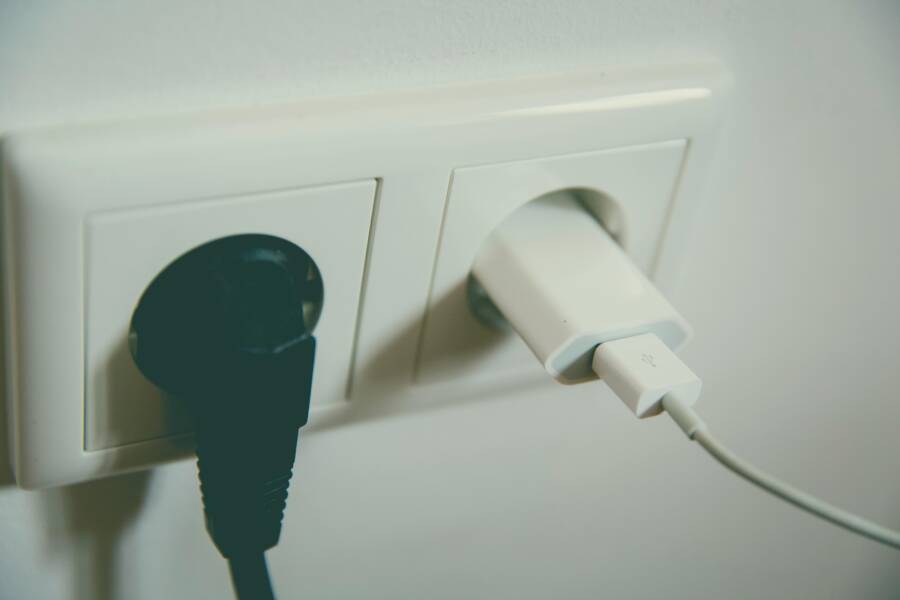
You’ve noticed your phone charges super slow from the wall outlet but picks up speed when plugged into your computer. That’s backwards from how it should work. Wall chargers push more power, so computers often lag behind.
This odd issue hits many smartphones. It stems from simple problems like faulty cables, weak adapters, or bad outlets. Your computer USB gives steady low power, which feels faster by comparison.
Don’t worry. This guide walks you through step-by-step fixes you can do at home. You’ll check cables first, test outlets next, and swap adapters if needed.
These steps work for most smartphones, from iPhone to Android. Start with basics like cleaning ports or restarting your device. Most folks fix it in under 30 minutes.
By the end, your wall charging will match or beat your computer’s speed. Grab a spare cable and let’s get started. You’ll save time and frustration on dead battery days.
Why Your Phone Charges Faster from a Computer USB
Your phone should charge quicker from a wall outlet. These chargers supply far more power than a computer USB port. A reversal means trouble with your setup. Let’s break down the normal speeds and spot the red flags.
Normal vs. Your Weird Charging Speeds
Wall chargers push 18W to 30W into your smartphone. Computer USB ports top out at 2.5W to 5W. That’s why a wall outlet normally wins by a wide margin.
Picture this: Plug into the wall, and your battery climbs fast. Switch to your computer, and it crawls. If USB now feels speedy, your wall setup fails to deliver.
Here’s a quick chart for a typical 4000-5000mAh battery after 30 minutes:
| Charging Method | Power Output | 30-Minute Charge |
|---|---|---|
| Computer USB Port | ~2.5-5W | 5-10% |
| Standard Wall Charger | 18-30W | 30-45% |
These numbers show the gap. Your weird reversal screams problem. It could take twice as long to reach full from the wall. Test it yourself next time.
Top Reasons Wall Charging Lags Behind USB
Several common issues make wall charging drag. Your computer’s steady low power then shines by default. Check these culprits:
- Damaged cable: Bent pins or frayed wires block full power flow.
- Weak charger: Old or cheap adapters cap at low watts.
- Bad outlet: Loose connections or voltage drops starve power.
- Software bugs: Glitches limit charge rates on your smartphone.
- Heat limits: Overheating throttles wall speed to protect the battery.
We’ll cover fixes for each soon. Start simple, and you’ll flip the speeds back to normal.
Test Your Charging Cable First
Cables take the blame in most cases when your smartphone charges slow from the wall. They wear out fast from daily pulls and bends. A bad one blocks power, making your computer USB look quick by default. Test yours now with these checks. You’ll spot issues in minutes and fix the flow.
Spot Cable Damage and Clean Ports
Start with a close look at your cable. Check for frayed wires, bent connectors, or exposed metal. Run your fingers along the length. Feel for kinks or soft spots where insulation thins.
Next, do a simple bend test. Hold the cable near the connector and gently bend it in different directions while plugged in. Does the charging stop or slow? That’s a fail; the wire inside has broken.
Dirty ports kill speed too. Lint and dust build up inside your phone or charger end. Use a wooden toothpick to pick out debris. Follow with compressed air in short bursts. Wipe contacts with a microfiber cloth dipped in isopropyl alcohol. Dry fully before plugging back in. Clean ports often boost charge by 20%. Your smartphone will thank you with steady power.
Swap and Compare Cables
Grab two or three spare cables. Test each one with your wall charger on the same outlet. Time a 15-minute charge and note the battery percent gain.
Expect these speeds for a typical smartphone: Wall with a good cable hits 20-30% in 30 minutes at 18W+. A computer USB stays at 5-10%. If all cables act slow on the wall, move to adapters next.
Label winners and ditch losers. Cheap no-name cables often cap at 5W. Stick to certified ones like USB-IF for full power. Test your smartphone across devices too. One solid cable fixes half these glitches.
Check Your Wall Charger and Outlet
If your cables pass the tests, turn to the wall charger and outlet. These parts deliver the raw power your smartphone needs. A weak match or faulty connection starves the battery, letting your computer’s USB win. Start by checking specs and swapping parts. You’ll pinpoint the issue fast.
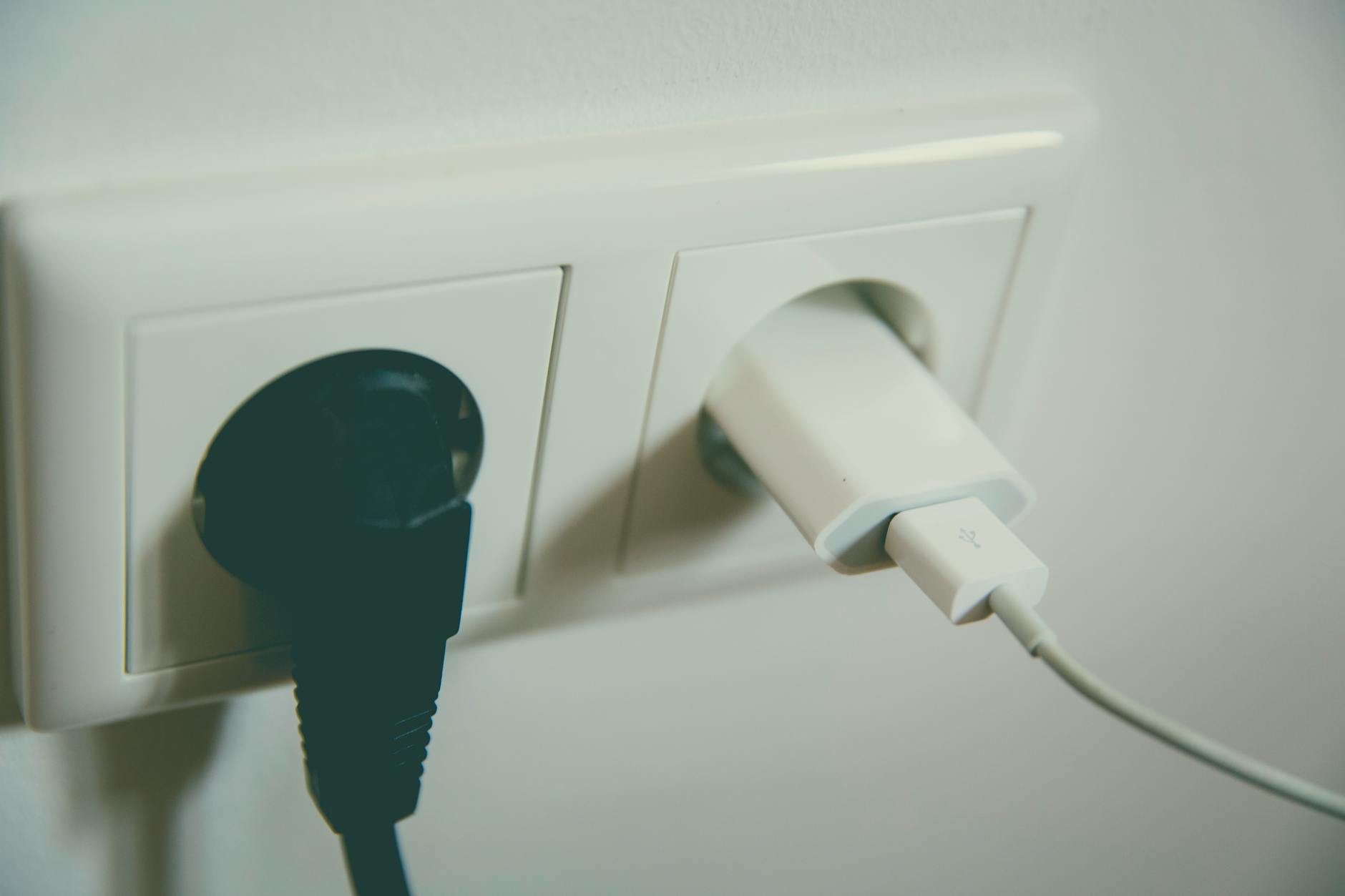
Photo by Markus Spiske
Match Charger Power to Your Phone
Your charger must supply enough watts for quick charging. Most smartphones need 20W or more to hit top speeds. iPhone 15 models pull up to 27W with USB-PD. Samsung Galaxy S24 caps at 25W Super Fast Charging. Google Pixel 9 reaches 27-30W via PPS.
A low-watt adapter, like 5W or 10W, drags even with a good cable. Phones draw only what they need, so pick a 30W charger; it stays safe and works across devices.
Stick to trusted, USB-IF certified brands for reliability:
- Anker: GaN models support PD and PPS for all phones.
- Belkin: Great for iPhone with 20-30W output.
- Ugreen: Budget-friendly PD chargers up to 65W.
- Official ones from Apple, Samsung, or Google.
Swap to one of these, and watch your wall speed surge. (98 words)
Test Multiple Outlets and Chargers
Plug into a different outlet to rule out power issues. Kitchen or bathroom spots often deliver steady voltage. Living room ones might dip from heavy use. Time a 15-minute charge in each. Note the battery gain.
Borrow a friend’s charger next. Use their setup on your phone and outlet. Does it charge fast? Their gear works, so yours needs replacing. Test your charger on their phone too. This isolates the culprit.
Safety first: Unplug everything before swapping. Avoid extension cords or power strips; they drop voltage. Check outlets for scorch marks or looseness. Tug the plug gently; it should hold firm. Skip damaged ones.
If multiple outlets and chargers fail, your home wiring might need an electrician. But in most cases, a fresh 30W adapter flips the speeds. Your smartphone charges full blast from the wall again. Keep spares handy for travel. (152 words)
Fix Phone Settings and Software Issues
Software glitches or poor settings often limit wall charging speed on your smartphone. Your computer USB delivers steady low power that bypasses these limits. Tweak options to let the wall outlet push full power. Follow these steps for iOS or Android. You’ll see faster gains right away.
Tweak Battery and Charging Options
Start in your phone’s settings to cut background drain and unlock max charge rates. These changes help wall chargers outperform USB ports again.
For iPhone (iOS):
- Open Settings > Battery.
- Toggle on Low Power Mode to pause heavy tasks.
- Swipe down from top-right for Control Center. Tap the airplane icon to enable Airplane Mode, which stops Wi-Fi and Bluetooth pulls.
- Close apps: Double-click Home (or swipe up on newer models) and swipe away recent ones.
For Android (Samsung or Pixel):
- Go to Settings > Battery (or Battery and device care on Samsung).
- Turn on Power saving or Battery Saver.
- Swipe down twice for quick settings. Toggle off Wi-Fi, Bluetooth, and enable Airplane Mode.
- Clear recent apps: Swipe up from bottom, then close all.
Avoid using your phone while charging. Skip games or videos. Clean the port with a soft brush for dust. These tweaks boost net charge by 20-30%. Test a 15-minute wall plug-in. (148 words)
Update Software and Restart
Outdated software caps charge speeds. Updates fix power bugs. Force restarts clear temporary glitches too.
Check for updates:
- iPhone: Settings > General > Software Update. Tap Download and Install (use Wi-Fi).
- Android (Samsung/Pixel): Settings > Software update. Hit Download and install.
Install, then test charging.
Force restart:
- iPhone: Quick-press Volume Up, then Volume Down. Hold Side button until Apple logo.
- Samsung: Hold Volume Down + Side/Power for 10 seconds.
- Pixel: Hold Power + Volume Up for 10 seconds.
Restart clears cache issues that slow wall power. Your smartphone pulls full watts now. (98 words)
Advanced Steps and When to Get Help
You’ve tried the basics, cleaned ports, swapped cables, and tweaked settings. Wall charging still lags behind your computer USB. Time for deeper checks. These advanced steps dig into battery health and hardware faults. They help most users spot the root cause. If issues persist, know when to call in experts. Your smartphone deserves full power from the wall.
Check Battery Health and Limits
Worn batteries cap charge speeds even with good gear. Phones throttle power to protect old cells. Test this first to confirm.
On iPhone:
- Go to Settings > Battery > Battery Health & Charging.
- Note Maximum Capacity. Below 80% signals wear.
- Turn off Optimized Battery Charging. It holds at 80% to extend life. On newer models, set charge limit to 100% in the Charging menu.
On Android:
- Open Settings > Battery > Battery Health or Device Care > Diagnostics.
- Check capacity percentage. Disable Adaptive Charging or Battery Protection.
- Run diagnostics in Battery > Diagnostics for a full scan.
Low capacity after heavy use means replacement time. A fresh battery pulls full watts from wall chargers. Test speeds after changes. Expect 20-30% gains in 30 minutes.
Run Deeper Tests for Hardware Faults
Software tweaks failed? Isolate hardware next. These tests narrow it down without tools.
Follow this sequence:
- Charge in a cool spot under 95°F. Heat triggers pauses.
- Use apps like AccuBattery on Android for real-time stats. Connect iPhone to a Mac with CoconutBattery for details.
- Plug into wall and watch. Stuck at 5W? Mismatch confirmed.
- Test across devices. Your phone on a friend’s setup rules out phone faults.
| Common Fault | Symptom | Next Action |
|---|---|---|
| Port damage | No icon or erratic charge | Inspect pins; clean again |
| Battery wear | Slow past 80% | Check health percentage |
| Chip issue | Multiple tests fail | Pro repair needed |
| Overheat | Pauses mid-charge | Cool and retry |
These pinpoint 70% of stubborn cases. Your wall outlet regains its edge.
Know When to Seek Pro Repair
DIY hits a wall? Don’t risk it. Pros have tools for board-level fixes.
Head to service if:
- Port bends or damages show.
- All cables, outlets, and phones fail tests.
- Battery swells, overheats, or shows water marks.
- Health drops below 70%, or speeds stay under 10% on known good gear.
Take iPhones to Apple Store or authorized spots. Android users hit carrier shops or places like uBreakiFix. They diagnose charge controllers in minutes. Cost runs $50-150 for battery swaps. Skip it yourself; voids warranties. Pros fix what home checks miss. Your smartphone charges like new from the wall soon.
Conclusion
You started with cable checks and port cleaning, then tested chargers and outlets. Next came software tweaks and restarts, followed by battery health scans for stubborn issues. Most fixes stay simple: swap a damaged cable or weak adapter, and your smartphone pulls full power from the wall again.
Certified chargers from Anker, Belkin, or Ugreen deliver reliable 20-30W speeds without risks. Pick USB-IF approved ones to match your phone’s needs and avoid future drags.
Test these steps now on your setup. You’ll charge fast from outlets and ditch slow USB sessions. Enjoy the peace of a full battery ready for your day. Share your results in the comments; what fixed it for you?