
If you rely on maps, ride shares, or simply want to tag your photos accurately, a phone with location services stuck off can feel like a roadblock. This guide walks you through practical steps to get location back on track, no fluff, just the actions you can take. We cover both iPhone and Android devices, plus quick checks that work no matter which brand you own.
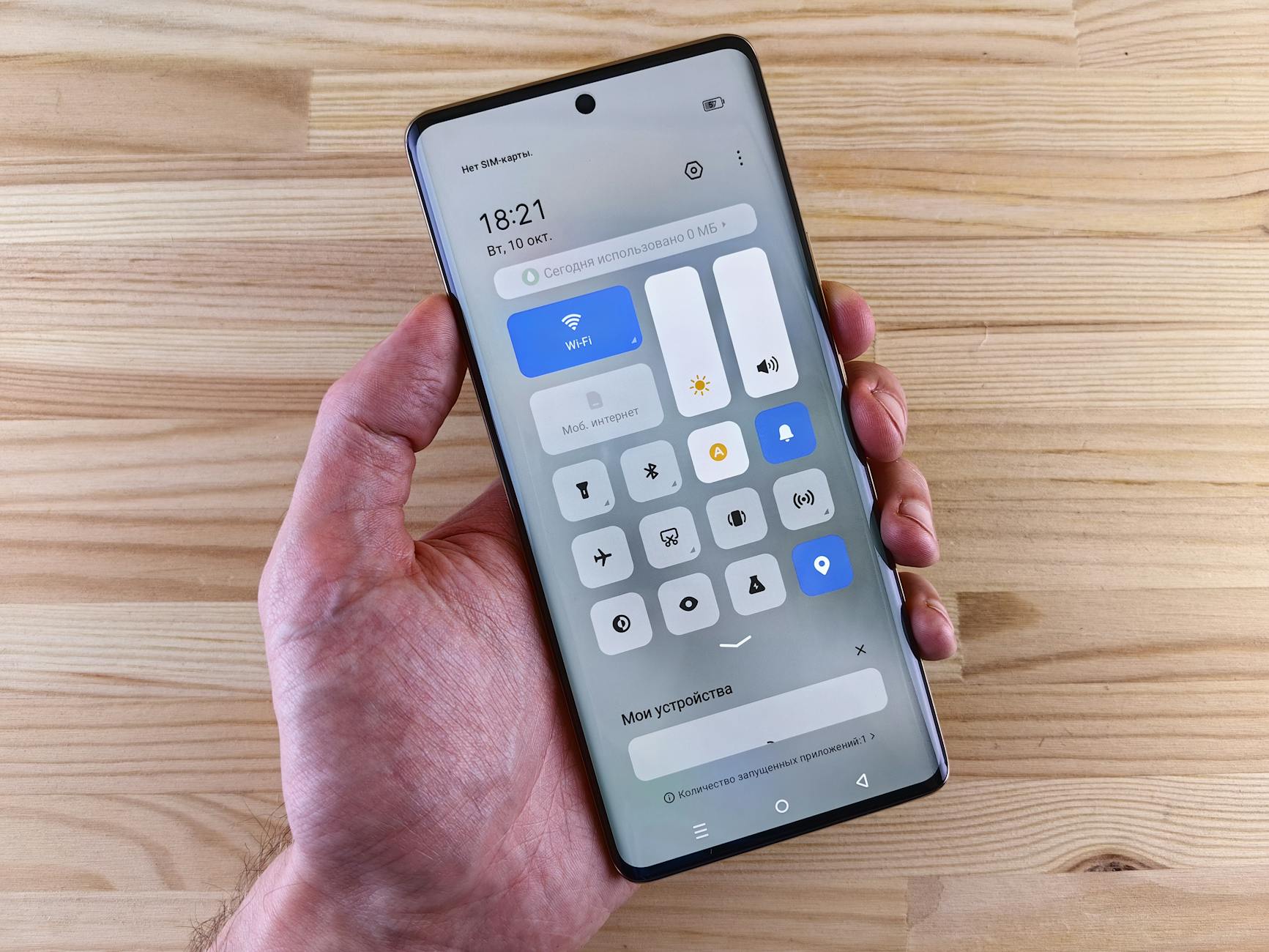 Photo by Andrey Matveev
Location services power many everyday features. When they go offline, you might notice slower or inaccurate maps, apps that ask for location repeatedly, or a camera that can’t add location data to your photos. The fix isn’t about guessing what might be wrong; it’s about verifying settings, permissions, and the health of your software. Below is a structured approach you can follow step by step.
Why location services can get stuck
Several common scenarios can cause location services to stop behaving as they should. A quick overview helps you decide where to start.
- Software glitches: Small bugs after updates can flip toggles to off or misreport status.
- Power saving modes: Some phones limit location accuracy to save battery.
- App permission drift: An app may lose location access after an update or restart.
- System permissions: A global setting might be disabled at the OS level.
- Network issues: Poor data connection can make the feature seem inactive, even if it’s on.
- Cached data problems: Old data can confuse location services, especially after switching networks or locations.
If you want your device to be reliable again, begin with the simplest checks and move toward more involved steps.
Quick fixes you can try right now
These fixes are fast and reversible. They don’t require special tools and work on most recent devices.
- Check the global location toggle
- On most devices, location services have a master switch. Make sure this is enabled. If it’s off, nothing else will work.
- If you see a gray toggle, tap it to turn location on. Then test a map app to see if it locates you.
- Confirm a usable app permission status
- Some apps request location access and then drift from the setting. Open the app and check its location permission to ensure it’s allowed while the app is in use or always, depending on your needs.
- Inspect battery saver or performance modes
- Battery saver modes can curb location accuracy. Turn off power saving temporarily and recheck location. If the feature returns, you may need to adjust the mode’s settings rather than leave it off entirely.
- Restart the device
- A simple reboot can fix many glitches. Power down, wait a few seconds, then power back up. Test location again with a familiar app.
- Update apps and operating system
- Outdated software can cause mismatches between the OS and apps. Install any pending updates and see if location behavior improves.
- Reset network settings (as a last resort)
- If the phone has trouble locating you across networks, resetting network settings can help. This won’t erase personal data, but you will re-enter Wi Fi passwords and VPNs.
If these quick checks don’t fix the issue, it’s time to dive into device specific steps. The path differs between iPhone and Android, so follow the section that matches your phone.
iPhone specific troubleshooting
iPhone users often benefit from a focused sequence that checks system controls and per app permissions.
- Verify Location Services are enabled
- Open Settings, tap Privacy & Security, then Location Services. Ensure the toggle is on. If it’s off, turn it on and try a maps app.
- Check the per app permissions
- In Location Services, scroll to the list of apps. For apps you expect to use location, verify the permission is set to While Using the App or Always. If an important app is set to Never, update it accordingly.
- Review system level location permissions
- Some iPhone models include a system setting that restricts location usage by apps. Confirm it isn’t disabled by a profile or a kid mode restriction that might be in place.
- Reset Location & Privacy
- If other steps fail, this resets location settings to factory defaults. Go to Settings > General > Transfer or Reset iPhone > Reset > Reset Location & Privacy. After the reset, you’ll be prompted to re grant permissions when apps request them.
- Update iOS
- If your device is behind on software, install the latest iOS update. Apple releases fixes that address location quirks and permission handling.
- Test with a known good app
- Use a navigation app or a photo app that geotags images. If it locates you reliably, the issue may be app specific rather than a system problem.
Android troubleshooting that actually helps
Android devices vary, but most share a core set of controls. Here’s how to approach the problem on most modern Android phones.
- Confirm Location is on and set to a reasonable mode
- Swipe down to view quick settings and ensure Location is enabled. Then go to Settings > Location. Make sure the mode is not set to Battery Saving or Off. The preferred option for accuracy is High accuracy on many devices, using GPS, Wi Fi, mobile networks, and sensors.
- Check app permissions
- Open Settings > Apps & notifications > See all apps. Choose a critical app like a maps app or ride share and check Permissions. Location should be allowed. If you see Denied, switch it to Allow.
- Examine app specific behavior
- Some apps request location only while in use. If you rely on background updates, make sure the app is allowed to run in the background. This setting is often under Battery or Apps sections.
- Review battery optimization
- Battery optimization can block background location. Go to Settings > Battery > Battery optimization and set location heavy hitters to Not optimized for those apps, or turn off optimization completely for them.
- Check privacy settings and device OEM tweaks
- Some phones, especially from brands with heavy customization, insert extra privacy shields. Look for a Privacy Control center and ensure Location is allowed for the apps you use most.
- Reset network settings if needed
- If location fails after a network change, reset network settings via Settings > System > Reset options > Reset Wi Fi, mobile and Bluetooth. Reconnect to networks and test location again.
- Update the device and apps
- Like iPhone users, Android needs current software. Install pending OS updates and app updates. A fresh version often resolves location glitches.
If you continue to experience issues after these steps, there could be a hardware problem or a deep software fault. In that case, contacting the manufacturer’s support or a professional service makes sense.
Deeper fixes that address stubborn glitches
Some problems require a more deliberate approach, often after trying the basics.
- Clear app cache and data for problematic apps
- For Android, you can clear cache or data for a misbehaving map or camera app. This removes old files that might be confusing the location logic. For iPhone, you can offload apps to remove cache without deleting the app data, or delete and reinstall the app.
- Reinstall trouble apps
- If a single app misbehaves, uninstall and reinstall it. This ensures you start fresh with the latest permission prompts.
- Check for profile installs or device management
- Some corporate devices have profiles that override location settings. If your phone is managed by work or a school, verify there are no policies restricting location usage.
- Run a diagnostic test if available
- Some phones include built in diagnostics for sensors. Running a quick sensor check can reveal issues with GPS hardware.
- Factory reset as a last resort
- When all else fails and you’ve backed up data, a factory reset can clear stubborn software conflicts. After reset, set up the device as new or restore from a clean backup to avoid repeating the issue.
When to consider a hardware check
If location services remain stubborn after a factory reset, the GPS hardware may be failing. Signs include poor precision after moving, locating only to last known location for long periods, or a noticeable lag when requesting a location. In such cases, a professional diagnostic or service center visit is warranted. Don’t rush into repair; first confirm your software is fully up to date and that no profile or app is locking the feature.
Preventing location issues in the future
Prevention is simpler than a long troubleshooting session. A few habits keep location services reliable.
- Keep software current
- Regular updates fix bugs and improve sensor handling. Schedule time to install updates promptly.
- Manage permissions thoughtfully
- Review app permissions every few months. Remove access for apps you no longer use. This reduces the chance of misconfigured settings.
- Avoid overzealous power saving
- If you rely on maps for driving or travel, avoid aggressive battery saver modes that restrict location in the background. Use moderate battery optimization instead.
- Use system health checks
- Periodically run a quick check of location, privacy, and app permissions. A 5 minute audit can prevent bigger issues.
- Understand app needs
- Some apps need continuous location updates. If you disable this, the app may stop functioning as intended. Be mindful of what you allow and when.
- Keep a backup plan
- When planning a trip or navigating in a new area, download maps for offline use. That way you have directions even if location services falter temporarily.
Real world example: a quick path back to reliable location
Maria uses a navigation app every day for her commute. One morning the app showed her in the wrong neighborhood and kept asking for permission again. She followed a simple checklist: global location toggle on, per app permission reviewed, mode set to high accuracy, and an update check. When these steps didn’t fully fix it, she restarted the phone and tried a second app that relied on location. The second app located her within seconds. The problem turned out to be a minor glitch in one app’s permission cache, not a device wide issue. After clearing that app’s data and reinstalling, location stayed accurate across her devices.
This kind of methodical approach helps you stay calm and focused. It’s not about luck; it’s about confirming each link in the chain from system controls to app behavior.
A practical checklist you can print or save
- Confirm global Location Services are on
- Verify per app permissions and ensure allowed access
- Check power saving or performance modes
- Restart the device
- Update OS and apps
- Clear cache or data for problematic apps
- Consider a factory reset only if needed
If you keep these steps handy, you’ll handle most location issues with ease. The goal isn’t to fix it once and forget it; it’s to have a repeatable process that works.
Conclusion
Location services are a small feature with a big impact on how you use your phone every day. When they get stuck off, a calm, step by step approach will reset the system and restore accuracy. Start with the simplest checks and move toward deeper fixes only if necessary. Most issues resolve with a quick toggle check, permission review, and a software update.
If you’ve followed the steps here and your location is finally behaving, you’ve saved time and narrowed down the cause. Keep your device updated, stay mindful of app permissions, and you’ll reduce similar headaches in the future. And if you hit a snag that needs hands on support, don’t hesitate to reach out to the manufacturer or a trusted technician. Your next ride or next photo could depend on it, so take control of location services and keep your smartphone reliably on track.