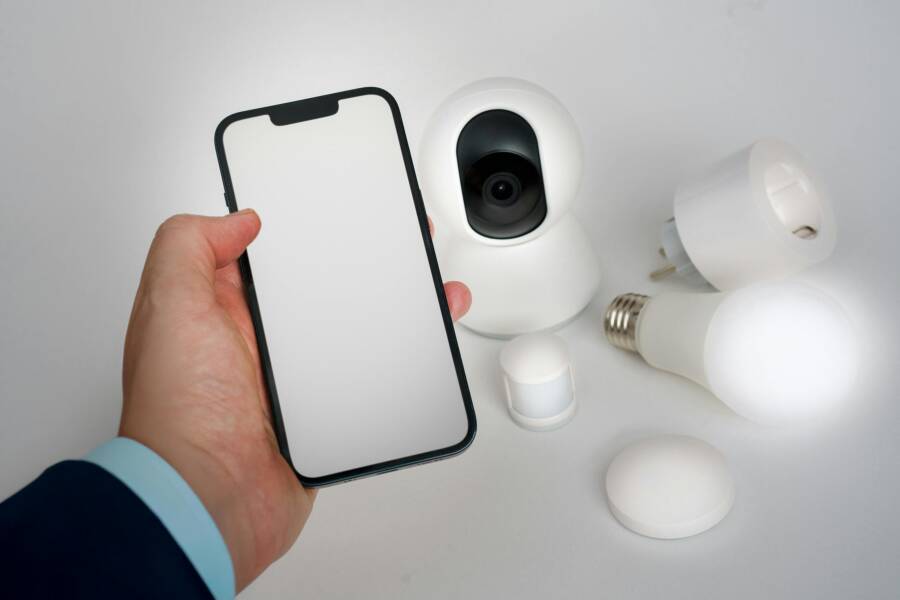
Your iPhone or Android phone should connect to home Wi-Fi without any fuss, but sometimes it skips the network and leaves you staring at the same password prompt again.
That usually happens because of a saved password issue, a changed router setting, weak signal, or a setting on your smartphone that got switched off. The good news is that most fixes are simple, and you can start with the easiest checks before moving to anything more technical.
If your phone keeps missing a network it used to trust, the problem is usually small and fixable. Start with the basic checks below, then work through the rest until your Wi-Fi connects on its own again.
Check the basics before changing settings
Before you change advanced Wi-Fi settings, start with the simple checks that fix most auto-connect problems. A phone can save your home network and still ignore it later if one small setting is off, the password changed, or the connection got stuck.
A few minutes here can save a lot of guesswork. Check the saved network, confirm the right password, and make sure your phone is looking for the correct home Wi-Fi name.
Make sure your phone is set to join Wi-Fi automatically
On iPhone, open Settings > Wi-Fi, tap the home network name, and look for Auto-Join. If that switch is off, your phone may remember the network but still skip it. That setting should be on for your home network.
On Android, open Settings > Network & internet > Internet or Wi-Fi, then tap your home network. Look for a setting such as Connect automatically, Auto reconnect, or Auto-join. Different brands name it a little differently, but the idea is the same.
If your smartphone sees the network but does not connect on its own, the auto-connect setting is one of the first things to check.
Also look through your saved networks list and confirm the exact home Wi-Fi name. If you have two similar network names, your phone may be trying the wrong one.
Restart your phone and home router the right way
A clean restart can clear a stuck connection and refresh the home network. Turn off your phone, then unplug the router. Wait about 30 seconds before plugging the router back in.
After the router lights settle, turn your phone back on and let it try again. This simple reset often clears a connection that looks saved but behaves like it is frozen.
Forget the network and reconnect with the correct password
If you changed your Wi-Fi password, updated the router, or replaced equipment, forgetting the network can help. Your phone may still use an old saved profile until you remove it and add the network again.
Forget the home Wi-Fi, then reconnect by selecting the correct network name and entering the password carefully. If you see several similar network names, choose the one that matches your router exactly. A single wrong letter or extra character can keep the phone from joining automatically.
Fix iPhone settings that can stop automatic Wi-Fi connection
Sometimes the router is fine, but the iPhone setting is not. A few options can make your phone stay on cellular data longer than you want, or delay the move back to home Wi-Fi.
Start with the settings below before you assume the network is broken. They are easy to miss, and they often explain why a smartphone ignores a network it already knows.
Review Auto-Join, Low Data Mode, and Wi-Fi Assist
Auto-Join can be turned off for a single Wi-Fi network. If that happens, your iPhone may still remember the network, but it will not connect on its own. Open the Wi-Fi details for your home network and check that Auto-Join is turned on.
Two other settings can also change how your phone behaves. Low Data Mode can reduce background activity, which may make the phone less eager to switch to Wi-Fi in some situations. Wi-Fi Assist can also keep the phone on cellular data when Wi-Fi looks weak, so the connection does not always hand over right away.
These settings are useful. They help save data and keep the phone usable when Wi-Fi is poor. Still, they can make automatic joining feel slow or unreliable at home.
If your iPhone connects only after you open an app or wake the screen, a data-saving setting may be part of the problem.
Check the network settings first, then watch how the phone behaves at home. If it holds onto cellular data even when Wi-Fi is available, one of these options is likely involved.
Update iPhone network settings without losing everything
If the simple checks do not help, a network reset can clear stuck settings. On iPhone, Reset Network Settings is a later step, not the first one to try.
This option wipes saved Wi-Fi passwords, Bluetooth pairings, and other network details. After that, you will need to reconnect to your home Wi-Fi and pair Bluetooth devices again. It does not erase photos, apps, or personal files, but it does clear the connections your phone has stored.
Use this when the iPhone keeps missing a known network, even after you have checked Auto-Join and re-entered the password. It gives the phone a fresh start without touching the rest of the device.
Check for iOS updates that may fix Wi-Fi bugs
Software bugs can break Wi-Fi behavior, even on a phone that worked well before. If your iPhone runs outdated iOS, it may have trouble reconnecting to known networks or holding the connection once it joins.
Go to Settings > General > Software Update and install any available update. A newer iOS version can fix connection bugs, improve network handling, and clear problems that no amount of password re-entry will solve.
Fix Android settings that can stop automatic Wi-Fi connection
When an Android phone keeps missing your home Wi-Fi, the problem is often inside the phone itself. A saved network can still fail to connect if one setting was switched off, battery controls got stricter, or the stored network data turned stale.
The good news is that these fixes are usually simple. Start with the per-network auto-connect option, then check battery-related limits, and finish with a Wi-Fi reset if the phone still refuses to reconnect on its own.
Turn on auto-connect for the saved home network
Some Android phones have a setting for each saved network, and it can get turned off by accident. Open Wi-Fi or Internet in Settings, tap your home network, and look for a switch or option named Auto-connect, Connect automatically, or Reconnect automatically.
If that option is off, the phone may remember your network but still skip it. That can happen after a software update, a network edit, or even a quick settings change you did not mean to keep. Once you turn it back on, the phone should join your home network whenever it is in range.
If you use more than one saved network at home, check each one. A smartphone may prefer the wrong network name if both are saved, so make sure the one you want is the active default.
A saved network is only part of the job. Auto-connect has to be enabled too.
Remove power saving settings that may block Wi-Fi in the background
Battery-saving features can slow down Wi-Fi reconnection when the screen is off. Battery Saver, Adaptive Battery, and other power management tools may limit background network use to stretch battery life.
That can leave your phone waiting longer than you expect before it rejoins home Wi-Fi. Some Android phones also reduce background activity for apps and connections when power settings are strict, so the phone stays on mobile data or reconnects only after you unlock it.
Check your battery settings if the problem happens mostly when the screen is off or the phone has been idle for a while. If Wi-Fi works once you wake the device, the power settings may be the reason it hesitates. A smartphone should not need a screen tap just to find a trusted home network, so any battery rule that delays that switch is a good place to look.
Refresh the network profile or reset Wi-Fi settings
A Wi-Fi reset makes sense when the phone keeps forgetting, stalling, or failing to join even after you check the network name and password. It can clear bad saved data, old connection details, and small glitches that build up over time.
Use this step if the network looks correct but still acts unstable. After the reset, the phone will need to reconnect to your Wi-Fi again, and Bluetooth devices will also need to be paired again. That is a small tradeoff for a clean network profile.
On many Android phones, you can find this under Reset options, Reset network settings, or a similar menu in System settings. Once the reset is done, reconnect to your home Wi-Fi and save the network again so the phone has a fresh start.
Look for home network problems that affect both iPhone and Android phones
If both your iPhone and Android phone miss the same home Wi-Fi, the problem is probably not the phone. That points to the router, the signal, or the way your home network is set up.
When two different phones act the same way, start looking at the network itself. A small router change, weak coverage in one room, or a mesh issue can stop auto-connection on every device in the house.
Check whether the router is saving your device correctly
Routers can drop a device if the network name, password, or security setting changed. If you renamed your Wi-Fi, moved to a new router, or upgraded your service, your phone may still be trying to join an old version of the network.
That happens more often than people expect. The phone may remember the old name, the old password, or a network profile that no longer matches what the router is broadcasting.
A few simple checks help here:
- Confirm the Wi-Fi name is the one your phone should use.
- Make sure the password is the current one.
- Check whether the router was replaced or reset recently.
- Remove old saved versions of the home network if they still appear.
If the network was updated and your phone still clings to the old entry, it can keep failing to auto-connect. Re-saving the correct network gives the phone a fresh match.
Make sure the router is using a phone-friendly security setting
Older or mixed security modes can cause trouble for some phones. A network may still work for one device, yet behave poorly for another, especially after a router change.
If your router has been running for years, its settings may be part of the problem. Updating the router firmware and using a modern security setting can improve connection reliability for both iPhone and Android devices.
If multiple phones struggle at home, the router is often the real cause, not the app or the phone.
You don’t need to get deep into the technical side. The main point is simple: the router should use a current, stable setup that your smartphone can trust every time it comes back in range.
Watch for weak signal, band steering, or mesh network glitches
A phone may stay on mobile data if the Wi-Fi signal is weak where you usually are. If the signal drops in the bedroom, garage, or upstairs office, the phone may never see a strong enough connection to auto-join.
Dual-band routers can also create confusion. Band steering may push devices between 2.4 GHz and 5 GHz, and that can make auto-connection feel inconsistent. Mesh systems can do the same if one node is offline, placed too far away, or not handing off devices cleanly.
Try moving closer to the router and see if the phone connects right away. If it does, the issue is probably coverage, not the phone. That same test helps with mesh setups too, because a weak node or dead zone can make even a good smartphone look unreliable.
A quick look at signal strength often tells the story. If Wi-Fi works near the router but fails in one part of the house, the fix may be better placement, a mesh node check, or a router setting adjustment.
When the problem keeps coming back, use a deeper fix
If your phone keeps dropping the same home Wi-Fi connection, the usual quick fixes may only buy time. At that point, it helps to move past surface checks and look for the cause behind the repeat failure.
A recurring auto-connect problem often points to outdated software, a worn network profile, or a larger issue with the router or internet service. These are the fixes that matter when the same glitch keeps returning.
Update the phone, then test the home network again
Both iPhone and Android updates can improve Wi-Fi stability and fix connection bugs. A phone that once connected fine may start missing your home network after a software change or a hidden system bug.
Install the latest update, then restart the phone and wait for it to detect your Wi-Fi again. Watch whether it joins the network on its own without you opening settings or entering the password.
If the problem clears up after the update, the phone likely had a software issue all along. If it still skips the network, move on to the next fix instead of repeating the same steps.
Reset network settings only if nothing else works
This is the stronger final step for stubborn cases. It clears saved Wi-Fi networks, cellular settings, and Bluetooth pairings, so use it only after you try the easier fixes first.
On both iPhone and Android, a network reset can remove damaged connection data that keeps breaking auto-connect. It gives the phone a clean start, but it also means you’ll need to set up your home Wi-Fi again.
After the reset, reconnect to your home Wi-Fi right away. That helps the phone store the network again and gives you a fresh chance to test automatic joining.
Know when to contact your carrier, router maker, or internet provider
Sometimes the issue sits outside the phone. A damaged router, an internet outage, or a compatibility problem can stop auto-connect on every device in the house.
Reach out for support if:
- Your phone won’t connect, but other devices also fail on the same network.
- The router keeps restarting, overheating, or dropping all connections.
- Your internet provider reports an outage or line problem.
- A router update, new modem, or mesh system changed how the network behaves.
If the phone works fine on other Wi-Fi networks, the carrier is usually not the problem. If the same home network keeps failing, the router maker or internet provider is the better place to start.
Conclusion
When an iPhone or Android phone stops auto-connecting to home Wi-Fi, the fix is usually simple. Start with the basics, check auto-connect, restart the phone and router, then forget and rejoin the network with the correct password.
If that does not solve it, move into the phone-specific settings and router checks that match your device. On iPhone, that means looking at Auto-Join and related Wi-Fi settings. On Android, it means checking auto-connect, battery limits, and the saved network profile.
Most smartphone Wi-Fi problems at home come down to a small setting or a stale connection record. With a step-by-step approach, you can usually get your phone to reconnect reliably again without a full reset.