Thousands of People Were Struggling With Money Until They Discovered This One Ancient Secret Hidden in Sound
>>> Unlock It Now <<<

You’ve captured that perfect moment on your phone, but when you play it back, ugly flicker stripes the screen. It happens all the time under LED lights. Those bulbs pulse fast from their power supply, often at 50Hz or 60Hz based on your region, and most smartphones clash with that rhythm through mismatched frame rates or shutter speeds.
Don’t worry. You can fix phone videos flicker under LED lights with simple steps. We’ll show you tweaks during recording, smart lighting changes, and quick post-edits that work on iPhone or Android.
This issue hits nearly every smartphone user. LEDs in offices, homes, or stores create dark bands you miss with your eyes but cameras catch. The good news? Match your phone’s settings to local power frequency, like 25fps in 50Hz areas or 30fps in 60Hz spots, and flicker drops fast.
In this guide, expect clear fixes. Start with camera app adjustments for smooth clips on the spot. Learn lighting hacks, like dimming LEDs or picking flicker-free bulbs. Finish with free tools to repair old videos.
He Was Drowning in Bills and Burnout Until a Simple Daily Ritual Rewired His Brain for Wealth in Less Than a Week
>>> Start Your Shift Today <<<

Grab your phone and test these now. You’ll get pro-level footage without fancy gear. Let’s dive in and end that annoying strobe for good.
Why LED Lights Cause Flicker in Phone Videos
LED lights look steady to your eyes, but they pulse in ways that smartphones catch on video. This creates those ugly dark bands or strobing effects. You see it in office clips, home vlogs, or store hauls. The root cause? LEDs don’t glow constant; they flicker from power sources and dimming tricks that clash with your phone’s camera.
Smartphones expose the issue because their sensors scan light in slices, not snaps. Cheap bulbs make it worse with poor power smoothing. Let’s break down the main culprits so you grasp why tweaks work.

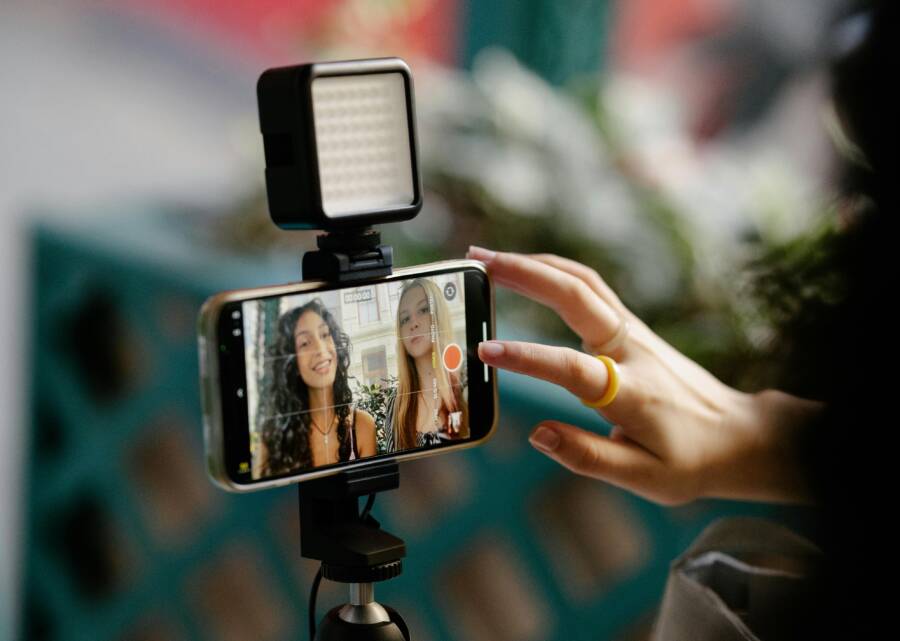
Photo by Mizuno K
AC Power Pulses and Regional Differences
Most homes plug into AC power that flips direction fast. In Europe and parts of Asia, it cycles at 50 Hz, doubling to 100 Hz pulses per second as voltage peaks. The US and similar spots hit 60 Hz, or 120 Hz pulses.
Your eyes average this flicker; they refresh too slow to notice. Cameras don’t. If your video frame grabs light mid-pulse, parts look dim. Bands form where the scan hits peaks and troughs.
Cheap LED drivers fail to filter these swings fully. Result? Stronger flicker in budget bulbs. Check your wall outlet standard; it sets the pulse rhythm your phone must match.
PWM Dimming Tricks
LEDs dim by pulsing on and off super quick, a method called PWM (pulse-width modulation). Frequencies run 100 to 480 Hz, far above eye limits but camera-visible.
Short “on” bursts make light seem dim. Cameras snag the dark gaps as stripes. Low-end lights pulse deepest at half brightness. Phone screens do this too, doubling the mess in selfies.
High PWM rates help, but most home LEDs stick low. That’s why dimmed rooms flicker worst on video.
Rolling Shutter in Smartphone Cameras
Phones use rolling shutter sensors. They read pixels top to bottom, line by line, over milliseconds. Light changes mid-scan, so the top frame sees one pulse phase, the bottom another.
Bands roll down the clip like waves. Slow-motion amps it up; each frame freezes a pulse slice. Global shutters in pro cameras grab all at once, but phones skip them to save cost and size.
This scan lag hits every budget to flagship smartphone. Even 2025 models keep rolling designs for thin bodies.
Frame Rate and Shutter Speed Mismatches
Video at 24, 30, or 60 FPS grabs frames blind to light pulses. A 30 FPS clip in 50 Hz light mixes full and empty cycles uneven.
Shutter speed sets exposure time per frame. Fast ones like 1/1000 second catch single pulses as black bars. Slow them to 1/100 second in 50 Hz zones; frames average the flicker out.
Follow the 180-degree rule: Set shutter to double your FPS, like 1/50 second for 25 FPS. Mismatched rates make bands dance. Sync them, and videos smooth.
These factors stack up. AC sets the beat, PWM adds noise, rolling shutter distorts, and bad timing seals it. Now you know the why; next steps crush the flicker.
Fix Flicker Before You Hit Record: Camera Settings
Your phone’s built-in camera app often picks frame rates that clash with LED pulses. Stock settings grab 30fps or 60fps everywhere, but they ignore your local power grid. Switch to rates that sync with 50Hz or 60Hz lights, and bands vanish before you record. Grab a free manual app for full control. Test right under your LEDs to confirm smooth playback. These tweaks work on any smartphone, from budget models to flagships.
Match Frame Rate to Stop Pulses
Frame rates must align with your area’s power frequency. Aim for 25fps or 50fps in 50Hz regions like Europe. Use 30fps or 60fps in 60Hz spots like the US.
For iPhone, open the free Blackmagic Camera app. Tap video mode, then the frame rate icon (looks like a clapperboard). Select 25fps under those lights and record a test clip. Play it back; adjust if bands linger.
For Android, download Open Camera (free, no ads). Switch to video, hit the menu (three dots), and pick FPS from 24 to 60. Set to 25 or 30fps matching your grid. Test on-site.
Always preview in the exact lighting. One quick clip confirms the fix. (98 words)
Set Shutter Speed Right for Steady Shots
Shutter speed controls exposure time per frame. Follow this rule: set it to 1 over twice your frame rate. For 30fps, use 1/60 second. This averages LED pulses for even light.
He Was Drowning in Bills and Burnout Until a Simple Daily Ritual Rewired His Brain for Wealth in Less Than a Week
>>> Start Your Shift Today <<<
Stock apps lock this setting. You need manual control.
Free apps make it simple:
- Android: Open Camera. In video mode, tap the shutter icon (S). Drag to 1/50 or 1/60. Pair with matching FPS.
- iPhone: Blackmagic Camera. Tap shutter speed slider in controls. Dial to 1/50s for 25fps. Lock it before record.
Steps: Launch app, enter those LEDs, set FPS first, adjust shutter, hit record. Review footage. Fine-tune if needed. Your smartphone videos stay steady. (102 words)
Upgrade Your Lights for Flicker-Free Videos
Camera tweaks help a lot, but they can’t fix bad bulbs. Swap in flicker-free lights for smooth smartphone videos every time. These options pulse so fast that your phone’s sensor ignores them. Rooms stay even lit, no bands or strobes. Pick the right ones, and you’ll record pro clips without app changes.
Pick Flicker-Free Bulbs and Panels
Scan labels for key signs before you buy. Look for flicker-free or video-safe claims. Check frequency ratings above 10 kHz; higher beats camera detection. Spot high CRI over 95 for true colors, or cinema-grade tags. Color temps like 3000K (warm) or 5600K (daylight) suit most setups.
Buy from Amazon, B&H Photo, or photography stores. Online searches for “flicker-free LED” pull solid picks.
Try panels for desks, strips for shelves, or standard A19 bulbs for lamps.
Test them quick: Film a slow-motion clip (120fps or more) with your smartphone under the new light. Play back; no lines means it works. Compare to old bulbs side by side. Adjust angles to confirm. (112 words)
Repair Flicker in Videos You Already Shot
You shot the clip on your smartphone, but LED flicker ruined it. No need to reshoot. Free AI tools fix those bands in seconds with smart analysis. They scan frames, spot pulse patterns, and smooth light changes. Results look natural on any device. Upload your file from phone or computer, process online, and download clean video. Perfect for quick saves on vlogs or family footage.
Use AI Tools to Smooth Out Flicker Fast
Try Wondershare Repairit AI Video Enhancer, a free web tool built for LED flicker. It delivers sharp, steady results without skills or software installs.
Follow these steps:
- Go to the Repairit site and click Add to upload your video (under 300MB for free use).
- Hit Repair; AI detects flicker and fixes it automatically.
- Preview the smooth clip, then Download the file.
Long videos over 300MB hit limits; split them or use desktop apps. Your smartphone footage turns pro fast. Test it now on that striped clip. (98 words)
Phone-Specific Tips to Beat LED Flicker
General fixes work well, but iPhones and Android phones handle LED pulses in their own ways. iOS locks down controls for simplicity, so you rely on settings and taps. Android gives direct access to pro modes on many devices. Pick tips that match your smartphone, test under the lights, and watch bands disappear.
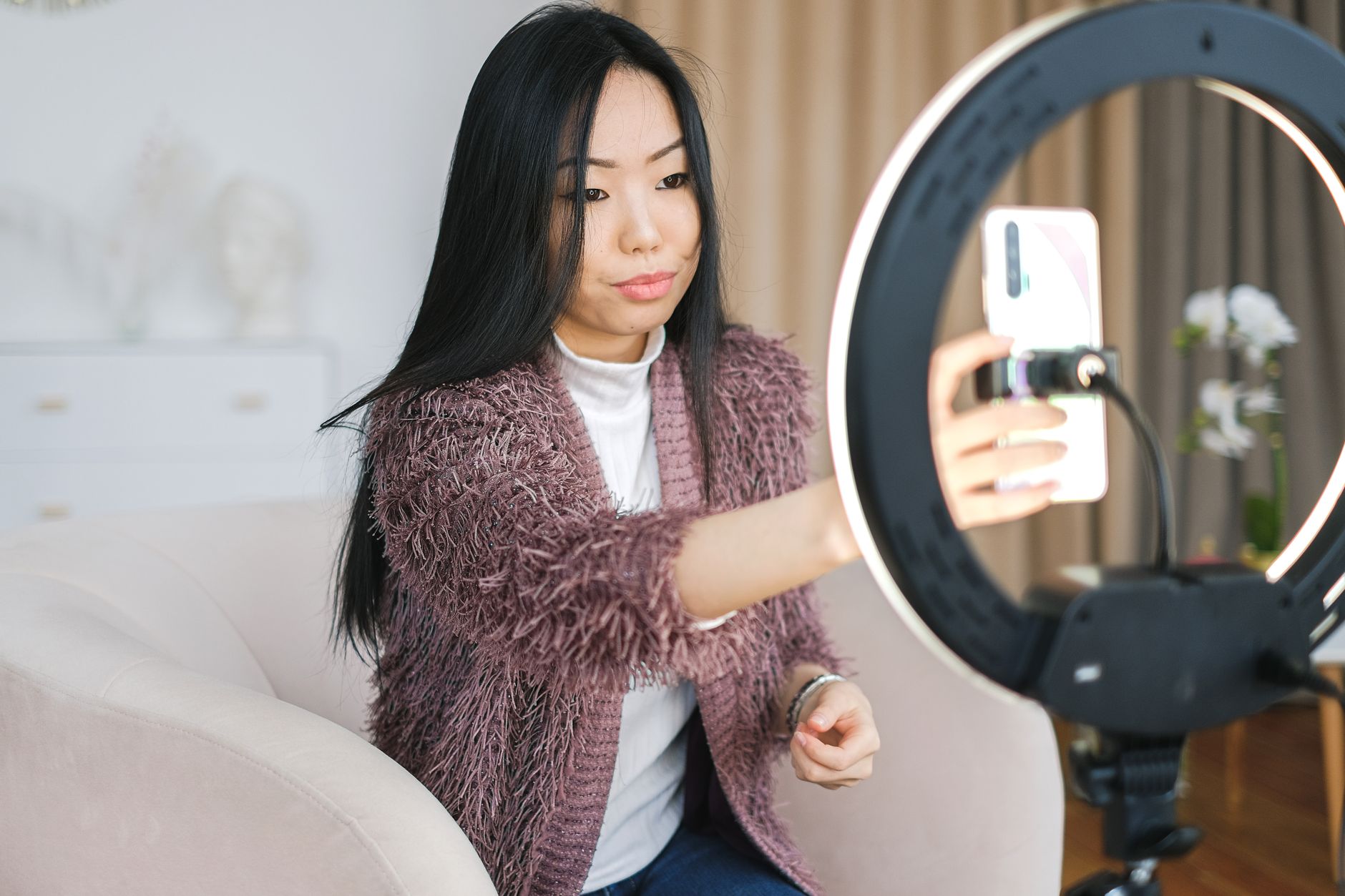
Photo by Anna Shvets
iPhone Steps for Steady Footage
Start with built-in options on your iPhone. They cut flicker without extra apps in most cases.
Go to Settings > Camera > Record Video. Pick frame rates that sync with your power grid: 25 fps or 50 fps for 50 Hz areas, 30 fps or 60 fps for 60 Hz spots. Record a quick test clip under the LEDs. Bands often vanish right away.
Next, lock exposure and focus during shoots. Open Camera, point at your subject, then tap and hold the screen until AE/AF Lock appears. This holds shutter speed steady and ignores light swings. Great for moving around lit rooms.
If stock settings fall short, tap the screen to adjust exposure manually before locking. Slide the sun icon down for lower brightness, which softens pulse effects. Your clips stay even from start to finish.
Android Tweaks for Band-Free Clips
Android phones shine with flexible camera apps. Stock ones on Samsung, Google Pixel, or others include pro video modes.
Open your camera app and switch to Pro or Video Pro mode if available. Set frame rate first: 25 fps in 50 Hz zones, 30 fps in 60 Hz areas. Then dial shutter speed to match, like 1/50 second for 25 fps. Low ISO around 100 reduces noise from pulses.
Lock focus like on iPhone: Tap and hold your subject. The yellow box locks it, stabilizing exposure against LED changes. On Samsung devices, enable Video Stabilization in settings for extra smoothness.
For deeper control, check Developer Options on your smartphone (tap Build Number seven times in About Phone). Turn on Force 4x MSAA to sharpen renders, but test flicker first; it rarely worsens bands. Devices like Pixels auto-adjust well, so native tweaks often suffice.
These phone-tuned steps build on app changes. Your smartphone videos match pro quality under any LED setup.
What If the Only Thing Between You and the Life You Deserve Is a Hidden Wealth Code Waiting to Be Activated
>>> Open the Door <<<

Conclusion
You now hold the tools to fix phone videos flicker under LED lights. Start with camera settings: match frame rates like 25fps in 50Hz areas or 30fps in 60Hz spots, and set shutter speeds to double that FPS. Upgrade to flicker-free bulbs next for even light every time. Repair old clips fast with AI tools like Repairit. Tailor iPhone or Android tweaks for your smartphone setup.
Test these steps under your LEDs today. Record a quick clip and check playback. One change often clears the bands.
Grab your phone, apply one tip right now, and watch smooth videos roll in. Share your results or questions in the comments below. Your footage deserves pro quality ahead.
What If the Only Thing Between You and the Life You Deserve Is a Hidden Wealth Code Waiting to Be Activated
>>> Open the Door <<<