
When your fitness app maps look like a single straight line across the landscape, it can feel like the GPS ghosted your workout. The reality is more boring but fixable: your phone is not logging a true path for a variety of reasons from weak signals to settings that suppress movement. This guide walks you through practical checks and steps to restore accurate routes, so your workouts reflect what you actually did.
GPS is a fragile friend. It loves a clear sky, a fast processor, and a phone that isn’t fighting with battery saver modes. When any one of those pieces goes off, the map data can stitch together your route with straight lines, missing turns and pauses. The good news is most fixes are quick and won’t require new gear. A few adjustments can make a big difference to the next run, ride, or hike.
Why fitness maps often look like straight lines
There are several common culprits behind straight line routes:
- Weak satellite signals. In dense cities, under heavy tree cover, or in canyons, the GPS chip struggles to lock on. When data is sparse, tracking tools fill gaps with straight lines between known points.
- Battery saving and background limits. Power saving modes curb GPS activity to save energy. The app then records fewer data points, producing blocky lines instead of a smooth path.
- Location services settings. If your device is set to a lower accuracy mode, the app relies on rough location data, which can smudge turns and detours.
- App data pack and map updates. Outdated map data or a stale app cache can misalign movement with the map.
- Hardware interference. A bulky phone case or a nearby metal object can weaken the GPS antenna.
Recognizing these causes helps you apply the right fix quickly. A lot of people notice the issue only during certain workouts or in specific environments. If it happens every time, you may need to adjust core settings.
Quick checks you can perform on your smartphone
A few fast checks can resolve many straight line problems.
- Verify location mode is high accuracy. On most devices you should choose a mode that uses GPS plus network data for precise positioning. If the device has a battery saver mode, turn it off for workouts.
- Ensure apps have permission to run in the background. If the fitness app is paused when the screen turns off, it might miss data points and fill gaps with straight lines.
- Update OS and apps. Software updates often improve GPS handling and fix known bugs that could cause line drawing errors.
- Test with another map app. If another navigation or mapping app shows the same issue, it’s likely a hardware or system setting problem rather than the fitness app itself.
- Check case and mounting. A thick or metal case can dampen GPS signals. If you’re using a phone mounted on a bike or armband, test with the case off for a short ride to see if data improves.
Calibrate and refresh map data
Map accuracy depends on fresh data. A quick refresh can restore proper alignment between the route and the map.
- Refresh map data and clear cache. In the fitness app, look for options like “clear cache” or “reset map data.” This forces the app to re-download map tiles and route data.
- Update map packs. Some apps separate map data from the app itself. Make sure both are current to avoid misalignment.
- Recalibrate with a known start point. Begin a short jog or ride on a straight path you know well, let the app record a few seconds, then compare with the map track. It helps the software better align future routes.
- Check elevation data. If the map includes terrain layers, ensure they’re enabled and not in conflict with your route trace. Wrong elevation pins can sometimes mislead the route reconstruction.
Improve GPS performance during workouts
A few practical habits can keep GPS data crisp during movement.
- Strap the device securely and keep it in a position with a clear sky view. A good line of sight to satellites improves accuracy dramatically.
- Disable battery save during training. If the device reduces location sampling to save power, it increases the chances of straight line segments.
- Keep the screen on during the workout. Some devices throttle background activity when the screen sleeps, which can interrupt data collection.
- Calibrate compass and position at the start. A quick calibration helps the app understand your orientation and location as you begin.
- Avoid metal in the immediate vicinity. While it’s not always practical, moving away from strong metal surfaces or electronic interference can help.
Photo by Atlantic Ambience on Pexels
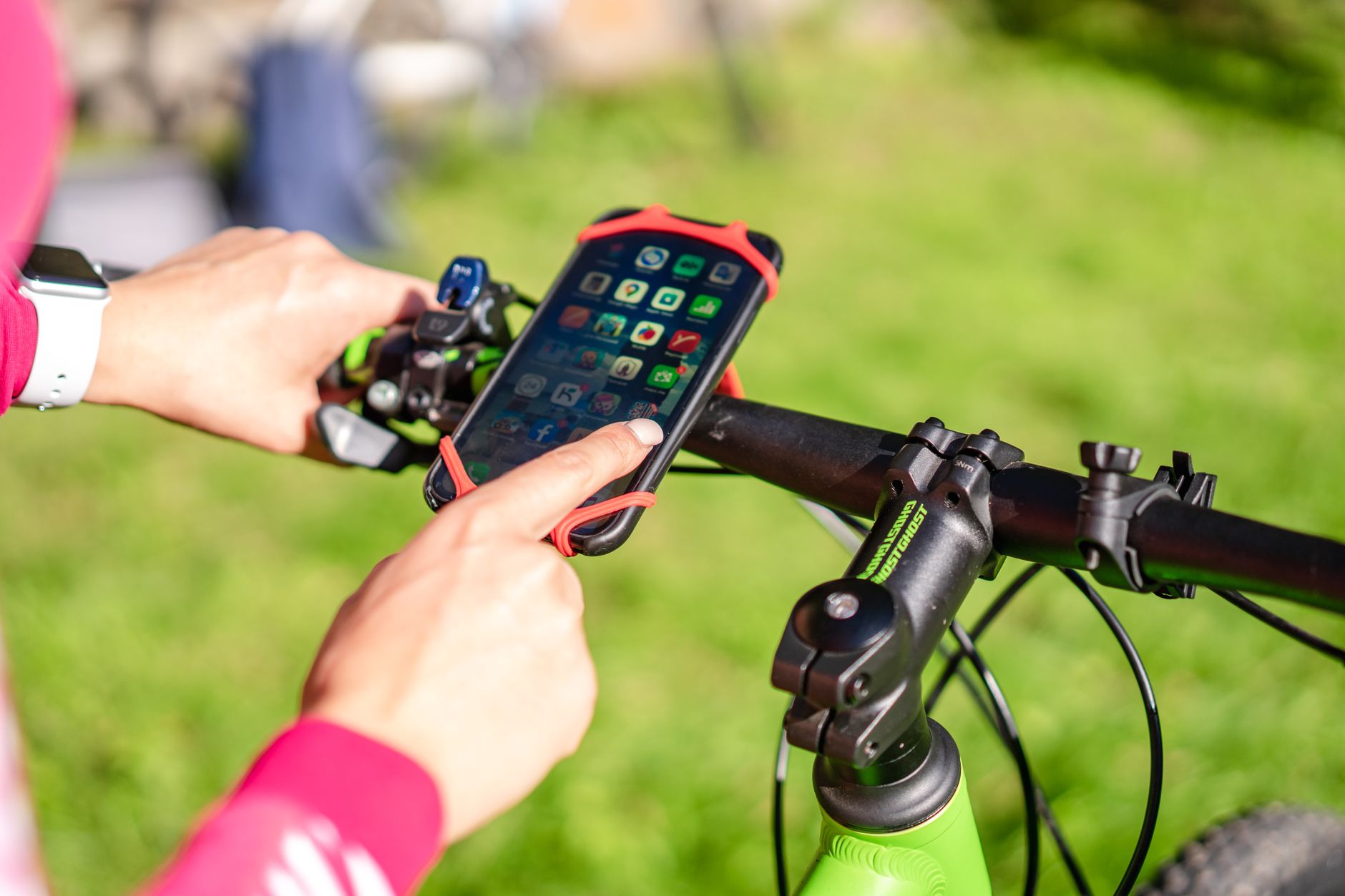 Photo by Atlantic Ambience
How to fix for specific scenarios
Different workouts and devices call for slightly different approaches. Here are targeted steps you can take based on common setups.
If you’re using Android devices
- Switch Location mode to High accuracy. Go to Settings > Location > Mode and select High accuracy.
- Turn off Battery Saver during workouts. Swipe down to your quick settings and disable Battery Saver before you start.
- Check app permissions. Ensure the fitness app has location permission set to Allow all the time and that it isn’t restricted by any power management features.
- Clear the app cache. In Settings > Apps > Your App > Storage, choose Clear cache.
- Reinstall after clearing data. If issues persist, uninstall the app, reinstall, and log in again.
If you’re using Apple iPhone
- Enable Precise Location. Go to Settings > Privacy > Location Services, select your app, and enable Precise Location.
- Update iOS and apps. Tap Settings > General > Software Update, then update all relevant apps.
- Check background activity. Make sure the app can refresh in the background; turn on Background App Refresh if needed.
- Calibrate with a known route. Do a short test on a familiar loop and verify that the line follows the actual path.
If you’re using a dedicated fitness watch or tracker
- Sync the watch regularly. A missed sync can leave the phone with stale data that the map replays incorrectly.
- Check the pairing status. Ensure the watch and phone stay connected during drives or runs.
- Update firmware. Both the watch and the companion app should be current to minimize data gaps.
Steps to take if a single app still misbehaves
If only one app shows straight lines while others track accurately, focus on app-level fixes before suspecting hardware:
- Reset activity data. In the app, delete the problematic activity and start a fresh one to see if the path improves.
- Reinstall the app. A clean install removes corrupted files that can interfere with GPS traces.
- Contact support with a test run. Share a short video or screen recording of a workout with the misalignment. This helps the team diagnose whether it’s a server-side error or a device-specific quirk.
- Try a different device. If a second phone produces better results, you may have a hardware issue with the original device.
Best practices to prevent straight line traces in the future
Consistency is easier than repair. Use these habits to keep your routes accurate over time.
- Keep the device charged. GPS works best when the battery isn’t low. Plan ahead, especially for longer workouts.
- Mount for visibility and signal. A stable mount keeps the phone position steady, reducing jitter in the included data points.
- Create a known start point. Start each workout near a landmark your maps recognize well; this anchors your route from the first moment.
- Periodically verify settings. A quick check of location mode and background permissions every couple of weeks can prevent drift.
- Record with a tuned GPS app. Some apps emphasize GPS accuracy more than others. If one app keeps mapping mistakes, try another trusted option to compare results.
Quick fix checklist
- Update OS and fitness apps.
- Set location mode to high accuracy or enable precise location.
- Disable battery saver during workouts.
- Ensure background activity is allowed for the fitness app.
- Clear map cache and recalibrate.
- Check case or mount for GPS interference.
- Run a short test run to confirm improvements.
This checklist is a practical, fast way to fix most straight line issues. If you still see anomalies after finishing these steps, it’s time to go deeper with the device or consult support.
When a problem requires deeper investigation
Some straight line traces stem from more stubborn issues:
- Hardware fault. A failing GPS antenna or internal sensor can cause persistent inaccuracies.
- Software incompatibility. An older app version may collide with a new OS update in unpredictable ways.
- Environmental effects. In dense urban canyons or heavy canopy, GPS signals can become unreliable for extended periods.
- Bulk data interference. If many apps are trying to use location data at once, performance can degrade.
If you reach this level, consider these next moves:
- Test another device. If another device tracks well, you know the issue is with the original phone’s hardware or software.
- Seek professional help. A repair shop or the manufacturer’s service center can diagnose hardware faults.
- Explore alternative apps. Some users find a different app handles GPS data more robustly in challenging environments.
Real-world example
A cyclist in a city park started experiencing straight lines on his rides. He updated his Android phone, switched the location mode to High accuracy, and disabled Battery Saver for workouts. He also cleared the app cache and performed a short calibration ride on a known loop. On the next ride, the route followed the actual path closely, with only minor deviations at complex junctions. The fix was simple, and the improvement was immediate.
Why good GPS matters for your training
Accurate maps do more than look right. They support better pace calculations, distance tracking, and route planning. If you’re training for a goal or competing in an event, correct data helps you measure progress reliably. It’s not just about bragging rights; clean data informs better decisions on workouts, nutrition, and recovery.
The fix doesn’t demand special gear. A few deliberate checks, a few clicks, and a short test ride are often all that’s needed. With your smartphone behaving, you’ll have clearer insights and a smoother training routine.
Conclusion
If fitness maps show straight lines, you’re not out of luck. Start with the basics—check location settings, update software, and refresh map data. Then look at how you mount and use the device during workouts. A secure setup, clear sky, and updated software often restore accurate routes quickly. If the issue persists, narrow the cause to either hardware or app data and take the appropriate next step.
Empower your next workout with clean map data. Your tempo, your route, your progress all deserve accurate tracking. Try the steps above, and you may find that the next ride or run maps exactly how you felt it in real life.
Photo by Atlantic Ambience
Photo by Atlantic Ambience
If you want more practical guides on everyday tech and fitness, stay tuned. Share your experience with straight line maps in the comments and tell us which fix worked best for you.