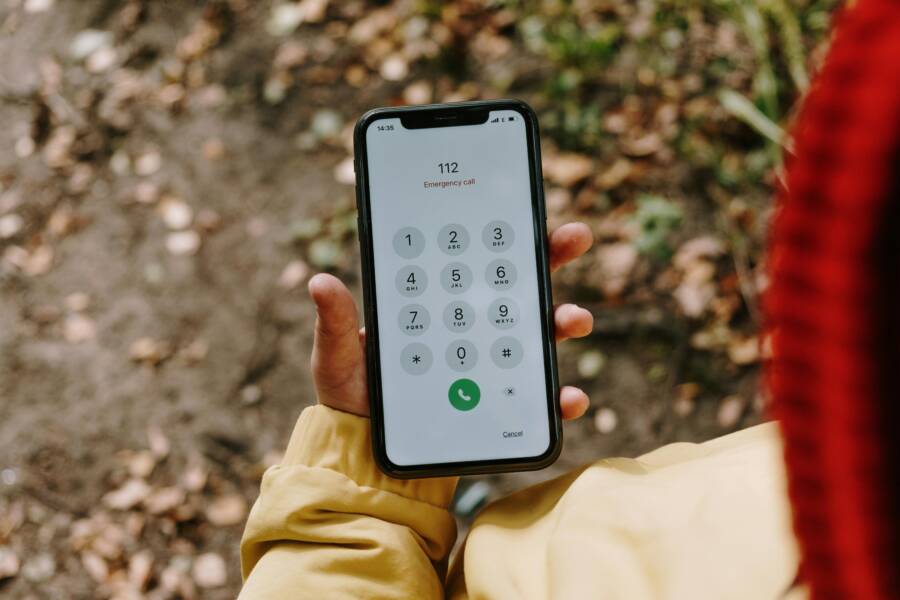
Imagine this: dark clouds roll in fast, a severe storm warning blasts across TVs and radios, but your phone sits silent on the table. You miss the alert, and suddenly you’re caught in wind-whipped rain with no shelter nearby. Stories like this happen too often. Emergency alerts not sounding on phone can turn a simple glitch into real danger.
These alerts save lives every day. They deliver weather warnings for tornadoes or floods, AMBER alerts for missing kids, and public safety messages about evacuations or attacks. Most smartphones handle them well through cell networks. Yet glitches strike: silent modes, wrong settings, or software bugs keep sounds off.
Don’t worry. This guide walks you through fixes that work fast. Start with simple checks like volume and Do Not Disturb. Then tweak alert settings on Android or iPhone. If needed, try updates and resets. You’ll test each step to confirm sounds play loud. These steps suit anyone, no tech skills required. By the end, your phone will blare those critical tones when it counts.
Simple Checks to Restore Emergency Alert Sounds on Your Phone
Many users skip these basics, but they fix most silent alert problems. Emergency alerts tie to your ringer volume, not media playback. Always test after a change: play a ringtone or alarm to hear the sound. Quick wins here often solve the issue without digging deeper.
Verify Volume and Ringer Settings
Swipe down from your screen’s top to open quick settings. Drag the ringer slider up; make sure it’s not on silent or vibrate. Alerts won’t sound if this stays low.
Open the full volume menu by tapping the slider or sound icon. Set ringer or alerts to maximum. Test with an incoming call or set a quick alarm. On Android, the volume panel shows separate sliders. iPhone users check the side switch for orange silent mode; flip it off.
Bluetooth headphones can steal the sound too. Disconnect them in quick settings. Play media to confirm audio comes from the phone speaker. This takes seconds and catches common oversights.
Disable Do Not Disturb or Focus Modes
Do Not Disturb silences nearly everything, including emergencies, unless you allow them. Tap the quick settings tile to turn it off. On Android, go to Settings, then Sound and vibration, then Do Not Disturb. Switch it off and check exceptions for emergencies.
A common mistake? Schedules that auto-activate at night. Disable those in the same menu.
iPhone calls it Focus. Swipe down for Control Center and tap the Focus icon to end any active mode. Then visit Settings, Focus, and review each for allowed alerts. Turn off scheduled Focus too. Test with a ringtone right away. Silence vanishes, and alerts ring clear.
Turn On Emergency Alert Features in Phone Settings
Carriers broadcast these alerts nationwide, but your phone must listen. Users often toggle them off by mistake during setup or privacy tweaks. Search “emergency” in your settings app to find the spot fast. Some regions require opt-in. Enable them, then wait for a test alert or simulate one.
Once set, alerts use a piercing tone that cuts through. Separate paths exist for Android and iPhone. Follow these to match your device.
Enable Alerts on Android Phones
Open Settings and tap Safety & emergency. If not there, try Notifications, then Advanced, then Wireless emergency alerts. You might see it under SafetyCore on Pixels or Samsung’s One UI.
Toggle on these options:
- AMBER Alerts for missing children.
- Extreme threats like imminent disasters.
- Public safety warnings.
Uncheck any “opt out” boxes. Steps vary by brand, like Google Pixel or Samsung Galaxy, but the search bar helps.
Numbered paths make it simple:
- Settings > Apps > Special app access > Wireless emergency alerts (older versions).
- Toggle all relevant switches to on.
- Exit and test volume again.
A smartphone restarts the service after changes. Real users report sounds return instantly.
Enable Alerts on iPhones
iOS keeps these on by default, but toggles hide in plain sight. Go to Settings, then Notifications, then Government Alerts at the bottom.
Flip these switches:
- Amber Alerts.
- Emergency Alerts.
- Public Safety Alerts.
Also check Settings, Emergency SOS for related options like automatic calls.
Simple steps:
- Scroll to Government Alerts.
- Tap each category and enable sounds.
- Back out; no restart needed.
Focus modes still block them, so double-check those. iPhone tones blare loud once active. Test by setting a reminder with max volume.
Deeper Fixes if Alerts Still Don’t Sound on Your Phone
Basic tweaks didn’t work? Move to these. Software bugs or network hiccups cause stubborn silence. Start with updates, as they patch alert flaws. End with resets if all else fails. Search settings for “send test emergency alert” to verify progress.
Update Your Phone Software
Outdated systems break alert delivery. Patches fix tone playback and reception bugs.
On Android: Settings, System, System update. Tap Check for update. Download and install any available. Restart follows automatically.
iPhone path: Settings, General, Software Update. Install iOS versions promptly. Developers target alert issues in minor releases.
After update, recheck volumes and toggles. Many find sounds restore here. It takes 10-30 minutes, depending on your connection.
Restart Phone and Reset Network Settings
Power glitches trap alerts. Hold the power button, select Restart. Wait 30 seconds.
Toggle Airplane mode on, then off in quick settings. This refreshes cell towers.
For networks: Android goes to Settings, System, Reset options, Reset Wi-Fi, mobile & Bluetooth. It clears saved data without erasing apps or photos.
iPhone: Settings, General, Transfer or Reset iPhone, Reset, Reset Network Settings. Re-enter Wi-Fi passwords after.
Boot into safe mode on Android (hold power, then long-press Restart) to test for app blocks. Check carrier bars too; weak signal mutes alerts. These steps clear 90% of deep issues.
Conclusion
You now know how to fix emergency alerts not sounding on phone: verify volumes and silence modes first, enable toggles in settings, then update and reset as needed. Test your setup today; search for a test alert option to hear that vital tone.
Safety comes first, so act now before the next storm hits. Did these steps work for you? Comment your fix below or share with friends who need it. Subscribe for more phone troubleshooting tips. Stay alert and safe out there.