There Is a Frequency That the Wealthiest Families Have Used for Generations and Most People Will Never Know It Exists
>>> Open the Door <<<

You’ve lined up the perfect scenic view on a hike or beach trip. You sweep your phone slowly in panorama mode. But the result? Blurry streaks, chopped edges, or warped sections that ruin the shot.
Panorama mode on smartphones captures a series of overlapping frames as you pan. It then stitches them into one wide image. Problems happen from shaky hands, moving objects like people or cars, dirty lenses, or poor lighting that confuses the software.
These issues frustrate many users, but you can fix them. This guide covers better techniques like steady two-handed grips and slow sweeps, simple software tweaks such as cleaning the lens or restarting the camera app, and phone-specific steps for iPhone or Android models.
You’ll get a step-by-step walkthrough that works for most devices. Follow these tips, and your next panorama photos will come out sharp and complete. No more distorted memories.
Thousands of People Were Struggling With Money Until They Discovered This One Ancient Secret Hidden in Sound
>>> Unlock It Now <<<

Spot Common Reasons Your Phone Panorama Fails
Panorama shots often fail due to simple mistakes during capture. You might notice blur from quick moves or gaps from poor alignment. Spot these problems early to save your next photo. Your smartphone’s camera app gives clues like on-screen guides that drift off track. Common fails include shaky pans, bad overlap, and light shifts. Let’s break down the main ones.
Blurry or Jagged Edges in Your Shots
Fast panning or body twists cause most blur and jags in panorama photos. When you swing your arm too quick or rotate your torso, the smartphone struggles to stitch frames. It needs 20-30 percent overlap between shots for clean blends. Less than that leaves visible seams.
Watch the on-screen arrow or line. On iPhone, swipe to Panorama in Camera; a white arrow slides across a gray ghost image of the last frame. Keep it centered. Android varies, but Samsung or Pixel shows a moving frame or arrow; stay in the path.
Follow these steps for sharp results:
- Stand still with feet planted.
- Grip phone with both hands, elbows tucked.
- Pivot only the phone from your wrists; no body sway.
- Pan slow at even speed so overlap hits 20-30 percent.
- Use the level tool if your app has one to stay flat.
Practice on a still scene first. Your shots stay crisp without twists or blur. (148 words)
Incomplete or Cut-Off Panorama Images
Your panorama cuts off when you pick the wrong mode or glitch in portrait hold. Portrait orientation often fails stitching on smartphones. Not enough overlap also chops edges, as frames don’t connect.
Switch to panorama mode right away. Open Camera, tap Panorama icon. Pan in the arrow’s direction at steady speed. Too fast skips areas; too slow warps them.
For vertical pans like tall buildings, rotate to portrait first, then select vertical panorama if available. Hold steady and overlap well.
Quick fixes include:
- Restart camera app if it freezes.
- Clear space; full storage cuts shots short.
- Avoid zoom; stick to wide lens.
Test short sweeps before full views. Complete images come every time. (142 words)
Lighting Problems Causing Dark Patches
Uneven light creates dark patches in panoramas. Shadows from trees or night scenes fool exposure as you pan. Your smartphone locks focus early, so later frames look dim.
Shoot in bright, even light like open midday sun. Skip taps on screen; let auto exposure handle it.
Google Pixel users get help from HDR+ in low light. It blends frames for balance. Other phones benefit from steady hands to cut shake in dim spots.
Even lighting means no patches. Your full panorama glows uniform. (92 words)
Master Basic Techniques for Perfect Panorama Photos
You spot the issues that blur your shots. Now build habits to capture clean panoramas every time. Start with steady moves and smart timing. These steps work on iPhone and Android phones. Practice them, and your smartphone panoramas turn sharp.
There Is a Frequency That the Wealthiest Families Have Used for Generations and Most People Will Never Know It Exists
>>> Open the Door <<<
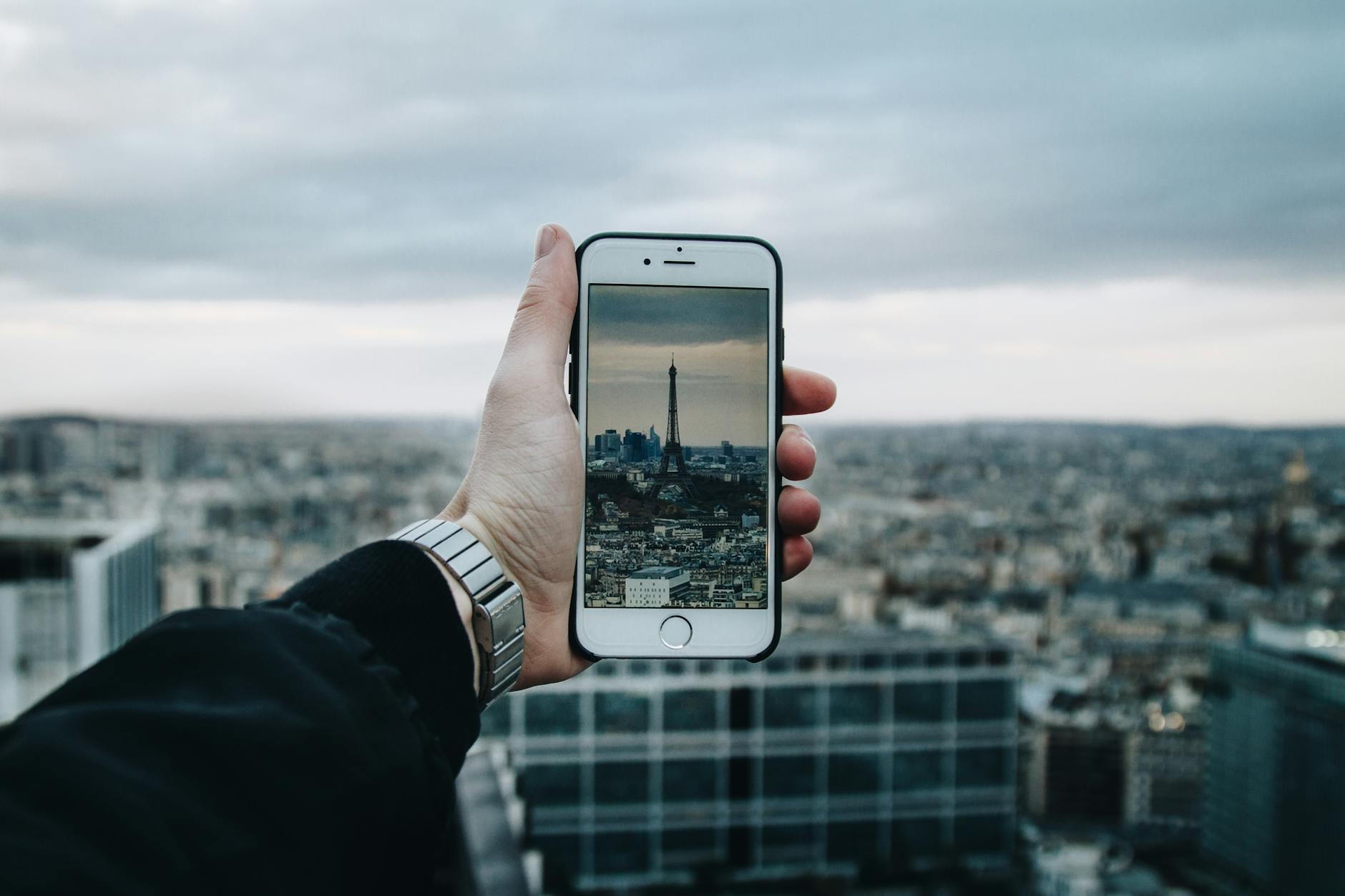
Photo by Valentin Antonucci
Pan Slowly and Keep the Phone Level
Slow, even pans let your phone stitch frames without blur. Aim for 20-30 percent overlap between shots. Follow the on-screen guide to stay on track.
On iPhone, swipe to Pano mode. A white arrow slides along a line. Keep the arrow centered as you sweep left to right. Samsung Galaxy shows arrows and a line in Panorama mode under More. Match them tight. Google Pixel uses direction arrows; align as you go.
Your body sets the pace. Plant feet shoulder-width apart. Tuck elbows into your sides for a firm grip. Breathe out slow while you pan. Pivot from wrists only.
Try these steps for level pans:
- Check the built-in bubble level in your camera app. Most phones show it on screen.
- Hold vertically for wide scenes to cut distortion.
- Start at one edge. Sweep smooth at walking pace.
- End when the guide fills the scene.
Test on a calm view first. You nail overlap and flat lines fast. No more jagged seams. (152 words)
Pick the Best Lighting and Time to Shoot
Even light keeps exposure steady as you pan. Pick open shade or cloudy days. Direct sun creates harsh shadows that stump stitching software.
Skip midday glare or deep night unless you brace well. Golden hour near dawn or dusk works best. Soft sun evens tones across frames.
Let auto exposure run. Don’t tap screen to lock focus; it shifts with light changes and darkens patches. Your phone adjusts frames on the fly.
Thousands of People Were Struggling With Money Until They Discovered This One Ancient Secret Hidden in Sound
>>> Unlock It Now <<<
Steady hands help in softer light. A smartphone grips tight, but pause if shadows creep in. Restart for balance. Uniform glow makes every panorama pop clean. (98 words)
Troubleshoot Software Issues on iPhone
Software glitches on your iPhone can distort panorama photos with blur or breaks. The camera app might freeze mid-stitch or misalign frames due to cached data. Quick resets fix most problems without data loss. Your smartphone handles panoramas better after these steps. Try them before deeper fixes.
Force Close and Restart Your iPhone Camera
Glitches build up in the camera app and cause panorama stitching fails. Force closing clears temporary files and refreshes the process.
Follow these steps:
- Swipe up from the bottom edge (or double-click Home button on older models) to open App Switcher.
- Find Camera app thumbnail and swipe it up off screen.
- Double-press power button or swipe up again to quit fully.
- Wait 10 seconds, then reopen Camera from home screen.
- Swipe to Pano mode and test a short sweep.
This resets memory overload that warps shots. Your iPhone camera runs smooth again. No need for full restart unless it persists. (98 words)
Update iOS for Panorama Bug Fixes
Outdated iOS often hides camera bugs that blur panoramas. Apple releases patches for stitching errors in updates.
Check and install like this:
- Open Settings app.
- Tap General, then Software Update.
- If iOS 18.2 or later shows, tap Download and Install.
- Enter passcode and let it run (back up first).
Recent versions like iOS 18.2 fix kernel and app issues, though no direct panorama notes. Post-update, some see brief camera lags; restart clears them. Full storage or low battery might pause installs, so free space. Updated software keeps your smartphone’s panoramas sharp and glitch-free. (102 words)
Fix Panorama Glitches on Android Phones
Android phones handle panorama shots well most days, but glitches like blur or failed stitches pop up from app bugs or outdated code. Your smartphone’s stock camera app builds up temporary files that mess with frame alignment. Simple clears and swaps fix these fast. No need for root access or resets. These steps target common Pixel, Samsung, or other Android troubles. Test a quick panorama after each one to check results.
Clear Camera App Cache and Data
Cached files clog your camera app and cause panorama glitches. Old data confuses stitching, leading to blur or breaks. Clear them to refresh the app without losing photos.
Follow these exact steps on most Android phones:
- Open Settings.
- Tap Apps (or Apps & notifications).
- Select Camera (stock app name varies like Google Camera on Pixels).
- Go to Storage or Storage & cache.
- Tap Clear cache first.
- Then hit Clear storage or Clear data (it resets settings, not photos).
Why it works: Bugs hide in cache from crashed pans or light shifts. Clearing dumps them, so your smartphone grabs clean frames next time. Restart the app after. You see sharp overlaps right away. Full storage worsens glitches, so free space too. (102 words)
Try Third-Party Apps or Updates
Stock camera apps falter on panorama stitching. Switch to third-party options for better alignment and ghost removal. They beat glitches with auto-level and HDR tools.
Top picks from Google Play Store:
- Open Camera: Free app with built-in panorama. It auto-levels shots and blends frames smooth, even with hand shake.
- ProCam X: Manual controls for focus and speed cut blur during sweeps.
- GCam ports: Unofficial Google Camera copies fix stock issues on many phones. Search “GCam [your model]” in Play Store or trusted sites.
- HD Camera: Smart panorama mode with steady grips for less distortion.
Install tips: Search Play Store for “panorama camera,” check ratings over 4 stars, read recent reviews for your phone model. Enable updates in app settings. Your smartphone’s panoramas sharpen up quick. Test in good light first. (98 words)
Pro Tips and Backup Fixes for Stubborn Problems
Basic steps often solve panorama blur or breaks on your phone. Stubborn cases need extra tools. These pro tips handle shake that no grip fixes and failed stitches that apps miss. Your smartphone panoramas turn pro-level with them.
Use a Tripod for Zero Shake
Hand shake ruins even slow pans. A tripod locks your phone in place for perfect overlap and no blur. It lets you focus on the scene, not your hold.
Cheap adapters make this easy. Grab a MOVO P-3 Rotating Mount for $20. It clamps any phone and rotates smooth for pans. Or pick plastic ones like Ailun or SYNCWIRE under $15 if you have a tripod. They screw into standard threads and grip tight.
Manfrotto Pixi Mini at $35 stands alone or mounts up. Benefits hit hard: zero wobble means crisp stitches, even in wind. Set it up, align the level, pan via rotation. Your smartphone captures full views without cutoffs. Pack one for hikes; results stun. (102 words)
Edit or Stitch Photos Manually After
Auto stitching fails on busy scenes or old shots. Edit frames yourself for clean blends. Apps fix blur and gaps post-capture.
Lightroom shines here. Import burst frames from your panorama attempt. Use the Healing tool to blend seams. Adjust exposure matches across shots, then export as one image. It removes ghosts from moving cars too.
Other options include Photoshop Express for quick layers or Snapseed double-exposure mode. Steps stay simple:
- Shoot in burst mode as backup.
- Load into app, align overlaps.
- Feather edges and merge.
You control every pixel. Your smartphone’s broken panorama revives sharp. Save originals first. Practice on test shots for speed. (98 words)
Conclusion
Mastering panorama shots starts with technique. Practice slow, steady pans, keep the phone level, and aim for solid 20–30 percent frame overlap so the software can blend images cleanly. Use both hands, elbows tucked, and rotate from the wrists rather than the body to reduce shake. Shoot in even light and avoid zooming, which can create mismatches the stitcher struggles to fix.
If you still see glitches, switch to quick software fixes first. Force close the camera app, clear cache, and restart the camera to reset memory. Check for the latest system updates since manufacturers frequently improve panorama stitching in new releases. If the stock tool keeps failing, try a reputable third party app with built in leveling and HDR features to reduce ghosting and misalignment.
Recent updates from major platforms show faster stitching and better alignment for wide scenes, making good panoramas easier on both iPhone and Android devices. Pair these reliability upgrades with the basic habits above, and your results will look sharp and complete again.
Share your fixed panorama in the comments or try the tips today. Have you noticed a difference after adjusting your grip or lighting? Your next wide shot could be your best yet.
There Is a Frequency That the Wealthiest Families Have Used for Generations and Most People Will Never Know It Exists
>>> Open the Door <<<