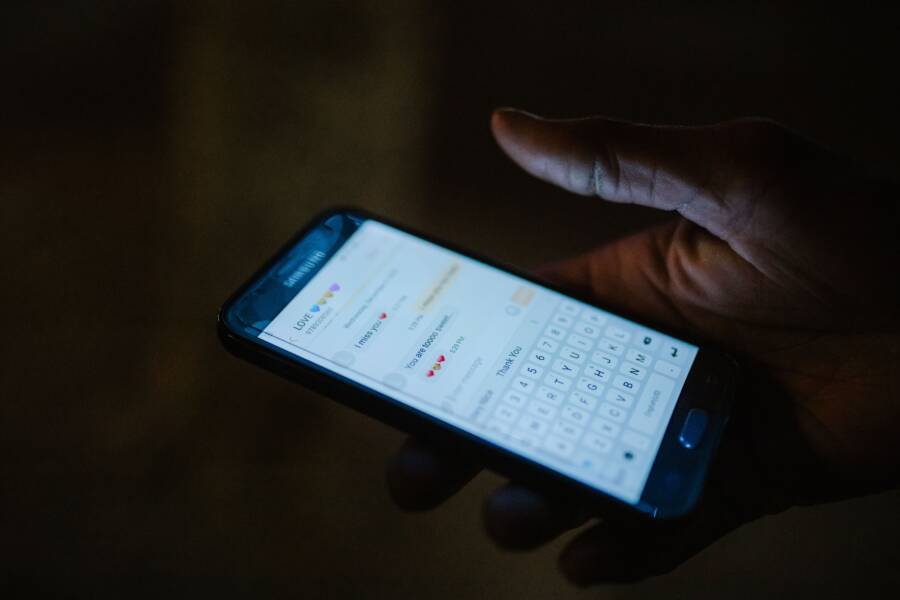
Group messages often split into separate threads because of a mismatch between SMS and iMessage protocols on your smartphone. When a device cannot verify the recipient’s connection, it defaults to standard text messaging, which causes the group conversation to break apart.
You can fix this annoyance by adjusting a few specific settings. These simple changes ensure your messages stay in one place where they belong.
Understanding Why Group Messages Split into Separate Threads
Group messages often split because your smartphone struggles to reconcile different messaging standards. When you participate in a group, your device must identify if everyone supports the same proprietary system. If it detects a mix of platforms, it falls back to older protocols. This mismatch causes individual messages to arrive in fragmented threads instead of a single, coherent conversation.
The Role of MMS and Group Messaging Protocols
Multimedia Messaging Service, or MMS, acts as the common denominator for group texts. While modern apps use data-driven protocols to sync conversations across devices, MMS relies on the aging infrastructure of cellular networks. It sends each message as a separate file or packet, which lacks the smart linking capabilities found in platform-specific services.
Older text technologies treat every message as a standalone event. Your smartphone receives these packets and attempts to organize them by sender. If the metadata within these packets does not align perfectly, your device fails to group them together. This process creates separate threads because the phone perceives them as unrelated communications rather than a single ongoing chat.
Modern messaging apps avoid this by assigning a unique ID to the entire group session. Because MMS lacks this identification layer, your smartphone often defaults to simple chronological sorting. When network delays occur, this sorting fails, and the conversation splits into multiple windows. You essentially see the conversation as the carrier network sees it, which is a collection of unlinked messages rather than a shared experience.
Common Triggers for Thread Splitting
Several technical factors trigger this fragmentation during your daily smartphone use. These issues often happen behind the scenes, leaving you with a messy inbox and missing context.
- Weak signal strength: When your connection drops, the cellular network fails to deliver group data packets in the correct order. Your smartphone then processes these arriving messages individually, which forces the creation of a new thread to accommodate the incoming text.
- Intermittent Wi-Fi access: Frequent switching between cellular data and Wi-Fi often interrupts the messaging handshake. This interruption prevents your device from verifying the group ID, causing it to restart the thread to avoid losing the message entirely.
- Mixing device types: Adding a non-Apple user to an existing iMessage group is a frequent cause of splitting. The group must immediately transition from the proprietary Apple protocol to the universal MMS standard. During this switch, many devices struggle to merge the history, resulting in a fresh, isolated thread for new messages.
Your carrier settings also play a part in these inconsistencies. If your smartphone has an outdated carrier configuration, it may fail to handle modern group messaging features correctly. Regularly updating your device software helps keep these communication protocols aligned with current network standards. Even a minor system update can resolve long-standing issues with thread management.
How to Fix Group Messages Splitting on Your Smartphone
When group messages start arriving as separate threads, it disrupts your communication flow. This issue usually stems from incorrect settings on your smartphone or a temporary glitch in how your device connects to the cellular network. You can resolve most of these conflicts by verifying your configuration and refreshing your network status.
Checking Your Messaging Settings
Your smartphone requires specific settings to process group messages as a single, unified conversation. If these options are disabled, the device reverts to basic SMS protocols, which treat every incoming text as an individual event.
Follow these steps to confirm your settings are correct:
- Open the Settings app on your smartphone and navigate to the Messages section.
- Locate the section labeled SMS/MMS.
- Toggle the switch next to Group Messaging to the On position.
- If you use an iPhone, also verify that MMS Messaging is enabled within the same menu.
If the Group Messaging option is missing, check your carrier plan. Some service providers disable group texting for certain account types, or you might need a specific data plan to support the feature. If the setting is already on, try toggling it off and back on again. This action often forces the operating system to re-initialize the group messaging service and resolve any lingering configuration errors.
Resetting Your Network Connections
A poor connection to the cellular tower often prevents your smartphone from receiving the necessary data packets to link group messages. When the signal is weak or unstable, the device fails to categorize incoming texts correctly, leading to fragmented threads. Resetting your network state refreshes the handshake between your phone and the provider.
You can perform a quick connection reset using these methods:
- Toggle Airplane Mode: Enable Airplane Mode for at least ten seconds, then disable it. This process forces your smartphone to disconnect from all cellular, Wi-Fi, and Bluetooth signals. When you turn it off, the device scans for the strongest available tower to establish a fresh connection.
- Reset Network Settings: If issues persist, go to your system settings to perform a network reset. This action clears saved Wi-Fi passwords and Bluetooth pairings, but it also flushes out corrupted network cache files that may be blocking message delivery.
If you still notice split threads after these steps, restart your smartphone entirely. A full power cycle clears the temporary memory and stops background processes that might interfere with messaging protocols. Ensuring your software is up to date also helps, as developers frequently release patches that improve how a smartphone handles MMS data and group synchronization.
Best Practices for Maintaining Stable Group Chats
Keeping group conversations stable requires proactive management of how your smartphone handles messaging data. When threads consistently split, you lose the narrative flow and miss important updates from your contacts. By establishing a few habits, you can stop this fragmentation from recurring.
Standardizing Group Message Participation
Mixing different messaging platforms is the most frequent cause of thread instability. When you invite both iPhone and Android users into the same conversation, your smartphone must shift to the universal MMS protocol. This format lacks the advanced synchronization features found in proprietary services.
You should consider these strategies to keep your group chats unified:
- Stick to one primary platform if your friends use the same brand of smartphone. Using a single ecosystem allows the device to manage threads with native data protocols instead of relying on aging network standards.
- Avoid adding or removing participants frequently. Every time you change the roster of a group, the smartphone must initiate a new handshake to determine the messaging protocol for the entire thread.
- Create new groups sparingly. If you start a group, name it immediately if your app allows. Naming a group often forces the device to treat it as a permanent thread rather than a temporary collection of messages.
Optimizing Network Behavior
Your smartphone relies on consistent signal quality to keep group messages grouped correctly. When connections fluctuate, the phone often misinterprets the order or origin of incoming data packets. You can minimize these errors by managing your connectivity settings before you notice a problem.
Maintaining a stable connection involves a few simple routines:
- Keep your Wi-Fi active in areas where cellular signal is weak. Many modern devices use Wi-Fi to deliver messages when the cellular network struggles, which prevents the threads from breaking apart due to lost packets.
- Check for system updates regularly. Manufacturers frequently release software patches that improve how a smartphone organizes MMS data. These updates often resolve hidden bugs that cause threading issues.
- Avoid turning off data during group conversations. If you must use airplane mode, re-enable your data as soon as possible. This allows your device to sync the missed messages without creating a separate thread for the backlog.
Troubleshooting Persistent Thread Issues
Sometimes, the internal index of a conversation becomes corrupted and forces new messages into a separate window. You cannot always fix this by changing a single setting. Instead, you might need to rebuild the conversation link entirely.
If a thread splits repeatedly, try these troubleshooting steps:
- Delete the existing, fragmented threads from your app to remove the corrupted index.
- Start a fresh group chat with all the same participants.
- Ask one participant to send a new message immediately to lock the thread ID.
This action acts as a hard reset for the conversation metadata on your smartphone. By clearing the history, you remove the broken link that forced the previous messages to separate. You then provide a clean slate for the device to manage future texts correctly. If the issue returns, check if one participant has recently switched device brands, as this frequently disrupts the protocol handshake across the entire group.
Frequently Asked Questions About Text Thread Errors
Users often encounter persistent issues with fragmented messages on their smartphone. You might wonder if these errors stem from a hardware fault or a temporary network hiccup. Below are common concerns regarding why text threads split and how to maintain a stable conversation.
Why do my group messages split after an update?
System updates sometimes reset your communication preferences to default settings. If a recent patch toggles your messaging configuration, your smartphone may struggle to categorize group threads correctly. Navigate to your message settings to ensure that both group messaging and MMS protocols remain active. Occasionally, the update process requires a quick restart to finalize these changes and re-establish your connection to the carrier network.
Does a slow internet connection cause message fragmentation?
A weak data connection often disrupts the way your smartphone receives multipart messages. Group texts rely on stable packets of data to identify which thread an incoming text belongs to. If your signal drops or you switch between Wi-Fi and cellular data during a download, the device might fail to link the incoming message to an existing chat. Keep your data connection active to minimize these interruptions during ongoing conversations.
Can mixing Android and Apple users break the thread?
Yes, mixing device types forces your smartphone to abandon proprietary protocols for the universal MMS standard. Proprietary services use data-linked IDs to keep conversations unified, whereas MMS treats messages as individual network packets. When you add a user from a different ecosystem, the transition can confuse your phone and cause it to create a new thread for subsequent messages. You may need to start a fresh group chat to allow the device to recognize the new participant without losing synchronization.
Will resetting my phone delete my text history?
A simple network reset only clears your stored Wi-Fi passwords and Bluetooth pairings. It does not erase your actual text messages or personal data on your smartphone. If you decide to perform a full factory reset, however, that will remove all content. Always back up your important conversations to a cloud service before attempting any deep system reset to avoid accidental data loss.
How do I know if my carrier is blocking group texts?
Some mobile service providers restrict group messaging depending on your specific plan or account status. If you see a notification stating that group messaging is unavailable or if the toggle option is missing, contact your carrier support team. They can confirm if your current plan supports MMS or if a network-side setting needs adjustment to enable proper message threading on your smartphone.
Conclusion
Fragmented group messages usually result from a mismatch between messaging protocols on your smartphone. You can resolve most of these conflicts by verifying your group messaging settings or refreshing your network connection.
Correct configuration settings typically fix the issue immediately. Consistent communication habits help keep your friends connected in a single, stable thread.