She Pressed Play on a Strange Audio Track and Within Days Her Financial Reality Started Shifting in Ways She Could Not Explain
>>> See How It Works <<<

Picture this: you snap a great photo on your vacation and tap upload to Instagram or Google Photos. The progress bar stalls, then vanishes. Nothing happens. Your smartphone sits there, silent. Frustrating, right?
Background data restrictions aim to save battery life and mobile data. They limit apps from using data when the screen locks or the app runs in the background. Uploads pause or fail entirely. This hits social media apps, cloud storage, and file sharers the hardest.
Good news. You can fix this with simple steps. This guide covers Android and iPhone solutions. First, we’ll break down why it happens. Then, step-by-step fixes for each platform. Finally, tips to stop it from recurring. Follow along, and your uploads will work again.
Why Background Data Restrictions Stop Your Phone Uploads
Apps need data to upload files even when not in focus. Background data means mobile or Wi-Fi use by apps with the screen off. Phone makers add limits to cut power drain and data costs.
Thousands of People Were Struggling With Money Until They Discovered This One Ancient Secret Hidden in Sound
>>> Unlock It Now <<<

Common causes include battery saver modes. These throttle apps in the background. Data saver features block extra usage. App-specific rules also play a role. For example, Instagram pauses video uploads if background data turns off.
Apps like Instagram, Google Photos, Dropbox, and OneDrive suffer most. They queue uploads but halt without permission. Think of it like a mail carrier who stops at your gate without a key.
One user shared her story. She tried sending family videos via WhatsApp. It worked on Wi-Fi at home but failed on cellular during a drive. The culprit? Data saver blocked background sync.
Battery optimization adds another layer. It hibernates apps to save juice. Low power mode on phones does the same.
Here’s a quick list of top triggers:
- Data saver mode: Caps all background data.
- Battery optimization: Puts apps to sleep.
- App permissions: Per-app data toggles off by default.
Test if Wi-Fi faces the same issue. Switch networks and retry. This pins down if it’s data-wide or app-only. Understanding these roots makes fixes straightforward.
Fix Upload Blocks on Android: Step-by-Step Guide
Android offers direct controls for background data. Changes vary by brand like Samsung or Google Pixel, but core paths stay similar. Expect slightly more battery or data use after tweaks. Test uploads after each step.
Start with your upload app, say Google Photos. Open Settings. Go to Apps, then See all apps. Pick the app.

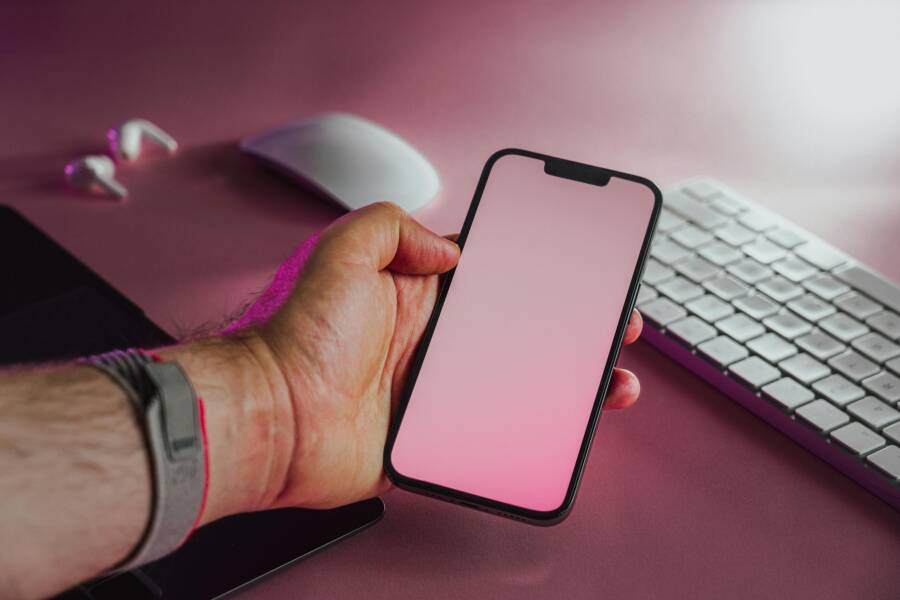
Photo by Kelvin Valerio
Enable Background Data for Specific Apps
Tap the app’s info page. Scroll to Data usage. Toggle Background data on. This lets the app pull or push data anytime.
Some paths say Mobile data & Wi-Fi. Under that, check Allow background data usage. Also enable Unrestricted data usage if available.
Test now. Open the app, start an upload, lock the screen. Check progress in notifications. It should continue.
On Samsung, find it in Settings > Apps > your app > Mobile data and Wi-Fi. Toggle both background options green.
Turn Off Battery Optimization and Data Saver
Battery tweaks block apps too. Go to Settings > Battery > Battery optimization. Tap All apps. Select your app. Choose Don’t optimize.
Data saver hurts most. Pull down quick settings. Tap the Data saver icon to off. Or Settings > Network & internet > Data Saver > Off.
Google Pixel has Adaptive Battery. It learns habits but can overdo it. In Battery > App optimization, set to Unrestricted for key apps.
After changes, restart the app. Force stop first via App info > Force stop.
Clear App Cache and Restart Phone
Quick wins help. In App info > Storage & cache, tap Clear cache. Skip Clear data unless needed, as it logs you out.
Force stop the app. Then restart your phone. Power button > Restart.
These steps fix 90% of cases. If paths differ, search Settings for “background data” or “battery optimization.” Updates shift menus slightly.
There Is a Frequency That the Wealthiest Families Have Used for Generations and Most People Will Never Know It Exists
>>> Open the Door <<<

Solve Upload Problems on iPhone Quickly
iOS handles background tasks through refresh and data modes. Paths stay consistent across models, though iOS updates tweak them. Focus on Wi-Fi and cellular tests.
Low data mode and power saving mimic Android limits. Disable them first.
Turn On Background App Refresh
Open Settings > General > Background App Refresh. Set to Wi-Fi or Wi-Fi & Cellular. This allows apps to update content in the background.
For uploads, Cellular option matters most. Apps like Photos or Dropbox fetch and send data then.
Test: Queue a large file upload. Lock screen. Swipe Control Center for progress. It resumes now.
Disable Low Data Mode and Power Saving
Spot Low Data Mode in Settings > Cellular > Cellular Data Options > Data Mode. Set to Standard or Allow More on 5G.
For Wi-Fi, long-press network in Settings > Wi-Fi > Info icon > Data Mode > Off.
Low Power Mode kills background work. Settings > Battery. Toggle it off. Yellow battery icon means it’s on.
Restart Settings app or phone if sticky.
Allow Cellular Data for the App
Per-app control seals it. Settings > Cellular. Scroll to your app. Toggle green for data access.
Photos appears under that list. Social apps too. Wi-Fi works regardless, but this fixes mobile gaps.
Run a test upload on cellular. Switch airplane mode off and on to refresh. iPhones hold settings tight, so double-check toggles.
These fixes restore flow fast. Brand apps like Samsung’s might need extra app store checks.
Prevent Background Data Issues from Happening Again
Build good habits now. Keep your OS and apps updated. Patches fix data bugs often.
He Was Drowning in Bills and Burnout Until a Simple Daily Ritual Rewired His Brain for Wealth in Less Than a Week
>>> Start Your Shift Today <<<

Use Wi-Fi for big uploads. It bypasses cellular limits. Monitor usage in Settings > Network or Battery.
Whitelist key apps early. On Android, add to battery exceptions list. iPhone sets refresh global.
Tools like Greenify (Android) manage sleep wisely. Avoid overkill.
Quick daily check: Active uploads before locking screen. Or enable notifications for stuck tasks.
Stay ahead, and blocks stay rare.
Wrapping Up: Get Your Uploads Moving Today
Background data restrictions block uploads to save resources, but you’ve got the tools to override them. On Android, enable app background data, skip battery optimization, and clear cache. iPhone users, turn on Background App Refresh, kill Low Data Mode, and allow cellular per app.
Try these steps right now. Your next photo or file shares without a hitch.
Did this fix your issue? Drop a comment with what worked or your own tips. Enjoy hassle-free sharing on your phone.
(Word count: 1487)
He Was Drowning in Bills and Burnout Until a Simple Daily Ritual Rewired His Brain for Wealth in Less Than a Week
>>> Start Your Shift Today <<<