
She Pressed Play on a Strange Audio Track and Within Days Her Financial Reality Started Shifting in Ways She Could Not Explain
>>> See How It Works <<<

Picture this: you snap a bunch of vacation photos on your phone, hit upload to iCloud or Google Photos, and there it sits. “Waiting for Wi-Fi.” Hours pass. Days even. Nothing happens. This snag hits iPhone and Android users alike. Your phone pauses big file uploads to save mobile data, but it gets stuck and won’t resume.
The good news? You can fix it. Most cases stem from simple issues like weak signals or battery settings. In this guide, you’ll find common causes of these frozen uploads, quick steps to restart them right now, deeper troubleshooting for stubborn problems, and tips to prevent repeats. These methods work fast without losing your photos or videos. No tech degree needed. Just follow along, and get those backups moving.
Whether it’s iCloud Photos on iOS or Google Photos on Android, the fixes apply across the board. Start with easy toggles that solve most glitches in minutes. Ready to end the wait?
Common Causes of Stuck ‘Waiting for Wi-Fi’ Uploads
Uploads freeze for a few key reasons. Your smartphone pauses big files when Wi-Fi drops or restrictions kick in. Spotty connections top the list, followed by low storage and power modes. These issues build up over time, especially with full photo libraries.
There Is a Frequency That the Wealthiest Families Have Used for Generations and Most People Will Never Know It Exists
>>> Open the Door <<<

On iPhones, iCloud sync halts if Background App Refresh turns off. Android devices face similar blocks from battery optimization. Crowded home networks add chaos, too. A quick check reveals the culprit.
Spotty Wi-Fi Signals and Network Issues
Weak Wi-Fi bars halt uploads first. Interference from microwaves or thick walls drops speeds below what apps need. In cafes or shared homes, too many devices hog bandwidth.
Test your speed at fast.com. If under 5 Mbps upload, that’s the issue. Restart your router by unplugging it for 30 seconds. Move closer to it. Switch to 5GHz band if available. These steps often free stuck queues without data use.
Power Saving and Background Restrictions
Low battery triggers modes that pause background tasks. iPhone’s Low Power Mode stops iCloud uploads cold. Android’s battery optimization does the same for Google Photos.
Check battery at 20% or less; that’s a red flag. Swipe down to see if Airplane icon glows faintly. Apps won’t refresh if restricted. Spot these in Settings under Battery. Turn them off to resume.
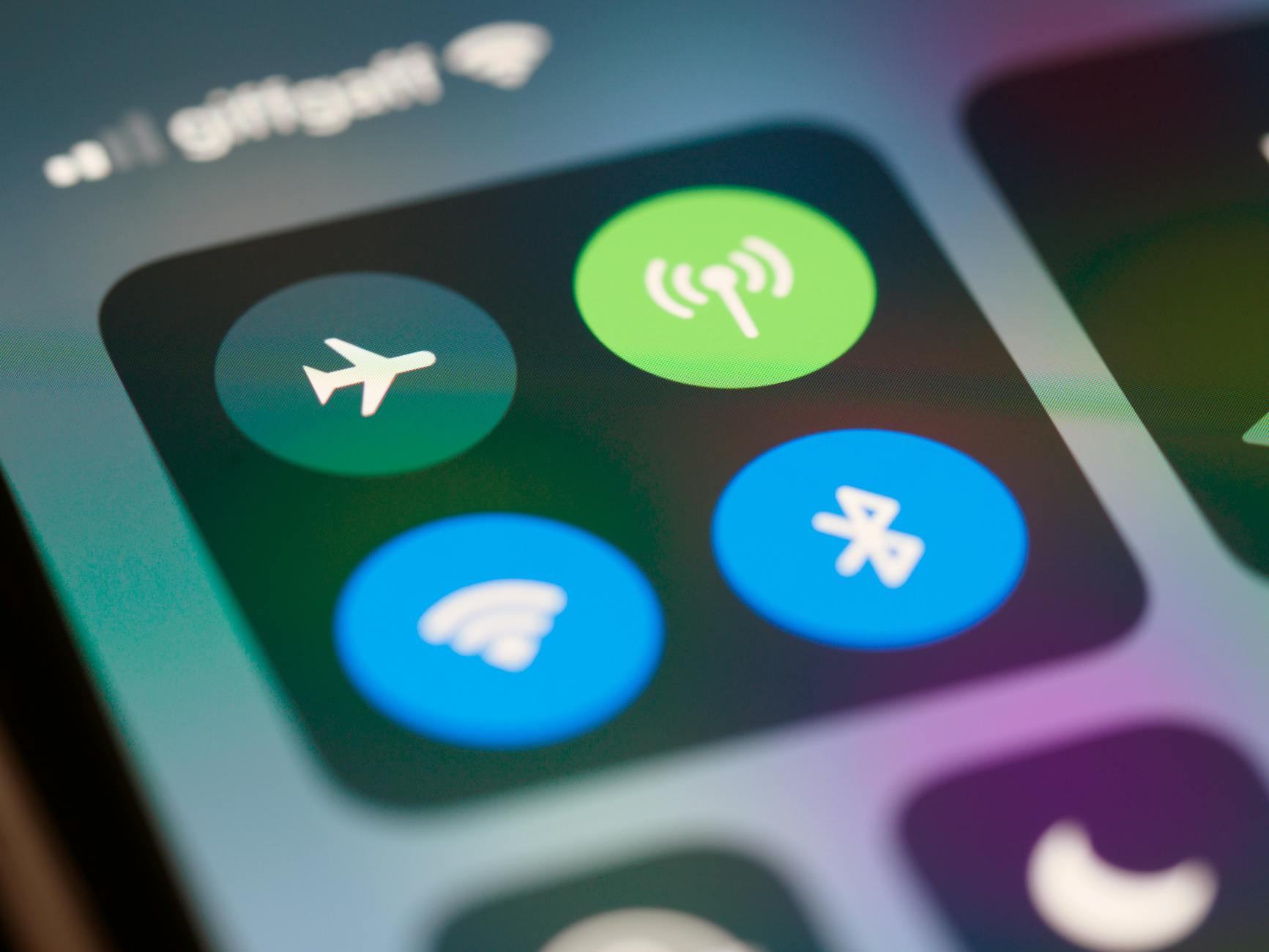
Photo by Brett Jordan
Quick Fixes to Restart Stuck Uploads Now
Try these steps in order. They fix 80% of cases fast. No data loss. Tailor for your phone.
- Toggle Wi-Fi off and on. Go to Control Center (swipe down on iPhone, up on Android). Tap Wi-Fi icon for 10 seconds. Reconnect. This resets the connection without full restart.
- Use Airplane Mode trick. Turn on Airplane Mode for 30 seconds. Turn off. It clears network glitches and forces a fresh scan. Works on both platforms.
- Force quit the app. Double-click Home button (or swipe up on newer models) on iPhone. Swipe away Photos or Files. On Android, swipe recent apps and clear Google Photos. Relaunch.
- Disable Low Data Mode. On iPhone, Settings > Wi-Fi > tap (i) next to network > off Low Data Mode. Android: Settings > Network > Mobile data > Data Saver off. These block uploads to save data.
- Restart your phone. Hold power button (and volume down on newer ones). Slide to power off. Wait 1 minute. Turn on. Clears temporary bugs.
- Check app permissions. iPhone: Settings > Photos > ensure iCloud Photos on. Android: App info > Google Photos > Data usage > Unrestricted data.
- Switch networks. Connect to mobile hotspot or another Wi-Fi. Test if upload starts.
Most users see progress in 5 minutes. Watch the status bar; green checkmarks appear as files queue up.
Deeper Fixes for Uploads That Won’t Budge
Quick steps fail? Dig deeper. These target root causes like cache or software bugs. Always back up first. Separate paths for iPhone and Android keep it simple.
Clear app cache on Android: Settings > Apps > Google Photos > Storage > Clear Cache. iPhone lacks direct cache clear; offload app instead via Settings > General > iPhone Storage > Photos > Offload App.
Free storage space matters. Full drives pause everything. Update software fixes bugs that cause hangs.
Turn on Background App Refresh (iPhone: Settings > General > Background App Refresh > Wi-Fi or Wi-Fi & Cellular). Android: Settings > Apps > Google Photos > Battery > Unrestricted.
Thousands of People Were Struggling With Money Until They Discovered This One Ancient Secret Hidden in Sound
>>> Unlock It Now <<<

Disable VPN if active; it slows or blocks. Go to Settings > VPN and toggle off.
Offload unused apps to reclaim space without deleting data.
For iPhone users, check iCloud storage in Settings > [Your Name] > iCloud. Buy more if under 5GB free.
Android folks, verify Google account sync in Settings > Accounts.
Avoid full resets unless desperate; they erase settings.
What If the Only Thing Between You and the Life You Deserve Is a Hidden Wealth Code Waiting to Be Activated
>>> Open the Door <<<

Clear Storage and Update Your Phone Software
Low space chokes uploads. iPhone: Settings > General > iPhone Storage. See red bars for offenders. Delete old videos or offload apps.
Android: Settings > Storage. Tap Free up space. Review large files.
Next, update OS. iPhone: Settings > General > Software Update. Install if available.
Android: Settings > System > System Update.
Fresh code smooths uploads and fixes Wi-Fi bugs. Your smartphone runs better overall.
Reset Network Settings as a Last Resort
This wipes Wi-Fi passwords and VPNs but keeps apps and photos safe.
iPhone: Settings > General > Transfer or Reset iPhone > Reset > Reset Network Settings. Enter passcode.
Android: Settings > System > Reset options > Reset Wi-Fi, mobile & Bluetooth.
Use only after other steps. Re-enter home Wi-Fi after. It clears deep glitches like corrupted configs.
Tips to Stop Upload Delays from Happening Again
Build good habits. Use strong Wi-Fi for uploads only. Test speeds before big backups.
Allow mobile data for key apps if Wi-Fi flakes out. iPhone: Settings > Cellular > Photos on. Android: App info > Mobile data allowed.
Schedule weekly cleanups. Delete blurry shots or duplicates in Photos app.
Pick reliable backups. iCloud for Apple fans, Google Photos for cross-device sync.
Keep software current; patches boost stability.
Heavy users, set unlimited data plans or get mesh Wi-Fi for home.
Enable auto-optimize storage in apps to push old files to cloud.
Your smartphone stays reliable with these routines. No more endless waits.
Conclusion
Stuck “Waiting for Wi-Fi” uploads? Start with toggles like Airplane Mode and Wi-Fi restart. Move to cache clears, updates, and storage frees if needed. Reset networks last.
Try one fix at a time; most resolve quick. You’ll back up photos hassle-free soon.
Share in comments: which step worked for you? Drop your tips below. Subscribe for more phone troubleshooting. Smooth sailing ahead for your digital life.
There Is a Frequency That the Wealthiest Families Have Used for Generations and Most People Will Never Know It Exists
>>> Open the Door <<<