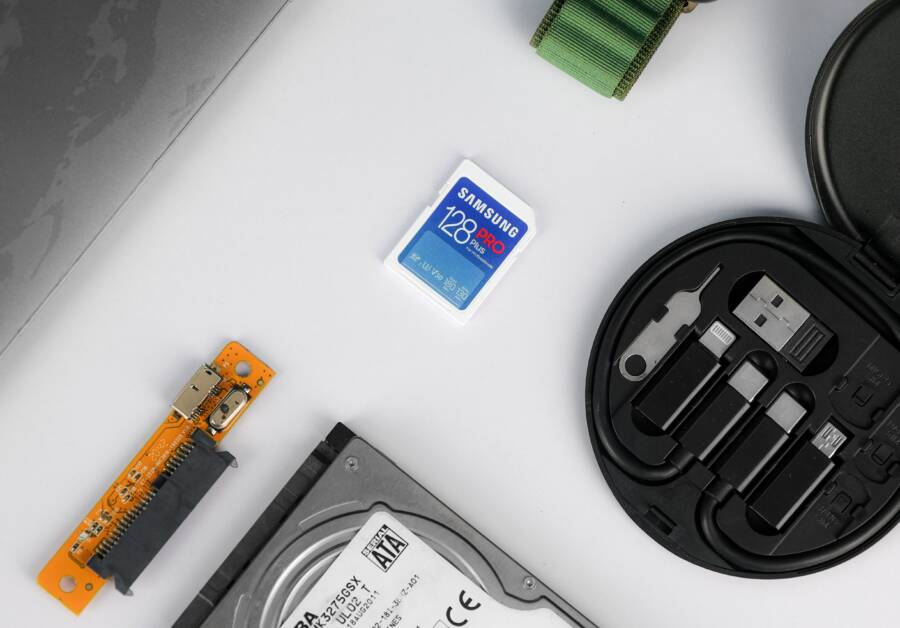
Your phone keeps disconnecting your SD card because of a loose physical connection, corrupted files, or outdated system software. These mounting errors are common, but you can usually fix them at home before you lose your data.
Most issues occur when the smartphone cannot establish a stable path to the storage medium. Addressing these problems early prevents further corruption and restores access to your photos, videos, and apps.
Quick Fixes for Physical Connection Issues
Physical contact problems are a frequent cause for a smartphone failing to recognize an SD card. Over time, the internal tray or the contact pins inside your device can accumulate dust, lint, or oxidation. These minor obstructions prevent the card from creating a solid electrical connection, causing the phone to unmount the storage unexpectedly. Before you assume the card is faulty or requires a software reset, inspect the physical components to rule out a simple connection failure.
Inspecting the SD Card Tray and Slot
The tray holds your SD card in place against the internal pins of your smartphone. If the tray is slightly bent or contains debris, the card will not make proper contact. First, power off your phone completely to prevent electrical shorts during the inspection. Use the specific ejector tool that came with your device to open the SIM and SD card tray. Carefully slide the tray out and set it on a flat, well-lit surface.
Examine the tray for any visible buildup of lint or dirt, as even a small particle can force the card out of alignment. Use a soft, dry brush to gently sweep away any residue from the tray surface. If you see debris inside the phone’s card slot, use a can of compressed air to blow it out. Hold the compressed air canister upright and use short, controlled bursts to avoid pushing moisture into the sensitive internal electronics of the smartphone.
Verifying the Card is Seated Correctly
Once the tray and slot are clean, you must confirm the card sits perfectly flat within its housing. Place the SD card back into the tray and press down gently on all corners. It should sit flush with the tray surface and not wobble or tilt when you touch it. Many modern smartphone trays are designed with tiny plastic tabs or clips that hold the card firm; ensure the card slides under these tabs correctly so it stays secure when you insert it back into the device.
If you find that the tray feels loose or the card pops out of alignment easily, the mechanical fit might have worn down over time. In these cases, applying a very thin strip of adhesive tape to the back of the SD card can provide the extra thickness required to keep the card pressed firmly against the internal connector pins. Use only a single layer of thin tape, as too much bulk will prevent the tray from sliding back into the phone. Slide the tray into your smartphone slowly, and if you feel heavy resistance, stop and check the alignment again to avoid damaging the pins.
Solving Software Glitches and System Errors
System errors and software bugs often trigger unmounting issues even when the physical hardware is perfectly fine. Your smartphone relies on background services to manage file systems and storage access. When these services encounter a logic conflict or a corrupted temporary file, they may drop the connection to the external card. Clearing specific system caches or updating your software fixes these conflicts by resetting the communication path between your device and the storage card.
Clearing the Cache of System Apps
Apps that handle storage access occasionally store outdated or corrupted data in their cache. This stale information can confuse the smartphone software and cause it to unmount your SD card unexpectedly. Clearing this cache removes the temporary junk data without affecting your personal photos, videos, or documents.
To clear the storage cache on most Android devices, follow these steps:
Open your device Settings menu.
Select Apps or Manage Apps.
Tap the menu icon in the top right corner and choose Show System Processes.
Search for External Storage or Media Storage in the list.
Tap on the app and select Storage.
Choose Clear Cache.
Repeat these steps for any app labeled as Storage or File Manager to ensure all pathways are clean. Once you finish, restart your phone. A reboot forces the system to re-index the files on your SD card, which frequently stops the unmounting cycle entirely. If you still face issues, you might need to check if the core operating system requires a patch.
Updating or Reinstalling Phone Software
Sometimes a bug in the smartphone operating system itself causes persistent connection instability. Phone manufacturers release software updates to patch these flaws and improve compatibility with different SD card brands and formats. If your device runs on an outdated version of the operating system, it may fail to handle the file system requests from your SD card properly.
You can check for available system updates by navigating to Settings and tapping on Software Update or System Update. Selecting Check for Updates will prompt your phone to contact the manufacturer servers. If a new version is available, download and install it immediately. These updates often contain critical fixes for hardware drivers and file system protocols that keep your storage stable.
If your device is already up to date, consider if a recent app installation triggered the errors. Sometimes, a third-party app creates a conflict with system storage drivers. If the errors started right after you downloaded a new app, uninstall it and test your SD card stability. Keeping your system software current is one of the most effective ways to prevent random unmounting incidents and maintain a stable connection between your storage and the device hardware.
Addressing SD Card Corruption and Formatting
When your smartphone frequently drops the connection to an SD card, you need to determine if the card itself is failing or if the issue remains within the device. Persistent unmounting errors often point to a corrupted file system on the memory card rather than a defect in your phone. Testing the card independently allows you to identify the culprit quickly. If the card functions normally on a computer but fails in your phone, you likely have a software configuration conflict. Conversely, if the card remains unstable or invisible on multiple machines, the physical storage medium is nearing the end of its life.
Testing Your Memory Card on a PC
To isolate the problem, remove the SD card from your smartphone and connect it to a laptop or desktop computer. You will need a USB-based SD card reader for this process. Insert the card into the reader and plug it into a USB port on your computer.
If your operating system detects the card but shows an error message requesting a format, your file system is likely corrupted. Open your file explorer to see if the computer can read existing files. If you can copy your data to the desktop, do so immediately to create a backup. Once you move your files, run a disk check tool like CHKDSK on Windows or First Aid on macOS. These utilities scan for bad sectors and logic errors that trigger unmounting issues. If the computer reports that the card is write-protected or fails to mount entirely, the card controller is probably damaged. In this case, no software fix can recover the hardware, and you must replace the memory card to keep your data safe.
How to Safely Format Your SD Card
Formatting your card wipes the storage and creates a fresh file system, which resolves many logic errors that cause constant unmounting. Before you begin, ensure you have backed up any essential data, as this process erases everything on the card. For most Android devices, you should format the card to the exFAT or FAT32 file system for the best compatibility.
Follow these steps to format your card using a Windows computer:
Insert your SD card into your computer card reader.
Open File Explorer and locate the drive letter assigned to your SD card.
Right-click the drive and select Format from the menu.
Choose exFAT as the File System if you use cards larger than 32GB, or select FAT32 for cards 32GB and smaller.
Keep the Allocation Unit Size at the default setting.
Check the box labeled Quick Format and click Start.
Once the process finishes, safely eject the card from your computer and reinsert it into your smartphone. Android systems often perform best when you format the card within the device settings after this initial cleanup. Go to your phone storage settings and select Format SD Card to ensure the device creates the specific folder structures it requires. This step reconciles the card with your smartphone and typically stops the unmounting cycle for good. If the card continues to disconnect after a clean format, the hardware failure is likely permanent and the card requires replacement.
When It Is Time to Replace Your Hardware
An SD card does not last forever, especially if you record high-resolution video or store thousands of photos on your smartphone. While software fixes resolve many connection drops, physical wear eventually makes a card unreliable. You should consider a replacement if you notice persistent errors despite taking corrective steps.
Signs of a Failing Memory Card
Your storage medium provides clear warnings before it fails completely. Pay attention to how your device behaves when you access files or save new media. If you experience these specific symptoms, your card likely suffers from permanent physical degradation:
Read or write errors: You frequently see pop-up notifications stating the card is read-only or that specific files cannot be saved.
Missing files: Photos or documents disappear from your gallery without any manual deletion.
Slow performance: Your phone freezes or takes several seconds to open folders located on the SD card.
Corrupted file structures: The card shows up as blank or unallocated space even after you format it on a computer.
These issues happen because the flash memory cells inside the card reach their cycle limit. Most microSD cards handle a finite number of write cycles before the hardware becomes unstable. When this limit occurs, the controller chip inside the card often fails to maintain a connection to your smartphone.
Choosing a Reliable Replacement
When you decide to buy a new SD card, prioritize quality over price. Many generic cards fail within months because they use lower-grade flash memory. Look for established brands such as SanDisk, Samsung, or Lexar to ensure better longevity.
Check the speed class rating on the packaging before you purchase. For a modern smartphone, you should choose at least a Class 10 or UHS-I U3 card to handle HD and 4K recording. These cards feature better internal controllers that manage heat and data integrity more effectively. Avoid buying from unauthorized online retailers, as counterfeit cards often display fake capacity labels and fail almost immediately. A genuine, high-quality card is a small investment that protects your personal data from unexpected loss. Always verify the seller reputation to ensure you receive an authentic product that works correctly with your device.
Conclusion
Fixing a connection problem with your SD card starts with basic physical checks, such as clearing debris from the tray or ensuring the card is seated flush. If the hardware is clean, you can resolve most persistent errors by clearing the system storage cache or installing the latest software updates on your smartphone. These steps eliminate software conflicts that often mimic hardware failures.
If the card still fails to stay mounted, test it on a computer to determine if it requires a format or if the memory chip is damaged. You should always keep a current backup of your data to prevent permanent loss if a card reaches its end of life. Relying on high-quality, authentic memory cards helps maintain a stable connection and protects your files from future corruption.