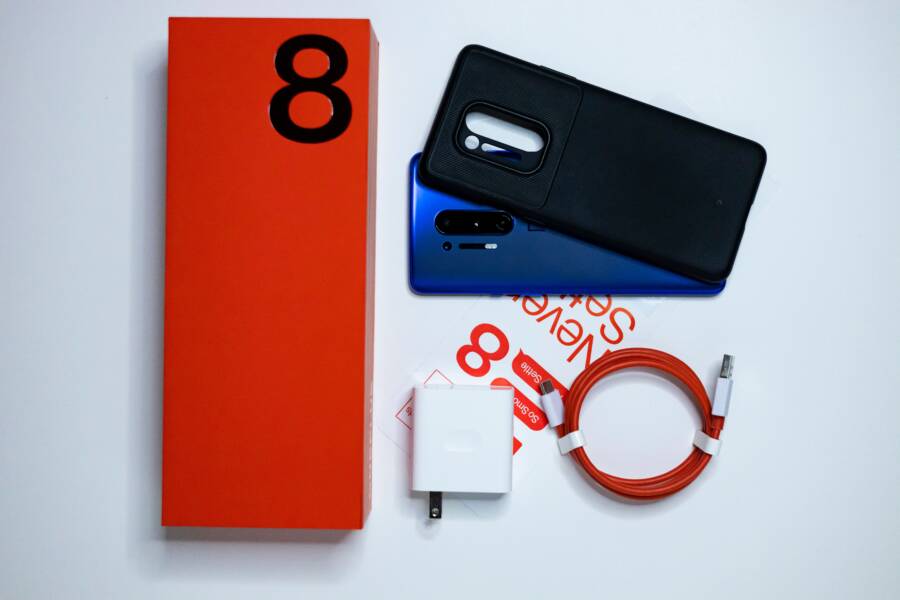
If your smartphone fails to recognize USB accessories, the issue usually stems from physical debris in the charging port, a damaged cable, or a temporary software glitch. You can often fix this by cleaning the port, testing a different cable, or performing a simple restart.
These minor hardware obstructions or communication errors prevent your device from establishing a stable connection. By addressing these basic factors first, you save time and avoid unnecessary repair costs.
The following steps explain how to identify the source of the problem and restore normal USB connectivity.
Quick Checks for USB Accessory Issues
Before you assume your hardware is broken, perform a few simple diagnostic checks. Problems with USB connectivity on a smartphone often originate from basic environmental factors or incompatible accessories rather than internal component failure. Addressing these common culprits saves you time and often resolves the issue without professional intervention.
Cleaning the Charging Port Safely
Pocket lint, dust, and debris frequently accumulate inside the charging port of a smartphone. This buildup prevents the pins in your cable from making a solid electrical connection. Over time, debris packs down at the bottom of the port, which stops the connector from seating properly.
To clear these obstructions, you must be careful to avoid damaging the delicate charging pins. Follow these steps to clean the port without causing a short circuit:
Turn off your smartphone completely to prevent any electrical mishaps while you work.
Use a non-conductive tool, such as a thin wooden toothpick or a plastic dental pick, to gently scrape the inside of the port.
Work in small motions, pulling the debris outward rather than pushing it deeper toward the base.
Use a can of compressed air to blow out any loose particles that remain after the initial clearing.
Inspect the port under a bright light to verify that no metallic shards or fabric fibers persist near the pins.
Never use needles, paperclips, or other metal objects for this task. These items conduct electricity and can easily scratch or snap the sensitive pins inside the port. If you force a metal object into the cavity, you risk creating a permanent short circuit that disables your charging and data functions entirely.
Testing Different Cables and Adapters
Not all USB cables offer the same functionality. Many inexpensive cables bundled with household electronics are designed strictly for charging and lack the internal wiring necessary for data transfer. If you use a power-only cable, your smartphone will receive power, but it will not communicate with a computer or other USB accessories.
If you suspect your cable is at fault, perform a process of elimination:
Try a different USB cable, preferably one you know works with another device.
Test your current cable with a different smartphone to see if the connection fails on multiple devices.
Swap the USB adapter or wall block to rule out power delivery issues.
Check for visible damage on the cable, such as frayed insulation or a bent connector head.
When a cable fails to work across multiple devices, the cable itself is likely damaged or incompatible. Conversely, if the same cable functions perfectly on a secondary device but fails on yours, the fault rests with your smartphone port or software settings. Identifying which component fails helps you narrow down whether you need a new accessory or a deeper system troubleshooting process.
Solving Software Glitches That Drop Connections
When your hardware is clean and the cables are verified, the issue often hides within the operating system. Smartphones rely on specific software protocols to manage how they talk to external devices. If these instructions become outdated or corrupted, the handshake between your phone and the USB accessory will fail or disconnect unexpectedly. System software management is the most common way to fix these hidden communication errors.
Updating System Software for Stability
Smartphone manufacturers frequently release updates that include patches for hardware drivers. These drivers are the translator files that tell your phone how to interact with peripherals like external storage, keyboards, or audio interfaces. When you run an outdated version of the operating system, it may lack the compatibility patches required for modern USB-C accessories to maintain a consistent connection.
You should always verify that your device runs the latest available software. These updates often resolve known bugs that prevent the system from recognizing plugged-in devices. To check for available updates, follow these steps:
Open your phone settings menu.
Look for an option labeled System, General, or About Phone.
Tap Software Update or System Update to see if a new version is waiting for download.
Install any pending updates and restart the device to allow the changes to take effect.
Updating your system does more than just add features. It refreshes the communication stack that controls data flow through the charging port. After the update, the software is better equipped to handle power delivery and data handshake requests from your accessories. If the glitch persists after an update, the problem might be a misconfigured USB setting rather than a missing driver.
Clearing USB Configuration Settings
Modern smartphones often default to a specific USB mode when you plug in an accessory. Many devices are programmed to prioritize charging over data transfer by default. If your phone is set to Charge Only mode, it will ignore data requests from accessories, which makes it appear as if the device is not being recognized at all.
You can often resolve this by forcing the phone to recognize the connection as a data device. On many Android smartphones, this setting is hidden within the Developer Options menu, which provides granular control over how the hardware functions. To adjust these settings, follow this sequence:
Go to your phone settings and find the Build Number in the About Phone section.
Tap the build number seven times until your phone displays a message confirming that you are now a developer.
Return to the main system settings and open the newly visible Developer Options menu.
Find the Default USB Configuration setting and change it to File Transfer or MTP (Media Transfer Protocol).
Changing this setting instructs your phone to keep the data lines active, which provides a more stable foundation for external hardware to connect. Some devices also allow you to manually toggle the USB controlled by setting. If you see this option, select Connected Device instead of This Device. Once you apply these changes, unplug the accessory and reconnect it. This forces the smartphone to re-establish the connection using the updated configuration parameters.
Advanced Troubleshooting When Problems Persist
Persistent connectivity issues indicate that your smartphone may have deeper software conflicts or internal hardware damage. If standard maintenance steps fail, you need a more rigorous approach to isolate the root cause. These diagnostic procedures help determine if your device requires expert repair or if a hidden software setting is still interfering with your USB peripherals.
Checking for Recent App Interference
Third-party software can sometimes conflict with your system drivers or block USB data access to prioritize internal power management. If the connection fails only after installing a new application, that program might be the culprit. Safe Mode allows you to start your smartphone with only the original, pre-installed software running. This environment ignores third-party apps, making it the best way to verify if a downloaded tool prevents your device from recognizing USB accessories.
To enter Safe Mode on most Android devices, hold the power button until the power menu appears. Long-press the Power Off option on the screen until a prompt asks if you want to reboot into Safe Mode. After the phone restarts, plug in your USB accessory.
If the accessory works while in Safe Mode, you have confirmed that a third-party application causes the conflict. You should then restart your phone normally and begin uninstalling recently added apps one by one until the USB connection stabilizes. If the accessory still fails in Safe Mode, a third-party app is likely not the issue.
When to Consider Professional Repair
Software troubleshooting cannot resolve physical degradation of the charging port or internal motherboard damage. You should inspect the port carefully if the connection remains unstable despite all your efforts. A loose or wiggly port suggests that the internal solder joints, which connect the USB assembly to the motherboard, have cracked or separated.
Look for these signs that indicate your smartphone requires a professional service center:
The cable connector sits at an angle rather than fitting snugly in the center.
You hear a clicking sound or feel significant play when you gently wiggle the cable.
The device charging indicator flickers on and off as you move the cable.
You notice discoloration or bent pins inside the port that do not clear with gentle cleaning.
If you observe these physical symptoms, avoid forcing the cable or attempting to pry the internal pins yourself. Professional technicians have the tools to replace the charging assembly safely. Using a damaged port for too long can cause a short circuit, which risks burning out your motherboard and resulting in permanent data loss. If you suspect hardware failure, reach out to the manufacturer or a certified repair shop to protect your device from further damage.
Conclusion
Most issues with your smartphone not recognizing USB accessories are simple fixes that originate from dust, faulty cables, or incorrect software settings. You can often restore full functionality by carefully cleaning the port, testing a replacement cable, or adjusting your data transfer configuration.
Professional repair is only necessary if you confirm physical damage to the charging port or if the device fails to respond after all software troubleshooting steps. By systematically addressing these common obstacles, you save time and keep your smartphone in reliable working order for years to come.