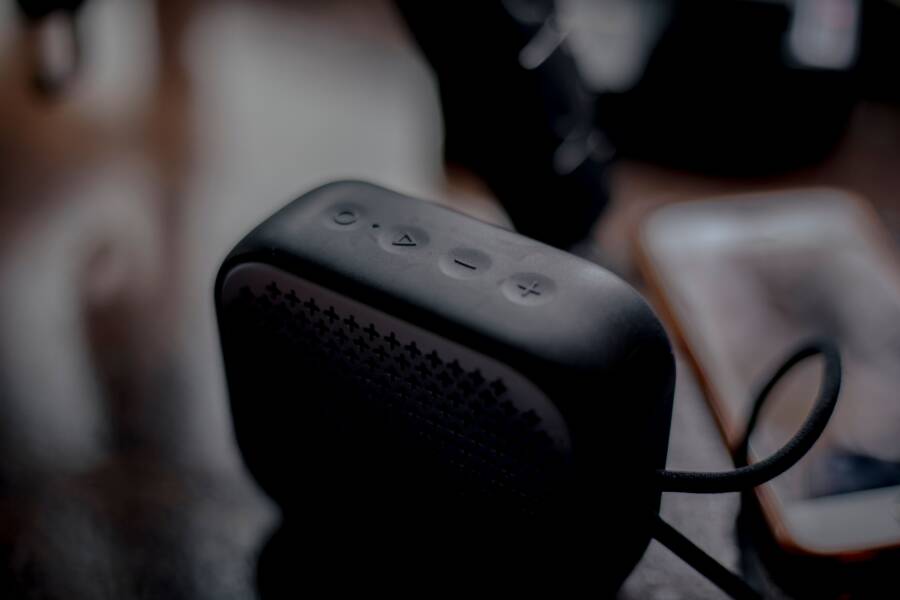
When your smartphone repeatedly kicks your Bluetooth microphone off, it is usually because the device is prioritizing the internal mic or failing to maintain a stable handshake with your audio accessory. This occurs due to software conflicts, outdated firmware, or interference from other active wireless connections. You can often fix this issue by resetting your Bluetooth cache and toggling your audio input settings within the system menu.
A faulty Bluetooth connection stems from a few predictable technical hurdles. Sometimes, your phone assumes that a built-in microphone provides better clarity, so it forces a switch away from your headset. Other times, background applications conflict with the audio stream, causing the system to drop the external mic entirely to prevent feedback.
Understanding these underlying conflicts helps you narrow down the specific cause for your device. Most of the time, the fix involves clearing cached settings or re-pairing the hardware. The following steps provide the necessary fixes to keep your external microphone locked in as the default audio source.
Common Reasons Your Smartphone Drops the Bluetooth Microphone
Bluetooth audio stability depends on a precise handshake between your smartphone and the connected peripheral. When this link breaks, the system often defaults to the onboard microphone to avoid total audio silence. Identifying the root cause requires looking at both the internal software environment and the physical surroundings of the device.
Software Glitches and Firmware Bugs
Modern operating systems manage audio routing through complex background processes. When your smartphone updates its firmware, the system occasionally resets audio priority settings or conflicts with outdated Bluetooth profiles. If your OS encounters a logic error while negotiating the Hands-Free Profile (HFP) or Headset Profile (HSP), it might drop the external microphone connection to maintain overall call stability.
App-specific settings also play a frequent role in these disconnections. Certain communication applications prioritize their own audio engine over the system default. When an application attempts to access the microphone, it may inadvertently override your Bluetooth connection if the app is not configured to recognize external input.
Background processes contribute to this instability as well. Your smartphone constantly monitors available hardware to optimize battery life. If the system detects a momentary delay in data throughput from your headset, it assumes the peripheral is inactive or unreachable. Consequently, the device force-switches to the built-in microphone to prevent a complete loss of audio input. Clearing the Bluetooth cache or updating the specific app often resolves these software-based priority conflicts.
Hardware Interference and Connectivity Range
Physical obstacles and wireless congestion remain primary culprits for dropped microphone signals. Bluetooth operates on the 2.4GHz frequency band, which is the same spectrum used by most Wi-Fi routers, microwaves, and various smart home devices. When your smartphone encounters high signal density in this range, the Bluetooth data packets struggle to reach the receiver. The system interprets this packet loss as a failing connection and cuts the microphone feed to preserve power or prevent static.
Distance also impacts the stability of your audio profile. While many devices maintain a connection over thirty feet in an open area, interior walls and human bodies act as significant barriers to high-frequency signals. If the smartphone loses a consistent line of sight with your headset, the handshake weakens. The device typically attempts to re-establish the connection quickly, but the microphone is often the first feature disabled when signal strength drops below a functional threshold.
You can troubleshoot these physical limitations by checking for common interference patterns:
Move your smartphone away from active Wi-Fi routers or dense collections of other wireless hardware.
Ensure no obstructions sit between your phone and the Bluetooth peripheral during a call.
Keep the smartphone in a pocket or position that maintains a clear line of sight to the headset.
Disable unnecessary wireless features like high-speed data syncing or background scanning that might crowd the 2.4GHz spectrum.
If these environment adjustments do not improve the stability, the issue likely resides within the antenna hardware of your smartphone or the peripheral itself. Consistent drops in different environments indicate a failing receiver rather than temporary external interference.
Quick Fixes for Bluetooth Audio Selection Issues
When your smartphone constantly drops the Bluetooth microphone, the issue often stems from a corrupted handshake or a conflict between your device and the audio accessory. You can resolve most of these glitches by forcing a clean slate for your wireless connections. These steps ensure your phone recognizes your headset as the primary audio input source again.
Resetting Your Bluetooth Connections
Handshake errors occur when the cache storing your device pairing information becomes outdated or cluttered. You must remove the existing profile completely to clear these stored instructions and force the smartphone to perform a fresh scan. Follow these steps to reset the connection.
Open the Settings app on your smartphone and navigate to the Bluetooth menu.
Locate your headset or microphone in the list of paired devices.
Tap the information icon or the gear icon next to the device name.
Select the option labeled Forget This Device or Unpair to remove the current connection.
Turn off Bluetooth on your smartphone for ten seconds.
Toggle Bluetooth back on and put your microphone into pairing mode.
Select the device from the available list when it appears to initiate a new, clean handshake.
This process eliminates residual data that often causes the system to incorrectly route audio to the internal microphone. After you re-pair, verify that the device connects as both an audio and a communication peripheral. If the connection drops again, confirm that no other nearby devices are attempting to claim the signal simultaneously.
Managing App Permissions and Audio Settings
Sometimes your smartphone has the correct Bluetooth connection, but specific apps refuse to acknowledge the external microphone. Apps often default to the built-in hardware to prevent feedback or connectivity lag during voice calls. You can manually adjust these settings to ensure your headset remains the priority.
Check your privacy settings first to confirm the application has permission to access external inputs. Navigate to the App Permissions menu in your system settings and select your communication software. Ensure Microphone access remains enabled. Some systems allow you to choose specific audio sources if you hold the icon for the app, though most manage this via the system audio engine.
You can also influence the routing preference by adjusting the developer options or system audio settings:
Check the Bluetooth device settings menu for a toggle labeled Call Audio or Input Device. Ensure these boxes remain checked for your peripheral.
Disable battery optimization for your calling apps, as this prevents the smartphone from killing background audio processes to save power.
Restart the application after you adjust the settings so the software registers the change in audio hardware.
If you use a third-party audio manager, verify it is not overriding your system defaults and forcing the microphone back to the internal array.
These adjustments tell the operating system to honor your preference for the external accessory. If the connection continues to drop during specific tasks, update the application to the latest version. Developers frequently release patches that fix conflicts between high-fidelity audio streams and external wireless microphones.
Advanced Troubleshooting for Persistent Microphone Drops
When basic re-pairing steps fail to stabilize your audio, deeper system issues are often at play. A smartphone manages wireless peripherals through a complex stack of network configurations and firmware layers that can become corrupted over time. If your microphone continues to drop after you have performed a standard reset, these advanced methods target the core communication protocols between your device and the headset.
Clearing System Network Settings
Your smartphone maintains a hidden database of network information that includes Wi-Fi passwords, cellular configurations, and Bluetooth device caches. Over time, these files can become fragmented or corrupted, leading to phantom conflicts that prevent a stable connection. Resetting these settings forces the operating system to purge outdated handshake data and restore factory-default communication protocols.
This process is effective because it clears the low-level Bluetooth cache without erasing your photos, documents, or apps. You will need to reconnect to your home Wi-Fi networks and re-pair your Bluetooth devices afterward, but this blank slate often resolves deep-seated bugs that prevent consistent microphone usage. To perform this reset on most devices, navigate to your system settings, locate the reset menu, and select the option to reset network settings. Your smartphone will reboot, clearing away the persistent configuration errors that might have been forcing your microphone to disconnect.
Updating Firmware and Checking for Incompatibility
Bluetooth stability relies on a synchronization between the firmware version of your smartphone and the internal software of your wireless accessory. If your headset runs on an outdated firmware version, it may fail to respond correctly to the latest Bluetooth protocols used by a modern smartphone. Manufacturers frequently release updates to address these specific handshaking errors, so checking for peripheral updates is a priority.
You should also look for known compatibility gaps between specific hardware models. Some older Bluetooth accessories lack support for newer high-bandwidth audio profiles, causing the phone to drop the microphone connection when it demands more data than the headset can provide. If you suspect an incompatibility, follow these steps:
Use the companion application provided by your headset manufacturer to check for available firmware updates.
Visit the official manufacturer website to confirm if your specific headset model requires a different Bluetooth profile setting.
Check for smartphone system updates, as these often contain patches for broader Bluetooth connectivity bugs.
Test the accessory with a different device to see if the connection drops persist across all hardware.
If the microphone drops only when paired with your current smartphone, the issue is likely a software conflict or an outdated driver within your OS. If the drops occur on every device, your headset likely has a faulty receiver or an internal component failure that requires physical repair. Identifying whether the fault lies in the accessory or the phone helps you avoid unnecessary troubleshooting steps and points you toward a permanent solution.
When to Replace Your Hardware
Determining whether your gear is the source of the problem is often the hardest part of troubleshooting. While software settings frequently cause audio drops, older hardware can physically degrade, leading to connection failures that no software update can fix. Recognizing the signs of physical failure saves you time and prevents unnecessary frustration with your smartphone settings.
Isolating the Faulty Device
You can distinguish between a problematic smartphone and a failing headset with a simple cross-testing method. This process reveals which device holds the unstable connection, allowing you to focus your repair efforts on the actual culprit.
Follow these steps to pinpoint the source of your audio drops:
Connect your Bluetooth headset to a different device, such as a laptop, tablet, or a friend’s smartphone.
Use the headset for a prolonged voice call or audio recording session in that secondary environment.
Observe if the microphone continues to drop while paired with the new device.
If the microphone fails on the secondary device, your headset is likely damaged or nearing the end of its life cycle.
If the headset works perfectly on the other device, the fault resides within the Bluetooth controller or the operating system of your original smartphone.
Testing your gear in multiple environments confirms if the issue follows the accessory. If you consistently lose microphone access regardless of which phone you use, the internal antenna or the battery within the headset has likely degraded. Conversely, if the headset performs well everywhere except on your primary smartphone, you are dealing with a software conflict or a hardware failure on the phone itself. Once you confirm the device causing the fault, you can decide whether to replace the accessory or perform a factory reset on your smartphone.
Conclusion
Resolving microphone connectivity issues often requires a mix of logical troubleshooting and patience. Prioritize removing existing pairing profiles and clearing your network cache, as these steps resolve most software conflicts. If the problem persists, perform cross-device testing to determine if your accessory is physically failing.
Keeping your smartphone software up to date is the most effective way to avoid recurring audio drops. Regular system updates contain vital patches for Bluetooth communication protocols that maintain a stable link with external microphones. Consistent maintenance ensures your audio remains clear and connected throughout your daily use.