Are you staring at a phone browser that crawls to a halt and wondering what happened to a smooth online experience? You’re not alone. Slow browsing is usually a sign of small, fixable issues that add up over time, not a broken device. This guide cuts through the noise with practical steps you can try today.
In this post you’ll learn fast fixes that you can apply in minutes, plus deeper steps that keep your phone running at its best. We’ll cover storage health, browser settings, and how to optimize your network so pages load quicker. Think of this as a plain language checklist you can follow step by step, with concrete examples you can try on your own smartphone.
First, we’ll tackle the quick wins that make the biggest difference. Clearing cache, updating the browser, and disabling resource-heavy extensions or syncing features can remove the biggest slowdowns. If you surf a lot on public Wi-Fi or spot weak signals, we’ll show you how to test connections and switch to a more stable option without losing reading momentum. These tweaks often restore speed without needing a tech call.
Next, we move into deeper maintenance. Clearing RAM, managing storage space, and reviewing installed apps that quietly drain resources can reboot performance. We’ll walk you through checking for background data use and adjusting site permissions so we only load what matters. You’ll also get guidance on browser health habits, like periodic cleanups and opting into lighter rendering modes when appropriate.
If you reach a wall after trying these steps, we outline when to escalate. Sometimes the issue is outside your device, and knowing where to look saves time. By the end, you’ll have a solid plan to speed up a slow browser now and keep it running smoothly in the weeks ahead, with practical checks you can reuse anytime.
Fast fixes you can try now to speed up a slow phone browser
When a phone browser crawls, it can feel like a slow packet of molasses. Before you start a deep cleanup or reset, there are quick, low-effort steps you can take that often restore a noticeable bounce in performance. The ideas below focus on immediate adjustments you can make in minutes. Think of them as your first line of defense against lag, helping you get back to smooth scrolling and fast page loads without a tech call.
Close apps running in the background and restart
Background apps quietly consume RAM and CPU cycles. Even when you’re not actively using them, many apps continue to run or wake up periodically to fetch data. That activity steals memory that the browser needs to render pages quickly. When RAM is tight, the browser may struggle with complex sites, images, or video, leading to longer load times and stuttering.
Android users can close apps quickly with these steps:
- Open the Recent Apps screen by swiping up from the bottom (or tapping the square button) and holding.
- Swipe each app off the screen to close it, or tap “Clear all” to free memory at once.
- To perform a quick restart, hold the power button, choose Restart, and wait for the device to boot again. This clears transient issues and helps memory reclaim.
iPhone users can do the same with a few taps:
- Double-click the Home button or swipe up from the bottom and pause to reveal open apps.
- Swipe up on each app card to quit it, or use the app switcher to swipe everything away.
- To restart, power off the device with the side button, wait a few seconds, then turn it back on.
Why this helps right away: closing background tasks reduces memory pressure and processor contention. A fresh start often frees up RAM that the browser was hoarding for background tasks, making the page render faster. In many cases you’ll notice a snappier feel within minutes of closing apps and rebooting.
Pro tip: if you routinely clear memory, consider a lightweight device management habit. A quick glance at what’s actively consuming RAM can prevent stubborn slowdowns. For added context, you can learn more about managing apps on Android and iPhone here:
- Find, open & close apps on Android
- Quit and reopen an app on iPhone
Temporarily disable data saver, VPN, or ad blockers to test speed
Data saver modes, VPNs, and ad blockers do their job by reducing data usage or blocking content. They can, however, slow down page rendering. Data saver compresses or blocks resources, VPN routes traffic through a tunnel that adds overhead, and ad blockers may still load and process lists before a page renders. When you’re chasing speed, it’s worth testing each one individually.
Steps to test speed with these features disabled:
- Android data saver (example path):
- Open Settings > Network & internet > Data usage > Data Saver, and toggle off.
- Reopen the browser and reload the same site to compare.
- iPhone data saver or VPN:
- If you’re using a VPN, turn it off from the VPN app or iPhone Settings > VPN, and refresh the page.
- If you enable any content blockers, temporarily disable them in the browser’s settings or the corresponding app, then reload.
- Ad blockers (system-wide or browser extensions):
- Turn off the ad blocker for the site you’re testing, then reload.
- If you use a browser with built-in blocking, toggle the feature off and compare.
The goal is to test after each change, so you can identify which tool, if any, was slowing you down. If you discover that turning off a specific feature speeds up loading, you can keep it off for sites that need high speed and re-enable it for safety or data savings on other sites.
For further reading on why these tools can slow down browsing and how to disable them on Android and iPhone, you may want to explore common guides and tips from reputable sources.
- How to Stop Pop-Up Ads on Android and iPhone
- Steps to Block Ads on Android, iOS, and Other Platforms
- How to disable ad blockers (and why you shouldn’t)
Temporarily switch to a different browser to test performance
Sometimes the slowdown is limited to a single browser, not your entire device. A second browser can reveal whether you’re dealing with a browser-specific issue or a broader system problem. The approach is simple and quick:
- Install a lightweight, widely compatible option if you don’t already have one.
- Open the same site you were testing in your original browser.
- Compare load times and scrolling responsiveness.
If the second browser feels noticeably faster, you’ve got a strong hint that something about your primary browser is the bottleneck. You can keep using the faster option for now while you investigate deeper fixes in the slower one. This method is practical because it avoids a full reset and gives you a concrete data point on whether the issue is browser-related.
If you need ideas for lightweight browsers, there are several options designed to run smooth on limited hardware. Look for browsers that emphasize speed and minimal resource use, not just features. If you’d like, I can pull up current recommendations tailored to your device model and OS version, including real-world speed tests.
Where to start: trusted sources often publish comparisons of lightweight browsers for both Android and iPhone, helping you gauge performance without installing every option. For quick context, you can explore articles like:
- 10 Best Lightweight Browsers for Android
- Top lightweight browsers for iOS and Android in 2024
Bonus tip: if you do find a faster browser, you can use it as a fallback while you work through deeper optimizations on your primary browser. This keeps you productive while you troubleshoot.
External links and further reading to support these steps are included to help you verify details and find the exact paths for your device.
Free up storage and refresh your device to boost browser speed
A slow browser on a smartphone often stems from a crowded storage space and tired memory. By clearing space and giving your device a quick refresh, you can unlock noticeable gains in loading times and scrolling smoothness. Think of it as decluttering a small desk; once there’s room to breathe, everything works more efficiently. In this section, you’ll learn practical, copyable steps to reclaim storage, free up RAM, and keep your browser humming.
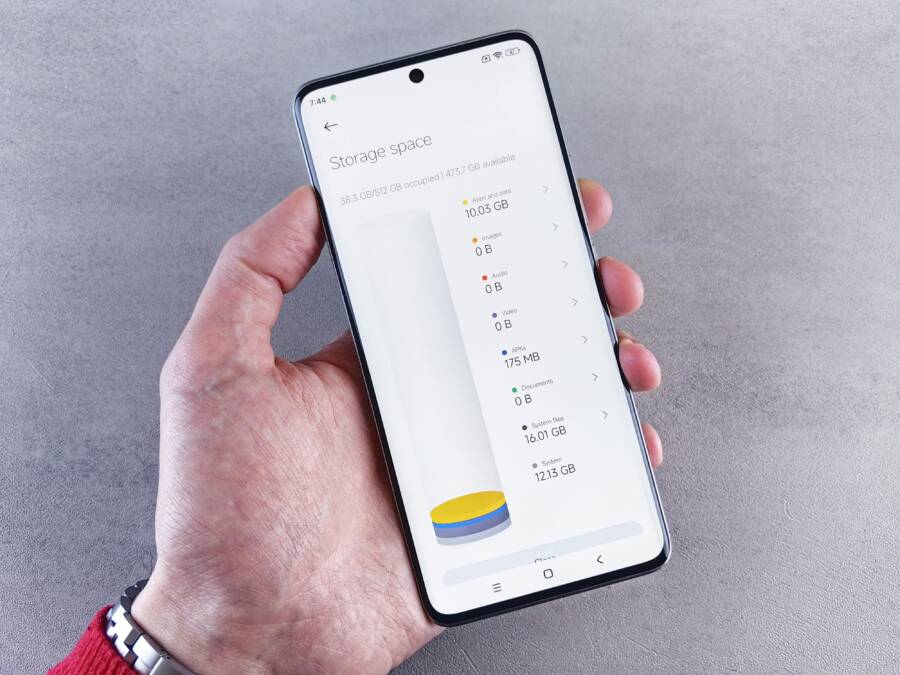
 Photo by Andrey Matveev
Check storage level and delete unused files
Your phone has a fixed amount of space for apps, photos, and data. When space runs low, the system slows down, and the browser fights for memory. Start with a quick check to see what’s eating up space and decide what to delete or offload.
- How to check storage:
- Android: Open Settings > Storage. Look for a breakdown by Apps, Images, Videos, and Other. Check for “Large files” or “Other” that’s hogging space.
- iPhone: Open Settings > General > iPhone Storage. Review a color-coded chart that highlights what’s taking up room and which apps are least used.
- Identify large, unused files or apps:
- Look for old videos, high‑resolution photos you don’t revisit, or large app data caches that aren’t necessary.
- Check for apps you rarely use but that store a lot of data.
- Simple cleanup plan:
- Back up important data first. Move photos to cloud or your computer, and save essential documents.
- Delete or offload items you won’t miss. For apps you don’t use, uninstall them or enable offload features on Android or iOS.
- Clear app caches for apps that accumulate data quickly. Don’t clear essential data unless you know you won’t lose important information.
- Quick wins to consider:
- Move or delete large videos and offline maps you don’t need.
- Remove duplicate photos and unnecessary downloads.
- Transfer old messages or media to cloud storage if you want to keep them.
If you want a guided path, you can follow reliable how-to guides such as “How to Check and Manage Storage on Your Phone” for step-by-step visuals. Consider pairing these checks with a regular cleanup habit to keep storage from creeping back up.
External references to help you verify steps:
- How to Check and Manage Storage on Your Phone
Clear RAM by restarting or force stopping apps
RAM is the short-term memory your phone uses to run apps and render pages. When RAM is crowded, the browser slows to a crawl. A fresh restart or a quick round of force stopping background apps can reclaim the muscle your browser needs to render pages quickly.
- How to free RAM on Android:
- Close apps from the Recent Apps screen. Swipe away each app to close it, or use “Close all.”
- Do a quick restart: hold the power button, select Restart, and let the device boot again.
- How to free RAM on iPhone:
- Double-click the Home button or swipe up from the bottom to view open apps.
- Swipe up on each app card to quit it, or use the app switcher to clear them all.
- Restart by holding the side button, turning off, and turning it back on after a few seconds.
Why this helps right away: freeing RAM lowers memory pressure and reduces the chance of the browser waiting for background tasks to finish. A fresh start often frees up memory that the browser was hoarding, so pages load faster and scroll feels smoother.
Pro tip: if you regularly clear memory, you’ll spot patterns. For extra context on managing apps on Android and iPhone, see guides like:
- How to Clear RAM on iPhone
- How to Clear RAM on Android
Update your OS and apps to the latest version
Operating system and app updates bring performance improvements, security patches, and compatibility fixes that directly affect browser speed. Updates can also fix issues that cause background processes to run longer than needed.
- Why updates matter:
- They optimize how memory is allocated and how often background tasks wake the CPU.
- They fix bugs that can cause browsers to reload or stall more often.
- They patch security flaws that could otherwise slow you down with extra network checks.
- Simple checklists:
- Update the phone OS:
- Android: Settings > System > System update. Check for updates and install if available.
- iPhone: Settings > General > Software Update. If an update is available, install.
- Update the browser app:
- Open the Google Play Store (Android) or App Store (iPhone) and check for updates for your browser.
- Enable automatic updates if possible:
- Android: Play Store > Settings > Network preferences > Auto-update apps.
- iPhone: Settings > App Store > Automatic Updates.
- Update the phone OS:
- After updating, test browser speed again to confirm improvements.
Keeping your OS and apps current reduces the chance of performance regressions and helps your smartphone handle modern websites more efficiently. For further guidance on keeping devices up to date, you can review resources like:
- Keep Your Device’s Operating System and Applications Up to Date
Images and visuals can help you gauge what to look for when you review storage and RAM. For example, a practical shot of a phone’s storage chart can illustrate how to spot large files quickly.
If you’d like, I can pull up current, device-specific tips on managing storage and updates that match your model and OS version.
Photo by Andrey Matveev Photo by Andrey Matveev
External resources to broaden the checklist:
- How to Update Apps on Your Phone (And Why It Matters)
- How to update your Android phone
- Update iOS on iPhone
This approach gives you a practical, repeatable routine: reclaim space, free RAM, and keep software up to date. When you combine these steps, you’ll notice the browser feels lighter, pages load faster, and your online experience stays smooth even on older hardware. If you want to optimize further, we’ll move into targeted browser settings next, including cache management and rendering options that fit your device.