Have you suddenly lost sound on your phone and you’re not sure why? This quick guide shows you how to get back to normal with simple checks that work on both Android and iPhone. You’ll learn fast wins you can try right away and a clear roadmap for deeper checks if the issue sticks around.
First, you’ll fix the easy culprits. Silent mode, Do Not Disturb, or a broken volume setting can mute everything in an instant. Bluetooth may be connected to a hidden speaker or headset, making your phone sound disappear at the speaker. These are the kinds of issues you can usually resolve without any tools.
Next, we walk through practical steps that readers at an 8th grade reading level can follow. You’ll see how to raise volume across apps, test the speaker with headphones, and run a quick restart to clear glitches. If the basics don’t solve it, you’ll have a plan for software updates and deeper checks that cover both Android and iPhone.
This guide also serves as a practical reference for smartphone basics. You’ll understand when sound problems point to software versus hardware, and you’ll know what to expect if a visit to a technician becomes necessary. By the end, you’ll have a clear, actionable path to restore sound and keep your day moving.
Quick fixes you can try right away to restore sound on your smartphone
Sound problems can feel urgent, but a lot of times the cause is something simple you can fix in minutes. This section gives you fast, practical steps you can try today. Each sub-section focuses on a common trigger, with clear actions you can take on both Android and iPhone. By the end, you’ll have a clearer idea of what to check first and what to do next if the issue sticks around.
Check volume and silent mode
Sound output starts with the basics. Make sure you’re not in silent or Do Not Disturb mode, and confirm the media volume is up—not just the ringer volume. On iPhone, you can swipe down from the top-right corner to open Control Center and look at the volume slider. If you see a crescent moon icon, Do Not Disturb or Focus may be silencing alerts and media alike; turn it off or adjust allowed notifications for essential apps. On Android, swipe down to access Quick Settings, locate Do Not Disturb or Focus, and switch it off if it’s active. Then check the media volume separately from the ring volume. Some phones have independent sliders for media, ring, and system sounds; ensure the media level is high enough for apps and videos. If you’re still not hearing anything, try playing audio through headphones. If headphones work but the speaker doesn’t, that points to a speaker-specific issue that may need deeper troubleshooting.
Helpful tip: a quick switch can reveal whether the issue is broad or app-specific. If sound plays normally through headphones but not the built-in speaker, you’re likely dealing with a hardware or system routing problem rather than a single app. For more guidance on official steps from Apple, see their notes on turning Silent mode and Focus off on iPhone. Apple Support: How to turn Do Not Disturb on or off on your iPhone
Turn off Do Not Disturb and review app volumes
Do Not Disturb and Focus modes mute sounds across the device. Even if the phone sounds fine in some apps, others may be silenced due to per-app volume settings or DND exceptions. Start by disabling Do Not Disturb or Focus entirely, then test audio across a few apps to confirm the fix.
- On iPhone: Go to Settings > Focus, then tap Do Not Disturb and turn it off. If you use Focus modes, review the “Allowed Notifications” to ensure critical apps or contacts can still make sounds.
- On Android: Open Settings > Notifications > Do Not Disturb (or Sound & Vibration > Do Not Disturb) and disable it. Some devices implement Focus modes or app-specific quiet modes, so check each app’s sound settings as well.
Next, verify per-app volumes. Some apps have their own in-app volume controls or mute options. Launch a video or game and adjust the in-app volume slider, then test other apps like podcasts or calls to ensure you didn’t mute a single source. If you want official guidance on turning off Do Not Disturb and managing Focus, Apple provides a straightforward walkthrough. Apple Support: How to turn Do Not Disturb on or off on your iPhone
If you’re curious about broader tips, a practical overview shows how turning off DND or Focus can restore sound across both systems and apps. For Android users, Google’s guidance on Modes and Do Not Disturb covers the steps and confirms how interruptions can be limited by design. Google Support: Limit interruptions with Modes & Do Not Disturb on Android
Disconnect Bluetooth devices and other audio outputs
Bluetooth mishaps are a common culprit. A phone can be sending audio to a Bluetooth speaker or headset even when you don’t realize it, leaving the built-in speaker quiet. Here’s how to reset the connection and confirm sound is back in your phone’s speaker.
- Disconnect all Bluetooth devices: Go to Settings > Bluetooth and disconnect or forget any paired devices. On iPhone, you can also access Bluetooth in Control Center by long-pressing the Bluetooth tile and choosing to disconnect.
- Reconnect selectively: After disconnecting, try playing audio from the phone speaker. If it works, the issue was tied to the Bluetooth route.
- Check other audio outputs: Some phones route sound to wired headsets or audio adapters through a separate port. If you use a dongle or USB-C/Lightning adapter, unplug and reinsert it to reset the path.
If you still see no sound after disconnecting, a quick check of a nearby Bluetooth device can help you confirm whether the problem is strictly Bluetooth-related or affects the main speaker as well. For context, readers have found success by freeing the audio path and then reestablishing Bluetooth connections as needed. If you want more background on Bluetooth troubleshooting, this community discussion explains common behaviors and fixes. Apple Discussions: How to disconnect Bluetooth devices
If Bluetooth isn’t the issue, you can explore additional steps that other users have found helpful, such as rebooting the device or clearing app caches. For Android users, a troubleshooting thread discusses disconnecting and re-establishing connections, which often resolves no-sound problems tied to Bluetooth. Android Help: When I connect to a Bluetooth device no sound will play
Restart your phone to refresh software
A clean restart can clear hiccups that block audio output. It’s often the fastest way to reset corrupted audio services or a frozen speaker route.
- Simple reboot: Hold the power button, then select Restart. If your device doesn’t show a restart option, power off completely, wait 15–30 seconds, then power back on.
- Power cycle when needed: If a basic restart doesn’t help, try turning the device off and leaving it off for a minute or two before turning it back on. This longer pause can clear more stubborn glitches.
- After reboot, test sound thoroughly: Play a video, a ringtone, and a few different apps to confirm the fix is stable.
Restarting helps because it resets software processes that might have locked the audio pathway or misrouted output. It’s a safe, quick step to try before moving on to deeper checks or updates. If you’d like a practical review of why rebooting helps with sound issues, a couple of sources discuss the value of a fresh start for devices. Hollyland: How to Fix No Audio on Phone
Optional next steps to consider later include software updates, resetting settings, or a factory reset if the problem persists. Those options are more involved, so save them for after you’ve ruled out the common culprits above.
External resources and quick checks you can rely on
- Official guidance for iPhone players and apps in relation to volume, silent modes, and DND settings. Apple’s support articles offer precise, device-specific instructions that align with what you’ll experience in the field. Apple Support: If you hear no sound or distorted sound from your iPhone
- Broad, practical steps that cover both platforms. This overview includes raising media volume, testing app-specific audio, and verifying DND status. Hollyland: How to Fix No Audio on Phone: Android & iPhone
- A quick reference for turning off Do Not Disturb and managing Focus modes on iPhone, plus related discussions. Apple Support: How to turn Do Not Disturb on or off on your iPhone
- Guidance on Bluetooth troubleshooting and when to disconnect to restore sound from the built-in speaker. Apple Discussions: How to disconnect Bluetooth devices
If you try these steps and the sound still doesn’t come back, you may be facing a hardware issue or a deeper software fault. In that case, consider scheduling a visit with a professional technician or visiting an official service center. The next section of this guide will help you map out when it’s time to seek expert help and what to expect during diagnostics.
Hardware and physical checks to diagnose sound problems
If your phone still has no sound after ruling out software issues, it’s time to check the hardware path. A quick physical review can reveal why audio isn’t reaching your ears. This section covers practical, non-destructive checks you can perform before visiting a technician. Remember, if you notice obvious damage, stop and seek professional help to avoid further harm.
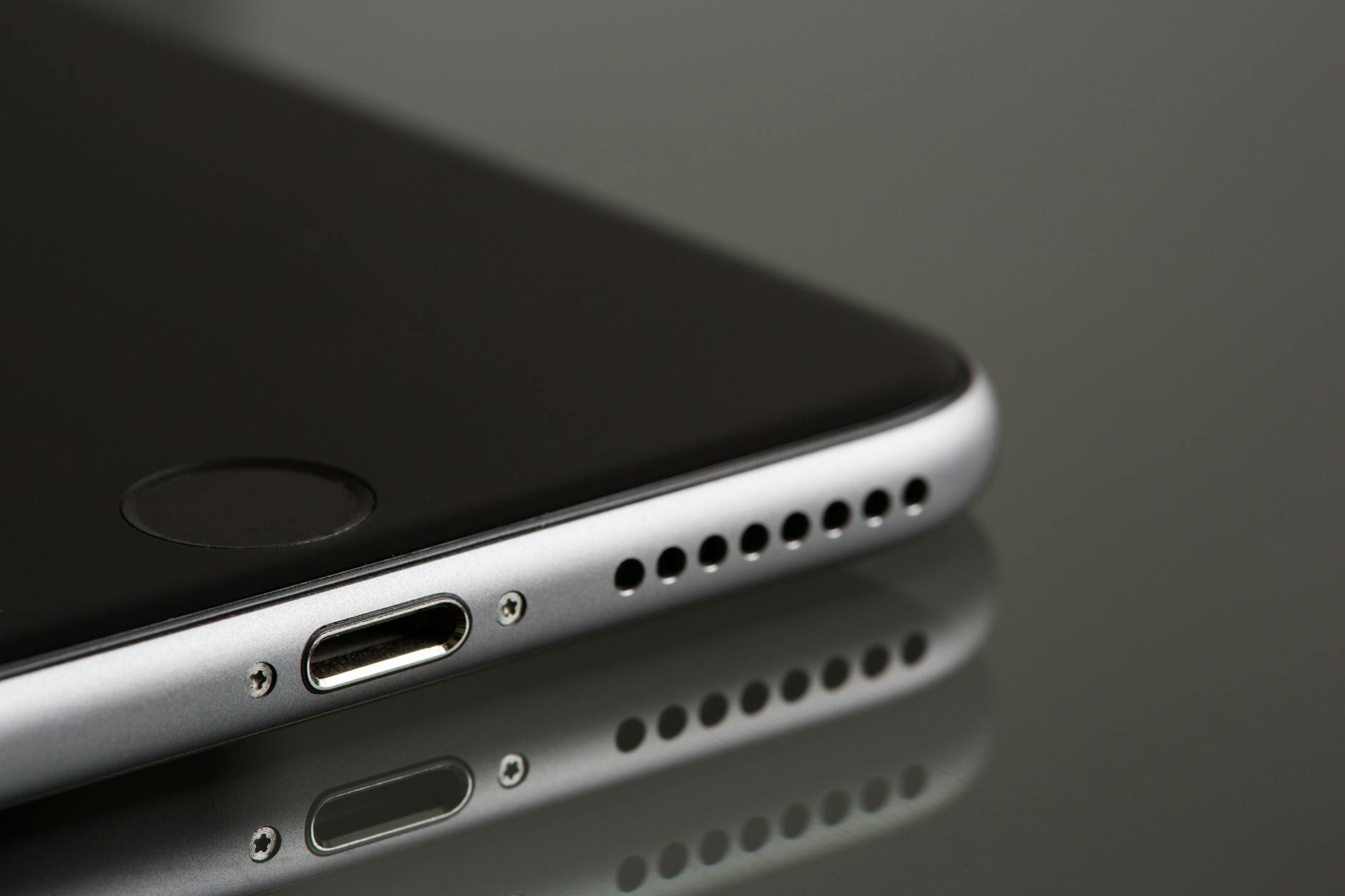 Photo by Torsten Dettlaff
Inspect speaker grilles and clean debris
Dust and lint can easily clog the tiny speaker openings. A blocked grille muffles or eliminates sound entirely. Start with a gentle visual check: look for visible debris in the speaker holes. If you see grime, use a soft brush or a can of compressed air held at a distance to dislodge particles. A clean, dry brush works well; brush at a slight angle to avoid pushing debris deeper.
Safe cleaning methods to follow:
- Power off the device before cleaning to avoid short circuits.
- Use a soft, dry brush or a microfiber cloth. For stubborn dust, a small, clean toothbrush can be used with light strokes.
- Avoid liquids, sprays, or alcohol near the openings. Moisture can seep inside and cause more damage.
How to spot blocked grills:
- Sound muffled with a hollow or distant tone when playing media.
- Debris visible near or inside the speaker holes.
- Regular tapping or gentle blowing on the grille does not produce a clean sound.
If you’re unsure about the right technique, professional guidance from Apple or Android communities can help. For example, Apple recommends a soft-bristled brush to clear speaker openings when needed. See Apple’s guidance on cleaning and troubleshooting no sound situations for iPhone users. Apple Support: If you hear no sound or distorted sound from your iPhone
Test sound with headphones versus the phone speaker
Comparing output between headphones and the built-in speaker is one of the fastest ways to localize the problem. If sound plays clearly through headphones but is absent from the speaker, the issue is likely the speaker path or a routing fault in software that affects the speaker output.
What to do:
- Play audio through the built-in speaker and then through wired headphones or Bluetooth headphones.
- Note the differences in volume and clarity. If headphones work but the speaker does not, focus on the speaker hardware or the speaker amplifier.
- If both outputs are quiet, the fault may be systemic or software related; continue with deeper checks from this guide or consider a reset if you’re comfortable.
When you need official steps for iPhone, Apple offers straightforward guidance on testing sound paths and confirming speaker function. Apple Support: How to turn Do Not Disturb on or off on your iPhone
If you’re curious about broad troubleshooting for both platforms, a practical overview describes testing audio across outputs. Hollyland: How to Fix No Audio on Phone: Android & iPhone
Look for water exposure or moisture indicators
Moisture inside the device can silence audio systems and cause corrosion. Look for water exposure signs and know what to do if you suspect moisture.
Common signs:
- Unusual corrosion around ports or a cloudy screen effect after exposure to moisture.
- A warning about liquid contact in diagnostic apps or a moisture indicator in the SIM tray area.
- Audio crackling or intermittent sound that comes and goes as the device heats or cools.
What to do if moisture is suspected:
- Power the device off immediately to prevent short circuits.
- Do not charge the phone while moisture remains inside.
- If you can safely do so, remove external cases or accessories that trap moisture.
- Seek professional assessment quickly. A technician can clean internal components and inspect for lasting damage.
Moisture indicators exist on many devices and can be a telltale sign of water damage. If you want a general guide on water damage symptoms and next steps, a practical resource explains the basics. H2O Wireless: How to Clean Your Cellphone Speakers Safely
Check for physical damage from drops or impacts
A drop can crack the speaker assembly or misalign the internal flex cables. Inspect visually for obvious damage and listen for unusual rattle sounds when you gently shake the phone. Signs to watch for:
- Cracked screen near the speaker area or visible damage to the speaker grill.
- Looseness or misalignment of the speaker module inside the phone.
- Water ingress indicator or components that look bent or dislodged.
If you notice any of these, avoid further handling that could worsen damage. The next step is to have a professional technician assess the device. In some cases, a simple speaker replacement or re-seating a loose connector can restore sound.
When visible damage is present, or if the device was subjected to a hard impact, it is usually best to schedule service. You can expect a diagnostic that checks the speaker module, connectors, and related circuitry to determine whether repair is feasible. For a practical overview of diagnosing no-audio scenarios after physical damage, consider a professional guide like this repair-focused resource. Abq Phone Repair: How to Fix No Audio on Phone
Images can illustrate how a technician would inspect the speaker area, offering readers a quick mental model of what to expect during a service visit. If you want a photo to accompany this step, a close-up of a phone’s speaker area works well. Photo by Torsten Dettlaff on Pexels.
External resources and quick checks you can rely on
- When the speaker path is suspected, testing with different output modes helps confirm the issue. For example, test with a wired headset, Bluetooth audio, and the built-in speaker. See a troubleshooting discussion for context. Apple Discussions: Clearing out Speaker Holes
- For general cleaning guidance, reputable sources emphasize soft brushes and dry methods to avoid moisture. Consumer Reports: How to Clean Your Smartphone Charging Port and Speakers
If you spot hardware damage or the sound remains silent after all checks, the issue is likely hardware related. In that case, a visit to a service center or authorized repair shop is the next step. The following section will help you decide when professional help is the right move and what to expect during diagnostics.
Software fixes that resolve most no sound issues
When sound goes missing on your phone, you often don’t need a repair shop. Most problems come from software settings, app behaviors, or small glitches that updates and resets can fix. This section covers practical, software-only steps that solve the majority of no-sound cases on both Android and iPhone. Think of it as your quick, no-nonsense toolbox for a smartphone that plays nice again.
Update the operating system and apps
Software updates are more than new features. They fix bugs that can mute audio and improve overall stability. If you haven’t updated recently, install the latest available versions of the OS and your apps. Updates can address driver issues, audio service glitches, and compatibility quirks that surface after other changes.
- Check for system updates: on iPhone, Settings > General > Software Update. On Android, Settings > System > Software Update (paths vary by manufacturer).
- Update apps: go to the App Store or Google Play, and install all available updates. App updates can resolve misrouted audio calls or playback problems within individual apps.
- Enable automatic updates if possible. This reduces the chance of running with a buggy audio path again.
Why this helps: updates fix known sound bugs and patch security flaws that can indirectly affect audio services. Regular updates keep the device’s audio stack aligned with the rest of the software.
Useful reads:
- Apple Support: If you hear no sound or distorted sound from your iPhone. https://support.apple.com/en-us/118432
- Hollyland: How to Fix No Audio on Phone: Android & iPhone. https://www.hollyland.com/blog/tips/fix-no-audio-on-phone
Reset settings and clear cache as needed
Resetting can restore default behavior without erasing your personal data. You can reset app preferences, network settings, or clear an app’s cache to fix stubborn audio issues without risking data loss.
- Reset app preferences (Android): re-enable disabled apps or permissions that might mute sound in certain apps.
- Reset network settings (iPhone or Android): this can fix routing issues that block audio in calls or media. Note that you’ll re-enter Wi‑Fi passwords afterward.
- Clear cache for problematic apps (Android): in Settings > Apps, select an app, then Storage > Clear Cache. Clearing cache helps with apps that fail to load audio resources properly.
- For iPhone: you can offload or reinstall apps that misbehave, or reset all settings if app-level resets don’t help. Don’t erase your data unless you’ve tried the lighter options first.
Why it helps: many audio glitches come from corrupted caches or misapplied permissions. A targeted reset brings the system back to known-good defaults.
External guidance:
- Android cache clearing overview: https://www.android.com/articles/clear-cache-and-cookies/
- Apple support on Do Not Disturb, Focus, and per-app volumes: https://support.apple.com/en-us/105112
Soft reset or factory reset as a last resort
If software fixes haven’t resolved the issue, you can consider a more thorough reset. Distinguish between a soft reset and a factory reset, then back up first.
- Soft reset (reboot): a quick restart that clears temporary glitches without wiping data. It preserves your apps, photos, and settings.
- Factory reset: returns the device to its original state, erasing all data. This should be a last resort, and you must back up everything first.
Backup steps:
- iPhone: iCloud or a local computer backup via Finder or iTunes.
- Android: Google Drive backup or local PC backup.
What to expect:
- After a soft reset, test audio across several apps and media types.
- After a factory reset, set up the phone as new or restore only essential data to avoid reintroducing issues.
When to choose a reset: proceed with a soft reset first. If nothing has changed after a few reboots and app reinstalls, and you’ve ruled out hardware causes, a factory reset may be necessary. If you’re unsure, check with a professional before wiping your device.
References for deeper guidance:
- Android button combos and reset guidance vary by device; start with a reboot, then factory reset only if needed.
- Apple’s official guidance on resetting devices and restoring from backup: https://support.apple.com/en-us/HT201252
Remember, a reset wipes control of your settings and apps, so back up data before you proceed. If you prefer, you can test targeted resets first (app preferences, network settings, and cache) to minimize data loss.
External resources for broader context:
- I have no sound on due to speaker routing or app issues, with steps mirrored across platforms: https://discussions.apple.com/thread/254227237
- A practical Android-focused discussion on resets and cache to fix no sound: https://www.androidcentral.com/threads/unable-to-access-settings-sound-and-notification.521223
If these software steps still don’t restore sound, the issue might be hardware or a deeper software fault. The next section guides you through hardware-focused checks and when to seek professional help.
When to seek professional help and how to prevent future issues
If you’ve tried the quick fixes and the sound still won’t return, it’s time to consider professional help. This section explains when a repair is necessary, what to expect during diagnostics, and concrete steps to prevent future no-sound problems. The goal is to help you decide quickly and get back to normal without wasted time or money.
Factory reset as a last resort and how to back up data
A factory reset erases everything and returns the device to its original state. It can fix stubborn software glitches that block audio, but it should only be used after you’ve exhausted safer options. Before you reset, back up all essential data so you can restore contacts, photos, messages, and apps after the reset.
Back up methods that cover both platforms:
- iPhone: use iCloud for wireless backup or connect to a computer and back up with Finder or iTunes. This ensures your photos, messages, and app data stay intact.
- Android: back up to Google Drive or perform a local backup to your computer. This protects files, settings, and app data.
What to expect after a reset:
- The phone will be set back to factory defaults. You’ll need to sign in to your accounts and reinstall apps.
- Data restored from a backup should bring back most of your personal information, but some app data may not transfer perfectly.
- If the sound issue was software related, you should see improvement in system audio and app playback. If it persists, the problem is more likely hardware or a deeper software fault.
Tips to back up efficiently:
- Verify your most important data is in the backup. Photos, contacts, and messages are the easiest to miss.
- Turn on automatic backups for future safety. On iPhone, enable iCloud Backup. On Android, ensure Google Drive backups are active.
- Keep a list of login credentials for critical apps and services. This makes restoring quicker and smoother.
If you’re unsure whether a reset is the right move, consult a professional. They can confirm the likely cause and advise on the least disruptive option. For official guidance on how to back up and restore, see these resources:
- Apple support on backing up and restoring data on iPhone
- Google’s Android backup and restore guidance
External resources and practical tips:
- When considering a full reset, a repair technician can help you decide if a softer approach will work. For instance, restoring network and app settings first may avoid data loss.
Choose a reputable repair service or authorized provider
If you decide to seek hands-on help, pick a service with a track record of quality and transparency. A reputable shop or an authorized provider reduces the risk of counterfeit parts, improper repairs, or hidden fees. Here’s how to choose wisely.
Key steps to find trusted shops:
- Check official repair networks. For Apple and Samsung devices, there are authorized service centers that use genuine parts and follow manufacturer guidelines.
- Read reviews and look for consistency. Positive feedback from customers with similar issues is a strong signal.
- Confirm parts and warranties. Ask whether repairs use original parts and what warranty accompanies the work.
- Ask about the diagnostic process. A clear plan should include a diagnostic fee, estimated repair time, and what happens if the problem is not found or is not repairable.
Important questions to ask before agreeing to service:
- Do you use original or OEM parts for speaker replacements?
- Is there a diagnostic fee, and is it applied toward the repair?
- How long will the repair take, and do you offer drop-off or mail-in options?
- What does the warranty cover after the fix, and for how long?
Where to begin your search:
- Official service networks for brands you own, such as Apple or Samsung, are often the safest bet for genuine parts and reliable warranties.
- Independent repair shops with strong, recent, and verifiable customer reviews can be a good option when authorized services are far away or expensive.
- If you’re budgeting, ask about mail-in or in-store options and compare total costs, including parts and labor.
Useful resources to guide your choice:
- Samsung Find Mobile Care for repair options
- Apple discussions and official repair guidance to understand what to expect from authorized services
- Independent repair guidance that emphasizes evaluating reviews and experience
Takeaway: aim for a provider with clear pricing, transparent parts sourcing, and a solid warranty. If you want to maximize trust, use an authorized service center when available. This reduces the risk of hidden costs or parts that don’t meet original specifications.
Preventive tips to keep sound working
Preventing future no-sound issues is easier than fixing them after the fact. A few simple habits can keep the audio path clear and the device responsive.
Routine checks to stay ahead:
- Regularly test sound outputs across speakers, headphones, and Bluetooth devices. Run quick audio checks after updates or app changes.
- Monitor app permissions and per-app volumes. Some apps mute themselves or override global settings.
- Keep software up to date. System updates often fix audio glitches and improve compatibility with accessories.
Moisture avoidance and care:
- Keep the phone dry. Use a protective case with a good seal and avoid using the device in very humid environments.
- If moisture exposure occurs, power off the device and seek quick professional advice rather than trying makeshift fixes.
Software maintenance habits:
- Update OS and apps promptly. Updates fix bugs that can affect audio services.
- Clear caches selectively for problem apps. A clogged cache can cause audio stuttering or no sound in certain apps.
- Reset settings only when necessary. Start with less disruptive resets, like app preferences or network settings, before a full reset.
Protective practices to extend life:
- Use a quality case and screen protector to reduce physical stress on speakers and ports.
- Avoid placing the phone near magnets or devices that could interfere with the audio routing.
- Repair any physical damage promptly. A loose speaker module or damaged port can lead to repeating issues.
If you want practical context on how daily habits affect audio reliability, consider reading about routine maintenance and common failure points across platforms. These articles offer actionable tips that align with real-world use.
External links and further reading:
- Official iPhone and Android maintenance tips, plus routine checks
- Independent repair guidance focusing on reputable services and parts quality
- Community discussions that share practical steps for preventing no-sound problems
By following these guidelines, you can minimize the chances of a repeat issue and keep your smartphone ready for calls, music, and media without interruption. If problems reappear after diligent preventive care, it’s a strong sign to consult a professional for a precise diagnosis and to explore repair options.
Conclusion
If your phone suddenly has no sound, start with quick checks like volume, silent mode, and disabling Do Not Disturb, then test with headphones to localize the issue. Revisit Bluetooth connections, clean speaker openings, and perform a restart before moving to software updates or targeted resets. For most readers, the fastest path is a sequence of these steps, followed by a careful hardware check if the problem persists on a smartphone. If the problem remains, back up your data and seek a professional repair to address potential hardware faults with the speaker, ports, or audio chips.