He Was Drowning in Bills and Burnout Until a Simple Daily Ritual Rewired His Brain for Wealth in Less Than a Week
>>> Start Your Shift Today <<<

You reach for a funny clip and nothing happens, the phone stays stubbornly silent as the timer ticks. It’s a common frustration, especially when you’re trying to share a quick laugh with friends or family. This guide cuts through the mystery and shows you how to get that video playback back on track.
First, we’ll survey the usual culprits. App glitches, full storage, and weak network signals are the top suspects, but software bugs and outdated codecs can cause similar trouble. The goal is to diagnose step by step without drowning in jargon or guessing games.
You’ll learn practical fixes you can try right away. We cover simple checks like freeing up space, updating apps and the OS, and testing video playback across different apps. If needed, we move to more targeted actions such as clearing cache, disabling battery savers, and adjusting media settings. Each step is explained with clear, actionable instructions so you can move quickly from problem to solution.
By the end, you’ll know how to prevent future hiccups and keep your smartphone ready for quick video moments. This guide is designed for real life use, not tech theater, so you can fix the issue and get back to enjoying the moment.
He Was Drowning in Bills and Burnout Until a Simple Daily Ritual Rewired His Brain for Wealth in Less Than a Week
>>> Start Your Shift Today <<<
Try These Basic Fixes First
When a video won’t play, the quickest path back to smooth viewing is a handful of simple, proven fixes. These steps address the most common culprits—temporary glitches, spotty connections, and momentary software hiccups. Tackle them in order, and you’ll likely dodge more complex troubleshooting. If you still have trouble after these basics, you can move on to deeper checks like cache clearing or OS updates. Let’s start with the fundamentals you can try right away.
Restart Your Phone
A quick restart often clears up minor glitches that stop video playback. Think of it as a fresh boot for your device, clearing out stuck processes and freeing up memory.
- For Android: Press and hold the power button until the power menu appears. Tap Restart. If the device is unresponsive, perform a forced restart by holding the power button for about 10 seconds or until the screen goes black, then release and power it back on.
- For iPhone: Quickly press and release the volume up button, then the volume down button, and finally press and hold the side button until you see the Apple logo.
If a normal restart doesn’t help, try a forced restart:
- Android: Different manufacturers use different key combinations. Common methods include power + volume down held together for 10–20 seconds.
- iPhone: For models with Face ID, press and release the volume up, then volume down, then hold the side button until the Apple logo reappears.
What you gain: a clean slate that clears temporary glitches affecting playback. If the restart doesn’t resolve the issue, move to the next step. For extra context, see practical explanations of why Android devices sometimes struggle with video playback and quick fixes. https://www.videoproc.com/resource/why-wont-videos-play-on-my-android-phone.htm
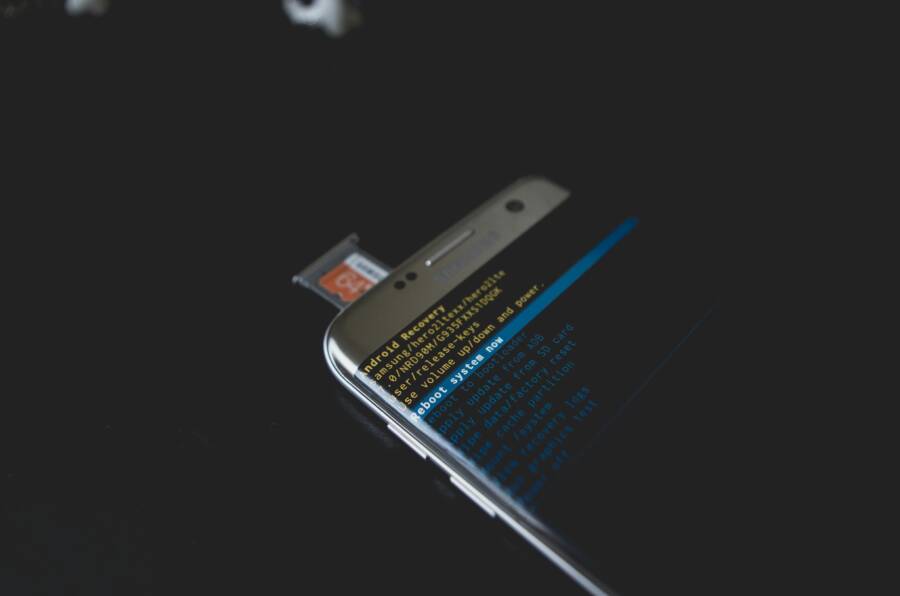
Photo by Kelvin Valerio on Pexels
 Photo by https://www.pexels.com/@kelvin809
If you still face issues after a restart, the problem may lie with your connection or the app. But restarting is the fastest first move and often solves the puzzle.
Check Your Internet Connection
Video playback relies on a stable internet connection. A weak or fluctuating signal can cause buffering or outright failure to start.
- Test your current connection:
- On Wi‑Fi: Open a browser and try loading a few pages. If pages load slowly or fail, your network might be congested or far from the router.
- On mobile data: Run a quick speed test using an adjacent app or website. Compare the results to what you expect from your plan.
- Switch networks if needed:
- Tap your device’s Wi‑Fi settings and connect to another network if available. If you suspect the network is the problem, try a different one.
- Forget and rejoin Wi‑Fi: In Settings, choose the network, select Forget, then reconnect by entering the password again.
- Try streaming from a different app or service. If one app streams but another does not, the issue may be app-specific rather than a device-wide problem.
In many cases, simply moving closer to the router or switching from mobile data to Wi‑Fi (or vice versa) resolves the issue. If you want a deeper dive into common Android and iPhone connectivity quirks, you can check this practical guide. https://repairit.wondershare.com/video-repair/fix-videos-not-playing-on-phone.html
Photo by Pixabay on Pexels
 Photo by https://www.pexels.com/@pixabay
If switching networks doesn’t fix things, consider temporarily turning off data saving features or any bandwidth limits set in the background. Some carriers and phones throttle video streaming, which can also cause playback problems.
Adjust Volume and Silent Mode
Sometimes playback seems broken when the device is muted or when a connected accessory is silencing audio without you realizing it.
- Check the main volume:
- On Android, use the hardware volume buttons or the on-screen volume slider. Make sure the media volume is up, not just ringer or notification volume.
- On iPhone, swipe down (or up on older models) to access the Control Center and adjust the volume slider for media playback.
- Verify Bluetooth connections:
- If a Bluetooth speaker or headphones are connected, the sound may route away from the phone. Disconnect or switch output back to the phone’s speakers if needed.
- Reconnect after playback resumes if you prefer external audio.
- Look at Do Not Disturb or Focus modes:
- Ensure Do Not Disturb or Focus isn’t silencing media audio. On iPhone this setting is in Focus mode; on Android it’s often labeled Do Not Disturb or a custom focus profile.
- If Do Not Disturb is on, either disable it temporarily or allow media sound from your video apps.
- Check app-specific audio settings:
- Some apps have their own volume controls independent of the system. Ensure the app’s in-app volume is up and not muted.
Photo by Freepik on Pexels
 Photo by https://www.pexels.com/@freepik
If you’ve confirmed the volume and output path but still hear nothing or only a faint sound, the issue may be tied to a specific video file or app. In that case, try playing a different video or use a different app to determine where the problem lies.
Images and app behavior aside, keeping an eye on overall device health helps. Regular software updates, app maintenance, and cleaning up storage can prevent many playback issues from cropping up again.
References and additional reading
He Was Drowning in Bills and Burnout Until a Simple Daily Ritual Rewired His Brain for Wealth in Less Than a Week
>>> Start Your Shift Today <<<
- See practical troubleshooting steps for Android video playback issues here. https://www.videoproc.com/resource/why-wont-videos-play-on-my-android-phone.htm
- Quick tips for when videos won’t play on iPhone include connectivity checks and app resets. https://discussions.apple.com/thread/255090218
Summary of Quick Wins
- Restart your device to clear glitches.
- Test and stabilize your internet connection.
- Verify volume, output, and Do Not Disturb modes.
If you’re ready for deeper checks, the next section walks through clearing app caches, checking storage, and updating software to keep video playback smooth. For a deeper look at app-side fixes, see this guide on common Android video issues. https://www.quora.com/Why-is-my-Android-phone-not-playing-videos-properly
Fix Video App Problems
When a video app stumbles, it can feel like a roadblock in a busy day. This section walks you through practical, device-specific steps to get video playback back on track. You’ll learn how small tweaks to cache, updates, and permissions can remove the hiccups that slow you down. Think of these fixes as a quick maintenance sprint for your smartphone, so you can get back to watching without interruption.
Clear Cache and App Data
Cache and data are not the same thing. Cache is a temporary stash of files that speeds up loading, while data is the actual information the app saves on your device, including login details and settings. Clearing cache can fix minor glitches without losing personal info, but clearing data resets the app to fresh install settings.
- Android path:
- Go to Settings > Apps > choose the video app > Storage > Clear Cache. If problems persist, you can also clear the app data, but you’ll need to sign back in and reconfigure preferences.
- iPhone path:
- Offload the app to remove the app itself while keeping its documents and data. If you offload and the issue remains, reinstall the app to start fresh.
Why this helps: cache corruption or stale temporary files can cause playback errors, buffering, or app freezes. A clean cache gives the app a clean slate without a full reinstall. If you want depth on how cache behavior affects video apps, check a practical guide on clearing cache for video apps on iOS and Android. https://multcloud.com/explore/how-to-clear-youtube-cache-7201-ac.html
Tip: after clearing cache, open the video app and play something short to confirm the fix before testing longer videos.
Update or Reinstall the App
App updates fix bugs that can interfere with playback, improve compatibility with the OS, and patch security issues. If an update doesn’t help, reinstalling the app can be the fastest way to reset its core.
- Update steps:
- Android: Open Google Play Store, tap your profile icon, then Manage apps & devices to see available updates. Install the video app update if shown.
- iPhone: Open the App Store, tap your avatar, and check for available updates. Install if present.
- Reinstall steps:
- Android: In Google Play, locate the video app, then select Uninstall. Reinstall the app from Google Play.
- iPhone: Tap and hold the app, choose to delete it, then reinstall from the App Store.
- Verify with another app:
- Install a different video app and test playback to determine if the issue is app-specific or device-wide.
If updates or a fresh install don’t resolve the problem, you can cross-check the broader app ecosystem with official guidance on reinstalling and re-enabling apps. This helps ensure you’re following the recommended steps from Google Play and iOS/App Store sources. https://support.google.com/googleplay/answer/113410?hl=en&co=GENIE.Platform%3DAndroid
Check App Permissions
Permissions control what an app can access on your device. If an app can’t read stored videos, download new ones, or stream over networks, playback can fail.
- Ensure storage and network permissions are granted:
- Android: Go to Settings > Apps > select the video app > Permissions. Allow storage and network access as needed.
- iPhone: Go to Settings > scroll to the app and confirm permissions for Photos, Local Network, and Media & Apple Music if shown.
- What to look for:
- Storage access is needed for offline videos or cached files.
- Network access is essential for streaming and downloads.
- If an app is blocked from these permissions, it may fail to load or play videos.
If you suspect privacy prompts are blocking playback, check the app’s permission prompts and adjust as needed. For a deeper look at how permissions affect playback and privacy, see resources on Android and iPhone app permissions. https://proprivacy.com/guides/check-app-permissions
He Was Drowning in Bills and Burnout Until a Simple Daily Ritual Rewired His Brain for Wealth in Less Than a Week
>>> Start Your Shift Today <<<
External guides also provide step-by-step paths for changing permissions on Android and iPhone:
- Android permission changes: https://support.google.com/googleplay/answer/9431959?hl=en
- iPhone permission controls: https://support.apple.com/guide/iphone/control-access-to-information-in-apps-iph251e92810/ios
If you want a quick check, test whether you can play a video in a different app after adjusting permissions. If playback works in another app, the issue likely sits with the original video app. If it still fails, the problem may be with the device’s overall network or storage health.
What to take away from this section:
- Cache is fast, data is permanent. Clearing cache is a low-risk fix; clearing data is more invasive and resets the app.
- Apps need permission to function. Missing storage or network access is a common culprit for video failures.
- Always verify changes by testing playback with multiple videos and a second app when possible.
External resources offer additional context and step-by-step visuals to help you follow along. https://theverge.com/24087604/iphone-app-permissions-how-to
Handle Storage and Software Issues
When videos won’t play, storage and software status often set the pace. If your device runs low on space or has outdated software, video playback can stall or fail altogether. This section focuses on practical, straightforward fixes that keep things moving without a lot of fuss. Start with storage checks, then verify the latest software on your device. A quick win in either area can restore smooth video playback and prevent future hiccups.
Free Up Phone Storage
Limited storage can cause apps to misbehave, including video players. Freeing space helps apps cache data properly and lets videos stream or load faster. Start by identifying oversized files and unused apps that gobble storage.
- Find large files via the built-in storage manager. On Android, open Settings > Storage and look for large videos, podcasts, or downloaded media. On iPhone, go to Settings > General > iPhone Storage to see a list of apps and their space usage.
- Delete or offload: Remove videos you don’t need or offload apps that you rarely use. Offloading keeps app data intact while freeing space.
- Use cloud backups: Move photos and large videos to cloud storage. Services like iCloud, Google Drive, or OneDrive can free up local space while keeping your media accessible.
Tip: after freeing space, restart video apps or try playing a video again to confirm the fix. If you want quick, practical guidance on freeing storage across devices, check this resource for Android and iPhone tips. https://repairit.wondershare.com/video-repair/videos-not-playing-on-android.html
 Photo by Andrey Matveev
https://www.pexels.com/@zeleboba
Photo by Andrey Matveev
https://www.pexels.com/@zeleboba
Once you clear space, test a short video to verify playback. If you still see issues, the next step digs into software updates and maintenance. For broader storage optimization strategies, you can read a hands-on guide on freeing space without losing important data. https://www.wikihow.com/Fix-Insufficient-Storage-Available-Error-in-Android
Update Your Phone’s Software
Software updates fix known bugs, improve compatibility with apps, and patch security issues that can affect video playback. Keeping the OS up to date is one of the most reliable ways to prevent quirks that pop up over time.
- Android: Settings > System > Update. Check for available updates and install them. A restart after updating helps ensure the new code runs cleanly.
- iPhone: Settings > General > Software Update. If an update is available, install it. Restart after the update to finalize the installation.
Restart reminder: even small updates can require a reboot to complete. If you’re not seeing updates, you may need to connect to a stronger network or wait a few hours for the device to fetch the latest patch.
For deeper guidance on common OS update issues and how they impact video playback, you can explore practical advice here. https://www.videoproc.com/resource/why-wont-videos-play-on-my-android-phone.htm
Keeping software current reduces the chances of compatibility problems with video apps and codecs. If updating doesn’t fix the playback issue, there are further steps to explore, such as clearing app caches or reinstalling apps, which we cover in later sections.
If you’d like a quick, visual walkthrough of updating Android and iOS software, see these official guides:
- Android updates: https://support.google.com/googleplay/answer/113410?hl=en&co=GENIE.Platform%3DAndroid
- iPhone updates: https://support.apple.com/guide/iphone/update-iphone-software-iph3265f3f2/ios
Images and app behavior aside, regular software maintenance helps prevent many playback issues from cropping up again.
Advanced Steps for Tough Problems
When basic fixes don’t fix video playback, it’s time to go deeper. The following steps target tricky causes that often hide behind the scenes. You’ll learn how to safely test in safe mode, reset essential app settings, and assess hardware health without jumping to expensive repairs. Think of these as a guided triage for a stubborn smartphone that won’t play videos.
Boot into Safe Mode
Safe mode helps you separate problems caused by third party apps from the core system. If a video plays normally in safe mode, a recently installed app is likely the culprit. If it still won’t play, the issue might be system-level or hardware related.
- Android:
- Power off the device, then power it back on. When the logo appears, press and hold the volume down button until the home screen appears. You should see Safe Mode in the corner.
- In safe mode, only preinstalled apps run. Test a video in a stock player or a trusted app to confirm playback.
- If playback works in safe mode, gradually re-enable apps one by one to identify the offender.
- To exit safe mode, restart the phone normally.
- If you’re unsure of how to enter or exit safe mode on your model, refer to any manufacturer specific guidance. Explore helpful steps here: https://www.samsung.com/au/support/mobile-devices/how-to-start-your-device-in-safe-mode/
- iPhone:
- iPhones don’t have a traditional safe mode, but you can mimic the approach by disabling all third party apps temporarily. Go to Settings, then Screen Time to limit background activity, or perform a clean boot by turning off the device and turning apps back on one by one after a restart.
- If you suspect a system issue, a reset of network settings or a full OS refresh may be appropriate after testing with minimal apps.
Why this matters: Safe mode isolates whether the problem comes from an installed app or from the OS itself. If a video plays without issue in safe mode, you can narrow down the suspect list quickly. For a practical overview of safe mode usage across different devices, you can check guidance like this: https://support.google.com/pixelphone/answer/2852139?hl=en
Reset App Preferences or Factory Reset
If a misbehaving app or a misconfigured setting blocks video playback, you’ll want to reset just enough to fix the issue without losing everything. Start with app preferences, then consider a factory reset only if absolutely necessary.
- Reset App Preferences (non-destructive):
- Android: Settings > Apps > Menu (three dots) > Reset app preferences. This resets disabled apps, notification restrictions, and default apps without deleting personal data.
- iPhone: Reset all settings from Settings > General > Transfer or Reset iPhone > Reset > Reset All Settings. This returns system settings to default while keeping your data intact.
- Factory Reset (last resort):
- Android: Settings > System > Reset options > Erase all data (factory reset). Back up first because this wipes the device.
- iPhone: Settings > General > Transfer or Reset iPhone > Erase All Content and Settings. A backup is essential before proceeding.
Why it helps: resetting app preferences clears subtle conflicts that can block video playback without erasing your media. A factory reset should only be used when other fixes fail and you’ve secured a current backup. For a backup and restore reference, see restoring your phone from a backup: https://helpdesk.mbts.edu/hc/en-us/articles/30835813238420-Restoring-your-iPhone-or-Android-Phone-from-a-Backup
Check for Hardware Problems
When software fixes fail, hardware issues become the likely culprit. A failing speaker, damaged screen, or loose connections can make videos unplayable even if the software is fine.
- Test the audio with other sounds:
- Play music, a ringtone, or a notification to see if the speaker works at all. If you hear nothing or crackling, the problem may be hardware related.
- Inspect the display and sound path:
- If you notice distorted video, muted areas, or intermittent audio, a hardware fault could be present. A repair shop can diagnose components like the speaker, headphone jack, or internal connectors.
- Consider professional help:
- If the screen or audio fails consistently, avoid DIY fixes that could worsen the damage. Look for a trusted repair provider in your area. For guidance on common speaker issues and DIY fixes, see resources like this guide: https://owlrepairs.com/phone-speaker-not-working-diy-fixes/
Takeaway: hardware problems require a careful assessment. If you’re hearing nothing or see visual issues alongside playback problems, a professional inspection is the quickest route to a lasting fix. If you prefer learning about concrete steps you can take before a repair, this overview offers practical pointers: https://www.cellphonerepair.com/how-to-fix-phone-sound-issues
Additional note: keeping a regular maintenance routine helps prevent hardware-related hiccups. Regular software updates, mindful charging habits, and careful handling can extend the life of speakers and screens. If you want more on hardware troubleshooting, explore this overview: https://www.ubreakifix.com/repairs/smartphones/services/speaker-repair
External links are included to provide deeper context if you want to explore any topic in more detail.
Conclusion
If your phone won’t play videos, follow these steps in order to recover playback quickly. Start with the simplest fixes like a restart, then check the internet connection, volume paths, and any Do Not Disturb settings. If the issue persists, clear the video app cache, update or reinstall the app, and verify app permissions. Finally, examine storage and software health and consider safe mode or a reset only if needed.
A clean, methodical approach saves time and reduces guesswork. Each step targets a common bottleneck, from flaky networks to corrupted app data, so you can pinpoint the cause without unnecessary changes to your phone. Keeping these checks as a routine helps your smartphone stay reliable for everyday viewing.
Prevention matters as much as fixes. Regular software updates, mindful storage management, and cautious app installs keep video playback smooth. Treat updates as a monthly habit and monitor apps that consume data in the background. A little maintenance now helps you avoid bigger hiccups later.
Have you tried these steps in this order and seen results? Share your experience in the comments so others can learn from your setup. If you spot a step that helped you the most, note it for future reference so the next time a video stalls you can act fast. Your practical tips can make this guide even stronger for the community.
There Is a Frequency That the Wealthiest Families Have Used for Generations and Most People Will Never Know It Exists
>>> Open the Door <<<
