She Pressed Play on a Strange Audio Track and Within Days Her Financial Reality Started Shifting in Ways She Could Not Explain
>>> See How It Works <<<

When your phone won’t install a system update, it can slow down your day and leave security gaps open. Updates bring new features, bug fixes, and performance tweaks, so a blocked update can leave your device less secure and less capable. This guide shows you practical steps to get back on track.
First, we start with the basics you can check right away. Make sure you have enough storage, a stable internet connection, and a healthy battery level. If those are all in place, you can move on to general troubleshooting before diving into Android and iOS specific fixes.
This article covers common scenarios like “smartphone update won’t install” and “Android update stuck.” You’ll find clear, step by step guidance that helps you decide when to clear caches, reset network settings, or back up data and try a factory reset if needed. By the end, you’ll know how to fix update problems and get your phone back to receiving important improvements.
Check the basics first: storage, battery, and network
Before you dive into deeper troubleshooting, confirming three core basics can save you a lot of time. Adequate storage, a healthy battery, and a stable internet connection are the foundation for any update to install smoothly. If any one of these is off, updates can stall, fail, or cause erratic behavior. Here’s how to quickly verify each item and fix common blockers.
What If the Only Thing Between You and the Life You Deserve Is a Hidden Wealth Code Waiting to Be Activated
>>> Open the Door <<<

Free up storage space and manage files
Low storage is one of the most common reasons updates won’t install. Start by checking how much space you have left and which apps or files are hogging it.
- Check storage on Android: Open Settings > Storage to see used and free space. Look for apps with large caches or files you can offload or delete. For Android, there are built-in recommendations that help reclaim space without losing important data.
- Check storage on iPhone: Go to Settings > General > iPhone Storage. You’ll see a breakdown by app and a list of recommendations to free space. Apple’s guide covers how to review and manage storage on iPhone or iPad, including offloading apps and removing temporary data. Learn more here: https://support.apple.com/en-us/108429
Concrete tips to free space quickly:
- Offload or delete unused apps. Many apps don’t need to stay installed, and offloading keeps your data in place while freeing app files.
- Move photos and videos to the cloud. Services like iCloud Drive, Google Photos, or OneDrive can reduce local storage use while keeping media accessible.
- Move large files to the cloud or a computer. If you have offline video files or large documents, transferring them off the device creates room for the update.
Target free space you should aim for:
- At least 5 GB of free space on most devices. More is better for large updates, especially if the update includes sizable system changes.
- If you’re near the limit, clear out duplicates, cached data, and temp files first. This often frees up space quickly without impacting important data.
Why this matters: system updates need room to unpack and install new files. Without sufficient headroom, the update can fail partway through, which may leave the device in a mixed or unusable state. A comfortable buffer reduces the risk of interruptions and helps the update complete cleanly.
Tip: If you’re unsure what to delete, start with large, rarely used apps and media that aren’t backed up. You can always re-download apps and re-sync photos later.
Ensure enough power and keep charging during updates
A stable battery is essential during a system update. Updates can take a while, and a sudden power loss can corrupt the process.
- Keep the device charged. If possible, plug in the charger before starting the update. If you must proceed on battery, aim to be above 50% and ensure you’re connected to power if the update is lengthy.
- Disable sleep mode during the update. Set your phone to stay awake or check that the screen won’t dim or time out for the duration of the install.
- If the battery is aging, be aware it can affect update behavior. Battery health matters because a degraded battery may cause unexpected shutdowns during heavy tasks like updates. For iPhone users, Apple provides guidance on battery and performance and how aging can impact updates: https://support.apple.com/en-us/101575
When battery is low:
- Pause and charge first. If you can’t charge, consider postponing the update until you have a reliable power source.
- Use a portable charger with a stable output if you’re away from a power outlet.
Why this matters: updates often include long installation stages with many read/write operations. A power interruption can corrupt the update and force a device restoration, which is a bigger hassle than waiting a little longer.
Secure a stable internet connection
A solid network is critical for large updates. A flaky connection can cause downloads to drop, slow, or fail mid-process.
- Prefer Wi‑Fi over cellular data for big updates. A stable home or office network typically provides more consistent throughput and less data variability than mobile networks.
- Test your network speed. Quick checks can tell you if you’re getting expected performance. If speeds are slow, consider troubleshooting your router or switching to a different network.
- Temporarily disable VPNs or data-saver modes that might block or throttle downloads. Some VPNs can interfere with large downloads, and data-saver features can restrict background activity during the update.
- If you suspect router issues, reboot the router or move closer to the router for a stronger signal. If the network is crowded, a brief switch to a less congested channel can help.
Helpful guidance on network reliability and Wi‑Fi optimization:
- Improve Wi‑Fi speed and reliability in simple steps: https://www.highspeedinternet.com/resources/improve-your-wi-fi-speed-in-10-simple-steps
- A practical look at fixing common Wi‑Fi issues from Wirecutter: https://www.nytimes.com/wirecutter/reviews/fix-wifi-internet-connection-issues/
- Quick tips to boost Wi‑Fi reception: https://www.wikihow.com/Improve-WiFi-Reception
Why this matters: a disrupted or slow download can extend the update window or fail entirely. A reliable network reduces the chance of interruptions, ensuring the update arrives intact and installs smoothly.
By confirming these basics—storage, power, and network—you set up a smoother path for your device to install updates. If you run through these checks and still hit snags, you’re ready to tackle device-specific steps with confidence. For deeper dives, you can reference the official storage and battery guidance from the sources linked above and keep a steady, structured approach to updates.
General troubleshooting that works on both Android and iPhone
When updates stall or refuse to install, a calm, methodical approach helps you pinpoint the blocker without jumping to drastic steps. These general tips are designed to work across platforms, so you can apply them whether you use Android or iPhone. Start with quick checks, then move to actionable fixes that don’t require deep tech know-how. If you follow these steps and the issue persists, you’ll have a solid foundation for device-specific remedies.
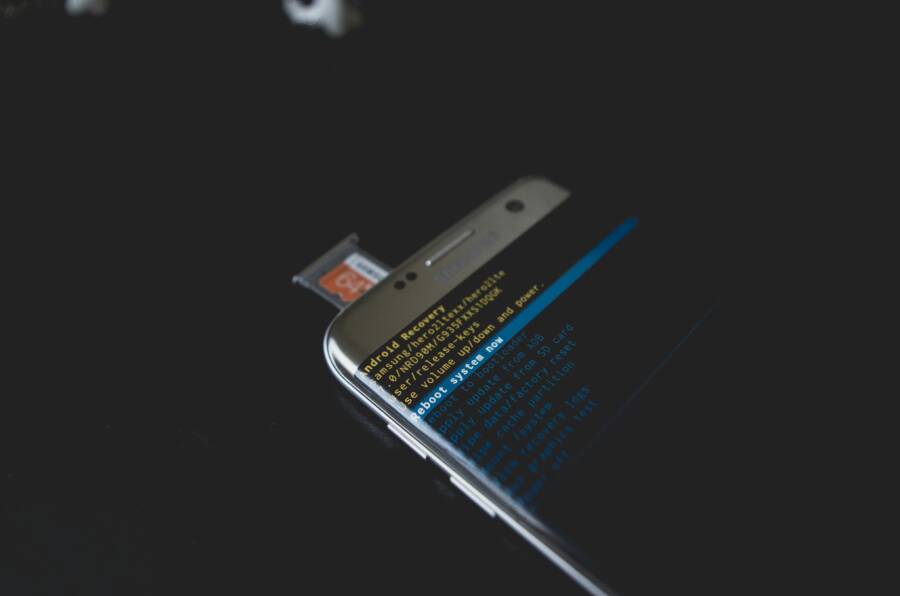
 Photo by Kelvin Valerio
Restart the device and retry the update
A simple reboot often clears temporary glitches that block updates. Think of it as giving the operating system a quick reset to refresh all its moving parts. After the device comes back, try the update again with a fresh connection to the network and a stable power source.
- On Android: Press and hold the power button, then tap “Restart.” If the screen is unresponsive, perform a force restart often documented by your device maker (for example, holding power and volume down for about 10 seconds) and then retry the update.
- On iPhone: Hold either volume button and the side button until the slider appears, slide to power off, wait a moment, then press the side button again to turn on. Open Settings > General > Software Update to retry.
Why this matters: a short reboot clears stuck processes, frees up memory, and reinitializes network services that downloads rely on. If the update still won’t start after a restart, move to the next step.
Be sure date and time are set correctly
Accurate date and time are surprisingly critical for updates. If the system clock is off, the device may treat update servers as unavailable or invalid, causing the download or installation to fail.
- Enable automatic date and time on Android: Settings > System > Date & time > Use network-provided time. If you see a mismatch, toggle off and back on or adjust the time zone manually.
- Enable automatic date and time on iPhone: Settings > General > Date & Time > Set Automatically. Ensure Location Services are on for accurate time zone detection when traveling.
Why this matters: many updates rely on secure time stamps and certificate validity. A wrong clock can block verification or trigger security warnings during downloads.
If you notice persistent time issues, verify your time zone is correct for your current location and confirm the device has a reliable network connection to sync time accurately.
Refresh network settings and clear temporary data
A shaky network or clogged caches can derail updates. Refreshing network settings and clearing temporary data can restore a smooth download path.
- Reset network settings (Android and iPhone): This returns Wi‑Fi, Bluetooth, and mobile data settings to factory defaults. On Android, you’ll often find this under Settings > System > Reset options > Reset Wi-Fi, mobile & Bluetooth. On iPhone, go to Settings > General > Transfer or Reset iPhone > Reset > Reset Network Settings.
- Clear cache and temporary files (Android): In addition to system cache, clear app caches selectively to remove corrupted files that may block downloads. Check Settings > Apps > [App] > Storage > Clear Cache. For a broader clean, you can clear cached data in your browser as well.
- Clear temporary data on iPhone: Offload unused apps or review large attachments in Messages and Mail. Deleting temporary app data or re-installing apps can help if a specific app is involved in the update process.
Caveats to consider:
- A network reset will forget saved networks and passwords. After the reset, reconnect to your usual Wi‑Fi networks and re-enter passwords.
- Clearing caches does not delete personal data, but it can sign you out of some apps. Be ready to re-authenticate where required.
Why this matters: a fresh network configuration can fix intermittent drops in download speed or authentication errors. Clearing temporary data helps ensure no stale files block the update pipeline.
Practical tips to maximize success:
- Prefer a reliable Wi‑Fi connection over cellular when downloading large updates.
- If you’re on a metered plan or data saver mode, temporarily disable those settings to avoid throttling mid-download.
- Keep the device connected to power during the update process to avoid mid‑install interruptions.
For deeper guidance on network reliability and optimization, check trusted resources like guidance on improving Wi‑Fi speed and addressing common connectivity issues:
- Improve Wi‑Fi speed and reliability in simple steps
- A practical look at fixing common Wi‑Fi issues from Wirecutter
- Quick tips to boost Wi‑Fi reception
If you’ve followed these steps and the device still won’t install updates, you’re armed with a solid baseline to tackle device-specific fixes. The next sections dive into common Android and iPhone scenarios with targeted actions you can take right away. For additional background, see official support articles on restarting devices and managing time settings.
Android specific fixes
If you’re facing update issues on Android, a few targeted fixes can clear the path to a smooth install. This section focuses on Android-specific trouble spots, from Safe Mode testing to clearing update components and trying manual updates. Use these steps in order, and stop when you reach a successful update.
Check for app conflicts and use Safe Mode
Third‑party apps can conflict with the system update process. They might block downloads, throttle background work, or interfere with the installer. Safe Mode helps you isolate the culprit by temporarily disabling all non‑essential apps.
How to boot into Safe Mode (typical steps):
- On most devices: press and hold the power button, then tap and hold “Restart” or “Power off” until you see an option to reboot in Safe Mode. Confirm and let the device restart.
- If your device maker provides a specific method, follow their guidance on the official support pages.
What to do in Safe Mode:
- Open Settings and attempt the update again. If the update starts and finishes in Safe Mode, a third‑party app is likely the blocker.
- Gradually re‑enable apps to identify the offender. If you spot the problem, uninstall or update that app, then reboot normally and retry the update.
If you want a quick confirmation path, Google’s guidance on Safe Mode helps you identify problem apps by rebooting in Safe Mode and testing after a restart. For details, see: https://support.google.com/android/answer/7665064?hl=en
What happens if the update succeeds in Safe Mode:
- Note which apps you reenabled just before the success. Start by updating or removing those apps first.
- Reboot normally and run the update again. If it fails again, you’ve narrowed the cause to a specific app or service on your device.
Why this matters: Safe Mode isolates software conflicts without needing a factory reset. It’s a low‑risk first step that often reveals the root cause.
Clear update components and cache
Corrupted cached data can corrupt the update pipeline. Clearing caches for Google Play services and related components often resolves patching or download blocks.
Step-by-step guidance:
- Clear Google Play Services cache:
- Settings > Apps > Google Play Services > Storage > Clear Cache.
- If you suspect data corruption, also choose Clear Storage, then restart the device.
- Clear Google Play Store cache and data:
- Settings > Apps > Google Play Store > Storage > Clear Cache, then Clear Data.
- Update components:
- Open Google Play Services in the Play Store and tap Update, if available.
- If updates are unavailable, reboot and try again.
- Reset Google Play Store data (as a last resort):
- Settings > Apps > Google Play Store > Storage > Clear Data.
Why this helps: cache and stale data can block downloads or fail to verify updates. Resetting or refreshing these components clears the path for a clean install.
If you want deeper background on keeping Google Play services healthy, Google’s support article provides a solid overview: https://support.google.com/googleplay/answer/9037938?hl=en
Extra tips:
- Clear browser cached data if you’re downloading the update via a browser link.
- After clearing caches, reboot the device and attempt the update again while connected to a stable Wi‑Fi network.
Try a manual update or sideload the update (advanced)
If automatic updates refuse to install, you can try a manual update or sideload the patch. This option is for users who are comfortable with more hands‑on methods and understand the risks.
User friendly options:
- Check Settings for a manual update path:
- Settings > System > Advanced > System update > Check for update.
- If available, download and install from there.
- Use official update packages when available:
- Some device makers publish OTA zip files or factory images. If you know your exact model and build, you can use these with caution.
Advanced method (sideload with ADB):
- Download the official OTA update zip for your device model.
- Enable Developer Options and USB Debugging on your device.
- Connect the device to a computer with ADB installed.
- Use the command to sideload the OTA package, following a trusted guide for your device family.
- Example guidance: Sideload Android OTA Update Using ADB
- See: https://gist.github.com/anjuan/91dee66acfdad3674d8f71f5b1c866f1
Important precautions:
- Back up your data before attempting a sideload. A failed sideload can brick your device or erase data.
- Only use official OTA zip files from the manufacturer or carrier. Using the wrong file can cause compatibility issues.
- If you’re unsure, skip sideloading and stick to standard update options.
If you want a practical overview of sideloading OTA updates via ADB, you can reference a step‑by‑step guide like: https://gist.github.com/anjuan/91dee66acfdad3674d8f71f5b1c866f1
Quick reminder:
- Sideloading is advanced and may void warranties on some devices. Only proceed if you’re comfortable with the process and have a clean backup.
This section equips you with Android‑specific fixes that address common update blockers. If the problem persists after trying these steps, the next sections cover broader scenarios that apply across platforms while still staying grounded in Android specifics.
Thousands of People Were Struggling With Money Until They Discovered This One Ancient Secret Hidden in Sound
>>> Unlock It Now <<<

iPhone and iPad specific fixes
If OTA updates refuse to install on your iPhone or iPad, using a computer can be the reliable fallback. This subsection covers Apple’s recommended computer-based approaches and practical steps you can take when the wireless update path stalls. You’ll learn when to connect to Finder or iTunes, how to remove a partial download, and how to verify system status and network conditions before trying a manual update.
Update via Finder or iTunes on a computer
Connecting your iPhone or iPad to a computer and updating through Finder (Mac) or iTunes (Windows) can bypass issues that stop over‑the‑air (OTA) updates. This method often works when the device cannot download or verify the update wirelessly, especially on slower or unstable networks.
What to do:
- Connect your device to a computer with the latest version of Finder (macOS Catalina or later) or iTunes (Windows or older macOS).
- Open Finder or iTunes and select your device. Choose “Check for Update,” then follow the prompts to download and install the latest iOS or iPadOS.
- If prompted, back up your device first. This protects your data in case something goes wrong during the install.
Why this helps: a direct connection to a trusted computer avoids some network or server hiccups that can block OTA downloads. It also provides a stable environment for the installer to run.
What to expect during the process:
- A download of the update file to the computer, followed by transfer to the device.
- A more predictable installation window, with on-screen progress indicators.
- The device may restart one or more times during the update.
If you want official guidance, see the Apple support articles on updating with Finder or iTunes. Update your iPhone, iPad, or iPod touch with the Finder and Update your iPhone, iPad, or iPod touch with iTunes. Useful background: Apple’s Finder help explains prerequisites and steps for macOS Catalina and later, while iTunes covers Windows and older macOS versions.
Links:
- Update your iPhone, iPad, or iPod touch with the Finder
- Update your iPhone, iPad, or iPod touch with iTunes
Delete and re‑download the iOS update
A partially downloaded update can block installation. If you see the update stuck or stalled, removing the partial file and fetching a fresh copy often resolves the issue.
How to remove the partial update file:
- On iPhone or iPad, go to Settings > General > iPhone Storage.
- Locate the update file in the list (it may appear as the latest iOS version) and tap it.
- Choose to delete the update, then return to Settings > General > Software Update and try downloading again.
What to expect after deletion:
- The device will recheck for the update and download a fresh copy.
- The download may take longer on slower networks, so ensure you have a stable connection and enough battery or keep the device plugged in.
Why this helps: a corrupted or incomplete download can stall verification and extraction. A clean download often clears the blocker.
Tip: If you run into trouble finding the update file, Apple’s storage management guide offers more context on how updates appear in iPhone Storage.
Check Apple system status and network conditions
System status and server load can affect update availability and download speeds. If Apple’s update servers are busy or undergoing maintenance, you might not see the update, or downloads can stall.
What to check:
- Visit Apple System Status pages to see if iOS update services are operating normally.
- If servers are busy, try a different time window or switch networks (for example, move from a congested Wi‑Fi to a more stable network or vice versa).
Practical steps:
- If you’re on a shared or restricted network, test a different network, such as a home Wi‑Fi or a trusted mobile hotspot.
- Schedule a retry for off-peak hours to improve download speed and reliability.
Relevant resources:
- Apple – Support – System Status
- System Status – Apple Developer
- System Status – Apple Developer (alternate view)
Why this matters: even with a healthy device, external factors can delay or interrupt streaming updates. Verifying status helps you decide if the issue is on Apple’s end or with your network.
If you want deeper context, Apple’s official status pages and developer system status pages are the primary sources for real-time service health information.
Try a computer‑based update if OTA fails
If the wireless update path continues to fail, a computer-based update offers a clear alternative. This approach requires a few essentials and a quick backup to protect your data.
What you’ll need:
- A compatible computer (Mac or Windows) with the latest operating system and the appropriate update utility (Finder on macOS Catalina or later, iTunes on Windows or older macOS versions).
- A reliable USB/cable to connect your iPhone or iPad.
- A current backup of your device via iCloud or computer.
Backup reminders:
- Back up before updating to preserve your photos, messages, apps, and settings.
- Confirm the backup completed successfully before proceeding with the update.
Step-by-step plan:
- Update your computer to the latest OS version supported by Finder or iTunes.
- Connect your iPhone or iPad with a trusted cable.
- Open Finder or iTunes, select your device, and choose “Check for Update.”
- If an update is found, follow on-screen steps to install. Allow any prompts for security or trust permissions.
- After the process finishes, verify the device restarts and reaches the home screen.
What to expect:
- The download and installation process may take longer than a typical OTA update.
- You may see multiple on-screen prompts. Follow them carefully.
- If the update fails, Apple’s support documentation offers steps for errors and recovery.
Official guidance to support computer-based updates is available through Apple’s articles on updating with Finder and updating with iTunes. If you run into issues, Apple also provides recovery mode instructions as a last resort.
Links:
- Update your iPhone, iPad, or iPod touch with the Finder
- Update your iPhone, iPad, or iPod touch with iTunes
- If you can’t update or restore your iPhone or iPod touch
This section focuses on iPhone and iPad specific fixes you can apply when OTA updates stall. If these steps still don’t move the update forward, you’re ready to consider deeper checks or contact Apple Support for targeted assistance.
Last resort steps and when to seek help
When the usual fixes don’t get your updates through, a factory reset or official support becomes the practical next step. This section explains why a reset is a last resort, how to back up your data, and how to reattempt updates. It also covers when it’s time to involve the manufacturer or a service center, and what information to gather before you reach out.
Factory reset and data backup as a last resort
A factory reset is a powerful tool, but it wipes all user data and installed apps. It should only be used after you’ve exhausted safer options and you have a verified backup. Think of it as a last clean slate that gives the system a fresh start.
Before you reset, complete a full backup so you can restore your important data afterward. Here are reliable paths to back up on both platforms:
- Android backup options: Use Google Drive or your device’s built-in backup settings to save app data, contacts, and settings. For a thorough approach, follow Google’s guidance on factory resets and data protection:
https://support.google.com/android/answer/6088915?hl=en. After backing up, you can perform a factory reset from Settings, then reattempt the update. - iPhone and iPad backups: Back up to iCloud or a computer, then erase and restore your device. Apple’s official steps cover backing up and erasing before a reset:
https://support.apple.com/en-us/108931andhttps://support.apple.com/en-us/108931for restoring from a backup. If you’re unsure where your data sits, review Apple’s backup restoration guidance:https://support.apple.com/en-us/108931.
How to perform the reset and reattempt the update:
- Android: Settings > System > Reset options > Factory data reset. Confirm, then set up the device and check for updates again. After the reset, you’ll restore apps and data from your backup.
- iPhone: Settings > General > Transfer or Reset iPhone > Erase All Content and Settings. After the device resets, set it up and re-download the update. If you restored from a backup, verify that the system version is current.
Key takeaway: a factory reset can fix stubborn install problems caused by corrupted system data or conflicting apps, but it requires a clean backup first. If you’re unsure about the backup, start there and document important steps so you can recover quickly.
External resources for backup and reset guidance:
Thousands of People Were Struggling With Money Until They Discovered This One Ancient Secret Hidden in Sound
>>> Unlock It Now <<<
- How to factory reset your Android device and what to know beforehand:
https://www.android.com/intl/en_uk/articles/how-to-reset-android-device/ - How to factory reset your iPhone, iPad, or iPod touch:
https://support.apple.com/en-us/108931 - Restore all content to iPhone from a backup:
https://support.apple.com/guide/iphone/restore-all-content-from-a-backup-iph1624229a/ios
When to seek help after a reset:
- If the update still won’t install, you’ve exhausted local fixes and backups. This is the moment to consider official support or service options.
- If your device shows signs of deeper hardware issues after a reset, moving to a service center is prudent.
Smartphone health note: with a factory reset, you’ll reestablish your apps and settings. It’s a good reminder that a smartphone is a tool you rely on daily, so plan the reset when you have time to reconfigure.
Warranty and service options
If a reset doesn’t fix the problem, and the device remains under warranty or you recently purchased it, official support can save time and uncertainty. Start by confirming coverage and then decide between repair, replacement, or an exchange.
How to determine coverage and next steps:
- Check AppleCare and warranty status: use Apple’s coverage checker to confirm if your device is covered and what repairs are available. Start at
https://checkcoverage.apple.com/. - Contact official support: Apple’s support page offers direct ways to reach advisors, schedule a service, or start a repair case:
https://support.apple.com/contact. - If you’re in the Google ecosystem, verify if your device is eligible for warranty help as part of the Google Store program:
https://support.google.com/store/workflow/14778556and use the warranty helper to understand your options.
What to gather before you visit a service center or open a support case:
- Proof of purchase and the device’s serial number (found in Settings or on the original packaging).
- A clear description of the symptoms and the steps you’ve already tried, including any error messages.
- Your contact info and preferred support channel, whether in-store, phone, or chat.
Common service pathways:
- Official repair or replacement programs through the manufacturer. These options are typically listed on the manufacturer’s site and tied to your warranty status.
- Authorized service centers. If you’re beyond the warranty window, you can still get a diagnostic. You’ll pay out of pocket, but you’ll receive an official assessment and quoted repair cost.
- Trade-in or replacement programs. Some manufacturers offer trade-in discounts for devices with unresolved hardware issues.
What to expect from a service visit or support call:
- A diagnostic check to verify whether the issue is software or hardware related.
- A written repair plan with cost and time estimates. If the device needs a part replacement, you’ll receive a parts-specific forecast.
- Clear instructions on data safety and backup requirements before any work starts.
Official support resources you can reference:
- View Coverage for Apple devices:
https://checkcoverage.apple.com/ - Apple Support contact page:
https://support.apple.com/contact - Apple warranty and AppleCare information:
https://support.apple.com/en-us/102607 - Google warranty and repair options:
https://support.google.com/store/workflow/14778556 - Pixel phone repair guidance:
https://support.google.com/pixelphone/answer/9004345?sjid=17625994248337207880-NA#hcfe-content
If you’re weighing between repair and replacement, use a quick rule of thumb: if the repair cost approaches or exceeds a significant portion of a new device, replacement may be more economical. Always factor in how long you need the device to function reliably and whether newer models offer meaningful benefits for your use case.
Smartphone owners benefit from knowing when to escalate. If you’re within the warranty window or have a strong service history with the brand, pursuing official support often yields the fastest, most reliable outcome. If you’re past the typical warranty period, you can still seek service but plan for potential out-of-pocket costs.
Links to official support pages and warranty tools:
- AppleCare and warranty information:
https://support.apple.com/en-us/102607 - Apple device warranty status check:
https://checkcoverage.apple.com/ - Apple support contact:
https://support.apple.com/contact - Google warranty and repair paths:
https://support.google.com/store/workflow/14778556
Conclusion
Most update issues have a straightforward path to fix. Start with basics like storage, power, and network, then move to device specific steps as needed. With a calm, methodical approach you can usually get Android and iPhone updates installing again and keep your smartphone secure and thriving.
Save this guide for later so you can refer back when an update stalls. If you found these steps helpful, consider subscribing for practical tech tips that you can apply right away.
Checklist of key steps
- Free up space, charge the device, and use a stable Wi Fi connection
- Restart the device and check dates and times
- Refresh network settings and clear temporary data
- Try Safe Mode or a manual update if needed
- Back up before any major reset or sideload attempts
Remember, a quick path to fix is often just a few clicks away. If you want more tips on optimizing performance and keeping your devices secure, subscribe and stay updated.
Thousands of People Were Struggling With Money Until They Discovered This One Ancient Secret Hidden in Sound
>>> Unlock It Now <<<