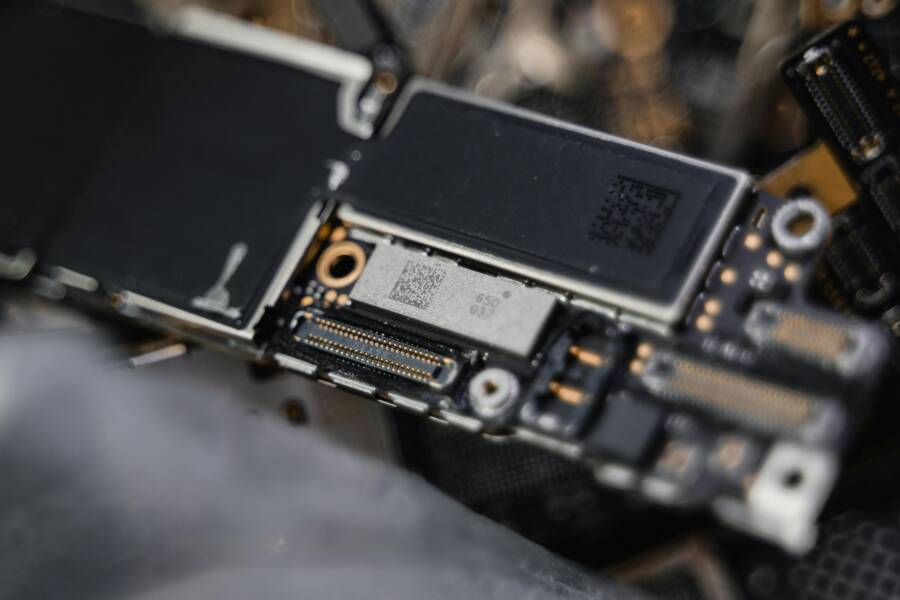
If your phone suddenly won’t recognize a USB-C to 3.5mm adapter, you’re not alone. The combo of a USB-C port, a tiny DAC, and a simple headset jack can stall for many reasons. The good news is that most problems have a straightforward fix. This guide walks you through practical steps to get sound back, without buying new hardware every time.
From the moment you pick up your smartphone, you want reliable audio. A common frustration is a tiny adapter failing to register in settings or hardware. Below, you’ll find a clear plan that starts with quick checks and moves to deeper troubleshooting. You’ll know if the problem is the adapter, the phone, or something in between. By the end, you’ll have actionable steps and a path to a working setup.
A quick note before we start: treat this like a toolbox guide. Work through the steps in order. If one step fixes the problem, you save time and avoid unnecessary hardware changes. Also, keep in mind that some steps require small, careful handling of the USB-C port. A gentle touch matters.
Check the Basics first
- Verify adapter compatibility. Not all USB-C to 3.5mm adapters are created equal. Some rely on a built-in DAC that only works with certain devices. Look for the adapter’s official compatibility list or a certification label. If you have a spare adapter that is known to work with other phones, test it. If it works on a different device, your original adapter is likely the issue.
- Confirm the adapter is intended for audio. Some USB-C accessories focus on data or charging. If your adapter is made for charging or data transfer only, it won’t send sound through the 3.5mm jack.
- Test with a different headset. A damaged cable or plug can be the culprit. If another set of headphones works with the same adapter, the problem is likely the original headset.
- Check for visible damage. Bent pins, loose connectors, or frayed cables can cause no sound. If you notice any wear, replace the adapter or headset.
If you have a spare USB-C to 3.5mm adapter that’s known to work, this is the fastest way to confirm whether the issue lies with the adapter or the phone. If the spare works, you’ve identified the likely fault. If both fail, move to the phone side of the equation.
Inspect the Phone and Port
- Look for debris in the USB-C port. Dust, lint, or pocket debris can block a solid connection. Use a soft brush or compressed air with care. Do not shove anything into the port. A gentle puff and a close look should reveal if debris is the issue.
- Check for a loose or damaged port. If the port wiggles or feels loose, the fault might be hardware. In that case, professional service is often required.
- Inspect the adapter plug and the phone’s port alignment. A misaligned plug can fail to make contact. Reinsert the adapter firmly but gently to ensure a secure connection.
- Try a clean boot. Restart the phone to clear any temporary software hiccups that might keep the adapter from being recognized. A fresh start can fix software oddities that block audio routing.
If debris is the offender, you’ll usually see a bit of grit on the plug or inside the port after a careful inspection. A targeted cleaning often resolves the issue without further steps.
Test Audio Settings and Software
- Confirm the phone is routing audio through the USB-C port. Some phones can switch audio output to a headset automatically but fail to do so after a hiccup. Play music at a low volume and listen for any sound through the adapter. If nothing comes out, proceed to the software checks.
- Check sound settings. On Android and iOS alike, there are sections for output or accessibility that influence where audio goes. Look for a setting named something like Audio Output, USB Audio, or Headphone Preference. If you see USB headphones as an option, try selecting it manually.
- Disable Bluetooth temporarily. Sometimes Bluetooth audio routing competes with wired output. Turn off Bluetooth briefly to test whether audio then flows through the adapter. If it starts to work, pair and test again after Bluetooth is off.
- Test with a basic audio app. Use a lightweight player rather than a third-party app that may have quirks. If audio plays through the adapter with a simple app, the issue may be app level rather than device level.
- Check for app permissions or updates. Some phones require a permission for accessory access or for USB devices. If the OS or a driver update was recently installed, an incompatible or incomplete driver could block the adapter. Make sure the phone system and any relevant apps are up to date.
If you still don’t hear anything, the problem might be deeper in the device software or a hardware fault that requires further steps.
Update and Reset
- Update the phone’s software. OS updates often bring improved hardware compatibility. Even if nothing looks broken, an update can fix a miscommunication between the port and the DAC inside the adapter. Install any pending updates and reboot afterward.
- Update the adapter firmware if available. Some premium adapters have firmware that can be updated via a companion app or a PC. If you see a firmware option, install it and retry.
- Reset app preferences and USB settings. If you have recently installed new apps or plugins that touch audio, they could interfere with routing. Resetting app preferences can restore default behavior without wiping personal data.
- Clear cache for audio apps. Sometimes a corrupted cache blocks audio output. Clearing cache in the settings for the relevant apps can clear the issue without more invasive measures.
- Try a factory reset as a last resort. If everything else fails and the adapter still isn’t detected, a factory reset may be the final step. Back up data first because this will erase personal information.
If software is to blame, a quick update or a clean restart should solve the problem. If the issue remains after a full reset, the port or the adapter is the more likely culprit.
Hardware Check and Repair Options
- Port upgrade or replacement. If the USB-C port is damaged, professional service is usually needed. A damaged port can fail to register any accessory, not just a USB-C to 3.5mm adapter. Port replacement can restore full function and extend the life of the phone.
- Adapter replacement. If you’ve tested with multiple cables and the phone still doesn’t recognize any, your adapter is suspect. Replacing it with a certified model often fixes the problem.
- Consider a dedicated DAC accessory. Some people prefer a separate DAC that plugs into the USB-C port. These devices bypass potential phone port issues and can deliver consistent audio quality across devices.
- Verify power supply for active adapters. Some USB-C to 3.5mm adapters include extra features that pull power from the port. If the power is insufficient, the DAC may not initialize. Try a different adapter with its own power booster if available.
This is the point where the decision becomes practical. If the port is damaged, the fix will involve a repair shop. If the adapter is the root cause, you can replace it with confidence and know the problem won’t reappear.
Buying Tips to Avoid Future Issues
- Choose certified adapters. Look for adapters that meet official USB-C audio standards or are recommended by the phone maker. Certification reduces the chance of compatibility problems and delivers predictable results.
- Prioritize build quality. A sturdy plug and a robust USB-C connector last longer and resist wear. A well-made adapter may cost more upfront but saves money over time.
- Check return policies. When testing a new adapter, choose one with a generous return window. That keeps you flexible if compatibility turns out to be limited.
- Read device-specific notes. Some brands have unique quirks with USB-C audio. A quick read through the official support page can save you a lot of trial and error.
- Plan for future devices. If you foresee upgrading phones soon, pick an adapter that works across multiple models and operating systems. That reduces the chance of new compatibility issues.
A practical tip: when testing, write down what works and what does not. A simple log helps you spot patterns and avoid repeating tests that yield no results.
A Quick Troubleshooting Checklist
- Is the adapter labeled as a USB-C to 3.5mmDAC and compatible with your phone?
- Have you cleared the USB-C port of lint and debris?
- Does another headset work with the same adapter, or does the headset fail with other adapters too?
- Did you restart the phone after each change?
- Is there a software update that might improve USB-C audio support?
- Have you tried a different adapter with the same headset or the same adapter with a different headset?
- If nothing works, is the port and the adapter both under warranty or serviceable?
This checklist keeps you focused and reduces guesswork. It also helps when you talk to support if you need to repair or replace components.
Real-World Scenarios You Might Encounter
- You bought a budget adapter and a new headset, and the phone refuses to detect it. A quick swap to a known good adapter usually reveals whether the problem is the cable or the phone. If the phone detects the high quality adapter but not the budget one, your issue is likely compatibility or build quality.
- The port looks clean but you still hear no sound. In that case, software updates or a settings reset are strong suspects. A factory reset rarely solves hardware problems, but it can fix stubborn software glitches.
- An older phone model with a newer OS might show quirks in the audio routing menu. In such cases, manual selection of the audio output and disabling Bluetooth can clear the path for wired audio.
A practical example shows how preparation pays off. If you keep a few spare adapters and a quick cleaning tool in your tech bag, you can diagnose most issues in under an hour. That saves trips to repair shops and keeps your routine uninterrupted.
Conclusion
A USB-C to 3.5mm adapter should simply work, but life with hardware is rarely that simple. Start with basic checks to rule out debris and compatibility gaps. If the problem persists, move through software tests and updates, then consider hardware repairs only when necessary. A smart approach minimizes cost and downtime.
Remember, your smartphone can be a reliable ally if you treat it with a steady, methodical approach. When you isolate the issue to the adapter, you gain clarity and control. If the port itself needs service, you’ll know you have a solid plan to pursue a repair or upgrade.
If you want a smoother path next time, keep a small kit ready: a couple of certified adapters, a soft brush for the port, and a simple log of what you tested. That small preparation pays off when a single misstep in your audio setup can disrupt a day of calls, music, or podcasts. And if you’re ever unsure, seek professional help sooner rather than later. Sound quality matters, and a quick, thoughtful fix can restore it without a lot of fuss.