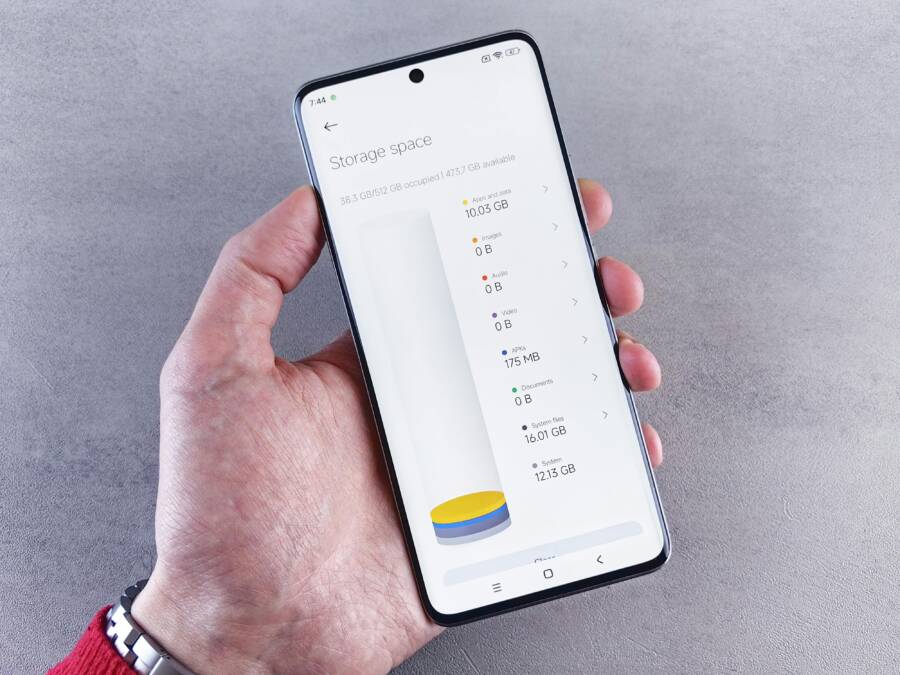
Deleting files only to see storage stay full is incredibly frustrating. You free up space, yet the phone still acts like it’s holding a warehouse full of data. In many cases, the missing space is tucked away in trash folders, caches, or offline downloads that quietly take up room.
This guide explains why a phone can show full storage after you delete items and how to recover space fast. You’ll learn quick checks that work on both latest Android and iOS without a factory reset. We’ll cover common culprits like recently deleted items, app caches, offline media, and system storage that sneaks up over time. You’ll also get practical steps you can take now to reclaim space and keep it from creeping back.
First, you’ll get a simple diagnostic you can run in minutes. Then you’ll see clear, step by step fixes for both Android and iPhone users. You’ll learn how to empty trash, clear app caches, and remove large offline downloads inside popular apps. Finally, you’ll find tips to prevent this issue in the future so your smartphone stays responsive and easy to manage.
By the end, you’ll know exactly what to check, what to clear, and how to keep your device running smoothly. The fixes are safe, proven, and do not require a reset first. If you want, I can tailor the steps to your model and OS version for precise menus and taps.
Common Reasons Your Storage Stays Full
When you delete files, it can feel like the space should instantly free up. More often, the space stays stubbornly occupied because data hides in plain sight. In this section, we’ll cover the top reasons your storage remains full and how to tackle them quickly. Think of your storage like a closet: even after you remove a few items, there are bins you forgot about, plus a few secret pockets that keep sneaking back full.
 Photo by Andrey Matveev
Trash and Recently Deleted Folders Take Up Space
Deleted items don’t vanish right away. On most smartphones, they sit in hidden bins for a grace period—about 30 days on many devices. This design is helpful if you realize you deleted something by mistake. But it also means your storage can stay cramped even after you’ve emptied the obvious files.
- How it works: When you delete photos, videos, or documents, they first move to a “Recently Deleted” or Trash folder. They aren’t permanently erased until the timer runs out or you manually purge the bin.
- The feeling you know all too well: you delete a bunch of files and immediately feel a surge of space, then you check again a day later and nothing changed. That gap is almost always that waiting bin doing its job.
- Quick checks to reclaim space now:
- On Android, open the Gallery or Photos app and look for a Trash or Recently Deleted section. Empty it permanently.
- On iPhone, open Photos > Albums > Recently Deleted and delete items for good. If you see items you want to keep, restore them first.
- Why this is the top culprit: Removing files from the main view rarely affects the hidden bin. Clearing the bin is the fastest way to recover space that seems to have vanished.
External references you can use for deeper steps:
- Restore recently deleted photos & videos on Android to ensure you’re not discarding items you still want: https://support.google.com/photos/answer/9343482?hl=en&co=GENIE.Platform%3DAndroid
App Cache and Temp Files Build Up Fast
Apps store a lot of temporary data behind the scenes. Caches, thumbnails, logs, and offline content can accumulate quickly, especially if you use several data-heavy apps daily.
- Common culprits:
- Social media apps that download dozens of thumbnails and video previews as you scroll.
- Web browsers that cache pages, images, and cookies for faster loading.
- Messaging apps that save large media assets and attachment backups.
- What to do:
- Clear app caches in the settings for each app. This is usually under Storage or App Info.
- Review offline media, such as downloaded videos or music, and remove what you no longer need.
- Consider regularly performing a cache clean once a month to keep space in check.
- A note on impact: Cache is not junk by default; it speeds things up. But once it grows beyond a few hundred megabytes, it becomes a space hog.
Helpful reads for guidance and best practices:
- How to Clear Cache and Delete Cookies on Android: https://www.android.com/articles/clear-cache-and-cookies/
- How to clear your Android phone cache (and wipe out lag) on ZDNet: https://www.zdnet.com/article/how-to-clear-your-android-phone-cache/
System Data and Hidden Items Sneak In
There’s more to storage than visible files. The operating system itself keeps data in a category often labeled “Other” or something similar. This category can include corrupted files, system logs, or residual data from app updates.
- Why you should care: This space isn’t always obvious in standard views. It can creep up slowly, leaving you with far less free space than you expect.
- What you can do:
- View hidden or system storage breakdowns in your device’s storage settings and identify large components.
- If you suspect corrupt files or failed downloads, run a basic clean-up or repair process provided by the device.
- In some cases, a soft reset or a reboot helps refresh how the system reports storage.
- Quick reality check: You might see a large “Other” section on your device, even when photos and apps appear to be under control. That’s a sign it’s time to dig deeper.
For a broader understanding of what hides in “Other Storage” and how to manage it:
- What Is “Other Storage” on Android and How to Clear It: https://aws.plainenglish.io/what-is-other-storage-on-android-and-how-to-clear-it-d7078aec0d2e
- Do iPhone or Android Apps Use More Storage? (insights on app growth and space usage): https://safetydetectives.com/blog/app-storage-usage-research/
Images and visuals can help you quickly spot where space is going. A well-labeled storage chart on your phone makes it easier to decide where to start.
Note: If you’re troubleshooting a specific model, small menu names can vary. In most cases, you’ll find these options under Settings > Storage or Settings > Apps. A quick reboot after clearing caches can also ensure the system updates its storage report.
作为最后的提示,保持一个简短的维护日程。每月执行一次清理,重点关注最近删除的内容、应用缓存和离线媒体。这样,space budgets stay healthy, and your smartphone continues to feel responsive.
External resources you may find useful:
- How to free up storage on Android and iPhone: https://techcabal.com/2025/12/01/how-to-free-up-storage-on-android-iphone/
Note: For iPhone users, if you see a large “Other” category, a rebuild of storage has helped some users. If problems persist, consulting Apple Support discussions can offer device-specific guidance: https://discussions.apple.com/thread/252872043
Images can illuminate the concept of managing storage. Consider a screenshot of your storage breakdown to show readers a practical example of where space is going. If you include screenshots, add captions like “Storage breakdown on a typical Android phone” with an attribution to your source image.
If you want, I can tailor these steps to your exact device model and OS version for precise menu paths and taps.
Quick Checks to Free Space Right Now
If your phone still shows full memory after you’ve deleted files, you’re not imagining it. Space can stay occupied by hidden bins, cached data, or offline downloads. These quick checks help you reclaim space in minutes without a reset. You’ll learn practical steps you can apply on both Android and iPhone, with reliable paths to verify results.
Trash and Recently Deleted Folders Take Up Space
Deleted items don’t disappear immediately. They linger in a hidden bin for a grace period, which can be as long as 30 days on some devices. Emptying this bin is one of the fastest ways to reclaim space that seems lost.
- How it works: When you delete photos, videos, or documents, they move to a trash or Recently Deleted folder. They aren’t permanently erased until you purge the bin or the timer runs out.
- What to do now:
- Android: Open the Gallery or Photos app and look for Trash or Recently Deleted. Empty it permanently.
- iPhone: Go to Photos > Albums > Recently Deleted, and delete items for good. If you still need some of them, restore first.
- Quick win: Clearing the bin often yields near-immediate space and stops the phantom fullness from returning.
For deeper steps, see guidance on recovering recently deleted items on Android if you worry you might lose something you still want: https://support.google.com/photos/answer/9343482?hl=en&co=GENIE.Platform%3DAndroid
App Cache and Temp Files Build Up Fast
Apps store a lot of temporary data behind the scenes. Caches, thumbnails, logs, and offline content can grow quickly, especially with data-heavy apps.
- Common culprits:
- Social apps downloading thumbnails and previews as you scroll.
- Browsers caching pages, images, and cookies for faster loading.
- Messaging apps saving large media assets and backups.
- What to do:
- Clear app caches in Settings under Storage or App Info.
- Review offline media like downloaded videos or music and remove what you no longer need.
- Consider a regular cache clean, about once a month, to keep space in check.
- Why it matters: Cache speeds things up, but once it’s sprawling, it eats into free space.
Helpful reads for guidance:
- Clear Cache and Cookies on Android: https://www.android.com/articles/clear-cache-and-cookies/
- Clear Android phone cache for better performance: https://www.zdnet.com/article/how-to-clear-your-android-phone-cache/
System Data and Hidden Items Sneak In
There’s more to storage than what’s visible. The operating system keeps data in a category that can be labeled “Other” or something similar. This can include logs, residual data from updates, or corrupted files.
- Why this happens: System or app data can accumulate over time and isn’t always shown in the standard storage breakdown.
- How to address it:
- Check the storage breakdown in Settings and identify large components.
- If you suspect corrupted files or failed downloads, use built-in clean-up tools or repair options provided by the device.
- A quick reboot after clearing other categories can refresh the storage report.
- When to act: If you see a sizable “Other” category, it’s time to dig deeper and clean up.
For a broader understanding of what hides in “Other Storage” and how to manage it:
- What Is “Other Storage” on Android and How to Clear It: https://aws.plainenglish.io/what-is-other-storage-on-android-and-how-to-clear-it-d7078aec0d2e
- Do iPhone or Android Apps Use More Storage? Insights on app growth and space usage: https://safetydetectives.com/blog/app-storage-usage-research/
Large Offline Content and Downloads
Offline media and offline app content can be surprisingly large. You may not realize you’ve saved dozens of videos, music files, or offline maps that are no longer needed.
- Where to check:
- In streaming apps, look for a Downloads section and remove items you don’t plan to access offline.
- In maps or travel apps, delete cached maps you no longer need.
- How to remove safely:
- Use the app’s built-in management tools to delete offline content.
- If you must, clear the app cache after removing offline files to prevent orphaned data from sticking around.
If you want a broader approach to freeing up space without sacrificing essential content, see how to manage offline media in both Android and iPhone contexts: https://techcabal.com/2025/12/01/how-to-free-up-storage-on-android-iphone/
Soft Reset and Storage Reporting
Sometimes the problem is a reporting glitch rather than real space loss. A quick soft reset can refresh the system’s view of storage and reveal the actual free space.
- Steps to try:
- Power off the device completely, wait a few seconds, then turn it back on.
- If you prefer, a simple reboot from the settings menu can also help in many cases.
- What to expect: After the reboot, recheck Storage to confirm whether space has updated. If it hasn’t, proceed with the deeper checks below.
If you want to explore a practical path to quick checks and longer-term maintenance, you can reference a broad storage guide that covers both Android and iPhone techniques: https://techcabal.com/2025/12/01/how-to-free-up-storage-on-android-iphone/
Quick Validation: How to Confirm You Gained Space
After you complete the above steps, confirm the gains to avoid second-guessing your actions.
- Check the storage breakdown: Open Settings and review the free space, then compare with the previous readout.
- Look for clutter categories: Make sure the major culprits (Trash, Cache, and Offline Content) show smaller numbers.
- Run a light usage test: Use a few apps you typically rely on and monitor performance to ensure the system isn’t reprioritizing data in the background.
If you want additional context on storage breakdowns and practical checks, see guidance like How to Check and Manage Storage on Your Phone: https://www.techpals.org/blog/how-to-find-your-phones-storage-limit
Putting these quick checks into a simple routine makes a big difference. Most devices respond within minutes to clearing the trash, trimming caches, and removing offline downloads. It’s a small set of steps that keeps your smartphone responsive and ready for daily use.
Optional: a quick, model-agnostic checklist to keep handy
- Empty trash or Recently Deleted folders for photos, videos, and documents.
- Clear caches for apps that you use daily.
- Remove large offline media you no longer need.
- Review the “Other” or system data category and clean what you can.
- Reboot and recheck storage to confirm the gain.
If you’re targeting readers who want to dive deeper, include a short, practical guide on applying these checks across popular apps and services, linking to in-depth manuals where needed. For example, Android users can start with the basic cache clear and trash purge, then move to more targeted steps in a reputable guide: https://www.android.com/articles/clear-cache-and-cookies/
Step-by-Step Fixes for Android Phones
When your phone shows full memory even after you delete files, it can feel like the space is leaking. The culprit is usually hidden bins, caches, or offline content that quietly keeps occupying space. Below are targeted, practical fixes you can apply now to reclaim storage on an Android smartphone. Follow these steps in order for the fastest results, then move on to deeper checks if needed.
Empty Trash and Recycle Bin
Deleted items aren’t gone for good the moment you press delete. They first land in a Trash or Recently Deleted folder and may stay there for a period before being purged. Clearing this bin often yields almost immediate space back.
- What to do:
- Open your Gallery or Photos app and locate Trash or Recently Deleted.
- Empty the bin permanently. If you still need items, restore only what you truly want to keep.
- Quick win: After emptying the trash, recheck Storage to see the regained space. If you’re unsure about any item, wait a few minutes and refresh the storage view to confirm.
For a deeper guide on recovering items and confirming deletion, see guidance on Android trash management: Move files to Trash & restore files from Trash.
External reference for broader trash management:
- Declutter Your Android: The Ultimate Trash Clean-up Guide
If you’d like a quick, model-agnostic checklist, this is a solid starting point:
- Empty trash or Recently Deleted folders for photos, videos, and documents
- Clear caches for apps you use every day
- Remove large offline media you no longer need
- Review the “Other” or system data category and clean what you can
- Reboot and recheck storage to confirm the gain
Further reading and practical steps:
- How to Empty Trash in Files App
- How to use the Files by Google app to free up storage on your Android phone
External link suggestions to explore:
- Move files to Trash & restore files from Trash
Clear Cache from Top Apps
App caches drain space fast, especially if you use social apps, browsers, or messaging apps daily. Clearing caches can free up a surprising amount of space without removing core data.
- What to target:
- Social media apps that cache thumbnails and video previews
- Web browsers that store pages, images, and cookies
- Messaging apps that save attachments and media backups
- How to proceed:
- Go to Settings > Apps > Storage & cache.
- Tap each app and select Clear cache. Repeat for apps you rely on most.
- Review offline media in the same section and delete what you no longer need.
- Fast impact: A cleared cache often improves responsiveness and frees up hundreds of megabytes.
For a practical guide on clearing caches and boosting performance, see:
- How to clear your Android phone cache (and wipe out lag for good)
- How to clear your Android phone cache and greatly improve performance
If you want a simple baseline, start with browsers, the social apps you use most, and any apps that routinely download media.
A quick tip: After clearing caches, reboot the phone to ensure storage reporting updates correctly. You’ll often see a noticeable difference within minutes.
Useful references to deep-dive into cache management:
- Clear up space – Android Help
- Android cache cleanup guides from ZDNet
Find and Delete Large Hidden Files
Hidden files and large leftovers can quietly steal space. A straightforward scan helps you identify and remove these culprits without affecting your essential data.
- How to scan:
- Use the Files app or a reputable file manager to scan for large files in Downloads, Videos, and other media folders.
- Sort by size and review items above a practical threshold (for example, 100 MB or larger).
- What to delete:
- Remove duplicates, old videos, cached offline maps, and any files you no longer need.
- If you’re unsure about a file, keep it and move it to a temporary location before permanent deletion.
- Aftercare:
- Empty the trash if the app you used moved files there.
- Re-check Storage to confirm the space return.
If you want a broader workflow to locate large cached or off-path files, you can explore these guides:
- What Is “Other Storage” on Android and How to Clear It
- Do iPhone or Android Apps Use More Storage? Insights on app growth and space usage
For quick wins, run a one-time sweep of Downloads and Videos, then review the results to ensure you didn’t delete something you still need.
Additional pointers:
- Regularly scanning for large offline content helps you prevent space creep.
- If you frequently download media for offline use, schedule periodic cleanups.
External reading to support this approach:
- How to free up storage on Android and iPhone
By keeping a short, recurring routine, you prevent the surprise of a nearly full phone the next time you open your favorite apps.
Images and visuals can help readers spot where space is going. If you include visuals, captions like “Storage breakdown on a typical Android phone” can be helpful, with proper attribution.
Tying it all together, you don’t need a reset to reclaim space. A focused trash purge, cache clear, and large-file cleanup usually solves the problem quickly. If you’re targeting readers who want to go deeper, include a concise, practical guide on applying these checks across popular apps and services, linking to in-depth manuals where needed.
External references to guide readers who want more detail:
- How to free up storage on Android and iPhone
- What is Other Storage on Android and How to Clear It
Note: For iPhone users, if you see a large “Other” category, a rebuild of storage has helped some users. If problems persist, consult device-specific guidance via supported discussions.
Also consider a model-agnostic checklist to keep handy:
- Empty trash or Recently Deleted folders for photos, videos, and documents
- Clear caches for apps used daily
- Remove large offline media you no longer need
- Review the “Other” or system data category
- Reboot and recheck storage
If you want, I can tailor these steps to your exact device model and OS version for precise menu paths and taps. For more in-depth steps, you may find targeted guides helpful:
- How to Use Files by Google to Free Up Storage
External links used in this section are for reference and further reading.
Easy Steps to Fix Storage on iPhone
When your iPhone shows full memory after you delete files, it can feel like the space you freed vanished into thin air. The truth is, space is often hidden in bins, caches, and system data that aren’t obvious at first glance. This section breaks down three practical steps you can take to reclaim storage quickly and keep your device responsive. Each step includes simple checks, concrete actions, and quick wins you can apply today.
Clear Recently Deleted Album
Deleted items don’t disappear right away. They linger in a hidden bin for a grace period, which can stretch to 30 days on some models. Clearing this bin is one of the fastest ways to recover space and stop the phantom fullness from creeping back.
- How it works: When you delete photos, videos, or documents, they move to the Recently Deleted album. They’re not permanently erased until you purge the bin.
- What to do now:
- Open Photos, go to Albums, then tap Recently Deleted.
- Review the items and delete all to permanently remove them. If you still need some items, restore only what you want to keep before deleting the rest.
- Quick win: After you empty Recently Deleted, recheck Storage to confirm the space returns. If you’re unsure about any item, wait a few minutes and refresh the storage view.
Why this matters: This is the fastest way to reclaim space that seems lost. The bin is the most common culprit when memory appears full despite deleting files.
For deeper guidance on managing recently deleted items, you can explore how to recover deleted photos and videos on Android devices as a broader reference: https://support.google.com/photos/answer/9343482?hl=en&co=GENIE.Platform%3DAndroid
Offload Unused Apps and Optimize Storage
iPhone’s “Offload Unused Apps” feature helps you reclaim space without losing app data. When storage gets tight, iOS can automatically remove the app itself while keeping documents and data. Reinstalling the app restores the data instantly if you need it again.
- How to enable and use it:
- Go to Settings > General > iPhone Storage.
- Turn on Offload Unused Apps. The phone will automatically remove apps you don’t use often, while preserving documents and data.
- For photos and media, enable “Optimize iPhone Storage” so full-resolution images get stored in iCloud and lite versions remain on the device.
- Why this helps: It frees up substantial space without forcing you to remove apps you rely on daily. It’s especially useful if you have a mix of streaming apps, games, and large social apps that tend to cache data.
- Quick checks after enabling:
- Open Settings > General > iPhone Storage and verify that the Offload feature is active.
- Visit Photos and ensure “Optimize iPhone Storage” is enabled so your device uses iCloud to host high-resolution copies.
- Practical tip: If you’re nearing a system update or a big app install, offloading can create the buffer you need without a full cleanup.
External resources for guided offloading and storage optimization:
- Optimize iPhone Storage: What It Really Does, How To … (guide and step-by-step instructions): https://clean.email/blog/productivity/optimize-iphone-storage
- How to Offload Unused Apps on iPhone Easily: https://mepis.org/expert-tips-to-offload-unused-apps-on-your-iphone-easily/
If you want a quick, model-agnostic routine, consider this checklist:
- Review General > iPhone Storage and enable Offload Unused Apps.
- Turn on Photos Optimize to iCloud to keep a lean device while preserving your memories.
- After enabling, monitor Space to confirm a measurable gain.
For a broad overview of storage management on Apple devices, see Apple’s official guidance on managing photo and video storage: https://support.apple.com/en-us/105061
Reduce System Data with a Sync
A portion of storage labeled as “System Data” or similar can creep up over time. In some cases, syncing your content to a computer and re-establishing a clean storage state helps the system report more accurate free space. A direct approach is to back up and sync with a Mac or PC using Finder or iTunes, then recheck storage.
- Why this can help: System data can include logs, temporary caches, and residual files from updates. A fresh sync can consolidate and refresh the storage ledger on your device.
- Steps to perform:
- Connect your iPhone to a Mac or PC with Finder (macOS Catalina and later) or iTunes (older Windows/macOS).
- Back up important data to your computer or to iCloud as your preference.
- Sync photos and other media if needed, then safely eject the device.
- After syncing, disconnect and recheck the Storage view on your iPhone.
- What you should expect: In many cases, a simple sync followed by a restart will reveal newly available space once the system re-scans storage.
If you’d like extra context on optimizing photo and video storage during this process, Apple’s official guide is a solid reference: https://support.apple.com/en-us/105061
Practical tip: If you’re not sure what to delete, start with large apps and media you no longer need, then re-check Storage after each batch. A short, smartphone-wide cleanup often brings noticeable improvements without touching essential data.
Additional reading to broaden your understanding of system data and storage management:
- What Is “Other Storage” on Android and How to Clear It: https://aws.plainenglish.io/what-is-other-storage-on-android-and-how-to-clear-it-d7078aec0d2e
- Do iPhone or Android Apps Use More Storage? Insights on app growth and space usage: https://safetydetectives.com/blog/app-storage-usage-research/
Putting it all together, a targeted mix of bin emptying, smart offloading, and a quick sync can dramatically improve storage. You don’t need a full reset to reclaim space; you just need to approach the problem in small, repeatable steps.
External links used in this section are for reference and further reading.
Prevent Full Storage Issues for Good
A full memory message on your smartphone is more than a nuisance. It usually means hidden caches, offline content, and system data are quietly stealing space. The goal of this section is simple: give you practical habits and quick wins that keep storage healthy, so your device stays responsive day to day.
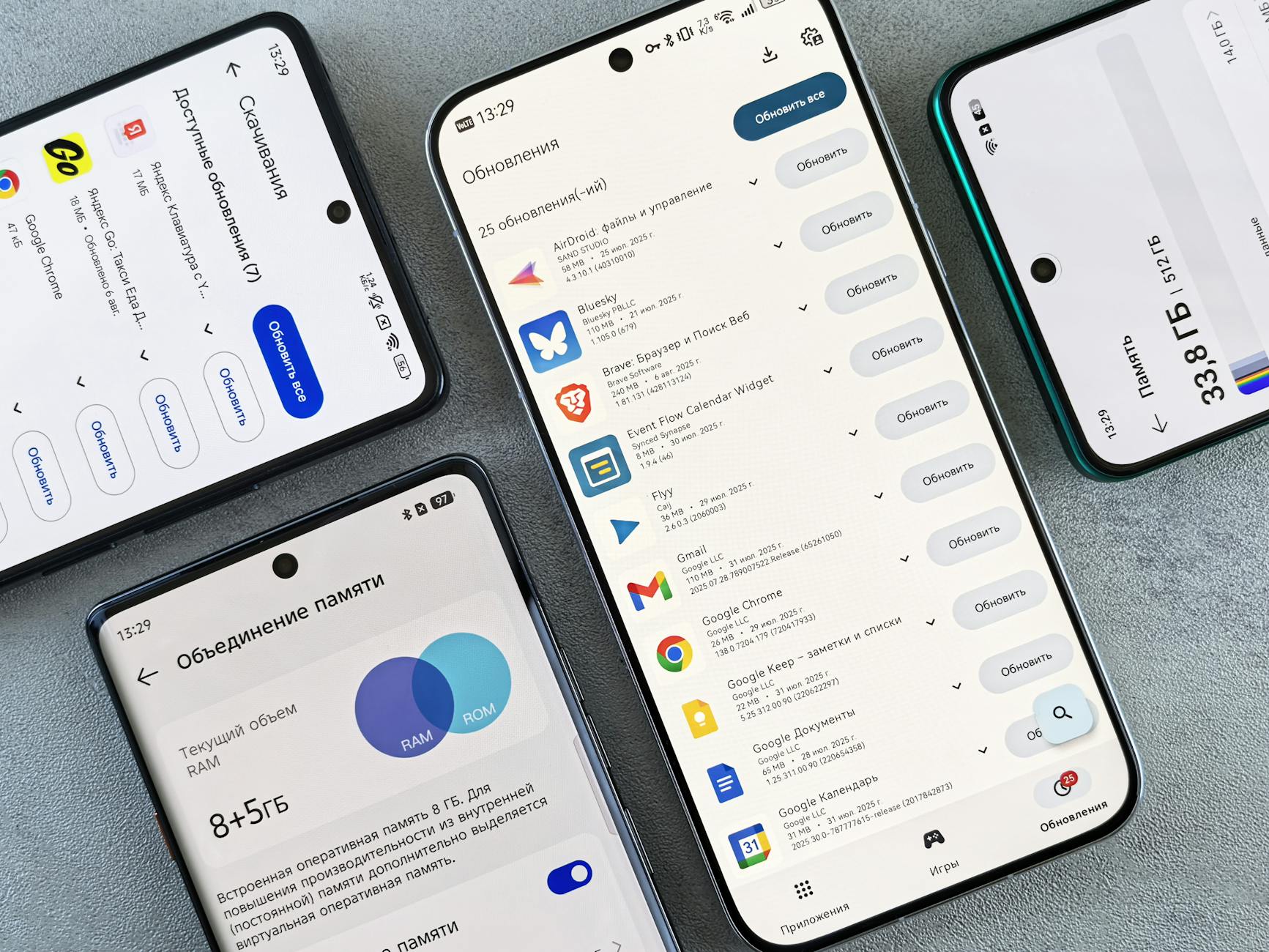 Photo by Andrey Matveev
Why storage fills up despite deleting files
When you delete items, the space may not free immediately. The phone keeps a hidden bin, plus caches and offline data that quietly consume space. Think of it as a closet with a few items stored in secret pockets. A quick purge of these pockets often yields the most noticeable gains.
- Hidden bins: Recently deleted items stay in a bin for a set period, sometimes up to 30 days.
- App caches: Thumbnails, previews, and logs from daily use can grow fast.
- Offline content: Downloads for later viewing or offline maps can remain on the device longer than you expect.
A practical starting point is to focus on the big three culprits: trash, caches, and offline media. For Android and iPhone users, clearing these areas first delivers the fastest relief. If you want deeper steps, see guides like “How to Free Up Storage on Your iPhone or Android” for a broader approach to managing these categories.
The smart maintenance routine you can trust
Preventing full storage is easier when you adopt a short routine you can run monthly. The key is consistency, not big one-off cleanups.
- Trash check: Empty the Recently Deleted or Trash bin in your photos and files apps.
- Cache discipline: Clear caches for the most-used apps, especially social media and browsers.
- Offline content audit: Review downloaded videos, music, and maps; remove what you no longer need.
- System data awareness: Peek at the “Other” or system data category and trim what’s safe to remove.
- Reboot cadence: A quick restart after big cleans helps the system report space accurately.
For readers seeking a deeper dive, notable resources outline practical steps to free up storage across Android and iPhone. For example, you can explore guidance on clearing caches and optimizing storage in Android and iPhone contexts.
A simple model-agnostic maintenance checklist
Use this as a quick-reference routine you can run anytime.
- Empty trash or Recently Deleted folders for photos, videos, and documents.
- Clear caches for frequently used apps and remove unnecessary offline media.
- Review the “Other” or system data category and clean what you can.
- Reboot and recheck storage to confirm the gain.
- Consider offloading or syncing large apps and media when space is tight.
If you want more in-depth paths for popular apps, you can find targeted guidance in reliable articles that walk through each step with screenshots and menu paths. For example, articles that explain how to free up storage on Android and iPhone provide concrete, model-agnostic steps you can apply.
How to stay ahead with proactive measures
A proactive stance beats reactive cleaning. Enable features that keep storage lean and predictable.
- Offload unused apps on iPhone: This preserves data while removing the app itself when space is needed.
- Optimize photos and videos: Keep full versions in the cloud and lightweight versions on the device.
- Save and back up regularly: Regular backups prevent you from rushing to delete items during a space squeeze.
If you want more context on storage optimization, several reputable guides summarize strategies for both platforms without requiring risky or extreme measures.
Quick references for deeper reading
- How to Free Up Storage on Your iPhone or Android
- Adjust These Settings to Free Up Storage Space on iPhone Without Deleting Anything
- What Is “Other Storage” on Android and How to Clear It
These sources offer practical, model-agnostic steps you can try next time you see Space running low. They’re particularly useful if you’re teaching a broader audience how to manage storage in daily smartphone use.
If you’re curious about model-specific paths or want me to tailor steps to your device, I can map the exact taps and menus for your phone version.
Conclusion
If your phone shows full memory after you delete files, you can reclaim space quickly with three reliable moves: empty the trash, clear app caches, and prune offline content. These steps address the hidden pockets that quietly fill up storage and cause the phantom fullness many users see. Start with the easiest fixes and move to targeted cleans as needed.
Trash and Recently Deleted folders are almost always the root cause. Clearing them frees space fast and stops the false alarms about no room. Next, tackle app caches and offline data. Cache cleanup for top apps and browsers can recover hundreds of megabytes without removing essential data. Finally, audit offline downloads, maps, and media you no longer need. Removing large items is the fastest return on investment for a tight smartphone budget.
A quick restart after these actions helps the system update its storage report, so you won’t wonder where the space went. If space remains tight, consider lightweight options like offloading apps or using cloud backups so you always have access to your important content without sacrificing performance. Keep a monthly routine to monitor trash, caches, and offline media; it prevents future scares and keeps your smartphone responsive.
Now it’s your turn. Try the steps above and share in the comments what finally freed space for you. If you’d like more tailored guidance for your model, subscribe for practical tips and stay updated with new fixes as storage challenges evolve.