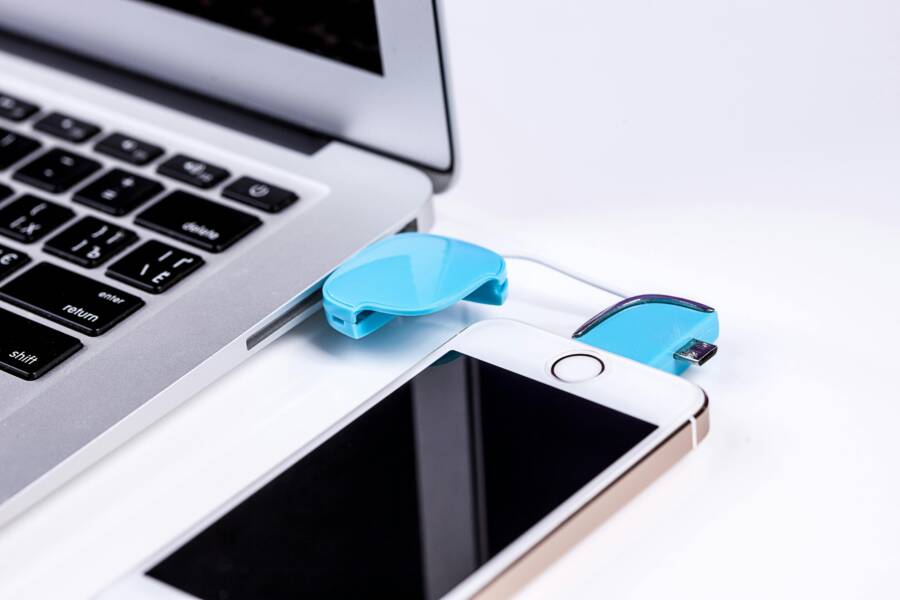
You’re rushing through a busy day when your phone suddenly stops charging. It disconnects mid-plug, leaving you with a dying battery at the worst time. This frustration hits countless users.
Many smartphone owners face this due to everyday wear and tear. Recent tech checks point to a few top culprits. They include damaged cables that fray from pulls, dirty ports clogged with lint, faulty chargers or outlets, worn batteries, and software bugs.
Don’t worry. This guide walks you through simple fixes you can try at home first. You’ll check cables, clean ports, restart your device, and more in clear steps.
Start with the basics and test your phone after each one. Most issues resolve fast without tools or trips to a shop. Follow along, and get back to reliable charging today.
Inspect and Clean Your Charging Cable and Port
A reliable charging setup is essential to staying powered through your day. Before you assume the worst, take a quick, careful look at both the cable and the port. A small amount of debris or a tiny kink can cause drops in power delivery and make your phone seem to “misbehave” at the worst moments. The goal here is simple: ensure a secure, clean connection and reduce the chance of future charging hiccups.
Step-by-Step Guide to Clean the Charging Port
Start with a quick visual check to gauge how dirty the port is. A tiny flashlight makes it easy to see lint, dust, and pocket debris that may have worked its way inside. If you see buildup, follow these careful steps to clean it without risking damage.
- Flashlight check first. A quick look can reveal fuzz, lint, or corrosion that isn’t obvious with the naked eye.
- Toothpick or air blower method. Use a non-metal tool like a wooden toothpick or a gentle air blower to dislodge gently. Avoid metal objects that could scratch contacts or push debris deeper into the port.
- Shake out debris gently. With the phone powered off, lightly tap the device or tilt it to encourage loose particles to fall out. Do not shake hard or use forceful movements that could damage the connector.
- Dry fully before retry. If you used any moisture or you suspect moisture entered the port, let the device dry completely before plugging in again.
- Warn against liquids or sharp tools to avoid damage. Liquids can cause short circuits, and sharp tools can nick the pins. Stick to soft brushes, toothpicks, or compressed air designed for electronics.
What to avoid
- Don’t insert sharp metal objects into the port. Even a small scratch can cause a poor connection.
- Don’t use liquids to clean the port. Residue may be left behind and interfere with charging.
- Don’t force debris out with too much pressure. If resistance is high, stop and reassess.
If you want a step-by-step visual guide, reputable sources walk through the same process with clear safety notes. For example, a detailed overview explains how to clean the port without risking damage and highlights common mistakes to avoid. You can also read about practical cleaning tips from tech safety guides that emphasize safe tools and gentle techniques. For more context, see resources like How to Clean Your Charging Port in 5 Easy Steps and How to Safely Clean Your Phone’s Charging Port.
- Relevant reads:
- How to Clean Your Charging Port in 5 Easy Steps — https://www.pandasecurity.com/en/mediacenter/how-clean-your-mobile-charging-port/
- How to Safely Clean Your Phone’s Charging Port — https://www.avira.com/en/blog/how-to-safely-clean-your-phones-charging-port
- How to Clean the Charging Port On Your Phone — https://www.ecoflow.com/us/blog/how-to-clean-charging-port-on-your-phone
- How to Clean Your Smartphone’s Charging Port and Speakers — https://www.consumerreports.org/electronics-computers/cell-phones/how-to-clean-smartphone-charging-port-and-speakers-a2505681935/
After you finish cleaning, reinsert the cable and test charging. If power returns reliably, great — you’ve likely removed the barrier blocking a solid connection. If the issue persists, consider testing with a different cable or charger to identify whether the problem sits with the cable, the charger, or the device port itself. In some cases, a port repair or replacement might be needed, which is a quicker step than replacing the whole device.
Related tips
- Use a cable with a sturdy connector and strain relief to reduce wear at the ends.
- When traveling, keep cables in a small pouch to protect them from bending and crushing.
- If you frequently notice lint in the port, consider a soft brush cleaning routine every few weeks to prevent buildup.
Signs Your Cable Needs Replacement
A charging cable can look fine on the outside but fail to deliver power consistently. Knowing when to replace it saves you from a frustrating surprise when you need a quick top-up. Here are telltale signs that your cable has reached the end of its life.
- Frayed ends or visible wear. If the outer insulation is cracked, split, or the interior wires are exposed, replace the cable right away. Frayed cables pose a fire risk and can cause short circuits.
- Intermittent charge. If charging sometimes starts and then stops without reason, the cable may have developing internal breaks. This often means you’ll need to wiggle the plug or hold the cable at a certain angle to get power.
- Works only when tilted or held at a specific angle. A cable that charges reliably only in one position is a red flag. The internal conductors or shielding may be damaged and will fail without replacement.
- Loose or unstable connector. If the end of the cable feels loose in the charging port or wobbles when plugged in, the connection is degraded. A secure connection is essential for stable charging and data integrity.
- Heat or a burning smell. If the cable becomes unusually warm or smells off, stop using it. Heat indicates an internal fault that could be dangerous.
If you notice any of these symptoms, it’s time to replace the cable. When choosing a replacement, look for a cable that matches your device’s charging standard (USB-C or Lightning) and has solid build quality. A well-made cable can last longer and cut down on charging frustrations.
Practical considerations
- USB-C cables are common across many devices, including newer Android phones and many laptop connections. Look for cables with good shielding and a robust connector to prevent wear.
- For iPhone users, Lightning cables still appear in many setups. If you’re upgrading, consider a USB-C to Lightning cable for faster charging with newer adapters.
- Some cables are labeled “fast charging” or “PD” compatible. If your charger supports faster charging, a compatible cable helps you reach higher power levels safely.
Supporting reads:
- Signs your charging port is damaged and what to do about it — https://www.asurion.com/connect/tech-tips/signs-your-charging-port-is-damaged/
- Warning Signs You Need to Replace Your Phone Charger — https://chargeasap.com/blogs/news/warning-signs-you-need-to-replace-your-phone-charger
- Don’t overfix frayed cables — practical tips to prevent wear and tear — https://www.popsci.com/prevent-frayed-cables/
To wrap this section, a clean port and a solid cable form the backbone of dependable charging. If you follow these steps and still face disconnects, the issue may lie with the charger, the outlet, or the device itself. In that case, testing step by step with known-good components helps pinpoint the culprit quickly. For more on diagnosing charging issues, check sources that break down common failure points and offer practical replacement guidance. You’ll find actionable tips that fit real-world scenarios, whether you’re at home, in the office, or on the go.
Test Your Power Source and Charger Match
A charger that fits your device is only part of the solution. The other half is ensuring your power source and cable can deliver the right amount of power consistently. If you’ve seen your phone disconnecting from the charger, start by validating the entire charging chain: the outlet, the adapter, the cable, and the port. A mismatch anywhere can cause drops in power that feel like the phone is fighting the charger.
To approach this methodically, test one component at a time. Swap in a known-good charger and cable, try a different outlet, and observe whether charging remains steady. This approach helps you pinpoint whether the issue sits with the power source, the charger, or the phone itself. Remember, a stable charging setup keeps your day moving, whether you’re using a basic phone or a high-demand smartphone with power-hungry apps.
How to Pick the Right Charger for Stable Charging
When you’re selecting a charger, start with the phone’s official specs. Check the manual or the box for the required voltage and current (amps) and match those numbers exactly. Mismatched voltage can cause immediate damage or slow battery health over time, while too little current will drag out charging sessions. Stick to certified brands to avoid unsafe or counterfeit products.
- Check the specifications first: Look for a charger that lists the same voltage as your phone and enough amperage to meet or exceed the device’s needs. If your phone supports fast charging, a charger that delivers higher wattage is fine because the device will only draw what it needs.
- ** prioritize safety certifications**: Choose chargers with recognized certifications (UL, CE, RoHS) to reduce risk of overheating or fire.
- Cable compatibility matters: A charger is only as good as the cable it uses. Ensure the connector type matches your device (USB-C, Lightning, etc.) and that the cable supports the charger’s rated power.
- Avoid the lure of “fast” claims that don’t match your device: If your phone doesn’t support higher wattage, a high-watt charger won’t speed up charging and could cause excess heat.
If you want a quick reference, reputable guides walk through the essentials of matching voltage and current, plus choosing safe, certified chargers. For concrete guidance, see resources like “How to Choose the Right Charger” and practical buying tips that break down what to look for in a safe, reliable charger. For additional context, you can explore practical explanations on how amperage and voltage interact during charging and why certification matters.
- How to Choose the Right Charger — https://us.ugreen.com/blogs/charger/how-to-choose-the-right-charger
- How to pick the right charger: A practical guide — https://www.androidauthority.com/how-to-choose-phone-charger-3060598/
Beyond specs, consider your usage pattern. If you frequently plug in while gaming or streaming, you’ll want a charger that can sustain higher power without overheating. For most daily needs, a standard USB-C charger with solid build and official certifications provides a dependable baseline. If you’ve tried multiple chargers and the problem persists, the fault could lie with the phone’s charging port or battery health, not the charger alone.
Practical checks
- Use a wall outlet rather than a power strip to rule out secondary power issues.
- Try a charger with a different cable to verify cable integrity.
- If you use a car charger or power bank, test with a wall charger to compare performance.
In short, the right charger is a balance of matching specifications, ensuring safety, and choosing a reliable cable. When in doubt, opt for a charger that clearly lists the device compatibility and power rating you need. If you’re curious about more nuance, reputable buying guides and safety-focused articles offer deeper dives without overwhelming you with jargon.
Fix Software Glitches and USB Settings
When charging issues aren’t due to cables or adapters, software glitches often take the blame. Your phone’s operating system, USB settings, or background apps can disrupt power delivery even with a good cable. This section helps you clean up software hiccups, reset USB behavior, and confirm the charging chain is healthy from a software perspective. Think of it as rebooting the brain of your charging setup, not just the hardware.
 Photo by Pixabay
Clear USB Cache on Android Phones
Android devices store USB-related data to speed up tasks like file transfers. Sometimes that cache can become corrupted and cause the phone to drop a charge or misread the connected accessory. Clearing the USB cache forces the system to rebuild those connections from scratch, which often resolves charging glitches tied to software.
- Path: Settings > Apps > System > USBSettings > Storage > Clear cache/data. Restart your device afterward.
- What you’re doing: you’re removing stale USB protocol data that can misreport device state or trigger odd behaviors during charging.
What to expect after you clear the cache
- A brief reinitialization of USB services. The system will recreate necessary files when you reconnect a charger.
- Temporary prompts may appear asking for permission to access USB. Grant as needed.
- If the issue was software related, you should see steadier charging and fewer disconnects.
When to try this again
- If you frequently switch between USB modes (file transfer, charging only, MIDI, OTG), cached settings can conflict with the actual task.
- If your device still reports “charging” but the power level doesn’t rise, a cache refresh can help reestablish a clean baseline.
External context you may find helpful:
- Resources detailing safe USB cleaning practices and why USB cache can affect charging. For deeper dives, see guides on cleaning USB ports and restoring proper USB behavior on Android devices.
Suggested reads for background understanding
- How to clean your charging port in five easy steps — https://www.pandasecurity.com/en/mediacenter/how-clean-your-mobile-charging-port/
- How to safely clean your phone’s charging port — https://www.avira.com/en/blog/how-to-safely-clean-your-phones-charging-port
- How to clean the charging port on your phone — https://www.ecoflow.com/us/blog/how-to-clean-charging-port-on-your-phone
- How to clean your smartphone’s charging port and speakers — https://www.consumerreports.org/electronics-computers/cell-phones/how-to-clean-smartphone-charging-port-and-speakers-a2505681935/
If you’re unsure about where to find USBSettings on your specific Android skin, check the exact path in your device’s Settings menu or search for “USB preferences” or “USB debugging” to locate the relevant caches and data.
Adjust USB Preferences and Debug Options
Sometimes the default USB behavior shifts after a system update or app installation. By setting USB preferences to a stable, charging-friendly option, you prevent the phone from trying to handle data transfer tasks when you plug in a charger.
- Access USB preferences: Settings > System > Developer options > USB configuration (or just Settings > Connected devices > USB).
- Choose a power-focused mode: select “Charging only” or “Charge only.” This prevents the phone from trying to mount a USB connection for data while charging.
- Disable unnecessary USB debugging and file transfer prompts unless you need them. Leaving debugging on won’t typically cause charging issues, but it can complicate port behavior if apps try to assert themselves during power delivery.
Note: Some devices may hide Developer options behind a tap sequence (Build number) in About phone. If you don’t see USB configuration, your device may label it differently or keep USB defaults under a general USB settings menu.
Why this matters
- Some apps or services can request USB data transfer during charging, causing the system to alternate modes or misread the connection.
- Locking USB behavior to charging helps ensure a stable power path, especially when you’re relying on the phone for navigation, calls, or streaming while plugged in.
Related considerations
- If you use USB-C adapters with multipliers or hubs, test charging with a direct cable first to rule out hub-induced USB mode conflicts.
- When possible, update to the latest firmware. Software updates frequently include USB stability improvements.
Reboot and Reset USB Settings (Soft Reset)
If clearing the USB cache and adjusting preferences didn’t fix the issue, a soft reset of USB services can clear lingering quirks without wiping data.
- Steps:
- Restart the phone. A simple reboot often resets USB services cleanly.
- After reboot, connect the charger with a known-good cable and observe the behavior.
- If needed, reapply the USB charging preference to “Charging only.”
What a soft reset achieves
- It resets background processes that may incorrectly monitor the charging state.
- It ensures a fresh handoff between the power pathway and the software that manages charging.
If you still see intermittent disconnects after a soft reset, it’s time to widen the test scope to the hardware side. Sometimes the issue points to a port or cable, but software can be a gatekeeper that exaggerates minor hardware faults.
When Software Glitches Aren’t the Cause
There are times when software is not the culprit. If you’ve tried multiple cables, outlets, and phones with the same results, the problem is likely hardware. A damaged charging port or worn battery can produce symptoms that mislead you into thinking software is the culprit.
- Signs software isn’t at fault:
- The issue occurs only with certain chargers or cables.
- The phone shows a consistent charging indicator, but the battery level doesn’t rise.
- USB diagnostic tools report normal connection states but real charging remains inconsistent.
In those cases, hardware checks become essential. A quick port inspection, battery health check, and, if needed, professional service can save you time and avoid further damage.
Dealing with lingering doubts
- Take notes of when the disconnect happens (time of day, apps in use, charging accessories). This helps you spot patterns that point to a mismatched accessory or a background process.
- If you have access to a different device, test the same charger and cable to confirm whether the charger chain works elsewhere.
External sources for deeper reading
- Persistent USB connection issues and how to address them on various devices. See support discussions and device-specific guidance for typical patterns and fixes.
In short, addressing software glitches and fine-tuning USB settings gives your charger a clean, predictable path to power. If the disconnects persist after trying these steps, the next moves involve a closer look at the hardware or seeking professional help to prevent further wear and risk. For a broader view of charging health and practical diagnostics, the following resources offer concrete guidance on identifying faulty hardware and choosing reliable components.
Check Battery Health and Advanced Steps
A healthy battery extends the life of your phone and keeps daily tasks running smoothly. In this section, you’ll learn practical checks to gauge battery health and a few advanced steps to improve charging reliability. Think of it as a quick health check for your power system, with practical actions you can take today.
Quick Battery Diagnostic Tests
Run fast, built-in checks before diving into deeper fixes. These tests help you separate software quirks from hardware wear and guide your next move.
- Check battery health in settings: Most phones offer a battery health or peak performance feature. For iPhone users, Apple’s guidance on battery and performance is a good reference. For Android, look for battery health or charging stats in the device’s maintenance or battery section. If you see a health value well below 80 percent, plan for a battery replacement or professional assessment.
- Monitor charging behavior: Note whether charging slows, stops, or fluctuates when you move or touch the charger. If the issue happens only with certain cables or outlets, the problem may be the accessory rather than the battery.
- Temperature awareness during charging: Heat is a red flag. If your phone gets noticeably hot while charging, disconnect and let it cool. Continuous heat can degrade battery health over time and shorten its lifespan.
- Run a charge cycle check: Fully charge the device to 100 percent, then use it normally until the battery reaches a critical level. A dramatic drop in usable capacity after a few cycles hints at aging or a faulty cell.
- Compare with a known-good setup: If possible, test with a different charger and cable that you know work well. If the problem vanishes, the issue is likely a bad accessory; if it persists, the battery or port may need service.
What to watch for
- Sudden drops in estimated capacity or performance after a software update may signal a software- or calibration-related issue.
- A phone that repeatedly refuses to charge beyond a certain level, or shows inconsistent charging indicators, can indicate battery wear or a faulty port.
Practical steps to run these checks
- Use the official battery health resources for your device type. For iPhone, start with the iPhone battery and performance guide from Apple Support. For Android, check reputable guides that explain charging cycles and health reporting.
- Keep a log for a week: note the charge level at wake time, charging time, and any heat you feel during charging.
External context you may find helpful
- iPhone battery health and performance overview from Apple Support
- Android battery health and charging cycles basics
If your device shows healthy battery health but you still experience disconnects, you’re not out of options. Advanced steps below cover software tedium and hardware wear that can cloud the picture.
Heat During Charge: When It Matters
Heat is more than uncomfortable. It accelerates battery aging and can cause charging instability. If you notice warmth during charging, take these precautions and steps.
- Use a cool environment: Avoid charging on soft surfaces that trap heat. A hard, flat surface helps dissipate warmth.
- Remove cases during charging: Some cases trap heat around the charging area. If you suspect this, remove the case for a few charge cycles and compare.
- Check background activity: Heavy tasks running while charging can raise device temperature. Pause or throttle demanding apps during charging.
- Consider charger quality: Cheap or damaged adapters can overheat. Prefer certified chargers and cables that meet the device’s power needs.
When to seek professional help
- If the device remains hot after unplugging or shows warning messages about battery safety, stop charging and contact a service provider.
- If the battery health is already compromised (low maximum capacity) and heat persists, a battery replacement may be necessary to restore reliable charging.
External reads for heat and battery care
- How to prevent iPhone overheating and charging issues
- iPhone battery and performance basics
Advanced Steps: Calibration, Apps, and Repair Options
When basic tests aren’t enough, calibration and targeted adjustments can recover accurate battery readings and smoother charging. If these don’t help, it’s time to consider hardware service.
- Recalibrate the battery gauge: Let the phone discharge to near 0 percent, then charge uninterrupted to 100 percent. This helps the system recalibrate the battery readout, especially after software updates.
- Update the software: Install the latest OS update. Manufacturers often fix charging and battery reporting bugs in updates.
- Review charging apps and USB settings: Some apps or developer options can affect power delivery. Temporarily disable or uninstall experimental USB-related apps to see if charging stabilizes.
- Reset settings (without erasing data): A light reset can fix misconfigured USB or power settings without wiping your files. Revisit USB preferences after the reset.
- Test with a known-good battery (if available): Some devices allow battery health testing or replacement under warranty. If your device is aging and power cycles are short, a battery swap can restore life.
- Visit a professional for a port or battery assessment: If the port shows wear, or the battery health reads poor despite software fixes, a technician can replace worn components safely.
What to bring to a service visit
- Your charging cable and charger
- A short description of when the issue occurs (time of day, apps, movement)
- A record of any heat or unusual behavior during charging
External sources for deeper guidance
- Apple’s battery and performance overview for iPhone
- General guidance on choosing the right charger and avoiding common issues
Takeaway: start with a clear view of battery health, observe charging behavior, and apply targeted software and calibration steps before moving to hardware fixes. If the problem persists, a professional evaluation can prevent further wear and protect your device’s longevity.
Conclusion
Fixing a phone that keeps disconnecting from the charger starts with the basics and moves toward targeted checks. Start by inspecting and cleaning the charging cable and port to remove stubborn debris that blocks contact. If cleaning helps, you’ve found the culprit and can resume normal use quickly.
Next, test the power source and charger match. Swap in a known good charger and cable, test multiple outlets, and rule out the wall supply. A correct match protects battery health and keeps charging stable over time.
If the issue persists, address software glitched or USB settings. Clear USB cache on Android devices, adjust USB preferences to charging only, and reboot. These steps reset how the phone talks to the charger and can stop phantom disconnects.
Check battery health and consider advanced steps if needed. Run quick diagnostics, monitor heat during charging, and calibrate the battery gauge if you notice misreadings. If the battery is aging, be prepared for a replacement to restore reliable charging.
When all else fails, reserve professional help as a last resort. A damaged port or worn battery benefits from a trained technician who can prevent further damage. For ongoing use, consider wireless charging pads as a convenient, future‑proof option.
If you’ve found a fix that works, share it in the comments below. Stay confident in your setup and enjoy reliable charging with your smartphone.