
Phones are our lifelines. When you’re in a spot with weak signal, your device has to work harder to stay connected. That extra effort shows up as a fast drop in battery life, a problem that can feel endless if you don’t know how to tackle it. This guide walks you through practical steps to identify the cause, optimize settings, and keep your phone from sipping power in weak zones.
Poor network coverage makes a phone fight a constant battle. It searches for signal, switches between towers, and tries to stay online when every nearby tower is out of reach. All that activity uses more power than normal. The good news is you can reduce the strain with a few tweaks and smart habits.
Why Poor Coverage Drains Battery
When signal is strong, your phone stays fairly calm. It reads data quickly, then rests. In a bad area, however, it keeps ramping up. The radio powers up to higher levels, sometimes hopping between bands or switching from 4G to 5G and back again. This continuous ping for a better signal is what chews through battery life. In short, weak coverage turns your device into a tiny power-hungry engine.
If you’ve noticed your battery lasts fine in the house but vanishes during a trip to a rural area or a crowded building, suspect signal quality. A quick check is to compare battery drain while you’re in a strong reception zone versus a weak one. If the difference is obvious, you’re dealing with the classic case of poor coverage taxing the battery.
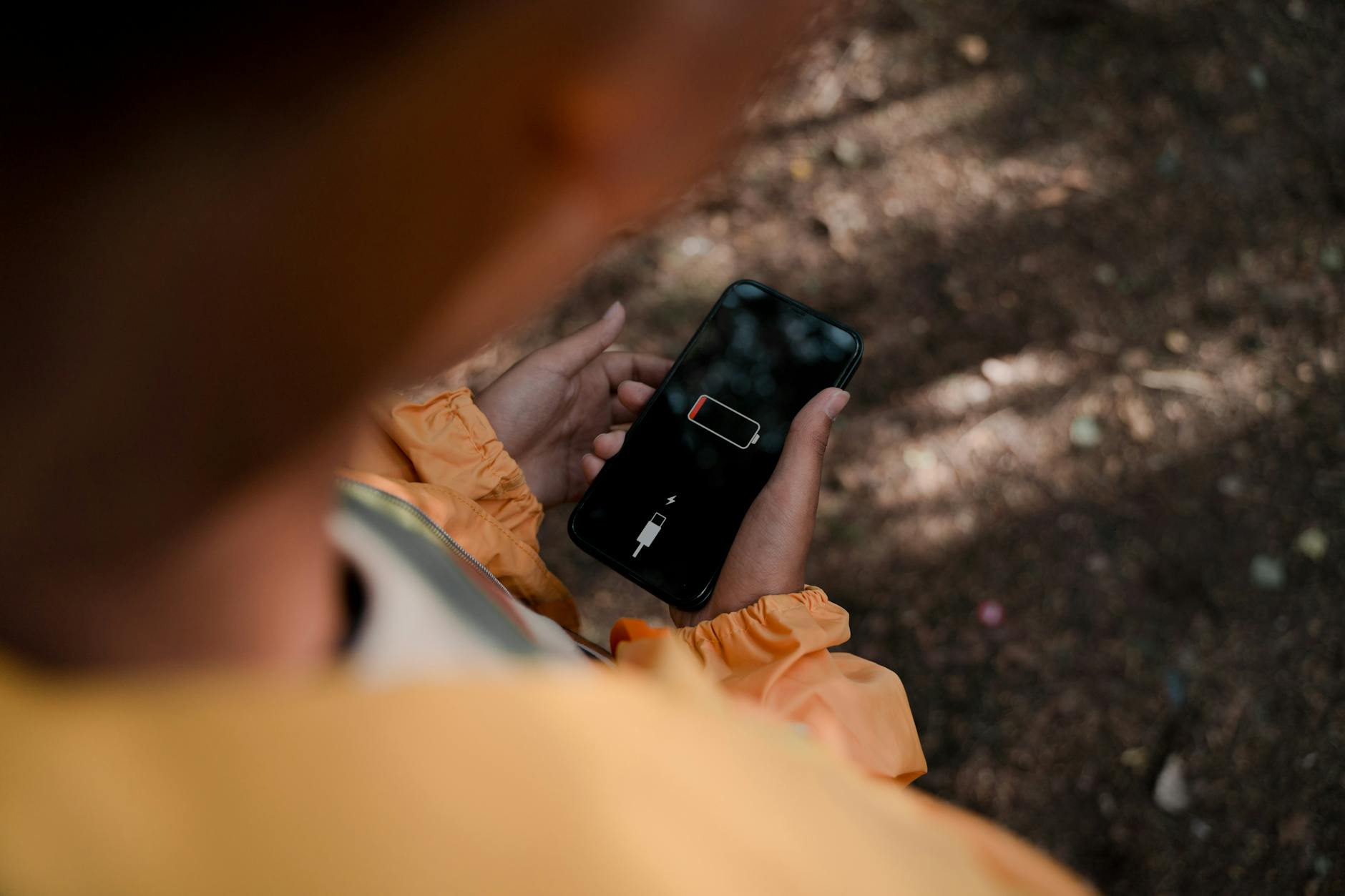 Photo by Ron Lach
Quick Checks to Do Right Now
- Look at signal strength. If you’re in a brick building or deep inside a canyon, move toward a window or exterior door. A few steps can make a big difference.
- Check for software updates. An OS update often includes better power management for weak signal situations.
- Test with a different SIM. If another SIM shows the same pattern, the problem is likely the network area or your device’s radio. If the problem disappears with a different SIM, your carrier account or SIM may need attention.
- Try WiFi calling. If your carrier supports it, using WiFi for calls and texts can dramatically reduce how hard the phone searches for a signal.
If you’re in a dead zone, a practical move is to enable airplane mode for periods when you don’t need calls. It stops the phone from endlessly scanning for a signal and draining battery in the process. Just remember to turn it off when you want to receive messages or calls again.
Power Saving Tactics You Can Use Immediately
- Activate battery saver mode. This feature reduces background activity, limits app refresh, and dims the screen when battery is low. It’s an easy first step to extend life in a bad signal area.
- Reduce screen brightness and shorten screen timeout. A bright screen is a large power sink. In weak reception zones, lowering brightness and setting a shorter idle time helps a lot.
- Limit background activity. Turn off background data for apps that don’t need to refresh constantly. You can usually find this under Settings > Apps > [Your App] > Background data.
- Disable unnecessary wireless radios. If you don’t need Bluetooth or NFC, turn them off. Radio scanning for multiple services uses power when not in use.
- Manage location services. Keep GPS on only for apps that truly need it. You can set location access to while using the app instead of always.
- Check push and sync settings. Email and social apps can wake up often to fetch new content. Set longer fetch intervals or switch to manual sync during a workday.
- Use adaptive brightness with a manual override. Let the phone adjust to ambient light, but keep a comfortable cap on brightness so the display doesn’t drain power in the background.
If you notice a battery that drops rapidly even in strong signal areas, you may have a separate battery issue. Run a quick health check in Settings to see if the battery health is degraded. If it is, a replacement may be the most effective fix long term.
Network Optimization to Stop Constant Searches
- Update carrier settings and the OS. Carriers release tweaks that improve signal handling and efficiency. An update can reduce the need to pump power in poor coverage spots.
- Choose an appropriate network mode. If your phone supports 5G, 4G, and 3G, select a mode that balances performance with power usage. In many cases, staying on 4G LTE provides good performance with lower power draw than 5G in weak areas.
- Enable WiFi preferred. When you have access to a stable WiFi network, why not rely on it? It reduces the phone’s need to search for cellular signal and can dramatically extend battery life.
- Turn on WiFi calling if available. This keeps your calls routed over the internet rather than over a weak cellular signal, preserving battery.
- Reset network settings if you notice odd battery behavior in weak areas. This clears misconfigured preferences that may cause the phone to overwork trying to obtain a signal.
- Test with a different carrier band if possible. Some regions have bands that fail to deliver consistent coverage. If a known issue exists, switching the preferred network type can help.
If you’re using a smartphone in a high motion area like a subway tunnel, the signals constantly change. In such cases, a simple habit can help: pause for a moment to let the phone settle on a consistent carrier tower before you begin streaming or gaming. A short break can save substantial battery life.
When It Might Be Time to Inspect Hardware or Contact Help
- Battery health is poor. If the battery can’t hold a charge even with reasonable use, a replacement can boost performance and reduce drain.
- The radio module shows signs of failure. Symptoms include inconsistent connectivity, unexpected reboots, or sudden drops in performance after a software update.
- A rogue app or service drains power in the background. Some apps can misbehave after updates, causing battery drain even when you aren’t actively using them.
- The SIM is degraded. A faulty SIM can force extra power usage as the device tries to connect to networks repeatedly.
In these cases, consider a visit to a service center or your carrier store. A technician can run diagnostics and replace components if needed. If you’re comfortable, you can also try a factory reset after backing up data to see if software-related issues are the culprit. If the reset improves things, you can restore apps gradually to identify the offender.
Practical Habits to Prevent Future Drain
- Update regularly. New releases fix bugs and improve how devices manage power during weak signals.
- Plan charging around your routine. If you know you’ll be in a low signal area for a while, it can help to start with a higher charge or bring a portable charger.
- Keep apps lean. Remove or disable apps you don’t use often. A lighter app footprint reduces background activity.
- Use a case that does not block the antenna. A heavy case can insulate signals or reduce reception in dense environments.
- Protect battery health. Don’t let your battery consistently drop to zero or stay at 100 percent for long periods. Occasional charging to around 80 percent can prolong lifespan.
A note on settings and behavior. Some phones offer a toggle to optimize for battery life in weak signal areas. If you find this option, it can help. Also, avoid leaving the screen on for long periods in dead zones. The combination of screen time and network search can accelerate drain quickly.
Putting It All Together
A phone in a spot with poor coverage fights a losing battle unless you step in with targeted changes. Start with simple checks and small adjustments. Enable battery saver, trim screen brightness, and limit apps that wake up in the background. Then tackle network settings by updating software, choosing a sensible network mode, and relying on WiFi when it’s available. If you still see rapid drain, test with a different SIM or consider battery health and hardware checks. In many cases, a handful of tweaks will restore meaningful battery life.
Conclusion
Dealing with battery drain from a weak network is a matter of tuning both software and behavior. By understanding why your device uses more power in low signal areas, you can act quickly and effectively. Start with quick wins like battery saver mode and screen minimization, then move to network optimizations and hardware checks if needed. With steady adjustments, your phone will last longer between charges, no matter where you are.
If you found this guide helpful, try one or two steps tonight and notice how it changes your day. Share your experience in the comments or ask a question about your specific device. Your feedback helps other readers in the iPro+ 知識酷 community make smarter choices about smartphone power.