How to Fix a Phone That Can’t Make Calls (Android & iPhone)
Missing calls can feel like a digital blackout that disrupts your daily routine. If your smartphone can’t make calls, you’re not alone; this issue shows up on both Android and iPhone when signal drops, SIM hiccups, or small software glitches get in the way. In this quick guide, we’ll walk through simple checks and fixes that restore calling capability without needing expert help. By the end, you’ll know the most common causes and how to tackle them, so your conversations get back on track.
Start with Easy Checks to Restore Your Signal Fast
When your phone can’t make calls, the quickest path back to normal is often the simplest. Start with a couple of easy checks that reset core connections without getting buried in settings. Think of it like giving your device a quick nudge to re-establish its link to the network. If these don’t resolve the issue, you’ll have a solid baseline to move forward with more advanced steps.
Toggle Airplane Mode Like This
Airplane mode acts as a quick reset for the device’s radio signals. Flipping it off and on forces the phone to reconnect to the cellular network, which can clear minor glitches that block calls.
- Android: Swipe down from the top of the screen to open Quick Settings, then tap the airplane icon. Wait 10 to 30 seconds, then tap the icon again to turn it off.
- iPhone: Open Settings, then tap Airplane Mode to turn it on. After 10 to 30 seconds, switch Airplane Mode back off or use the toggle in Control Center.
Test a call right after you turn Airplane Mode off. If you still can’t place a call, you’ll know the issue isn’t from a temporary radio hiccup and you can proceed with deeper checks.
Why it works: this reset clears and re-establishes the device’s connection to the carrier network, which can fix stuck signals and misreported status. If you want a quick refresher from official guidance, see Apple’s pointers on network status and diagnostics for iPhone users. Apple Support: If you see SOS, No Service, or Searching on your iPhone
Restart Your Phone the Right Way
A proper restart cleans out temporary software glitches that can interfere with calls. It’s gentler than a hard reset but can resolve many stubborn issues.
- Android: Hold the power button, then tap Restart. If you don’t see Restart, choose Power off and then turn the device back on.
- iPhone: Hold the side button and either volume button until the power off slider appears. Drag to power off, then press the side button again to turn it back on.
Why it helps: restarting closes all background processes, refreshes system services, and gives the voicemail and telephony apps a clean slate. If you’re dealing with a stuck process, a soft restart is usually enough to clear it. If you’re unsure, start with a soft restart before moving to more involved troubleshooting.
If you’re dealing with persistent no-service symptoms, you can also consult official guidance on no-service and signal issues for Android and iPhone users. For Android, guidance tends to cover different carrier and device specifics, while Apple’s guidance focuses on iPhone behavior and diagnostics. For a detailed read, see Apple Support and carrier resources as needed. (Links provided above)
Inspect and Reinsert Your SIM Card Step by Step
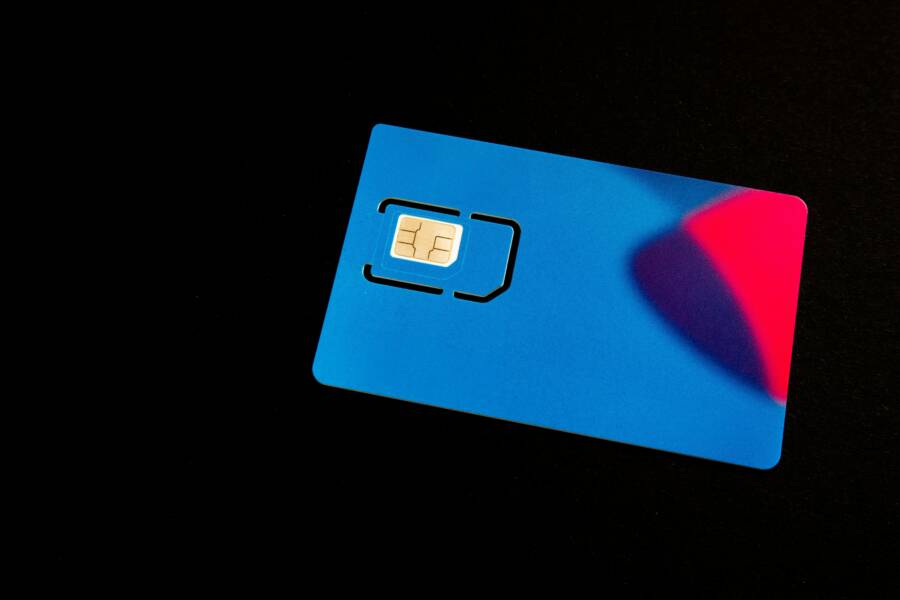
A dull moment in your day can turn into a missed call if the SIM card isn’t making solid contact with the phone. This sub-section walks you through a straightforward, step by step approach to inspect, clean, and reseat the SIM card. It’s quick, it’s inexpensive, and in most cases it resolves the issue without touching other settings.
Image for reference
 Photo by Pascal
- Locate the SIM tray
- Find the SIM tray on your device. It’s usually on the side for most Android phones and on the top or side for iPhones.
- If you’re unsure, check the user manual or search the model name plus “SIM tray location” online.
- Power down before you touch anything
- A quick power off reduces the risk of bending pins or introducing static.
- Pop out the tray and inspect
- Use the SIM eject tool or a small paperclip to gently eject the tray.
- Look at the SIM card edge and the tray contacts. If you see any visible fingerprints, dust, or lint, you’re probably dealing with a poor contact issue.
- Clean the SIM and tray contacts
- Gently wipe the gold contacts on the SIM with a clean, dry microfiber cloth.
- If there’s stubborn debris, a tiny amount of isopropyl alcohol on the cloth can help, but wait for it to dry completely before reinserting.
- Do not touch the metal contacts directly with your fingers.
- Reinsert the SIM card correctly
- Place the SIM into the tray with the chip side facing down and the notched corner aligned with the tray.
- Slide the tray back into the phone until it sits flush. Don’t force it.
- If you have a dual-SIM device, ensure you’re using the correct slot and that both trays are properly seated.
- Power on and test
- Turn the device on and try placing a call right away.
- If the problem persists, try removing and reinserting again. In rare cases, the tray itself can be bent or misaligned.
- Try the SIM in another device
- If possible, insert your SIM into another phone. If calls work there, the fault is likely with your device, not the SIM.
- If calls still fail, the SIM card may be damaged or the carrier account needs attention.
Why this helps: the most common reason a call fails is a poor SIM contact. Dust, minor misalignment, or a bent tray can disrupt the signal path between your phone and the network. Rechecking the fit and cleaning the contacts restores a clean, reliable connection.
If you still see the same issue after reseating, it’s worth checking the carrier status. A quick sign is seeing “No Service” or “SOS only” on your screen. For official guidance, you can review Apple’s advice on network status and diagnostics for iPhone users. Apple Support: If you see SOS, No Service, or Searching on your iPhone
Update Software and Reset Networks for Reliable Calls
When you can’t make calls, software and network settings are often the culprits. Keeping your device software up to date and refreshing network configurations can fix many common calling issues. This section covers two practical steps you can take right away: updating your software and safely resetting network settings. Both actions are quick, mostly automated, and designed to restore reliable calling performance without extra hardware.
Find and Install the Latest Software Update
Keeping your phone’s software current is one of the smartest fixes for call reliability. Updates often include bug fixes, security patches, and improvements to how the device handles calls and network connections.
- Start with a Wi-Fi connection. Downloads over cellular data can be slower or restricted by your carrier.
- Check for updates:
- Android: Open Settings > System > Software update (or About phone > System update). Tap Check for updates. If an update is available, download and install it. Your phone may reboot during the process.
- iPhone: Open Settings > General > Software Update. If an update is available, tap Download and Install. You may be asked to enter your passcode or confirm terms.
- After installation, restart your device. A clean reboot helps the new software initialize correctly.
- Verify the fix: place a few test calls in different scenarios (cellular, Wi-Fi-calling if supported, and voicemail). If calls stay connected and clear, you’ve likely resolved the issue.
Why this helps: updates fix known call bugs, improve carrier compatibility, and strengthen overall network handling. Even if you’re not seeing obvious problems, routine updates reduce the odds of subtle issues causing dropped or failed calls.
Tips to keep on track:
- Enable automatic updates when you’re on a stable Wi‑Fi network to minimize data usage and avoid late updates.
- If an update fails, retry at a later time or connect to a different Wi‑Fi network. Sometimes large updates require a strong, stable connection.
If you want more guidance on updates, the official support resources for your device brand provide step-by-step instructions and troubleshooting tips tailored to your model.
Reset Network Settings Safely
Resetting network settings can be a powerful way to clear stubborn network glitches that block calls. This reset returns Wi‑Fi, Bluetooth, and cellular settings to their defaults without erasing personal data.
- Before you reset, consider backing up:
- Your saved Wi‑Fi networks and passwords
- Bluetooth device pairings
- Any VPN configurations you rely on
- Proceed with the reset:
- Android: Settings > System > Reset options > Reset Wi‑Fi, mobile & Bluetooth settings. Confirm the action.
- iPhone: Settings > General > Transfer or Reset iPhone > Reset > Reset Network Settings. Enter your passcode if prompted.
- After the reset, rejoin networks and re-pair Bluetooth devices as needed.
- Test calling across multiple networks:
- Place a regular call in a known good coverage area.
- Try a call while connected to a different network (if possible).
- Confirm that voicemail and caller ID services respond as expected.
Why this helps: network misconfigurations can linger after software changes or travel. A clean slate ensures your phone negotiates new connections properly with the carrier and prevents stale settings from interfering with calls.
Practical notes:
- Expect a brief reconfiguration period after the reset. You may see prompts to rejoin Wi‑Fi networks or re-pair accessories.
- If you rely on dual SIM or eSIM, verify both profiles are active and correctly configured after the reset.
If the problem persists, consider deeper checks:
- Check carrier status pages for outages in your area.
- Review any security or VPN apps that might block certain network traffic.
- Contact your carrier to verify SIM status or provisioning.
If you need more help, official support channels provide model-specific guidance on resetting network settings and diagnosing no-service scenarios.
Android-Specific Fixes to Make Calls Work Again
If you rely on your Android device for everyday calls, a quick check of app permissions can save you a lot of frustration. Sometimes the problem isn’t the network at all, but how an app is allowed to interact with the system. Below you’ll find a focused, Android-first approach to ensure the Phone app and related services have the access they need to place and connect calls reliably. Think of it as giving your smartphone the green light it deserves.
Manage Apps and Permissions on Android
Permissions control what data and features apps can access. If the Phone app or dialer can’t reach the network, it might be blocked by a recent permission change. Here’s a straightforward way to verify and correct these settings.
- Open Settings and navigate to Apps
- Find the Phone app and tap Permissions
- Ensure Phone access is enabled and listed as allowed
- If you see extra apps with overlapping dialer or telephony functions, review their permissions too and remove any unnecessary access
Why this matters: Android’s permission model lets apps request access to calls, contacts, and other sensitive data. If the Phone app or a helper service is blocked, you won’t be able to place calls even when you have a good signal. By confirming proper permissions, you restore the essential bridge between your device and the carrier network.
Helpful resources:
- Change app permissions on your Android phone
- This official guide walks you through granting or revoking permissions for individual apps. It’s a reliable reference if you’re unsure which apps should have access to phone features. https://support.google.com/android/answer/9431959?hl=en
- Manage permissions from the privacy dashboard
- See at a glance which apps are using sensitive data and adjust right away. https://support.google.com/android/answer/13530434?hl=en
Tips for a smooth check:
- Check both the Phone app and any call-blocking or firewall apps. These can inadvertently block legitimate telephony actions.
- If you recently installed a new app, try temporarily disabling it to see if call quality and connectivity return to normal.
- After adjusting permissions, test a call in different scenarios (cellular network, Wi-Fi calling if supported). This confirms the fix across typical use cases.
If you still can’t place calls after confirming permissions, you can proceed with more targeted Android steps such as updating the Phone app, clearing its cache, or resetting related network settings. For more in-depth steps, refer to the official support pages linked above.
iPhone Tricks to Fix Call Problems Quickly
When you rely on your iPhone for daily conversations, even a small hiccup can feel like a roadblock. This section shares practical, quick-win tricks you can try right away. They’re designed to get you back to making clear calls without diving into deep tech fixes. Think of these as the fast lane to regaining your dialing capability, with straightforward steps you can complete in minutes.
 Photo by Daniel Moises Magulado
Turn Off Silence Unknown Callers
Turning off Silence Unknown Callers can restore your ability to receive important calls from numbers that aren’t in your contacts. It’s a simple toggle, but it comes with a tradeoff: you might see more calls from unknown numbers. If you frequently miss legitimate calls from unfamiliar numbers, this is a sensible first step. If you still encounter issues after turning it off, you’ll know to pursue deeper diagnostics.
- Settings > Phone > toggle off
Why this helps: when Silence Unknown Callers is on, the iPhone blocks calls from numbers not saved in your contacts. That can block legitimate pass-throughs, especially from service providers, doctors, or work lines. Turning it off reopens the line for these calls. If you want official guidance on related network and diagnostic checks, see Apple’s support article on scenarios where calls fail or you can’t receive calls on your iPhone.
Apple Support: If your call fails or you can’t receive calls on your iPhone
For a broader view, you can also check carrier status pages to confirm there are no local outages impacting calling services. If the issue persists after this change, you’ll want to follow up with more targeted steps outlined in the subsequent sections.
Still No Calls? Know When to Get Pro Help
When you’ve ruled out the basics, it’s easy to assume you’re staring at a simple hiccup. Sometimes the issue runs deeper—right into hardware or complex software fixes. In this section, you’ll learn how to spot when it’s time to bring in a professional, what to expect from a repair, and how to choose a trustworthy technician. Think of it as knowing when to bring in the expert so you’re not wasting time with guesswork.
How to tell if you need a pro
You’ve tried the essentials, but calls still fail. Here are clear signs that point to professional intervention:
- Persistent no service or unknown network status even after SIM reseats and software updates.
- Calls drop mid conversation in multiple scenarios (different locations and networks) or the device can’t place a call at all, even with a solid signal.
- Evidence of hardware faults such as muffled audio, a non-working microphone or speaker during calls, or a screen that intermittently fails to respond.
- The device has been dropped, exposed to water, or shows unusual warm behavior during use.
If you notice any of these, professional diagnostic work is advisable. A quick check with your carrier can also rule out service outages. For instance, you can review outage information from major carriers to confirm it isn’t a local network problem. Outage information pages are available for AT&T, Verizon, and other providers. See carrier status pages for the latest updates.
Quick checks you can still try before booking help
Even when you’re leaning toward pro help, a few targeted checks can save time and money. These steps are fast, and they help you document what you’ve already tried when you talk to a repair shop.
- Inspect the handset for obvious damage. A cracked screen or bent frame can affect the antenna and internal components.
- Verify mic and speaker pathways. Have someone test your mic during a call and listen for echo or muffled audio on the other end.
- Check for water exposure signs. If the device has moisture indicators, a spill or splash could explain sudden call failures.
- Review app behavior. Sometimes a single app or a recent update interferes with the Phone app. Temporarily removing or disabling recently installed software can reveal the source.
- Confirm hardware reliability with a test SIM. If another SIM works in your device, the issue may be with the card rather than the phone.
If these checks reveal no improvement, it’s reasonable to pursue professional diagnostics. When you contact a repair shop, you’ll want to share the symptoms, what you’ve tested, and any error messages you’ve seen. This helps technicians isolate the fault faster.
What a professional repair typically covers
Professional technicians diagnose and fix issues that go beyond consumer-level troubleshooting. Common repair paths include:
- Screen, microphone, or speaker replacements for call quality and audio path restoration.
- SIM slot or antenna repair to restore reliable network connectivity.
- Battery or charging port replacement when power or standby behavior affects calling reliability.
- Water damage cleanup and corrosion treatment to prevent ongoing faults.
- Micro-soldering or component-level work for advanced hardware faults when necessary.
Repair shops now offer fast service for many of these problems. If you need a quick reference, major guidance and troubleshooting resources from trusted sources point to hardware faults and professional service as reliable paths when consumer fixes fail. For official guidance on iPhone network issues, you can consult Apple’s support resources. If you want to see how providers frame outages and no service, carrier pages often list current status and steps to take. See Apple Support and major carrier resources for details.
How to choose the right repair option
Selecting a reputable shop saves time and reduces risk. Keep these criteria in mind:
- Credentials and warranties: Look for certified technicians and a clear parts warranty. Ask about the evaluation process and turnaround time.
- Transparency on costs: Request a written estimate before any repair, including parts and labor. Ask about repair vs. replacement options if the device is older.
- Genuine parts vs. aftermarket: Inquire whether the shop uses original equipment manufacturer (OEM) parts or high-quality replacements. OEM parts usually carry better long-term reliability.
- Local presence and reviews: Check local reviews and technician proximity. A nearby shop can expedite service and easier follow-up if something goes wrong.
- Data safety: Confirm the shop’s data handling policy. Back up data if possible before any hardware work begins.
If you’re unsure where to start, you can use carrier support as a first step to verify whether the problem is account or network related. In many cases you’ll find that a pro repair is the fastest route to a lasting fix when the issue is hardware related.
When to seek guidance from the carrier or manufacturer
Certain situations benefit from direct guidance from your carrier or the device maker:
- Network outages or provisioning issues that show up across multiple devices.
- Suspected SIM or eSIM provisioning problems that require carrier intervention.
- Diagnostic routines offered by the manufacturer, especially for iPhone users.
Manufacturers and carriers often provide diagnostic tools and triage steps. For iPhone users, official guidance can direct you toward diagnostics that help determine whether the problem is with the phone or the network. When you need it, Apple’s support resources are a good starting point to understand network diagnostics and next steps. If you want to compare, major carriers also publish troubleshooting steps and outage maps you can reference before visiting a shop.
- Apple Support: If you see SOS, No Service, or Searching on your iPhone
- Carrier outage pages (AT&T, Verizon, etc.) for current service status
Real-world decision guide: pro help vs DIY
- If your smartphone shows clear hardware signs (damaged microphone, screen cracks near the mic, water exposure), go pro. DIY fixes risk further damage.
- If the issue is a stubborn software glitch after updates or resets, you can still attempt more software-oriented steps, but be ready to escalate if no improvement appears within a reasonable window.
- When you’re without a functional phone for work or urgent communications, prioritize speed. A professional diagnostic can quickly identify whether you need a repair or a replacement.
Pro help is not a last resort; it’s a smart path when symptoms point to hardware faults or stubborn, non-resolving issues after standard troubleshooting. The goal is to restore reliable calling and minimize downtime, not to chase elusive software clues.
External resources for further context:
- Apple Support: If your call fails or you can’t receive calls on your iPhone
- Verizon Troubleshooter: Phone can’t make calls, calls drop, calling not working
- AT&T Outages: Service outage information and status
- Downdetector: Real-time outage monitoring to check if others in your area are affected
If you prefer to read more about common hardware failure patterns, you can explore practical guides from reputable service providers and repair networks. These sources provide detailed descriptions of typical fault codes, diagnostic steps, and expected turnaround times, helping you set realistic expectations as you pursue professional help.
Conclusion
Most call problems can be solved at home by following a simple, repeatable order. Start with the basics to nudge the smartphone back into normal operation, then move to SIM checks, software updates, and finally platform specific steps if needed. Keeping this sequence in mind helps you fix the issue quickly without unnecessary guesswork.
First, verify signal strength and perform a quick reset like toggling Airplane mode and a soft restart. These steps fix many temporary glitches that block calls. If you still can’t place a call, reseat or replace the SIM card and confirm the carrier status. A clean SIM connection is a common culprit behind missed or dropped calls.
Next, update software and reset network settings if needed. Software updates fix bugs and improve how the device handles network tasks, while a network reset clears stubborn misconfigurations that block calling across Wi-Fi and cellular networks. These steps cover most lingering software and network issues a smartphone might face.
Finally, apply platform specific checks to confirm the Phone app has the right permissions on Android or Silence Unknown Callers is not preventing incoming or outgoing calls on iPhone. Most issues resolve at home, with hardware problems and serious outages being the exception.
If you found this guide useful, share your experience in the comments and subscribe for more practical smartphone help. Your feedback helps others fix issues faster and use their smartphone more confidently.