A phone that won’t output to an external display can be frustrating. You may want to mirror slides for a presentation, extend your workspace with a larger screen, or just enjoy media on a bigger panel. The fix is usually straightforward, but it hinges on a few core ideas: device capability, the right cable or adapter, and the correct settings. Below is a practical, step by step guide to troubleshoot and resolve most USB-C display connection issues with smartphones.
If you want to save time, start with the quick checks first and move deeper only if the problem persists. This approach keeps you from buying unnecessary adapters or waiting on support.
Confirm device compatibility and the basics
Not every phone can drive an external display over USB-C. The feature is common on many Android devices and less common on some entry level phones. iPhone models that support USB-C can output video through compatible adapters, but the behavior can differ from Android. The key question is whether your phone supports DisplayPort Alt Mode over USB-C. When this mode is active, the port can send video signals to an HDMI or USB-C monitor.
- Check your phone’s official specs. Look for phrases like DisplayPort Alt Mode, video output, or external display support.
- Review the adapter requirements. Some USB-C adapters are only for charging or data. You’ll want an adapter or a cable labeled for video output.
- Confirm the display input. If you’re using HDMI, ensure the monitor or TV is set to the correct HDMI port. If you’re using USB-C input on a monitor, confirm that it accepts USB-C video input.
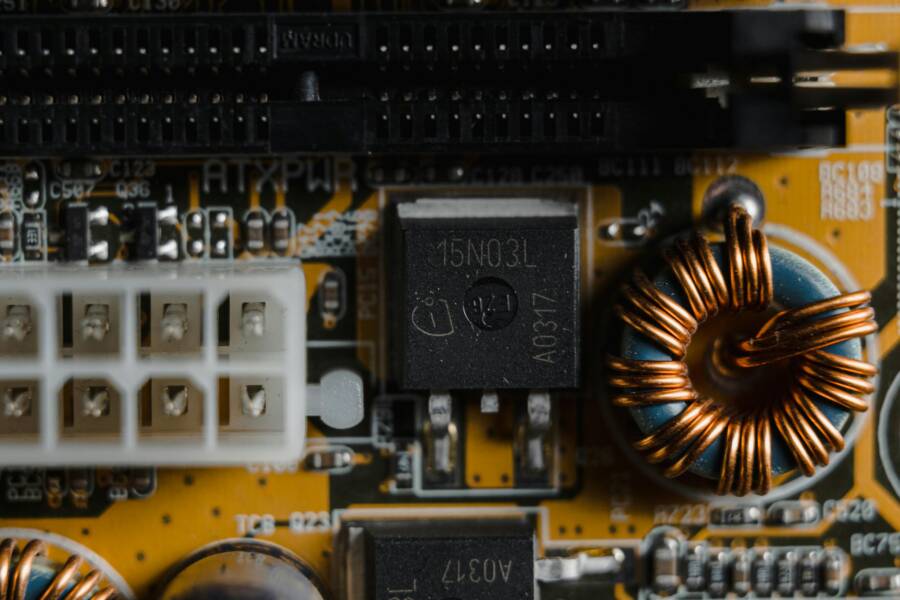
Photo by FOX ^.ᆽ.^= ∫ on Pexels shows a familiar USB-C port setup and reminds us that the hardware side matters as much as the software.
Photo by FOX ^.ᆽ.^= ∫
Image usage note: Use this image when you introduce the hardware side of the problem. It helps readers visualize the USB-C connection, which is often the root of the issue.
Test with different cables, adapters, and displays
Cables and adapters age just like phones. A small fray inside a USB-C cable can break video signaling even when charging still works. Start with the simplest, most reliable combination.
- Try a known good USB-C to HDMI or USB-C to DisplayPort adapter. If you own a USB-C hub, test with a direct adapter first to isolate hub issues.
- Swap the display input. If you’re using HDMI, try a different HDMI port on the monitor. Some ports on older displays are finicky.
- Use a different cable. A faulty or low quality cable can block video while allowing data transfer to continue.
- If you’re using a USB-C to USB-C connection, verify the monitor accepts USB-C video input. Some USB-C ports on displays are power delivery only or require a specific mode.
- For Android devices, ensure the phone is unlocked and awake when you connect. Some phones suspend video output when the screen is off, which can give the impression that nothing is working.
- For iPhone users, ensure you’ve got the right adapter. Apple’s official adapters are reliable, but third party ones can fail to negotiate the correct signaling with some displays.
Test results guide you toward the next steps. If a single combo works, that combo becomes your go to setup; if nothing works across multiple cables and adapters, the fault is more likely with the phone or the display.
Check power delivery and display input settings
Power delivery and input settings play a surprising role in success. Some adapters need external power to drive a display, and some displays require you to select a particular input or enable a specific mode.
- Power through the adapter. If your adapter has a micro USB or USB-C power input, plug it in. Some panels only accept video when the adapter is charged.
- Confirm the right input on the monitor. Modern monitors have multiple inputs. Use the monitor’s on screen menu to switch to the input that matches your adapter.
- Turn off and back on. A quick reboot of the phone and the monitor can clear signaling glitches that happen after you connect a new device.
- Check for any connection warnings. Some displays show a small message when the link is not completing its handshake. Taking a moment to review these hints can save a lot of guesswork.
If you can borrow another display, try it. Different displays handle incoming signals differently; sometimes a problem is specific to a particular monitor.
Inspect software and app permissions
Software settings can block external display output in subtle ways. A few menu options determine whether the phone is allowed to output video through its USB-C port.
- Android devices: Look for USB preference settings as you connect. Go to Settings > Connected devices or Settings > Developer options. Switch USB preferences to “File transfer” or “Video output” if available. Reconnect after changing the setting.
- iPhone devices: Ensure the iPhone recognizes the adapter by checking for a prompt to trust the connected device or to enable “Video” output in the control center. If you don’t see the prompt, try a different adapter or a different port on the monitor.
- App interference: Some screen recording or remote access apps can claim exclusive control of the display route. Close background apps that might be grabbing the video path.
Software updates are your friend here. An OS update can add improved support for USB-C video or fix a bug that blocks signaling with certain adapters.
Update firmware and perform gentle resets
Firmware and minor software issues can block USB-C video output.
- Update system software. Check for the latest OS update for your phone. Even a minor patch can fix video output problems.
- Update the adapter firmware if available. Some high end adapters have firmware that can be updated to resolve compatibility issues.
- Reset network settings. A quick reset can clear odd network related hiccups that influence device negotiation with displays, especially when USB-C is used to carry data along with video.
- Clear Bluetooth interference. In rare cases, active Bluetooth devices can cause signaling conflicts. Turn off Bluetooth temporarily to verify it isn’t a factor.
A soft reset can fix stubborn issues without wiping data. If you perform a reset, reattach the cable after the phone fully boots. This sequence helps the device re negotiate the link cleanly.
Address potential hardware problems
If the problem persists after you have tested cables, adapters, and software, the issue may be hardware related. This is often the trickiest area because USB-C is a small, delicate interface.
- Inspect the USB-C port on the phone. Look for bent pins, debris, or signs of physical wear. A tiny speck of dust can break the connection. Use a gentle brush or compressed air to clean the port.
- Check the adapter and the cable for wear. Bends near the connector or frayed insulation can indicate a failing link. It’s worth replacing worn parts to rule out poor signaling.
- Consider a powered USB-C hub. Some devices demand more current to drive a display than a simple adapter can provide. A hub with a power pass through can stabilize the signal and power both sides of the connection.
- Try a different phone. If another device can drive the same display with the same adapter, the issue likely lies with the original phone. If the second device also fails, the problem is probably the monitor or the adapter chain.
If you suspect a hardware fault on the phone, contact the manufacturer or an authorized service provider. Do not attempt risky repairs yourself, as that can void warranties or cause further damage.
Explore alternatives and workarounds
Not every setup can work with the same approach. There are reliable alternatives if your goal is to use a larger screen with your phone.
- Wireless display options. Screen mirroring via a trusted app or built in wireless display protocol can substitute for USB-C output. It isn’t as fast or stable as a wired link, but it’s useful for casual use.
- Use a laptop as an intermediary. Some devices support USB-C video input on a laptop. You can mirror to the laptop screen and then extend to a larger external display from there, though this adds latency.
- Cast via streaming devices. A Chromecast style device can receive content from your phone and display it on a TV. It’s not a direct USB-C pass through, but it achieves the same end result.
If you decide to switch approaches, test with the same level of care you used for a wired connection. A reliable setup matters more than the route you choose.
When to seek professional help and what to bring
If you reach the point where nothing works, professional service is the prudent step. Prepare ahead to speed things up.
- Bring the phone and the adapter you used. A technician will want to replicate the exact setup you tried.
- Note the monitor model and input type. Some monitors have quirks that only show up with certain brands or models.
- List steps you have already tried. A quick summary helps the technician skip repeated checks.
A few questions you might hear from the technician:
- Does the problem occur with all cables and adapters, or just one?
- Does the issue appear on multiple displays?
- Have you recently updated the phone or the display firmware?
Having clear answers can cut the diagnosis time dramatically.
Practical tips for a smoother experience
- Buy quality cables and adapters. It’s tempting to go cheap, but video output demands consistent signaling. A mid range adapter with good reviews is often a safer bet.
- Keep your devices cool. Overheating can degrade signal integrity. If you’ve been gaming or streaming, give both the phone and the display a few minutes to cool before retrying.
- Label your cables. If you use different adapters for different monitors, labeling helps you remember which setup works best.
- Document what works. A small notebook or a note on your phone makes it easy to recall the exact combination that produced a working link.
The bottom line
Most USB-C display problems on smartphones come down to a few core factors: the device supports DP Alt Mode, the right cable or adapter is in use, and the correct input is selected on the display. Start with a known good adapter and test across different cables and displays. If software is involved, make sure the system is updated and the correct USB output setting is chosen. If the hardware shows wear or the problem persists across setups, a service check is the best path forward.
A reliable workaround, when possible, is to use a powered USB-C hub. This not only helps with signaling but also ensures the display receives enough power for stable operation. If you keep these steps in mind, you’ll spend less time chasing connections and more time enjoying the bigger screen your phone can drive.
Conclusion
Connecting a phone to an external display over USB-C is a matter of matching capability with the right hardware and settings. Start with compatibility checks, then methodically swap cables and adapters while validating each change on the display. Keep software fresh, reset when needed, and don’t overlook power delivery. If all else fails, professional service can restore your setup quickly. With the right setup, your phone becomes a powerful source for a larger, more flexible viewing experience.
Photo by FOX ^.ᆽ.^= ∫ on Pexels provides a visual reminder of the USB-C interface that makes all this possible.
Photo by FOX ^.ᆽ.^= ∫