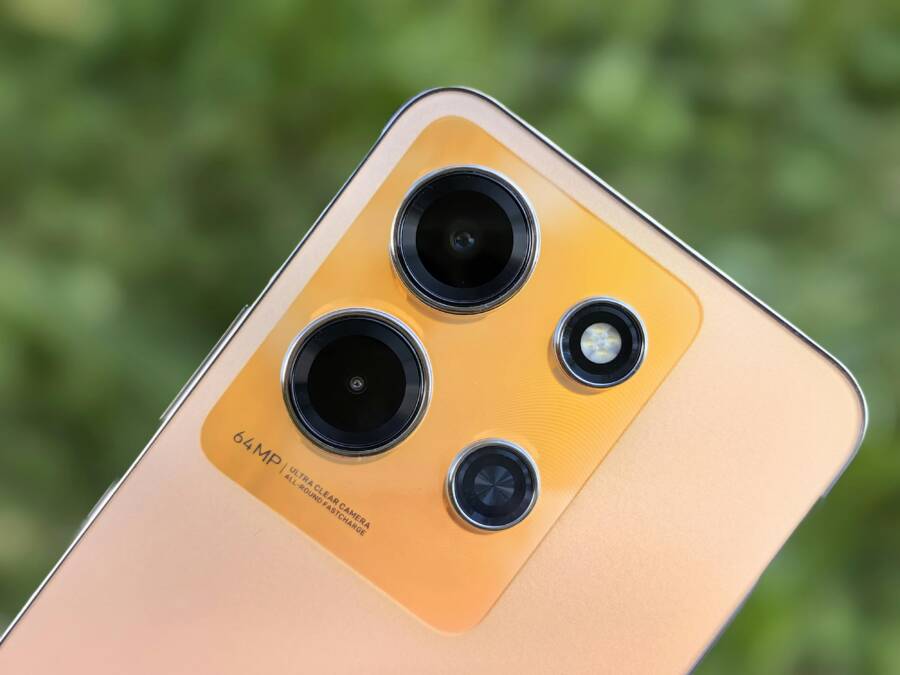
Struggling with a phone camera that’s always blurry can be frustrating, but you don’t need heavy repairs to fix it. In most cases, quick checks and simple tweaks do the job, especially on a smartphone that you rely on daily for photos, videos, and video calls. This guide walks you through practical steps you can take right away.
We’ll start with easy quick checks you can do at home, then dive into common causes and fixes. You’ll learn how lighting, lens cleanliness, and camera settings play a big role in sharp photos. By the end, you’ll know when a problem is something you can solve yourself and when it’s time to seek professional help.
This post is designed for busy readers who want real results without jargon. It includes step by step home fixes, practical tips to prevent future blur, and clear guidance on what to do if the issue persists. If you’ve got a smartphone in your pocket, you can turn blurry pictures into clear memories with these straightforward techniques.
Start with quick checks you can do in minutes
When you need fast results, start with simple at-home checks. These quick actions often fix blur without touching settings or hardware. They’re designed to be completed in a few minutes, with immediate test shots so you can see the difference right away. If you find the issue persists, move on to targeted fixes with more detail.
Clean and inspect the lens
Gently wipe the lens with a soft microfiber cloth. Avoid harsh cleaners or alcohol that could scratch coatings. Check for smudges, fingerprints, or residue that can soften every shot. While you’re with the lens, look for visible scratches or cracks that might require professional help. A quick before/after test shot can reassure you. For practical tips, see how to clean your phone camera lens safely with a microfiber cloth. https://www.tataneu.com/pages/electronics/consumer-electronics/how-to-clean-your-phone-camera-lens-easy-steps-and-tips
Remove obstructions and reset focus
Take off any case or accessory that covers the lens, then tap the screen to refocus. Take a few test shots to compare sharpness at different distances. Remember that the camera sometimes needs a moment to lock onto the subject, especially after a change in lighting or distance. If blur continues, try another quick focus test from a closer and then farther distance. For a quick guide on plug-and-play fixes, check out how to fix a phone camera that isn’t focusing or is blurry. https://igeniusphonerepair.com/how-to-fix-phone-camera-not-focusing-or-blurry/
Restart and test in good light
A simple reboot can clear minor software glitches that affect autofocus and exposure. After the restart, test the camera in well-lit conditions. Good light helps you see whether the issue is ongoing blur or a temporary lighting problem. Avoid backlighting where the subject is lit from behind, which can hide blur and create ghosting. If you want quick lighting tips for better mobile shots, explore 7 simple tips for photographing light with your smartphone. https://www.luminalpark.com/en-eu/blog/7-simple-tips-for-capturing-light-with-your-smartphone
Common causes of blur and how to fix them
Photos come out blurry for a handful of everyday reasons. Many times the fix is quick and simple, especially if you catch the root problem early. Below, you’ll find the common culprits behind blur and straightforward steps to correct them. Each subsection targets a specific issue, with practical checks you can perform right away.
Dirty lens and fingerprints
Dirt, fingerprints, and smudges sit on the lens and block light, softening every shot. A quick wipe with a microfiber cloth often returns sharp details. Gently clean the lens from center outward, avoiding harsh cleaners that can scratch coatings. After cleaning, take a test photo in good light to confirm improvement. If you still see softness, inspect for new smudges or scratches that might require a deeper clean or professional help. For a practical at-home guide, see How to Clean a Phone Camera Lens Safely: 3 Easy Methods. https://www.wikihow.com/Clean-Your-iPhone-Camera-Lens
 Photo by Andrey Matveev
Autofocus and focus mismatches
Autofocus can fail if the scene is low in contrast, or if the lens is obstructed. Tapping to focus often helps, but it isn’t perfect. If focus hunts or locks on the background, try locking focus by pressing and holding on the subject area (where supported) or switch to macro/portrait modes for closer, crisper detail. A simple test is to photograph a nearby object, then move farther away and compare sharpness. If blur persists, explore a quick fix from a guide like How to Fix a Phone Camera That Isn’t Focusing or Is Blurry. https://igeniusphonerepair.com/how-to-fix-phone-camera-not-focusing-or-blurry/
Low light and motion blur
Poor lighting makes it hard for the camera to lock onto detail, and motion blur becomes obvious. Increase ambient light when possible, or use a stable hold to reduce shake. Stabilization helps more than simply extending the shutter time on a phone. If you must shoot in dim conditions, enable a night mode or use a tripod/steady surface for sharp results. A quick test is to compare a shot in bright light versus the same scene in low light; notice the difference in detail and noise. For light optimization tips, see Low Light Photography Tips for Your Phone. https://www.canon.ie/get-inspired/tips-and-techniques/low-light-photography/
Software and app issues
Outdated camera apps or system software can cause blur through mismanaged autofocus or processing. Check for updates, then reset camera settings if needed. Clearing the camera app cache can also remove glitches that blur or distort images. After updating or resetting, test the camera in a familiar scene to confirm improvement. If you’re troubleshooting Pixel devices, Google’s guide on Fixing the Camera app offers a solid reference. https://support.google.com/pixelcamera/answer/6306624?hl=en
Hardware damage and moisture
Cracks, internal dust, or moisture can cause lasting blur. Signs include foggy patches, specks that appear with every shot, or a rattling camera module after a drop. If you notice any of these indicators, stop using the camera and seek professional evaluation. Moisture is especially tricky; even small exposure can lead to long-term blur. For guidance on when to seek help, see How to Tell If Your Phone Has Hidden Water Damage. https://tcawireless.com/how-to-tell-if-your-phone-has-hidden-water-damage-a-step-by-step-guide-for-hawaii-residents/
Step by step home fixes to boost clarity
When your photos look blurry, you don’t have to rush to a repair shop. Many times, the fix is simple and can be done with a quick at‑home routine. This section lays out a practical, section‑by‑section approach to sharpen images from a smartphone. You’ll learn how to clean the lens, adjust settings, stabilize the shot, test with different subjects, and reset software. Keep these steps in mind as you troubleshoot and improve your everyday photography.
Perform a full lens cleaning and case check
A clean lens makes a world of difference. Start by turning off your phone, then wipe the lens from the center outward with a soft microfiber cloth. Inspect for fingerprints, smudges, or sticky residue that can soften every shot. Check for protective films or cases that partially cover the lens, and remove them if needed. Re-test with a fresh shot in good light to confirm the improvement. For safe lens cleaning methods, see How to Clean Your Phone Camera Lens: Easy Steps and Tips. https://www.tataneu.com/pages/electronics/consumer-electronics/how-to-clean-your-phone-camera-lens-easy-steps-and-tips
Adjust camera settings for clarity
Most readers will see a quick boost by tweaking core settings. Tap to focus on the subject to ensure sharp foreground details. Avoid leaving HDR on all the time, as it can soften high-contrast scenes. Check exposure and brightness, and experiment with turning HDR off or using a standard mode. Keep autofocus on, and take several shots from slightly different distances to increase the odds of a crisp photo. For guidance on sharp phone photos, see Six essential camera settings to improve your phone photos. https://www.dpreview.com/learn/2896139411/six-essential-camera-settings-to-improve-your-phone-photos
Stability and lighting tips for sharp photos
Stability matters as much as light. Hold the phone with a steady grip, tuck your elbows in, and if possible, set the device on a stable surface or use a small tripod. Lighting is the fast track to clarity; outdoors, shoot with the sun behind you to minimize shadows, indoors, lean on natural light near a window. Quick tricks include using a brighter environment, avoiding backlight, and letting the image settle for a moment after switching modes. For practical lighting guidance, see 6 Lighting Tips for Smartphone Photography. https://pixabay.com/blog/posts/6-lighting-tips-for-smartphone-photography-274/
Test with different subjects and distances
Distance changes how a lens renders detail. Try close up, mid range, and far subjects to see how well focus holds. Notice that results can vary by distance and lens type. A close object may reveal texture that a distant subject hides, while a distant subject might require a bit more optical leverage. Document your findings with quick sample shots to know which distance works best for your typical scenes. For a broader look at focusing techniques, see Do you know how close your smartphone’s lenses focus? https://www.provideocoalition.com/do-you-know-how-close-your-smartphones-lenses-focus/
Reset camera app and update software
If blur persists, reset the camera app to its default settings and clear the app cache. Then check for updates to the camera app and the device’s operating system. Keeping both the OS and the camera app current helps prevent glitches that affect autofocus and processing. After updates, reopen the camera and retest on a familiar scene. For platform specific steps, you can follow Fix your Camera app on your Pixel phone or similar guides. https://support.google.com/pixelcamera/answer/6306624?hl=en
When to seek professional help or camera replacement
Blurry photos can sometimes be resolved with quick home fixes, but there are clear moments to call in a pro. If you notice recurring blur despite cleaning and updates, or signs of hardware damage, professional assessment or a camera module replacement may be the right move. This section outlines when to seek help and what to expect from a repair shop.
Hardware issues that need repair
Common hardware problems include a cracked lens, internal dust or moisture, and sensor or imaging module faults. A cracked lens often shows on every shot with distinctive edge blur or haziness. Internal dust or moisture can create foggy patches or specks that appear consistently, even after cleaning. Sensor issues may manifest as random color casts or persistently soft focus across apps. Repairs typically involve lens replacement, internal cleaning in a controlled environment, or replacing the camera sensor or module. If you see visible damage or persistent irregularities, a professional evaluation is advisable. For a practical overview of what can go wrong and how repairs unfold, see sources like this guide on camera repair considerations and costs.
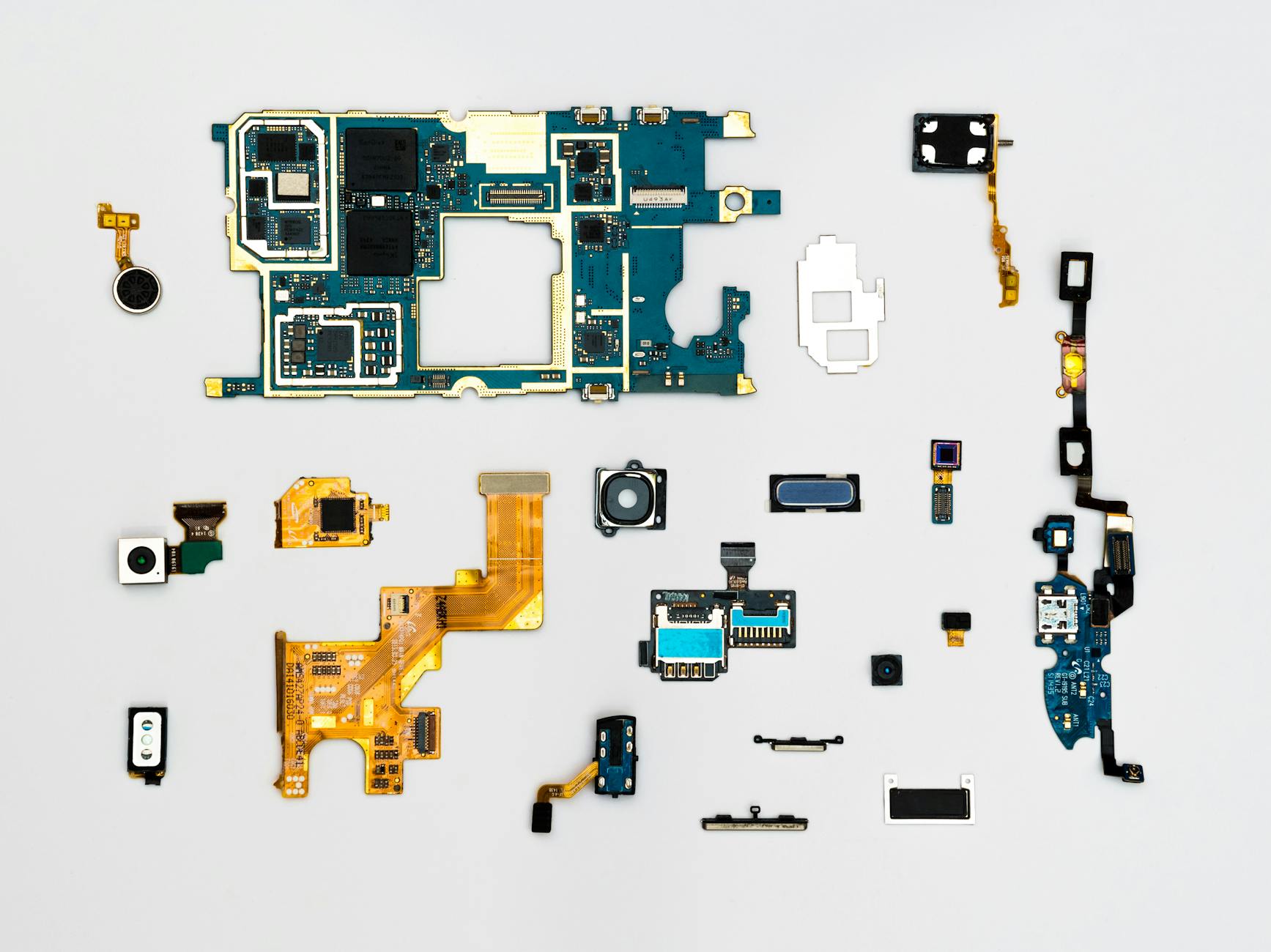 Photo by Dan Cristian Pădureț
What to expect from a repair shop
A reputable shop will start with a diagnostic to confirm whether the blur is camera hardware or a deeper problem. Turnaround times vary by part availability and shop load, but many repairs can take a day or two. Before service, back up your data and remove sensitive information if possible; ask about data handling and on-device backups. Reputable shops will provide a written estimate, explain the scope of the repair, and offer a warranty on parts and labor. For guidance on data privacy during repairs, see resources from reputable providers outlining best practices and protections.
Data privacy and repair process details: https://www.asurion.com/connect/tech-tips/protect-data-before-device-repair/
Preventive habits to keep your camera sharp
Keeping your camera sharp is easier than you think. By building a few simple preventive habits into your weekly routine, you’ll reduce blur and protect image quality over time. Think of it as maintenance for your memory maker—a small investment of time that pays off in crisp photos and confident shooting in any situation. Below, two practical subsections show a light, repeatable routine you can rely on.
Regular cleaning and protection
A quick weekly clean does more than restore clarity; it protects your entire camera system. Start with a soft microfiber cloth to wipe the lens from the center outward, avoiding harsh cleaners that can scratch coatings. Check for fingerprints, smudges, or sticky residue, and remove them before you shoot. Inspect the area around the lens to ensure nothing partially covers the glass, such as a misaligned case or a protective film. Pair cleaning with a protective measure: use a lens cover or a case that keeps dust and moisture away when you’re not shooting. A small investment in lens protection pays off with fewer hazy shots in bright sunlight or humid environments. For practical guidance on safe lens cleaning, see How to Clean Your Phone Camera Lens: Easy Steps and Tips. https://www.tataneu.com/pages/electronics/consumer-electronics/how-to-clean-your-phone-camera-lens-easy-steps-and-tips
Software updates and camera health
Software health matters just as much as hardware care. Keep your camera in top form with a light, repeatable checklist:
- Enable auto updates for the camera app and OS.
- Back up important photos and settings before major updates.
- After any update, test the camera on a familiar scene to confirm autofocus and exposure behave as expected.
- If you notice new blur or lag, reset camera settings to default and clear the app cache. This routine helps you catch glitches early and maintain steady focus across shots. For a practical overview of software fixes that can sharpen your photos, see 5 Technical Fixes That Instantly Improve Your Phone Photos. https://www.richardharrington.com/blog/2025/10/20/5-technical-fixes-that-instantly-improve-your-phone-photos
Conclusion
Fixing a consistently blurry phone camera is usually a mix of quick checks, smart tweaks, and a bit of patience. Start with a clean lens, confirm there are no cases or films partially covering it, and test in good light. If the blur persists, adjust focus, test at different distances, and review your camera settings for stability and exposure. A quick software refresh or reset can clear glitches that slow autofocus or dull sharpness.
Most people see a clear improvement by pairing these at home steps with proper handling. When trouble sticks around after all this, a professional assessment or camera module replacement may be the right path. Your smartphone can still capture crisp memories with the right approach, so keep the lens clean, stay current with updates, and test after each change.
If you try these steps, share your results in the comments and tell us which fix worked best for you. Do you have another tip that helps you keep your shots sharp on the go?