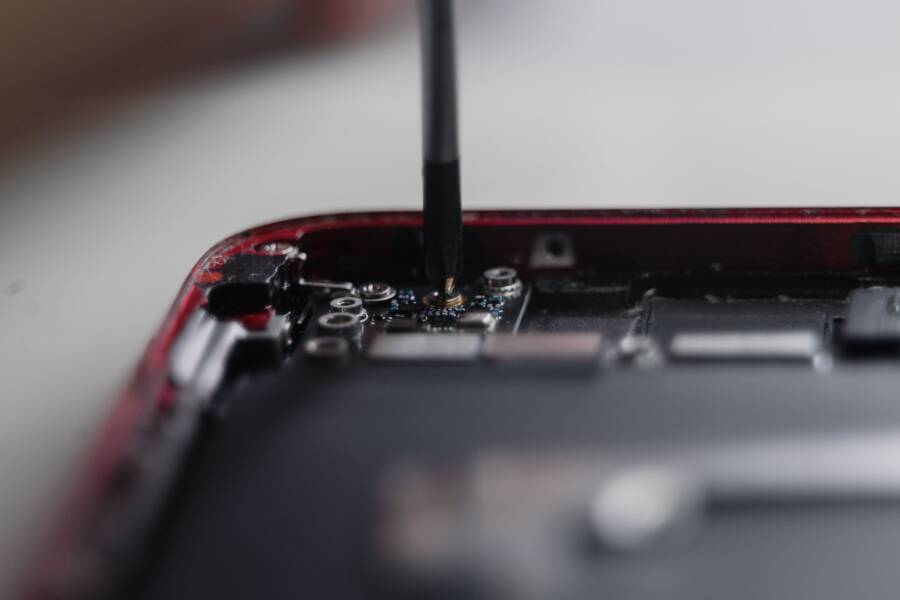
Your smartphone battery might display a fixed percentage because the operating system loses track of the actual power level. This error occurs when the software misreads the voltage data from the battery sensor.
In most cases, this is a temporary software glitch rather than a physical hardware failure. You can often restore the correct reading by recalibrating the internal battery management system.
Identifying the cause of battery errors
A phone battery stuck at one percentage usually points to a mismatch between the hardware and the software. The battery controller detects the remaining energy correctly, but the interface fails to update the display. This happens after major system updates or frequent partial charging cycles.
Hardware failure is a possibility if the battery is physically degraded or old. If the battery is swollen or the device gets unusually hot while charging, you likely need a professional repair. Most users resolve the issue by addressing the software calibration first.
Simple steps to recalibrate your battery
You should start by draining the battery completely until the device turns off on its own. Attempt to turn it back on once more to ensure the power is fully depleted.
After the device is dead, charge it to 100 percent without interruption. Keep the phone plugged in for an additional hour to ensure the system finishes the calibration process. A hard restart of your smartphone immediately after this charge cycle often forces the software to refresh the battery status.
Comparison of battery behaviors
Recalibration fixes most display issues. If the percentage still fails to move, you should check for system updates or factory reset the device. Persistent errors after these steps confirm a need for hardware service.
Quick Ways to Fix a Stuck Battery Indicator
When your smartphone shows a constant battery level regardless of actual usage, the software has likely lost its connection to the physical battery sensor. This mismatch is usually a temporary data error rather than a permanent hardware fault. You can resolve most of these display issues by forcing the system to refresh its internal cache or by recalibrating the power management chip.
The Simple Force Restart Technique
A force restart acts differently than a standard power down. While a regular shutdown signals the software to close background tasks gracefully, a force restart interrupts the power flow to the processor instantly. This action clears temporary system cache files that might be storing incorrect battery voltage data. It is a safe way to reboot the smartphone operating system without erasing your personal files or settings.
Follow these steps based on your specific model:
For an iPhone with Face ID, press and release the volume up button, press and release the volume down button, then press and hold the side button until the Apple logo appears.
If you use an Android device, press and hold both the power button and the volume down button simultaneously for about 10 to 15 seconds until the screen turns black and the device restarts.
This process forces the system to re-poll the battery sensor for updated information. You will often see the correct percentage appear on the screen immediately after the device boots back up.
Calibrating Your Battery Health
If a restart does not fix the indicator, you need to recalibrate the battery management system. This process aligns the internal software with the physical energy levels in your battery cell. By draining the battery until the phone is completely empty, you force the controller to record a true zero point. Charging it back to 100 percent without any breaks then gives the controller a clean, full-capacity reference point.
Follow these steps to manually calibrate the system:
Use your smartphone normally until it shuts down on its own from lack of power.
Try to turn the device on again to ensure it is fully depleted.
Plug the device into a wall charger while it is off and leave it charging until the indicator reaches 100 percent.
Keep the device connected to the power source for at least one extra hour after it hits 100 percent to ensure the charge cycle finishes completely.
Unplug the cable and restart the phone once more to verify that the battery indicator now displays a normal, accurate reading.
This manual reset clears persistent errors in the power management software. Most users find that their battery indicator behaves accurately again once the software establishes this new baseline. If the percentage remains stuck or jumps unexpectedly after this cycle, the battery may be nearing the end of its functional life.
Diagnosing Software Glitches and OS Updates
Battery percentage errors often stem from internal software bugs rather than hardware damage. When your phone misinterprets voltage signals, it displays an inaccurate charge level that stays frozen at one percent. Identifying whether the issue is a simple glitch or an outdated system helps you restore normal function.
Updating Your System Software
Manufacturers frequently release patches to fix power management bugs. These updates address specific communication errors between the battery sensor and the operating system. Over time, code conflicts can arise as you install new apps or modify system settings. An update clears these conflicts by resetting the background processes responsible for tracking energy.
Engineers refine how the device polls the battery during these update cycles. If your smartphone runs an older version of the operating system, it might use outdated logic for reading battery data. Installing the latest firmware ensures your device uses the most current protocols for battery health monitoring. Always check your settings menu for pending updates before you assume the battery is dying. A quick system refresh often resolves the stuck indicator without requiring any physical intervention.
Identifying Apps That Drain Power
Some apps behave poorly and overwhelm the power management system by requesting too much data at once. This constant activity can cause the sensor reporting software to crash or freeze. You can check your battery usage statistics to see which applications consume the most power in the background.
Follow these steps to find problematic software:
Open the Settings menu on your smartphone.
Select the Battery or Device Care section.
Tap on Battery Usage to view a list of apps ranked by their power consumption.
Look for apps that show an unusually high percentage or display active use when you did not open them.
If you notice a specific app using a large portion of your power, consider force-closing it or uninstalling it to see if the battery indicator recovers. Sometimes, a third-party application interferes with the way the system reads the battery sensor. Removing the culprit often allows the operating system to resume normal reporting. If the indicator starts moving after you remove the app, you have found the source of the glitch.
When to Consider Hardware Issues
If you completed the software troubleshooting steps and the battery indicator remains at one percent, your device likely suffers from physical damage. Software updates and recalibration cycles fix data errors, but they cannot restore a worn or broken battery cell. Internal hardware failures prevent the power management chip from reading voltage accurately, which leads to the stuck percentage display. You should examine the physical condition of your smartphone to determine if a repair shop visit is necessary.
Checking Physical Battery Health
Most modern operating systems provide built-in diagnostics to monitor the health of your battery. These tools track how much total capacity your battery retains compared to when it was new. A degraded battery often fails to hold a stable charge, which causes the sensor to report incorrect data to the system.
For iPhone users, open the Settings app and select the Battery menu. Tap on Battery Health and Charging to view the Maximum Capacity percentage. If this number falls below 80 percent, your battery is significantly degraded and will likely cause performance issues or display errors.
Android users can access similar data through the Settings menu. Navigate to Battery or Device Care to view the current status. Some Android models include a diagnostic tool in the hidden menu by dialing a specific code, such as star-hash-zero-star-hash, though you should check your manufacturer support page for the exact sequence. If the system reports the battery status as poor or degraded, you should replace the hardware as soon as possible.
Recognizing Signs of a Dying Battery
A physical battery failure often manifests through visible or tactile symptoms. If you ignore these signs, the battery may leak, stop holding a charge entirely, or even damage internal components. You should consult a professional repair technician if you notice any of these issues.
Observe your device for these physical warnings:
The smartphone chassis feels warmer than usual during light tasks or while the phone sits idle.
The screen flickers intermittently because the battery cannot provide a steady flow of power to the display.
You notice the screen or the back panel of the phone lifting away from the frame, which indicates the battery is swelling inside the device.
The phone shuts down suddenly when you open demanding applications, even if the indicator shows sufficient power.
Charging takes an unusually long time to reach even small increments of power.
If you spot a swollen battery, stop using the device immediately. Do not attempt to charge it or perform any more software resets. A swollen battery is a fire hazard and requires expert handling to prevent injury or permanent damage to your smartphone. Taking the phone to an authorized service provider is the safest way to manage hardware failure.
Conclusion
Most battery display issues stem from a simple mismatch between the operating system and the sensor data. A recalibration cycle or a forced restart typically fixes the percentage error without further intervention. These steps ensure your software correctly interprets the voltage signals from the battery.
Keep your battery healthy by avoiding extreme heat and cold. Use only approved charging cables to prevent power surges that confuse internal sensors. Unplug your device once it reaches a full charge to minimize chemical stress on the cells. Following these practices preserves the overall lifespan of your smartphone and prevents future indicator glitches.