Vertical video has become the default for mobile viewing, and mastering it on your phone puts you in the pocket of millions of viewers on TikTok, Reels, and Shorts. This guide shows you practical, step by step skills to shoot like a pro, right from the palm of your hand. You’ll learn quick wins you can apply today, from lighting checks to framing that keeps your subject centered and lively.
First, focus on the basics that make a real difference. Good lighting, steady framing, and clear audio transform casual clips into something shareable. You don’t need fancy gear to start; a few simple tweaks to your phone’s position and settings can boost your video quality almost instantly.
Next, we’ll cover how to compose fast, eye catching shots. Use natural light when possible, position your phone in portrait orientation, and keep the subject slightly off center for a more dynamic frame. A quick practice drill can help you nail smooth movements and crisp focus in under a minute.
By the end, you’ll know how to film vertical videos that look polished on TikTok, Reels, and Shorts. This format dominates mobile apps today, and the plan here is to give you confidence from the very first shot. Ready to start shooting like a pro with just your smartphone.
Why Vertical Video Matters for Mobile Viewers
As smartphones remain the primary way people consume video, mastering vertical formats is no longer optional. Vertical video fills the screen, reduces awkward cropping, and creates a more immersive experience on TikTok, Reels, and Shorts. When you shoot in 9:16, your content feels native to mobile users and less like a square afterthought. This section explains why vertical matters and how to align your filming with mobile habits.
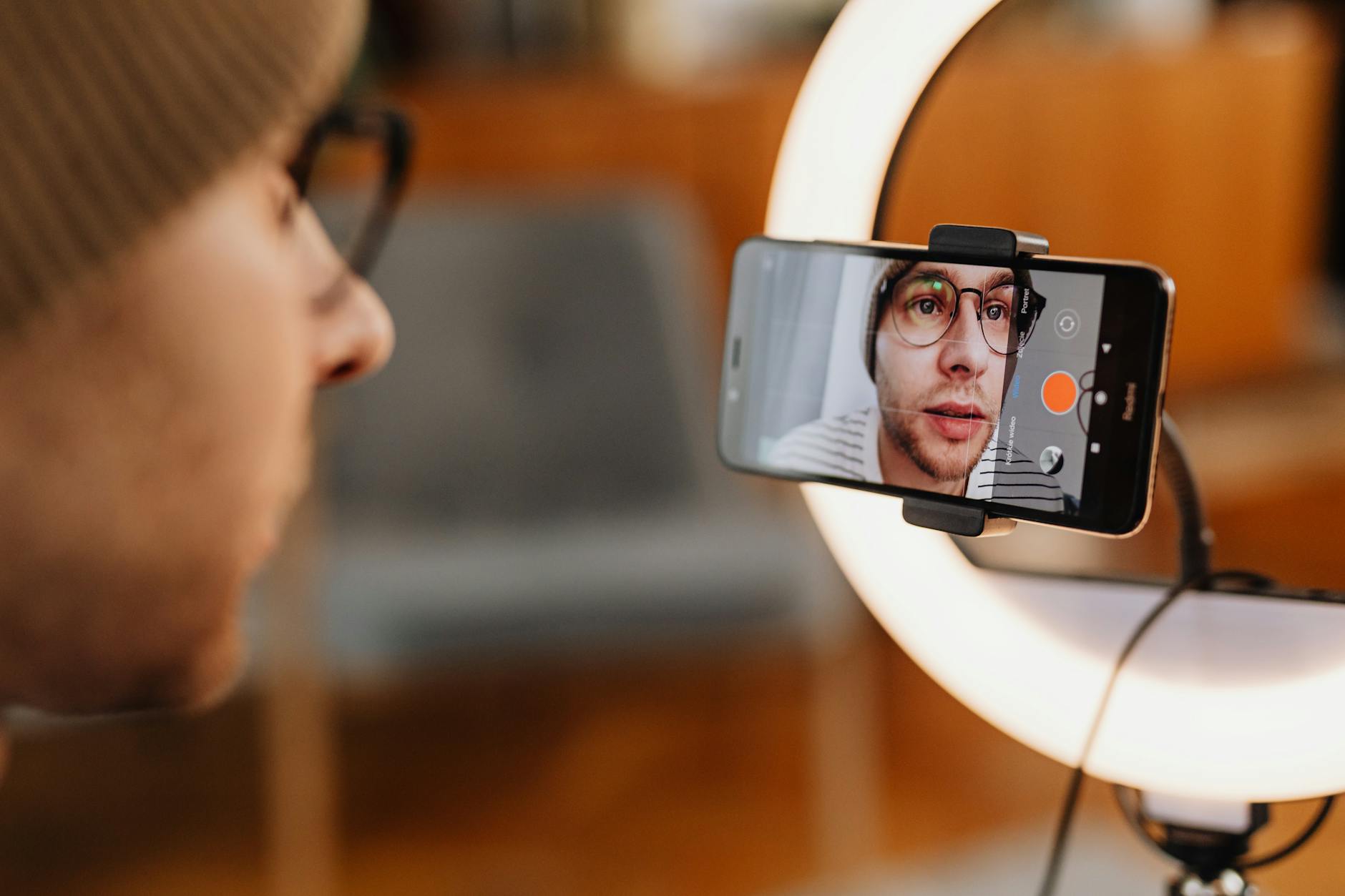 Photo by Karola G
Embracing 9:16 for platforms like TikTok, Reels, and Shorts
Vertical fills the entire smartphone screen, which means you get a larger, more engaging image with less wasted space. When the frame is full, overlays and captions stay readable without forcing the viewer to zoom or rotate their device. To keep text legible across devices, place captions within the safe zones—roughly the lower third and center areas—so they don’t get cut off on smaller screens. Framing matters here: avoid placing important text at the very edge of the frame, and keep key visuals slightly off center to account for UI elements like comments and progress bars. A practical framing tip is to imagine a 9:16 grid and position your subject along the left or right third, leaving space for on-screen graphics.
To ensure overlays stay intact across devices, test your video on multiple screen sizes. If you plan to add captions, captions should be large enough to read in a 30% brightness setting and remain visible when users watch with sound off. You can also add captions as a separate on-screen layer so they don’t collide with motion graphics. For overlay safety, keep essential elements within a central vertical band and avoid placing vital graphics near the top where camera hardware or UI controls may obscure them on some phones.
Practical framing tips:
- Keep the subject centered enough to feel grounded, but allow a tiny offset to create dynamic energy.
- Leave space above the head for captions and emoji overlays so nothing looks crowded.
- Use natural light when possible, and balance white balance so skin tones look natural on every screen.
- Preview your shot on a phone screen before filming longer clips to confirm readability.
Educational resources and best practices for vertical filming are widely discussed across platforms. For more on frame decisions and mobile-first design, see expert guidance and recent analyses from industry sources. Vertical video benefits and best practices in 2025 and Horizontal vs vertical video offer solid context on why 9:16 resonates with audiences today.
Fast, scroll stopping content that keeps viewers watching
Mobile viewers skim quickly, so you must grab attention in the first moments. A strong hook in the opening 1–2 seconds is the difference between a viewer staying or scrolling on. Structure your video with a clear beginning, a concise middle, and a decisive end. This helps viewers understand the value fast and decide to watch through. Short videos—roughly 15 to 60 seconds—perform best on mobile because they fit the typical scrolling rhythm of TikTok, Reels, and Shorts.
In practice, your opening line should promise a concrete payoff. Think in terms of what the viewer gains in return for watching the whole clip. The middle should deliver that payoff with rapid, tight edits that move the story forward. End with a call to action or a visual payoff that prompts engagement, such as a question in text or a quick demonstration the viewer can try. When you’re aiming for fast pace, plan for crisp transitions and avoid filler moments that slow momentum. If you can pair a high-energy audio cue with a quick cut, you’ll maximize retention.
To maximize impact, design each video around a single idea. If you have more to say, create a series of micro-episodes rather than one long piece. For context, many creators see best results when their clips stay under 60 seconds and include clear, readable on-screen text or captions. This approach keeps the content accessible even when the user scrolls with sound off.
For more perspectives on how to craft vertical content that hooks and sustains attention, explore insights from seasoned creators and platforms. Learn how quick cuts and strong hooks align with mobile viewing habits, and how to structure your video for high engagement on the go. You can reference practical guides like this overview of vertical video tips for TikTok, Reels, and YouTube Shorts.
Trends in late 2025 you can ride
Staying ahead means noting what works on TikTok, Reels, and Shorts now. Vertical video trends in late 2025 emphasize readability, pace, and immersion, with a spotlight on practical storytelling rather than gimmicks. Text overlays are larger and bolder, designed to be read at a glance. Quick cuts and dynamic transitions create a sense of momentum that keeps viewers engaged. Vertical templates and immersive framing—where the camera movement feels intentional rather than random—help your content stand out in crowded feeds.
Study successful videos on the major platforms and adapt what you observe to your own style, while staying true to the vertical format. Look for common elements such as strong hooks in the first 2–3 seconds, concise storytelling, and captions that reinforce the message without overwhelming the screen. The best creators also lean into platform features like sounds, AR effects, and native editing tools to polish their vertical clips efficiently.
To stay current, keep an eye on reputable sources that track platform behavior and creative trends. For a broader view of how vertical video is evolving, see industry analyses and trend roundups that highlight how creators are adapting to mobile-first formats. The latest observations show vertical video remains the dominant format for mobile platforms, with high engagement driven by fast pacing and strong visual storytelling. Vertical video trends and tips in 2025
Additional reads and practical examples from top creators can help you translate trends into your own work. For example, detailed tips on vertical storytelling, pacing, and on-screen text can be found in resources focused on TikTok, Reels, and Shorts. Vertical Video Tips for TikTok, Reels and YouTube Shorts and Horizontal vs Vertical: Which is Better?
If you want a broader, platform-specific look at how to apply these trends, you can explore resources that discuss engagement strategies and how to use text overlays effectively on short-form videos. Vertical video benefits, challenges, and tips
In summary, late 2025 confirms vertical video as the default for mobile social platforms. By embracing 9:16, keeping clips short, and aligning with current editing and storytelling trends, you position your content for greater reach and sustained viewing. For more depth on building a consistent vertical video workflow, consider observing successful creators and adapting their techniques to your unique voice while staying mobile-first.
External resources and trend hubs can provide ongoing inspiration as you publish new clips. For practical guidance on structure, pacing, and on-screen text, the links above offer actionable ideas you can apply right away.
Setting up your phone for pro quality
Turning your smartphone into a pro tool starts with the right setup. This section covers essential camera settings, stabilization routines, and audio basics that elevate your vertical videos from average to polished. Follow these practical steps to tune your device for 9:16 storytelling that looks great on TikTok, Reels, and Shorts.
Choose the right resolution and frame rate
- Shoot in high quality when possible. If your phone supports 4K, use it, but be mindful of file sizes and platform compression. For most fast-moving clips, 60fps delivers smooth motion without judder, while 30fps works well for dialogue or laid-back scenes.
- Enable stabilization. Optical or electronic stabilization helps tame handshake and small jitters during movement. If your phone offers a Pro or Manual mode, enable stabilization there as well to keep motion steady across shots.
- Set white balance early and lock it if your camera allows. Consistent skin tones help your clips feel professional, especially when light changes through the shoot.
- Avoid heavy digital zoom. Zooming in digitally degrades image quality quickly in vertical video; instead, reposition yourself or the shot to keep details crisp.
- Use a grid to guide composition. A 3×3 rule keeps horizons level and subjects framed with balance. If you have a phone with a built-in grid, turn it on. This helps you align the subject along the rule of thirds and creates visually engaging frames.
- Practical tip: test a quick 10–15 second clip in 4K at 60fps, then review on a phone screen to confirm readability of text and overlays. If you need smaller files for faster uploads, switch to 1080p at 60fps or 30fps.
For deeper guidance on camera settings and how they affect noise and compression on mobile platforms, see practical notes on smartphone filming and frame rates. The Rise of Vertical Video: Master Short-Form Content offers a concise overview of why 4K at higher frame rates can be beneficial but also why you may choose to adapt based on your editing workflow.
Stabilization and focus tricks
- Use a gimbal or a stable grip for smooth moves. A gimbal keeps your vertical shots fluid, especially during pans and tracking sequences. If a gimbal isn’t available, close-grip your phone against your body and use slow, deliberate motions.
- Lock exposure and focus when you can. In Pro or Manual modes, set the exposure and focus for the first frame, then lock them as you start moving. This prevents shifts that distract viewers.
- Practice small, deliberate moves. Short, controlled shifts look more professional than wide, jerky sweeps. Think of each motion as a planned step in the story, not a random camera rap.
- Build polish without a gimbal by using a stable surface for the first few seconds, then transition into a controlled, hand-held move. This helps you maintain rhythm while keeping footage steady.
- If your phone supports it, use in-camera stabilization along with an external stabilizer. The combination often yields the cleanest results for handheld shoots.
For practical stabilization strategies and gear recommendations, you can explore tips from professionals who outline how to get steady footage with a range of tools. A helpful resource covers using a phone gimbal effectively in varied lighting conditions. Gimbal and Stabilization Tips for Beginners provides actionable ideas you can try today.
Smart audio and clean mic tips
- Audio quality matters as much as video. A clear voice track makes your footage feel professional and easier to understand.
- Use an external microphone whenever possible. A lavalier or compact shotgun mic usually yields better results than the built-in phone mic, especially in noisy environments.
- If you must use the built-in mic, choose a quiet space. Close windows, reduce echoes, and minimize background chatter to improve intelligibility.
- Wind protection outdoors is essential. A simple windscreen or furry wind cover dramatically reduces rumble and breath sounds.
- Set input levels carefully. Avoid clipping by keeping audio peaks well within the meter’s green range. If you can monitor levels in real time, do so as you film.
- Add a secondary layer of sound if possible. A subtle room tone or ambient bed can help your edit feel cohesive and less jumpy when you cut between shots.
Strong audio creates trust. Readers notice when sound is clean and voices stay intelligible, even if visuals are simple. If you want a quick starting point on how professionals manage audio during fast shoots, check out practical guides that break down mic placement and level setting in accessible terms. A concise overview is available here: Ultimate Guide to Phone Video.
Master the shot: composition, lighting, and framing
Great vertical videos start with smart composition, flattering lighting, and clean framing. In this section, you’ll learn practical rules you can apply on a daily shoot with just your smartphone. We’ll cover how to place your subject, how to light for clarity and mood, and how to keep your background and color choices from sabotaging your message. These techniques are quick to learn and easy to repeat, so you can film confidently every time you pick up your phone.
Composition rules that work in vertical video
Vertical framing changes how you apply classic composition. The rule of thirds still matters, but you adapt it to a tall image. Place your subject in the upper third or along one of the vertical thirds to create natural balance. If the scene has multiple elements, position the main focus near the intersections of the grid rather than dead center. This approach gives your shot a sense of direction and energy, which keeps viewers engaged as they scroll.
The edges of the frame are powerful zones in vertical video. Important elements should avoid the outermost edges to prevent them from being cropped or obscured by screen UI. If you plan text overlays or graphics, keep them within a central vertical band so they stay legible across devices. When you add captions, place them in the lower third where they’re easy to read even on smaller screens.
Text and overlays deserve extra care. On many phones, UI elements or captions can cover the top portion of the frame. Test your footage on a few device sizes to verify readability. If you expect motion graphics, design them to live just inside the safe zone, not flush against the edges. A quick way to visualize this is to imagine a 9:16 grid and align your subject along the left or right third, leaving room for captions and icons.
Practical framing tips you can apply now:
- Keep the subject slightly off center to create dynamic tension.
- Leave space above the head for captions and overlays.
- Use natural light when available and balance white balance so skin tones look natural on every screen.
- Preview your shot on a phone screen before filming longer clips to confirm readability.
If you want deeper guidance on frame decisions and mobile-first design, explore expert resources that discuss vertical composition and how it translates to social feeds. For example, a practical overview of vertical video tips for TikTok, Reels, and YouTube Shorts covers framing ideas and how to keep text legible across devices. Vertical Video Tips for TikTok, Reels and YouTube Shorts provides actionable insight you can start using today. Another solid reference explains the rule of thirds in vertical frames and how early planning saves you from last minute reshoots. Vertical Video and Using Composition Rules – CSUSocial also offers practical context you can apply.
To see how a careful grid helps keep you on track, consider this framing approach: film with a 3×3 grid enabled, place your subject on the left third, and reserve the right for motion graphics. That setup keeps overlays readable while your subject remains the focal point. If you’re new to the concept, a quick refresher from a complete guide on vertical videos reinforces why the rule of thirds matters and how to adapt it for 9:16 storytelling. A Complete Guide to Vertical Videos for Social Media delves into grid usage and platform considerations that matter for mobile viewers.
In practice, a well-composed vertical shot feels balanced yet alive. The goal is to prevent a static, boxed look while ensuring your message stays clear even on small screens. Start with the three-part approach: establish the scene, frame the subject in or near the upper or side thirds, and keep crucial elements away from the screen edges. With a little practice, you’ll instinctively frame shots that look good on TikTok, Reels, and Shorts.
Lighting that flatters and informs
Light is the secret you can’t skip. For vertical video, bright, diffused light makes skin tones natural and textures readable. The goal is to illuminate without creating harsh shadows or blown-out highlights. A single strong light source placed at a 45-degree angle from the camera is a reliable setup for most scenes. If you can add a second fill light on the opposite side, you’ll reduce shadows and bring out detail in faces and objects.
Natural daylight is a versatile friend, but you’ll usually get the best results when you diffuse it. A bright window with sheer curtains provides soft illumination that flatters most subjects. If daylight is inconsistent, supplement with soft LED lights. Soft boxes or ring lights spread light evenly and reduce hotspots, making skin tones more even across frames. When you mix daylight with artificial light, aim for a consistent color temperature to avoid color shifts.
White balance and color temperature are crucial. Lock white balance when you can, so movement through different lighting scenes doesn’t shift colors mid-shot. For most indoor shoots, a color temperature around 3200K to 4500K yields natural skin tones without a yellow or blue cast. If you’re outdoors, push toward 5200K to 5600K to balance daylight while keeping colors true. When you notice color shifts, adjust white balance in your phone’s camera app and lock it for the rest of the shoot.
Backlighting can add separation and depth, but it can also create silhouettes if overused. If you must shoot with a bright window behind you, use a reflector or a soft fill light to brighten the subject. Diffusion is your ally here. It softens edges and minimizes harsh shadows while keeping the subject well defined. A simple diffuser or a white sheet works in a pinch if you don’t have professional gear.
For quick, reliable lighting results, consider these practical tips:
- Use a single key light at 45 degrees to the subject for clean definition.
- Add a subtle fill light on the other side to soften shadows.
- Balance color temperature to avoid mismatched whites between scenes.
- Diffuse harsh light to prevent harsh shadows that distract from the message.
If you want perspective on how creators manage lighting for quick, clean vertical videos, explore practical guides that compare natural daylight and LED options. A helpful resource compares lighting approaches for social media creators and highlights the benefits of a strong key light and simple diffusion. Social Media Lighting: From Grainy Videos to Glowing Content offers straightforward guidance you can apply right away. For self-shot selfies and fast setups, you can also find actionable lighting tips in practical guides that cover LED options and placement. Perfect Selfie Video Lighting Tips provides a user-friendly look at affordable lighting choices.
When you shoot vertical video, you don’t need a studio. Start with a bright, diffused key light, keep color temperature steady, and use diffusion to soften shadows. The result is a natural, engaging look that reads well on small screens and scales cleanly to larger devices when you publish across platforms.
Background, color, and noise control
A clean background helps your subject pop. Clutter can distract viewers and pull attention away from your message. Aim for backgrounds that support the story, using color harmony to unify the scene. If the setting is busy, blur the background slightly to keep focus on the subject. Avoid shiny or reflective surfaces that draw attention away from the action.
Color harmony matters for a polished look. Choose a small, cohesive palette and stick with it across scenes. Consistent color helps your video feel intentional and professional. If you’re shooting in multiple spots, consider a quick color grade in post to bring everything into alignment. Subtle color tweaks can unify footage shot at different times or under varying lights.
Backgrounds should not compete with your subject. A simple wall, a tidy desk, or a quiet corner works well. If you must film in a busy space, use a shallow depth of field to compress the scene and reduce distractions. Soft textures like fabric or a matte wall help prevent harsh reflections that can look odd on camera.
Noise control is all about the acoustic environment, but visuals matter too. Film in a quiet room when possible or add soft sound dampening to reduce echoes and camera noise. A towel or rug can help absorb stray sound, while a near-silent mic setup keeps your voice clear. If you are recording outdoors, choose a calm moment and shield the mic from wind with a windscreen.
In practice, a clutter-free background plus a controlled color palette creates a frame that feels intentional. Your goal is to keep the viewer focused on the message, not on the room. For more ideas on background management and color harmony, you can explore practical guidelines that emphasize minimalism and coherence. For example, resources on creating clean, distraction-free Reels layouts discuss how to pair background choices with on-screen text and graphics for impact. Vertical Video for Social Media: Best Practices for Reels in 2025 offers insight into setting up clean, repeatable backgrounds. For a broader take on the topic, a guide on the benefits and challenges of vertical video also covers how to manage color and noise across scenes. Vertical video benefits, challenges, and tips provides a practical framework you can apply.
By keeping backgrounds simple, maintaining color harmony, and controlling noise, your vertical videos will read clearly on any device. This creates a stronger overall impression and helps your viewer stay engaged from start to finish.
External resources and trend hubs can provide ongoing inspiration as you publish new clips. For practical guidance on structure, pacing, and on-screen text, the links above offer actionable ideas you can apply right away.
Shoot like a pro: techniques for smooth vertical video
Shooting vertical video on your smartphone doesn’t have to feel clunky or amateur. With a few tried-and-true techniques, you can deliver smooth, cinematic motion that keeps viewers hooked from the first frame. In this section, you’ll learn practical motion methods, steadiness without a gimbal, and smart accessories that boost both stability and image quality. All of these tips are designed to be easy to apply, even if you’re shooting on the fly.
Motion techniques: pans, tilts, and tracking
Controlled camera movement adds energy to your vertical clips without making your footage feel chaotic. Start by planning your move like a mini storyboard: decide where your subject is going and how the motion will emphasize the story you’re telling. Pans, tilts, and tracking shots each serve a purpose, and choosing the right one can turn a simple scene into something dynamic.
- Pans: Move the phone horizontally to reveal new information or follow action. Keep the motion slow and steady, like turning a page in a book. A quick test is to perform a 90-degree pan over 2–3 seconds, then review to see if the subject remains in focus and framed within the rule of thirds.
- Tilts: Move the phone up or down to reveal height or depth. When tilting, start with a stable base and maintain a consistent pace. A smooth tilt helps emphasize movement without creating jarring shifts in perspective.
- Tracking: Move alongside the subject to immerse viewers in the action. Keep your elbows close to your body, and use your core to control the motion. The key is to match your pace to the speed of the subject, letting the motion feel purposeful rather than random.
Pacing is critical. Start slow during the setup, accelerate through the action, then settle back into a calm finish. The motion should feel intentional, not like you’re chasing the moment. If you’re new to these moves, practice with a simple sequence: a slight pan to reveal the setting, a gentle tilt to place the subject, and a short track to follow as the scene unfolds. The result should be a cohesive micro-narrative that enhances storytelling.
Plan shots with motion in mind. Before you press record, visualize the path of the movement and how it reveals context or emotion. This planning helps you avoid shaky frames and ensures motion supports the message, not distracts from it. If you’re working without a gimbal, small tweaks to stance and breathing can keep your movement aligned with the rhythm of the shot. For more on practical movement options and how to execute them, check out resources that break down camera movement techniques for creators. 10 Camera Movement Techniques for Creators offers actionable ideas you can apply to smartphone video today.
If you want further inspiration on how professionals approach motion without heavy equipment, a few tutorials demonstrate effective handheld moves that look polished on vertical formats. For example, a guide on smooth handheld moves without a gimbal provides actionable steps to achieve cinema-like motion using only your smartphone. 7 Smartphone Gimbal Moves WITHOUT a Gimbal shows that you can achieve fluidity with simple techniques and careful control. A second tutorial highlights how to get smooth handheld footage without a gimbal on an iPhone, which is perfect if you’re shooting quick clips on the go. iPhone Smooth Handheld Moves – No Gimbal demonstrates practical tips you can copy fast.
Why these techniques work on mobile: a smartphone’s weight is light, but you still need a stable core and controlled range of motion. Slow, deliberate movements reduce micro jitters and create a sense of cinema rather than casual footage. When you combine movement with a clean frame, your vertical video feels deliberate and professional.
Shooting without a gimbal: build steadiness the easy way
A gimbal is great, but you don’t need one to get steadiness. There are straightforward methods to keep shots calm using your stance, breathing, and a few simple props. The goal is to minimize shake while maintaining a natural, human vibe.
- Stance and grip: Stand with feet shoulder-width apart, one foot slightly ahead for balance. Hold the phone with both hands, close to your chest, and keep elbows tucked in. This reduces wobble and lets you move with control.
- Breathing and micro-movements: Breathe steadily and exhale slowly as you film. Let each exhale guide a micro-motion rather than forced, wide sweeps. Short, controlled moves look more polished than long, oscillating swings.
- Bracing: Press your elbows into your rib cage or use a stable surface briefly at the start. Bracing creates a temporary anchor that helps you ride out small shifts in motion.
When a gimbal isn’t available, use simple props to stabilize. A sturdy table edge or a railing can act as a steadying point for the first few seconds of a shot. You can also clamp your phone to a fixed surface with a lightweight clamp or phone mount, then transition to handheld if the action requires movement. This approach helps you maintain rhythm and reduces the chance of a chaotic first frame.
Practical tips to build steadiness quickly:
- Start with your body in a fixed, comfortable stance before you begin any move.
- Use slow, deliberate movements and pause if you feel you’re losing control.
- Lock focus and exposure before you move, so lighting changes don’t throw you off.
If you want a quick reference on steadiness techniques without a gimbal, a practical resource covers foundational tips for getting steady handheld shots. 5 Tips to Get Steady Handheld Shots Without a Gimbal breaks down bracing and posture in plain terms. For a broader look at stabilizing without specialized gear, you can also explore guides that compare gimbals and alternative stabilizers. Get Steady Footage Without a Gimbal offers a concise approach to stabilizing handheld footage.
For quick, practical reassurance, consider practicing with a fixed object for the first 3–5 seconds of a shot. Focus on keeping your upper body quiet and letting your hands do the moving. Even without a gimbal, this approach yields steady, watchable motion that feels intentional.
Accessories that boost stability and quality
A budget-friendly toolkit can dramatically improve both stability and overall image quality. The right accessories help you keep the shoot simple while delivering professional results. Below are affordable options and guidance on when to use them.
- Mini tripods and clamps: A small tripod or clamp can anchor your smartphone on a table, railing, or shelf. Use it for talking-head segments, unboxings, or demonstration clips where you want a steady baseline before you move into a handheld shot.
- Ring lights and portable LEDs: A ring light or compact LED panel minimizes shadows and adds consistent illumination. It’s particularly useful for close-ups and product demos where facial detail matters.
- Lavalier mics and compact mics: External mics dramatically improve audio. A lav mic works well for talking-head shots, while a compact shotgun mic can capture clearer audio from a short distance.
- Smartphone rigs: A basic rig with handles and a built-in light gives you a professional feel without weighing you down. Look for rigs that are light, foldable, and easy to set up.
How to choose based on budget and setup:
- If you shoot mostly indoors with steady surfaces, a mini tripod and a ring light can be enough to elevate your visuals.
- If you move around a lot, a compact stabilizer that mounts to a small tripod or clamp can be a smart investment.
- For clear audio without breaking the bank, a lav mic paired with a simple windscreen is often the best value.
A quick tour of recommended gear and where to start:
- Mini tripods and clamps: ideal for initial steadiness and fixed framing.
- Ring lights: boost brightness and reduce shadows on eyes and faces.
- Lavalier mics: deliver clean voice when you’re close to the camera.
- Phone mounts and rigs: provide a sturdy base for smoother movements.
To see practical gear suggestions with real-world context, explore affordable options like a phone stabilizer with built-in light, compact tripods, and entry-level lav mics. Each can be a stepping stone toward a more stable, higher quality look without a big upfront investment. For example, a widely used starter kit combines a stabilizer with a small light and a clip-on mic, offering a balanced upgrade path for beginners. If you’d like to compare specific products, you can browse product roundups that focus on smartphone video kits. ULANZI Smartphone Video Rig with Light, Cell Phone … provides one such option to review.
Beyond gear, the mindset matters most. Stability comes from deliberate setup, not just equipment. Start with a solid stance, plan your moves, and only then add hardware as needed. A well-chosen accessory can save time and raise the level of your final edit without slowing you down.
Background, color, and noise control
The setting you choose matters as much as the shot itself. A clean background supports your subject and keeps the focus where it belongs. Color harmony across scenes helps your video feel cohesive, especially when you shoot in multiple rooms or at different times of day. If the background gets busy, use a shallow depth of field to push the subject forward and reduce distractions.
- Background: Choose a simple, uncluttered space. A solid wall, a neat desk, or a minimal setup works well.
- Color: Limit the palette to a few complementary tones. Consistency across shots makes post production easier and your video feel more intentional.
- Noise control: Quiet environments are ideal. Use soft materials to dampen echoes, and position the mic away from noisy appliances. Outdoors, shield the mic from wind with a windscreen or foam cover.
Color matching across scenes is important. When lighting changes between takes, a quick color grade in post can help you achieve a uniform look. If you’re unsure about color, start with a neutral white balance and let your editing improve the scene later. A practical resource on color harmony and background management for vertical video can help you dial this in. Vertical Video for Social Media: Best Practices for Reels in 2025 offers actionable context on clean backgrounds, color consistency, and how to plan edits for mobile formats.
If you want broader guidance on color and noise across scenes, a comprehensive article on vertical video benefits and tips is a solid reference. Vertical video benefits, challenges, and tips lays out practical steps for controlling these elements in fast shoots. Keep your visuals calm and readable so viewers stay connected to the message.
The goal is a clear, uncluttered frame that reads well on a phone screen. You don’t need a studio to achieve this. With thoughtful background choices, a cohesive color plan, and controlled sound, your vertical videos will read as intentional and professional across platforms.
External resources and trend hubs can provide ongoing inspiration as you publish new clips. For practical guidance on structure, pacing, and on-screen text, the links above offer actionable ideas you can apply right away. For broader context on vertical storytelling, you can explore additional insights from industry sources that track how audiences engage with mobile-first content. Vertical Video Tips for TikTok, Reels and YouTube Shorts is a solid starting point for framing and text considerations that work well in 9:16.
In practice, background, color, and noise control come together to create a calm, readable frame. A consistent setup makes your message clear and supports a fast, effective edit. When you combine these elements with solid composition and lighting, your vertical videos look intentional and ready for prime placement on TikTok, Reels, and Shorts.
Edit for impact: quick cuts, captions, and social optimization
In this section, you’ll learn how to edit vertical video so it stops thumbs and earns views. We’ll cover choosing editing apps that handle 9:16 well, adding captions and accessible text, and exporting with platform-specific tweaks. The goal is fast, clean workflows that keep your content readable, scannable, and ready to publish on TikTok, Reels, and Shorts. Along the way, you’ll find practical tips to stay within safe zones, preserve color, and maintain a consistent look across devices.
Choosing editing apps for vertical video
For mobile editing, start with apps that are friendly to beginners but powerful enough for professional results. CapCut, InShot, VN, and Adobe Premiere Rush are strong choices for vertical edits. Each tool supports 9:16 projects, intuitive timelines, color grading, and text overlays, with straightforward export options tailored for social networks. CapCut and InShot are especially popular for quick cuts and ready-made templates, while VN provides robust color controls and multi-track editing. Premiere Rush offers a seamless bridge if you’re already in the Adobe ecosystem and want consistent cross-platform workflows.
When you evaluate editors, look for these capabilities:
- 9:16 project support and easy aspect ratio switching
- Color grading and LUT support for consistent skin tones
- Text overlays with adjustable timing, fonts, and shadows
- Export presets optimized for TikTok, Reels, and Shorts
To see how editors compare, you can browse trusted roundups that highlight mobile video editors with strong vertical support and social-ready exports. For example, reviews on CapCut, InShot, and other editors provide practical guidance on creating quick, social-friendly edits. See recommendations here: https://www.pcmag.com/picks/tiktok-beyond-the-best-mobile-video-editing-apps and https://optinmonster.com/best-instagram-video-editing-tools/
If you plan to do more color work or multi-clip storytelling, consider how the app handles color grading, masking, and layer management. For a perspective on how mobile editors stack up for short-form work, check expert analyses that compare features across these tools. A solid overview can be found here: https://www.revid.ai/blog/best-video-editors-for-tiktok
Tip: start with CapCut or InShot for rapid editing, then move to VN or Premiere Rush as your projects become more complex. This incremental approach keeps your workflow efficient while you grow your skills.
Text overlays, captions, and accessibility
Captions are not optional on fast-scrolling feeds. They improve retention and accessibility for viewers who watch without sound. Choose legible fonts, ample size, and high contrast so text reads on small screens. For vertical video, keep overlays within safe margins and avoid placing key text near the bottom edge where UI elements may cover it.
Key guidelines:
- Font choice: opt for clean sans-serifs with strong weight for readability.
- Size and contrast: aim for text that stays legible at 100% zoom on a phone held at arm’s length.
- Caption placement: position captions in the lower third, avoiding the very bottom 20% where progress bars and controls appear.
Tips for readability:
- Use bold or semi-bold styles for captions to maximize legibility.
- Add a soft drop shadow or a semi-transparent background behind text to improve contrast on busy backgrounds.
- Keep captions concise. Two lines per caption and a maximum of three lines overall is ideal for mobile viewing.
- Synchronize captions with the audio, but ensure they also work when the viewer has sound off.
Accessibility also means clear hierarchy. Pair captions with on-screen text that reinforces the spoken message and use color contrasts that remain readable in bright sunlight or dim indoors. Always test captions on different devices to confirm readability. For safe zone guidance and overlay placement, refer to best practices like staying within central vertical bands to avoid cropping on various screens. See stay-within-safe-zones guidance here: https://houseofmarketers.com/guide-to-safe-zones-tiktok-facebook-instagram-stories-reels/
A practical approach is to export a test captioned clip and view it on a real device. If you notice any overlap with UI elements or text that disappears during play, tweak the placement and re-export. For more on captioning best practices, explore: https://waywithwords.net/resource/captioning-short-form-videos-practices/
Export settings and platform specifics
Exporting correctly ensures your video looks good on TikTok, Reels, and Shorts without extra work for each platform. Start by exporting in 9:16 at the highest practical quality your device supports, then tailor the settings for each platform as needed.
Core export tips:
- Resolution and frame rate: export at 9:16 with 1080×1920 as standard, 4K if your workflow supports it and the platform compresses well. Typical frame rates are 30 fps for talking-head content and 60 fps for motion-heavy clips.
- Bitrate and color: use a high bitrate for sharp text and smooth motion. If your editor allows, export in a wide color gamut with 8-bit or 10-bit color depth as appropriate.
- Color and exposure: ensure white balance is locked before export to keep skin tones consistent across clips.
- Watermarking: most editors offer an option to disable watermark. If your platform requires branding, add a small, unobtrusive watermark in a corner that won’t distract from content.
Platform-specific tweaks:
- TikTok and Reels respond well to files that adhere to vertical specs with clean audio and legible text. Keep essential graphics within the middle third so they don’t get cropped by overlays on different devices.
- Shorts favors clean motion and concise storytelling. Shorter final files with bold captions perform well.
- If you need a watermark, ensure it sits in a non-critical area and test how it looks on smartphones of different sizes.
When you’re ready to publish, test the finished video on multiple devices. Check that captions remain readable and that no important visuals are cut off by the platform’s interface. For practical guidance on safe zones and overlays, see Stay Within Safe Zones for TikTok, Meta & Instagram stories and reels: https://houseofmarketers.com/guide-to-safe-zones-tiktok-facebook-instagram-stories-reels/ and Free safe zone overlays for Reels, TikTok, and Shorts: https://orsonlord.com/articles/free-safe-zone-overlays-for-reels-tiktok-and-shorts
If you want a broader view on vertical video export practices and how to optimize color and noise across platforms, you can explore: https://creativefrontiers.co/blog/vertical-video-benefits-challenges-and-tips-in-2025
By exporting with platform-aware settings and keeping overlays safe, your vertical videos publish cleanly and look professional across TikTok, Reels, and Shorts.
Conclusion
Mastering vertical video with your smartphone is a practical, repeatable skill you can apply today. Start with solid composition, reliable lighting, and clear audio, then keep edits tight with short, snackable cuts and readable captions. Practice each technique, then mix and match to find what resonates with your audience. Try the quick drills, test on real devices, and share your results with our community to get feedback and ideas.