
You’ve got a fresh podcast recording, but editing it feels like a chore on your laptop. What if you could edit a podcast on your phone right from your smartphone, no desk required? It’s possible, and it saves hours while keeping your ideas flowing.
Busy podcasters often skip edits because desktop software takes too much time and setup. Your smartphone changes that. Free apps deliver pro results with simple taps, so you edit anywhere, anytime.
Think quick cuts to noise, smooth volume levels, and added music, all in minutes. You’ll get crisp episodes without fancy gear. Apps like GarageBand make it beginner-friendly on iPhone.
This guide walks you through every step. First, pick the right app for your phone. Then import files, trim clips, fix audio issues, and export ready-to-publish tracks.
No tech skills needed; just follow along. Whether you’re on Android or iOS, these steps work on most smartphones. Start creating polished podcasts today and grow your audience fast.
Choose a Free Podcast Editing App That Fits Your Phone
Your smartphone holds powerful free apps for podcast editing. Pick one that matches your device to skip steep learning curves and start trimming clips fast. These tools handle basic cuts and add effects without a computer. iOS and Android each shine with options built for mobile speed.
Top Picks for iPhone and iPad Users
GarageBand tops the list for iPhone and iPad owners. Apple makes it free with no in-app purchases needed for core podcast work. Download GarageBand straight from the App Store. The home screen greets you with large buttons for new projects, Touch Instruments, and recent files. A clean grid layout keeps things simple; tap “Audio Recorder” to import voice tracks right away.
You get basic tools like trim, split, and fade, plus pro features such as multi-track layers, EQ sliders, and compression. Swipe to zoom on waveforms for precise edits. The touch interface feels natural on your smartphone. Why pick it over desktop software? No cables or boot times; fix a cough mid-commute in under a minute. GarageBand exports clean MP3s ready for upload.
Ferrite Recording Studio pairs well as a podcast-focused alternative. Its free version unlocks unlimited recording and basic edits without watermarks. The home screen displays your library, quick record button, and project templates. Drag clips to arrange scenes, apply ducking for music beds, or reduce background hum with one tap.
Both apps excel for quick sessions. They load files faster than desktop DAWs on a phone’s screen. GarageBand suits music-heavy pods; Ferrite handles spoken word best. Test them side by side. Your iPhone turns into a studio that beats lugging a laptop.
Best Options for Android Phones
Android users grab AudioLab for versatile offline editing. This free app works without internet, perfect for spotty signals. Open it to see a dashboard with import options, effects rack, and waveform preview. Drag clips left or right to trim noise or pauses; no complex menus slow you down.
AudioLab supports wide file types like WAV, MP3, M4A, and FLAC. Cut, speed up slow sections, or mix in free sounds. Simple sliders adjust volume without overwhelm. Offline mode means edit on your smartphone anywhere, from hikes to planes.
Anchor rounds out strong choices, especially for solo hosts. Spotify owns it, so integration flows to publishing. Free with no limits on exports. The interface shows your episodes, record button, and edit timeline upfront. Drag to rearrange segments; add intro music from its library.
Compare file support: AudioLab handles raw formats better for imports from mics. Anchor focuses on MP3 and processed files but shines in one-tap noise removal. Both avoid subscriptions. AudioLab fits tinkerers; Anchor streamlines for beginners. Load a test recording and see which clicks for your style. These keep your workflow mobile and free.
Import Files and Start Your Edit Project Step by Step
You picked your app, so load those raw podcast recordings next. Your smartphone handles imports from voice memos, external recorders, or cloud storage with ease. This step sets up a clean project for cuts and tweaks. Follow these paths for your device to avoid hiccups and jump into editing.
Import Recordings into GarageBand on iPhone or iPad
GarageBand makes file imports straightforward from the Files app or shared locations. Start fresh or add to an existing track. Tap the “+” icon on the home screen to create a new “Audio Recorder” project. It opens a blank timeline ready for your voice files.
Save recordings in the Files app first if they come from another source like Voice Memos. Open Files, find your clip in MP3, WAV, or M4A format, then tap Share and select GarageBand. The app pulls it into your project as a new track. Swipe the waveform to preview; pinch to zoom for spot-on placement.
Need more options? Apple’s support page covers drags from Mac or iCloud too. Or import songs from your Music app by tapping the loop browser, switching to Files, and selecting tracks. Pro tip: Name files clearly like “Episode1_Intro” to stay organized in long sessions.
Once loaded, hit play to check levels. Adjust the track header volume slider if peaks clip. GarageBand auto-detects regions; double-tap to split for quick trims later. Your smartphone screen shows every peak and valley, so edits feel precise without a mouse.
Ferrite users follow a similar flow. Tap the “+” in a new project, choose “Import Audio,” and grab files from Files or Dropbox. Both apps keep imports under 10 seconds on modern devices.
Load Files into AudioLab on Android Phones
AudioLab shines for Android imports without fuss. Launch the app and tap “New Project” from the main menu. It prompts for file selection right away. Choose from your Downloads folder, Google Drive, or recent recordings in supported formats like MP3 or WAV.
Browse storage with the built-in picker; long-press a file to add it to the timeline. The waveform appears instantly. Drag edges to rough-trim silence before fine work. No internet needed, so your smartphone works offline on the go.
Key formats to use:
- MP3 for compressed episodes.
- WAV for high-quality raw audio.
- M4A from phone recorders.
Test playback with the central play button. Volume meters light up to spot issues early. AudioLab stacks multiple tracks; tap “+” to layer intros over voice.
Bring Clips into Anchor on Android
Anchor simplifies for quick starts. Open the app, select an episode or tap “New Episode.” Hit the edit pencil to enter the timeline view. Choose “Import” and pick from device storage or recent clips.
The interface lists phone folders cleanly. Tap a file; it snaps to the track. Preview segments with scrubber taps. Anchor auto-normalizes levels on import, which saves time for uneven recordings.
Your smartphone now holds the full project. Both Android apps export imports fast, so switch between them if one loads slower. From here, trim pauses and boost clarity in the next steps.
Cut Mistakes and Polish Audio with Easy Mobile Tools
Your raw podcast files sit ready in the app. Now use simple taps on your smartphone to remove stumbles, dead air, and rough spots. These tools let you refine episodes fast without a computer. Apps like GarageBand and AudioLab make every swipe count toward pro sound.
Trim Silence and Cut Errors Fast
Spot those awkward pauses or slip-ups on the waveform view. Most apps show audio as a visual line; peaks mark speech, flats signal silence. Pinch to zoom in close. Your finger controls the precision.
Swipe across a section to highlight it. A selected region glows yellow or blue, depending on the app. Tap the delete button, often a trash icon or scissors. Gone in a tap. In GarageBand on iPhone, drag the playhead to the error, tap the track, then choose “Delete” from the menu. Audio snaps together smooth.
Look for auto-detect features to speed things up. GarageBand offers a “Remove Silence” option in the editor; it scans and cuts quiet parts under a set threshold. Set it to trim below -40 dB for natural flow. AudioLab on Android has a similar one-tap silence remover in the effects menu. Test on a long pause first; play back to check rhythm.
Quick steps to master this:
- Zoom waveform with pinch gestures.
- Swipe precise ranges; avoid over-cutting speech edges.
- Undo with a shake or button if you trim too much.
Practice on filler words like “um.” Your episode tightens up quick. Listeners stay hooked without draggy spots.

Photo by George Milton
Balance Volume and Add Fades
Uneven levels make podcasts hard to hear. One part blasts, the next whispers. Fix it with drag tools right on your phone screen. Apps pack volume automation for smooth rides.
Tap the track header to open gain controls. Drag a line across the waveform to draw volume changes. Raise lows, tame peaks. GarageBand shows a yellow envelope line; pull nodes up or down. Preview as you go; the play button sits handy.
Add fades for polish. Tap clip ends to reveal fade handles. Drag in from edges for soft opens and closes. Preset options speed it: short 0.5-second fade or long 2-second. Ferrite Recording Studio lists fade presets in a dropdown. AudioLab uses sliders; set fade-in to 1 second, hit apply.
Always listen on headphones. Phone speakers hide issues. Plug in, play the full track. Adjust until it sounds even across your smartphone. For detailed GarageBand steps, see this podcast guide.
Your voice stays consistent now. Guests blend in too.
Remove Noise for Crystal Clear Sound
Background hums or fan whirs kill clarity. Built-in tools zap them without harm. Select the whole track or quiet sections first.
In GarageBand, tap the plug icon for effects. Find “Noise Reduction” or “Noise Gate.” Play a silent spot, tap “Learn” to sample the noise. Apply; it subtracts that print from speech. Set reduction to 12 dB for starters. AudioLab calls it “Noise Reducer”; slide intensity to medium, process the file.
Anchor offers one-tap cleanup in the edit menu. Test before and after: solo a noisy part, apply, solo again. Waveform cleans up; sound sharpens. Reduce by 20-30% max to avoid artifacts.
Before/after checklist:
- Pick noise sample from pause.
- Apply light pass first.
- Export snippet to compare on different devices.
Noise gone, your podcast shines. Listeners focus on content, not distractions. Keep tweaks light; over-process muddies voice.
Boost Your Show with Music and Simple Effects
Adding music and light effects can elevate your podcast without turning editing into a slog. When done right, music sets the mood, smooths transitions, and keeps listeners engaged. This section focuses on two practical upgrades you can implement directly from your phone: layering background music safely and tweaking voice with quick EQ and effects. Follow these steps to audio polish that sounds professional and feels effortless.
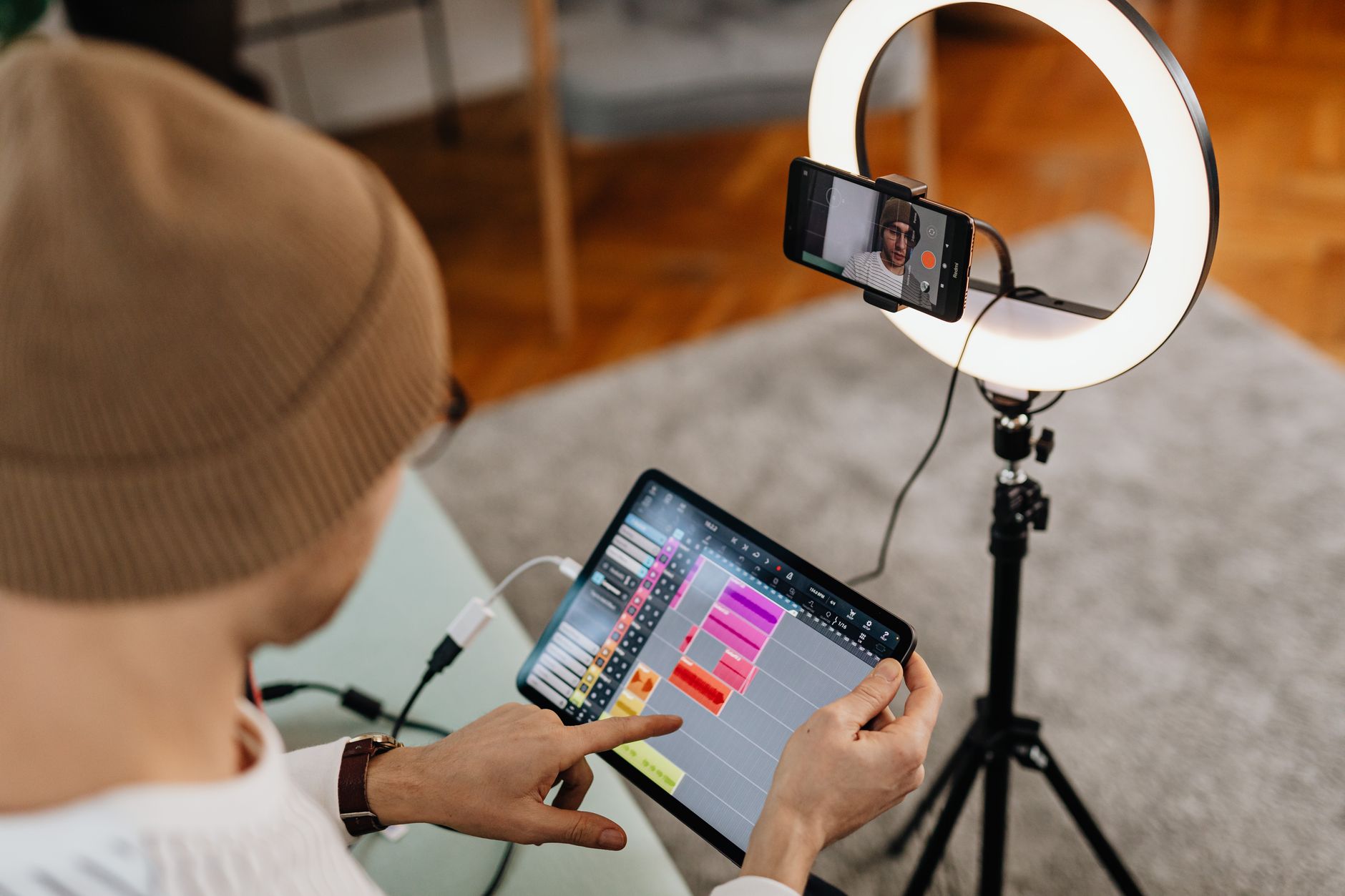
Photo by Karola G
Layer in Background Music Safely
Background music can enrich a podcast, but it must stay in the background. The goal is to support the speaking parts without overpowering them. Start with a track that matches the tempo and mood of your episode. Keep it subtle and dynamic; you want it to feel like a steady heartbeat rather than a loud instrument layer.
Key practices to implement quickly:
- Volume ducking: Set the music to dip whenever you speak. Most mobile editors have a ducking or sidechain option. If not, manually lower the music during voice sections and raise it after each sentence or thought.
- Trim to fit: Align music segments to your talking points. Cut out long fades during dialogue and avoid abrupt jumps. Gentle fades at entry and exit keep the sound natural.
- Royalty-free check: Use tracks labeled royalty-free or with suitable licenses. When you pick a track, verify the license allows podcast use and redistribution. If you reuse a clip, keep a simple attribution note in your show notes if required by the license.
A practical flow you can apply on your phone:
- Import a short music bed that suits the episode length.
- Place the bed on a separate track beneath your voice.
- Enable ducking or manually reduce the music by 12–18 dB during speaking parts.
- Add 0.5–2 second fades at the start and end of the music bed so transitions feel natural.
- Listen on headphones and on a phone speaker to ensure the balance holds in all contexts.
Helpful tips and quick checks:
- Keep the music level consistently low; your voice should remain the primary focus.
- Avoid sudden loud moments in the track that could distract listeners.
- If you hear artifacts during compression, try a shorter loop or a quieter segment of the same track.
Useful links to find background music:
- Free options and licenses to check before using tracks
- Guidelines for using music in podcasts and ensuring proper licenses
When choosing a source, look for reputable libraries and clear licensing terms. For example, one guide outlines several free and paid options that work well for podcasts, helping you stay compliant while keeping production simple. You can explore more at this resource: 10 Best Places to Get Free Music for Your Podcast. Another solid starting point is a library with royalty-free podcast tracks: Podcast Music | No Copyright Song & MP3 Free Downloads.
If you want a quick starter track, seek something under 90 seconds with a mellow tempo. This keeps the bed unobtrusive while allowing room for your content to shine. For a broader selection, you can also browse well-curated music libraries offering podcast-friendly licenses. For example, Epidemic Sound provides a range of tracks designed for dialogue and storytelling, which can be helpful when you need a consistent vibe across episodes. Explore their podcast music here: Background Music for Podcasts – Royalty Free. And if you’re building a library you can rely on, Soundstripe offers ready-to-download music suitable for long-form shows: Soundstripe: Best Royalty Free Music for Video, Podcast, Film.
Example scenario: a three-part interview episode benefits from a soft ambient bed that begins with a gentle 1-second fade as the host speaks, dips when guests respond, and returns to a quiet base tone during transitions. This approach creates a professional cadence without demanding extra effort from your editing workflow.
Images and cues aside, the most important takeaway is balance. Music should elevate the words, not shout over them. If the speech and music compete, lower the track a notch or simplify the bed. With a little practice, you can layer music that adds depth and polish in just a few taps on your phone.
Tweak Voice with EQ and Effects
A little EQ and light effects can make your voice sit cleanly in the mix. The aim is clarity and natural warmth, not a processed sound. Start with small, confident moves and test them in real listening scenarios. You want listeners to feel like you are speaking directly to them, not listening to a voice that’s been dialed in.
Core adjustments to consider:
- Slider basics: boost bass and treble modestly to bring out warmth and presence without overdoing it. A gentle boost in the lower midrange can make the voice sound fuller on small speakers.
- Reverb with restraint: a touch of reverb can simulate a small room and keep speaking voices from sounding flat. Use a light setting and keep it subtle. Too much reverb can blur consonants and reduce intelligibility.
- Consistency across clips: apply the same EQ profile to all segments so your show sounds cohesive even if you switch devices or mics during recording.
A practical workflow you can replicate:
- Open the track with your voice and select the EQ or equalizer tool.
- Start with a small boost in the low end (around 80–120 Hz) and a gentle lift in the high end (around 8–12 kHz).
- Listen for changes in the midrange (1–3 kHz) and dial it slightly up or down to preserve intelligibility.
- Add a light, short reverb only if the voice feels dry or distant. Aim for a momentary sense of space, not a hall.
Real-world tips to keep things natural:
- Avoid aggressive boosts that introduce sibilance or boominess.
- When applying effects, do it per segment rather than across the entire episode to preserve natural variations in speaking tone.
- Use reference headphones or car speakers to verify how effects translate beyond your phone.
If you want a structured starter kit, begin with these presets:
- Voice clarity: slight bass boost, subtle high-end lift, no reverb.
- Warm voice: gentle midrange boost, small high-end lift, tiny reverb.
To learn more about practical editing for podcasts on the go, you can explore various resources that compare tools and provide quick-start guides. For a general overview of mobile editing options, this article offers a concise rundown: Free Music for Your Podcast Options. For a broader library of music and licensing considerations, check out Background Music for Podcasts – Royalty Free and Soundstripe: Best Royalty Free Music for Video, Podcast.
Two quick examples to illustrate workability:
- Example 1: You finish an interview but notice a hiss during the guest’s mic. A 6 dB drop in the 200–600 Hz range with a slight high shelf can reduce mud without thinning the voice. A 0.8 second fade at the start and end of the segment helps transitions feel natural.
- Example 2: Your host sounds a little distant on some clips. A light boost in the 2–4 kHz range combined with a touch of short reverb can bring presence without harshness. Always test on headphones and a phone speaker.
If you follow these steps, your show will feel more polished and cohesive. The right balance of music and careful voice shaping can transform a good episode into a memorable listening experience.
Export Your Podcast File and Upload Ready to Go
After you finish editing on your phone, the final step is to export a clean, upload-ready file. This section shows you how to get a deliverable file that meets common podcast platforms’ specs. You’ll learn quick export tips, naming conventions, and how to prepare for publishing with confidence. If you’re on the go, a mobile export can be as simple as a few taps and then a quick upload to your hosting service.
Choose the Right Export Settings
Start by choosing a format that balances quality and file size. Most podcasters publish in MP3 with a 128 kbps to 192 kbps bitrate for a good mix of quality and download speed. If you need higher fidelity, use WAV or FLAC, but remember larger file sizes mean longer uploads. Many mobile editors offer built-in presets for podcast ready exports; use them to avoid guesswork.
- MP3 at 128 kbps or 192 kbps is a safe default.
- Stereo is standard for voice heavy shows; switch to mono if your app supports it to save space.
- Set a reasonable sample rate, usually 44.1 kHz for audio podcasts.
- Include the episode metadata if your app supports it: episode title, number, and author.
If you’re uncertain, start with the preset labeled “Podcast” or “MP3 for podcasting.” You can always re-export if you need to tweak the bitrate or channels. For reference, many guides outline a step-by-step export workflow from GarageBand on iPhone, which aligns with mobile editing practices: you can explore a detailed walkthrough here: GarageBand Tutorial for Podcasters: How to Setup, Record, Edit, and Export.
Name and Organize Your File Clearly
A clear file name makes it easier to locate the episode later and during season scheduling. Use a consistent convention such as:
EpisodeXX_Title_YYYYMMDD.mp3
- Episode number (two digits): 01, 02, 03
- Brief title or guest name: “IntroToEditing” or “GuestName”
- Date in YYYYMMDD format for easy sorting
Add a brief, descriptive tag in the ID3 metadata if your tool supports it. For example, Episode01_IntroToEditing_20250615.mp3 gives you quick context on both the content and when it was created.
Export Process for iPhone and iPad (GarageBand Example)
If you used GarageBand on iPhone, the export path is straightforward. After final checks, open the project and tap the Share button. Choose either “Song to Disk” or “Export Podcast to Disk” if available, then select MP3 or AAC. Confirm the destination and wait for the export to finish. This creates a file you can upload directly or share to cloud storage for later publishing.
- Pro tip: Enable “Normalize” during export to keep levels consistent across episodes.
- Optional: Add a short, clean outro tag in your post-production track if you want it to start appearing consistently in your show notes.
For a comprehensive walkthrough that covers GarageBand export steps in depth, see the GarageBand tutorial linked above.
Export Process for Android (Mobile Editors like AudioLab or Anchor)
Android editing apps often place export controls in the Share or Export menu. Look for options labeled MP3 or WAV, then pick your preferred bitrate and channel settings. If an app supports metadata editing, fill in the episode title, author, and show name during export to keep your files organized in cloud storage.
- Choose MP3 for broad compatibility with most podcast hosting platforms.
- If your file will include guests or multiple sections, consider a slightly higher bitrate for better clarity.
Upload to Your Hosting Platform
With your file exported, you’re almost ready to publish. Most hosting platforms have a simple upload flow that works well on mobile devices. Open your hosting dashboard in a browser or their mobile app, create a new episode, and attach the exported file. Fill in the show notes, upload a cover image if required, and set the publishing date and episode details.
- Add show notes that summarize the episode, list timestamps, and include call-to-action links.
- Schedule the release to align with your content calendar.
- Double-check the audio file is uploaded in the correct format and plays back cleanly on a phone speaker.
If you want a quick, reliable reference on exporting from GarageBand to MP3 and then publishing, you can check a concise guide like this: GarageBand Tutorial for Podcasters: How to Setup, Record, Edit, and Export.
Quick Quality Check Before Going Live
- Listen on at least two devices: headphones and a phone speaker.
- Confirm that the intro, main content, and outro flow smoothly without abrupt volume jumps.
- Ensure the episode title and metadata match what’s on your hosting page.
- Check the file size. If it’s unusually large, consider re-exporting at a lower bitrate and testing again.
A brief checklist ensures you don’t miss anything and helps you publish with confidence.
Related Tips for a Smooth Publish
- Keep a consistent export routine. Having a repeatable process saves time and reduces mistakes.
- Store a master folder of all exported episodes with standardized naming for easy retrieval.
- If you work with guests, request clean stems when possible to improve post-production speed.
Images

Photo by Los Muertos Crew
In summary, exporting a podcast file from your phone is a quick step that pays off in smoother publishing. Use the standard MP3 format, name files clearly, and publish through your hosting platform with metadata that helps listeners find and share your show. With a solid export routine, your content can reach listeners reliably, no matter where you record.
Conclusion
Editing on a smartphone is now a reliable, repeatable process that covers five key phases: plan and record, import and organize, cut and polish, mix with music and effects, then export and publish. Each step builds toward a clearer message and steadier listening pace, with quick wins you can apply in under an hour. Practice one episode a week to lock in the rhythm, refine your voice, and speed up future edits using the same mobile workflow on your smartphone. Pro tips to boost efficiency include batch record sessions for multiple episodes, reuse a simple template for intros and outros, and keep a dedicated project folder to avoid clutter.
For readers who want results fast, start now by downloading the recommended mobile editing app and piloting a short test episode. Share your progress in the comments and I’ll help you troubleshoot any sticking points. A little consistency goes a long way, and your audience will notice the improved clarity and pace with each release.