Thousands of People Were Struggling With Money Until They Discovered This One Ancient Secret Hidden in Sound
>>> Unlock It Now <<<

Frustrated with dropped calls or slow texts after swapping SIM cards? Cleaning and inserting a SIM card the right way can fix these issues and restore reliable service. This guide covers simple, practical steps that work with most smartphones.
You’ll learn why a clean, properly seated SIM matters for signal strength, data, and messages, and you’ll get a quick overview of what to do before you power up. We’ll walk through preparing the device, locating the SIM tray, ejecting and inspecting the card, and inserting it correctly so the contacts line up with the phone’s pins.
By following these steps, you reduce common problems like misalignment, dirty contacts, or a loose tray. The process is straightforward and designed for everyday use, with tips that apply to the majority of modern smartphones. If you’re ever unsure, a quick restart after reinserting the card often helps the device recognize it right away.
What You Need to Know About SIM Cards First
Before you dive into cleaning and reinserting your SIM card, it helps to understand what a SIM card is, the different forms it can take, and how it affects your phone’s ability to connect to networks. This section breaks down the essentials so you’re confident when you handle a SIM tray, swap cards, or switch to an eSIM.
She Pressed Play on a Strange Audio Track and Within Days Her Financial Reality Started Shifting in Ways She Could Not Explain
>>> See How It Works <<<

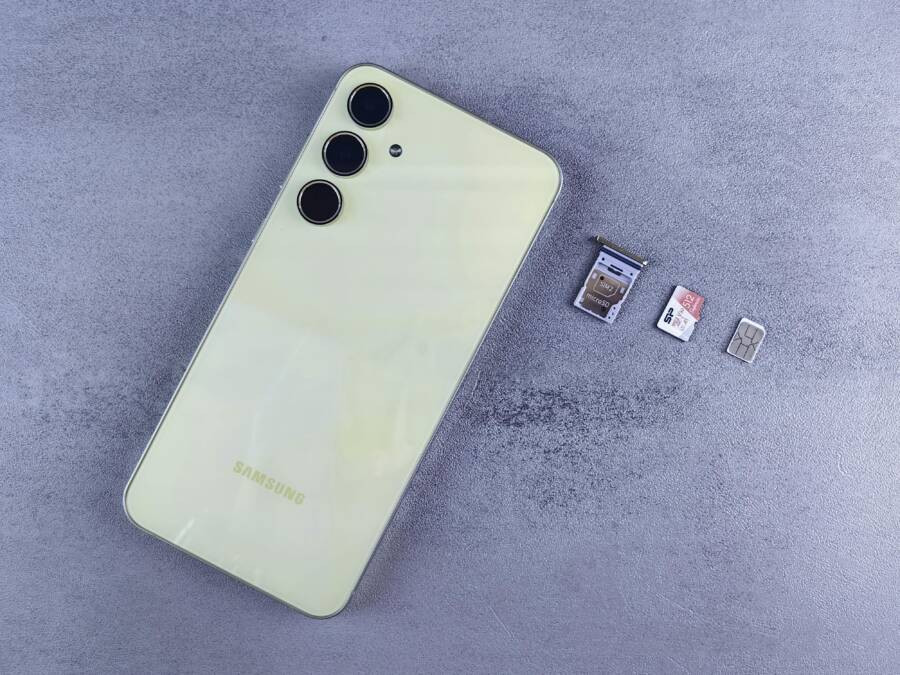
 Photo by Andrey Matveev
What a SIM card does
A SIM (Subscriber Identity Module) card is the small chip that connects your phone to a mobile network. It holds your subscriber information, phone number, and network preferences. When the SIM is recognized, your device can place calls, send messages, and access mobile data. Even if you already have a phone, a SIM swap can move your service to a new device quickly.
- Primary role: authenticate your device with the carrier.
- Secondary benefits: stores contacts on older SIMs and, on some devices, can help with roaming settings.
- Important reminder: the SIM is not a battery or memory upgrade; it’s the key to network access.
SIM card sizes and forms
Over the years SIM cards have gotten smaller and more flexible. The core function stays the same, but the form factor changes how you insert and activate them.
- Full-size, Mini, Micro, and Nano SIM: These are physical cards that you insert into a tray. As devices shrink, the actual SIM area shrinks too.
- eSIM: An embedded SIM built into the device. You don’t insert or remove a card; activation happens digitally.
- Why this matters: If you’re buying a new phone or planning a travel setup, check whether the device uses a physical SIM, an eSIM, or both. Some devices support both, giving you the option to have two lines on one phone.
For a deeper comparison of physical SIM versus eSIM, see reliable explanations from carriers and tech guides. eSIM vs physical SIM: Pros, cons, and core differences. Another good overview is SIM card sizes explained: Mini, Micro, Nano & eSIM.
Activation and carrier rules
Activation methods vary by carrier and device type. With a physical SIM, you often insert the card first and then activate through the carrier’s app or website. With an eSIM, activation is digital and may involve scanning a QR code or using a carrier app. Always check your carrier’s instructions when moving a line to a new device.
- If you’re moving a line between two phones, confirm whether both devices support the same SIM type.
- Some carriers require the same account to be active on both devices if you’re using dual-SIM setups.
- If you’re traveling, eSIMs can be a convenient alternative to swapping physical cards when you change regions.
Compatibility and device readiness
Not all phones support every SIM type. A few quick checks save headaches:
- Confirm your phone model supports your intended SIM type (physical or eSIM).
- Check the SIM tray size required by the device (nano is most common today).
- If you’re buying a used phone, verify the SIM compatibility and whether it’s locked to a carrier.
- Pro tip: If your device is older, you might still encounter micro or mini SIM cards. You can use adapters, but a proper fit reduces risk of damage.
Common myths and quick truths
- Myth: You must replace the SIM with every phone change. Truth: If the new phone supports the same SIM type, you can reuse it.
- Myth: An eSIM always requires a new number. Truth: An eSIM can carry the same number or a new one, depending on your plan.
- Myth: Cleaning a SIM will fix all problems. Truth: Cleaning helps, but issues can also come from the tray, contacts, or network settings.
How SIMs relate to data and calls
- Data: The SIM authenticates with the network so your phone can access cellular data.
- Calls and texts: The SIM holds your subscriber identity and determines how you’re billed for calls and messages.
- Roaming: SIM settings often control whether you can use a carrier’s network abroad and what charges apply.
A quick reference for when you’re shopping or upgrading
- If you’re upgrading to a new phone, know whether it uses a nano SIM or supports eSIM.
- If you travel frequently, consider a handset that supports eSIM and dual-SIM use to minimize swapping.
- If you’re unsure about your current SIM type, contact your carrier or check the device’s specifications.
To learn more about how eSIMs compare to standard SIM cards, you can read: eSIM vs Standard SIM: Which is better?. For insights on how carriers handle activation, see: Physical SIM vs eSIM: Differences in Pros, Cons, and Uses.
Practical takeaway
Know your device’s SIM capabilities before you start any cleaning or insertion work. If you’re unsure, consult the device manual or your carrier’s support page. Having the right type on hand saves time and reduces the chance of damage during the swap.
- When you’re ready to clean and insert, you’ll follow a straightforward routine that protects the contacts and ensures a solid connection.
- If you encounter issues after reinserting, a quick restart often helps the device recognize the SIM more reliably.
Images and links in this section are provided to give you a clear mental model of how SIMs fit into modern phones and what to expect during activation and usage.
Tools for Safe SIM Card Cleaning and Insertion
Having the right tools makes cleaning and inserting a SIM card quick, clean, and risk-free. This section outlines practical equipment and safe practices so you can handle SIM swaps with confidence, whether you’re at home or on the go. Think of these tools as a small, reliable kit that protects delicate contacts and keeps trays from bending or snapping.
Essential tools you need
A compact toolkit saves time and minimizes damage. Keep these basics on hand:
- SIM card ejector tool or a fine needle: Used to open the SIM tray without forcing it. If you don’t have a dedicated ejector, a straightened paperclip can work in a pinch.
- Soft, lint-free cloth: For wiping dust and fingerprints from the card and tray without leaving fibers behind.
- Isopropyl alcohol (70% or higher) and cotton swabs: For gentle cleaning of the SIM contacts and the tray edge. Avoid soaking the card.
- A clean, dry surface with good light: Work on a flat area to prevent misplacing small parts.
- Antistatic grip or non-slip mat: Keeps the phone steady while you work, reducing the risk of slips that could bend the tray.
Having these tools ready reduces clutter and helps you stay focused on a safe, methodical process. For most users, a basic ejector tool and a microfiber cloth are enough to start, especially when you’re just reseating a familiar nano SIM.
Safe cleaning supplies and methods
Cleaning is about removing dust without leaving residue. Follow these guidelines:
- Use a soft touch: Gently wipe the card’s gold contacts with the microfiber cloth. If you see dust in the tray or on the contacts, use a lightly damp cloth or a cotton swab with a small amount of isopropyl alcohol.
- Avoid liquids near open trays: Do not spray cleaner directly into the tray or phone. A quick, targeted dab is safer.
- Never scrub hard: vigorous scrubbing can scratch the contacts or loosen the card. Tiny, careful movements are enough.
- Inspect for damage: If you notice bent edges, cracks, or chipped contacts, replace the card or tray before reinsertion.
If you’re curious about visual demonstrations, this quick guide shows practical cleaning steps for a SIM card: How to clean a phone Sim card.
Tools for removing and seating the SIM tray
The tray is a critical part of the process. Use these tools to ensure a proper seat:
- SIM ejector pin or small tool: Used to pop out the tray from the phone with minimal force.
- Tray-friendly cleaning brush (optional): A small, soft brush can sweep away debris from the slot before reinsertion.
- Lighting and magnification (optional): A bright LED and a loupe help you verify alignment and ensure contacts meet pins squarely.
When removing the tray, stay steady and avoid twisting or bending it. A misaligned tray can cause pin damage or improper contact, leading to connection issues after reinsertion.
Using a SIM card ejector safely
Safe ejecting reduces the chance of damaging the phone or the card:
- Power off the device before ejecting the tray to prevent short circuits.
- Insert the ejector tool straight into the hole and apply a gentle press until the tray pops out.
- Handle the tray by its edges; avoid touching the gold contacts.
- Reinsert the tray with the card seated correctly and the contacts facing the pins inside the device.
If you’re shopping for reliable tools, consider a dedicated SIM removal kit that includes multiple ejector tips and a slim tray cleaner. See a practical selection here: Sim Card Tool.
When to replace tools and what to avoid
Good tools stay sharp and precise. Replace worn ejectors that no longer spring the tray cleanly or that leave marks on the tray. Avoid:
Thousands of People Were Struggling With Money Until They Discovered This One Ancient Secret Hidden in Sound
>>> Unlock It Now <<<
- Using sharp metal objects that could scratch the phone or bend the tray.
- Forcing a stubborn tray back into the slot, which can bend pins or the tray itself.
- Cleaning with household solvents beyond isopropyl alcohol, which can leave residues.
If you encounter stubborn dust or residue, stop and re-evaluate. A fresh look in better lighting or a quick restart after reinsertion often resolves minor hiccups.
Practical tips for a smooth SIM handling routine
- Always keep the SIM and tray oriented as they came from the phone. A misaligned card risks improper contact.
- Clean hands and a clean workspace reduce the chance of transferring oils or grit onto the contacts.
- Have a backup plan for eSIM or dual-SIM configurations if your device supports them. This avoids scrambling for the right tool during a trip or move.
- If you want a quick reference for cleaning and seating steps, follow a simple routine and stick to it to minimize mistakes.
For additional context on common concerns, you can explore related guidance here: How to remove dust or debris from my SIM card tray slot.
Quick takeaways
- A small, well-chosen toolkit keeps SIM handling safe and efficient.
- Gentle cleaning and careful seating protect contacts and the tray.
- Always power the device down before removing or reinserting the SIM.
If you’re curious about additional accessories, a few trusted tools are widely available and can make frequent swaps easier without risking damage, such as a dedicated SIM removal kit or a soft cleaning brush.
What If the Only Thing Between You and the Life You Deserve Is a Hidden Wealth Code Waiting to Be Activated
>>> Open the Door <<<

- Example option to consider: a compact SIM Card Removal Tool kit
- Source: PortPlugs Sim Card Removal Tool (All Devices)
By equipping yourself with the right tools and following these best practices, you’ll keep your SIM card and phone in top shape, ready for reliable calls and fast data wherever you are. For more on SIM types and how they affect insertion, revisit the earlier section on SIM card sizes and forms. A clean, snugly seated SIM makes a noticeable difference in call quality and data performance, especially after a swap.
Further reading and related tools you might find useful include: Amazon SIM Card Removal Tool options and guidance on handling SIMs when traveling or switching devices.
Step-by-Step Guide to Clean Your SIM Card
Cleaning a SIM card sounds simple, but doing it the right way can prevent contact issues and ensure your phone reconnects quickly after reinsertion. This step-by-step guide breaks down each move so you can handle a SIM swap with confidence, whether you’re at home or on the go. The goal is a clean, snug fit that makes solid contact with the phone’s pins, reducing dropped calls and slow data.
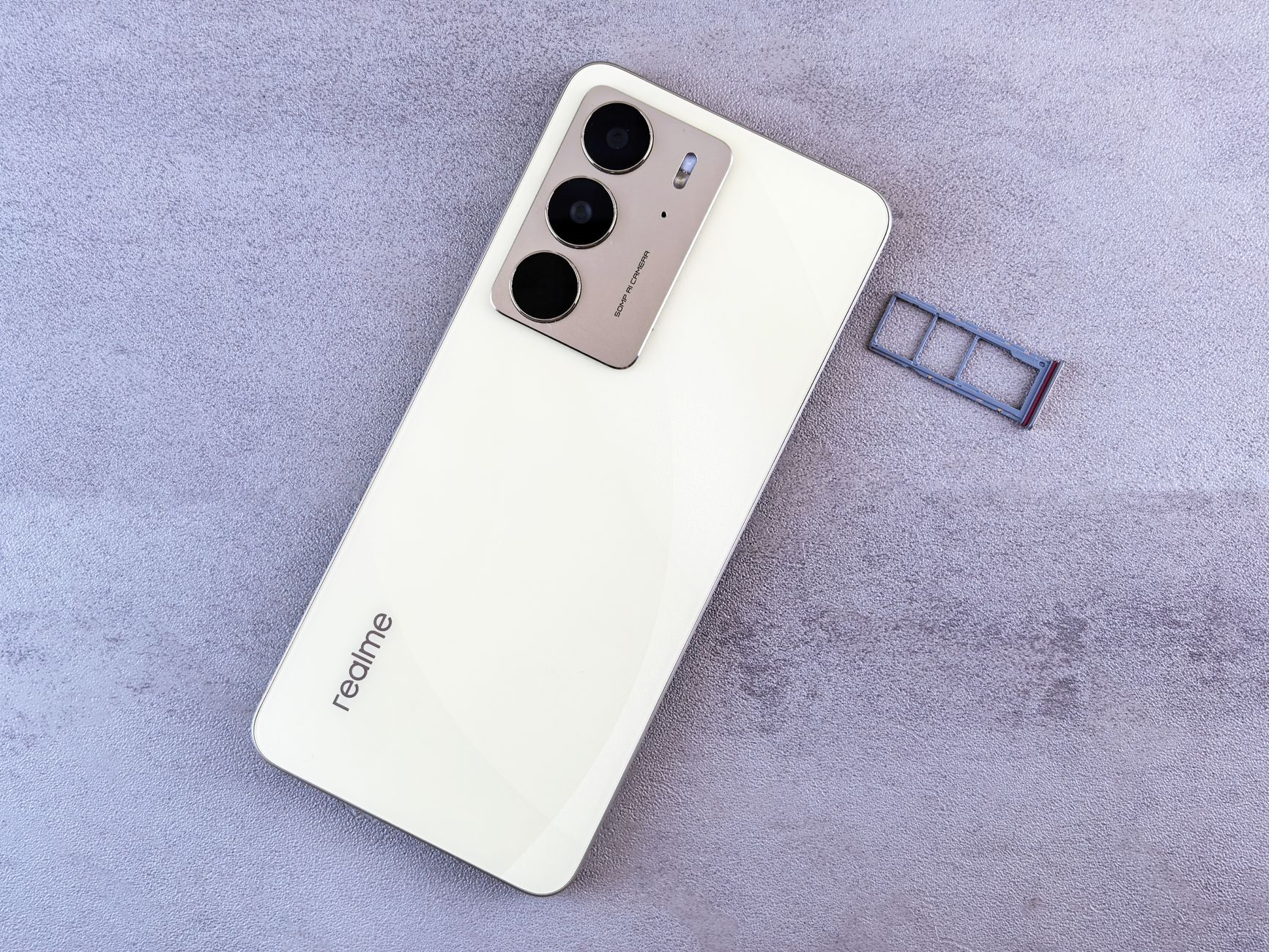 Photo by Andrey Matveev
Power Off and Eject the Tray
Powering down before you touch the SIM tray is essential. Locate the tiny pinhole on the side or top of your device, which is where the ejector tool should go. Gently insert the tool and press until the tray pops out. If you don’t have the official ejector, a straightened paperclip works in a pinch. Take care to push straight in and stop as soon as the tray releases. This minimizes the chance of bending the tray or stressing the pins. Once ejected, keep the tray level to prevent the card from sliding out at an angle. For extra confidence, consult your phone’s manual or a carrier guide like this overview on SIM forms and activation.
- Quick tip: a clean, quick eject reduces the risk of misalignment.
- If you see resistance, stop and recheck the tool alignment.
Remove and Wipe the SIM Contacts
Gently remove the SIM from the tray. You should see a small gold contact area; that’s the surface that makes contact with the pins inside your phone. Use a soft, lint-free cloth to wipe these contacts. Avoid liquids directly on the card; a dry pass is often enough. If you notice fingerprints or residue, a very light dab with a cloth dampened slightly with isopropyl alcohol (70 percent or higher) can help, but do not soak the card. After cleaning, inspect the card for cracks or chips along the edges. Any damage means a replacement card or tray is a safer option before reinsertion. When you’re finished, align the SIM with the tray so the contacts face up and the notches align with the tray. This step is critical to prevent misreads and ensure the device recognizes the SIM quickly. If you want a visual guide, a recent tutorial covers wiping SIM cards safely and clearly.
- Common problem to avoid: touching the gold contacts with bare fingers during reinsert.
- See how others approach the task in concise guides like this overview on cleaning SIM cards.
Clean the Tray and Inspect Everything
Dust on the tray can push the SIM out of alignment or block contact with the pins. Wipe the tray clean from edge to edge and check that the cutouts line up with the SIM’s shape. Make sure the SIM sits flat on the tray, with no bending or warping. While you’re inspecting, look for any burrs or nicks along the tray edge. If the tray shows damage, replace it before reinserting the card. A clean, smooth tray makes a big difference in how quickly the device recognizes the SIM after power up. When you’re ready, slide the tray back in slowly and confirm the card sits evenly. If the device doesn’t read the SIM right away, a quick restart can help it detect the card properly.
- Pro tip: a bright light helps confirm the card is flat and fully seated.
- If you’re curious about where to find reliable step-by-step visuals, check a practical guide on cleaning and seating SIMs.
External resources you might find helpful:
- How to Clean a SIM Card: practical physical cleaning steps. https://truely.com/blog/how-to-clean-sim-card?srsltid=AfmBOoqCYCRdt_VareOemYxbOr0-DKyl_pE1etxT6fAkc7tR4M1Koknx
- How to Clean a SIM Card: a detailed 12-step approach. https://www.wikihow.com/Clean-a-SIM-Card
Quick takeaway
A clean tray and a properly seated SIM ensure a solid connection to the phone’s pins. If there’s any doubt about the tray’s condition, replacing the tray or the card is a safer path than forcing misalignment. After reinsertion, a brief restart helps the device detect the card reliably. For a quick visual reference, you can search for basic demonstrations that show clean seating and alignment.
- If you want to compare how different devices handle SIM seating, there are short tutorials and reviews available on video and tech sites.
- When shopping for tools and spare parts, consider a dedicated SIM removal kit that includes multiple ejector tips and a small tray brush.
For additional context on common concerns, see quick guides on dust removal from SIM tray slots. https://www.quora.com/How-do-I-remove-dust-or-debris-from-my-SIM-card-tray-slot
Images and links referenced here are included to give you a clear mental model of how SIMs fit into modern phones and what to expect during activation and usage.
How to Insert a SIM Card Correctly Every Time
In this section, you’ll get a concise, practical, step by step approach to align, insert, and verify a SIM card so you get reliable calls and data. The focus is on clean contacts, proper tray seating, and quick checks that prevent common misreads or connection hiccups. Whether you’re swapping a card at home or on the road, these motions stay the same across most devices. If you ever feel stuck, a quick restart after reinsertion often helps the device recognize the SIM right away.
Align and Place the SIM on the Tray
Match the notch on the SIM with the corresponding cutout on the tray, then lay the card flat. The contacts should face the pins inside the phone, and the card should sit evenly with no twists. Take a moment to inspect the tray edge for burrs or dust before placing the SIM. A tiny misalignment can push the card up or down and cause read errors. If the tray sits slightly high or uneven, remove it, recheck the SIM orientation, and reseat. A bright light helps confirm the card is fully seated and the notches line up with their guides. For a quick visual reference, you can compare with a simple diagram that shows notch alignment and card orientation. If you’re curious about the different SIM forms, see guides explaining nano SIM and eSIM options.
- Useful reference: alignment diagrams and tray guidance can be found in practical insertion guides like iFixit and carrier tutorials. How to change a SIM card provides clear tray alignment steps, and SIM cards for your Galaxy phone or tablet covers tray differences and placement specifics.
Slide the Tray Back In Smoothly
With the SIM properly seated, slide the tray back into the phone in a straight line. Use steady, gentle pressure and keep the tray aligned with the slot to avoid pin damage. Do not force the tray; if you feel resistance, stop and recheck the alignment. The tray should disappear fully into the device with a clean, click-free return motion. Once the tray is flush, give the device a moment to recognize the SIM. If it doesn’t read immediately, remove and reinsert once more, ensuring the contacts face the pins correctly. A quick restart after reinsertion can help the device detect the SIM more reliably. For visual guidance, see short tutorials that demonstrate smooth tray insertion.
- Quick tip: a well-lit area makes it easier to confirm the tray is fully seated and aligned.
- See helpful demonstrations: How to insert a SIM card into Phone (100% Works!) and How to change a SIM card.
Test and Restart if Needed
Power on and check the network signal to verify the SIM is detected. If you see no bars or a no-service message, perform a quick restart. If the device still reports no SIM after reboot, recheck the tray orientation and card contacts for cleanliness and damage. A clean reseat often resolves the issue without further steps. If the problem persists, try reinserting after powering off and on again, or test the SIM in another device to rule out a bad card. In some cases, updates or carrier settings push after a restart, restoring service quickly. For common troubleshooting steps, you can refer to guides that cover no-SIM-detected scenarios and the No SIM Card Detected errors on different devices.
- Quick actions: power off, eject, reseat, power on, verify signal.
- Additional context: if you’re troubleshooting a no-SIM issue on a Galaxy or Android device, consult the Samsung support guide or a reliable troubleshooting video for step-by-step checks. No SIM Card Detected error on Samsung devices and How to Fix “No SIM Card” Error on Android offer practical remediations.
Avoid These Common SIM Card Mistakes and Quick Fixes
Mistakes happen when you’re in a hurry to swap or clean a SIM card. The good news is most misreads and dropouts come from small, fixable habits. In this section, you’ll learn the most frequent slip ups and how to avoid them, plus fast fixes that get you back on call and online without delay.
Common mistakes people make when handling SIM cards
- Rushing the tray back in without checking alignment. A tiny twist or an off-center card can keep the device from reading the SIM.
- Cleaning too aggressively. Scrubbing the gold contacts or using too much liquid near the tray can cause damage or leave residues that interfere with contact.
- Using the wrong tray orientation. The notches and cutouts must match exactly; flipping the card or tray leads to failed reads.
- Forcing the tray in when it doesn’t sit flush. Forcing can bend pins or scratch the tray edge, creating ongoing problems.
- Handling the card with dirty or oily hands. Oils and dust transfer to the contacts, reducing connection quality.
- Skipping a power down before removal. A quick restart is not a substitute for powering off when ejecting the tray.
- Assuming any issue is a SIM problem. Sometimes the issue is the tray, the contacts, or a carrier setting that needs an update.
These missteps are common, but they’re easy to prevent with a calm, methodical routine. If you’re on the road, a simple checklist can make the process smoother and safer for the device.
Quick fixes you can apply right away
- Power off before touching the tray, then reinsert slowly. This reduces risk and gives the device a clean recognition cycle.
- Inspect alignment under bright light. Make sure the card sits flat with the notches aligned to the tray guides.
- Clean the card and tray with a soft, lint-free cloth. If needed, use a tiny dab of isopropyl alcohol on a cloth, never directly on the card.
- Re-seat the tray once or twice. A fresh seating often resolves no-SIM or intermittent-read issues.
- Try a soft restart after reinsertion. Many devices recognize the SIM on reboot without further steps.
- Test in another device. If the issue follows the card, you likely need a replacement SIM; if it stays with the device, the tray or pins might be at fault.
- Check for carrier or device updates. Sometimes a carrier settings refresh fixes recognition problems without any hardware work.
For a quick visual reference on cleaning and seating, you can find practical demonstrations that show the safe handling steps. If you’d like a hands-on guide, see the video example linked here: How to clean a phone Sim card.
How to avoid the most frequent alignment issues
- Always position the SIM so the gold contacts face the phone’s pins and the notches align with the tray guides.
- When the tray looks slightly high or uneven, remove it, check the card orientation, and reseat with steady, straight pressure.
- Use a bright light or a loupe to confirm the tray is fully seated and the card lies flat. A small burr or dust particle can cause a read error if left in place.
If you want a reliable guide on tray alignment, see a practical walkthrough that explains notch alignment and placement specifics. For example, iFixit provides clear steps to change a SIM card and align the tray properly. You can also explore carrier-specific guidance such as how tray differences appear on Galaxy devices. How to change a SIM card and SIM cards for your Galaxy phone or tablet.
Signals that you might be operating with a bad card or a damaged tray
- Recurrent “No SIM” or “Invalid SIM” messages despite a present card.
- Repeated prompts to update SIM settings with no improvement after a restart.
- Visible damage on the card edges or tray, or pins that look bent.
If you encounter these signs, it’s safer to replace the SIM or the tray rather than forcing a fit. A fresh SIM can restore service quickly, and a new tray eliminates a common source of misreads.
Quick-reference checklist for a fail-proof SIM swap
- Power down. Remove the tray with the card oriented correctly.
- Clean and inspect. Wipe the contacts and check for damage on both card and tray.
- Align and seat. Make sure the notches align with the tray guides; the card sits flat.
- Reinsert steadily. Push the tray in straight, not at an angle.
- Power up and test. Check signal, data, and messages; restart if needed.
- If issues persist, test in another device or replace the SIM.
For additional context on troubleshooting no SIM issues in Samsung devices, see: No SIM Card Detected error on Samsung devices.
When to seek help or replace parts
- If the SIM works in another device but not in yours, the problem is likely the tray, pins, or internal connectors.
- If the card shows wear, scratches, or bent edges, replace the card.
- If you’ve tried multiple cleanings and reseats without improvement, consult your carrier or a technician to rule out a deeper hardware issue.
Carriers often offer quick diagnostics or remote checks to verify SIM health. If you’re unsure about the process, your carrier’s support page is a good starting point for device-specific guidance.
External resources you might find helpful:
- A guide on troubleshooting common SIM card issues on Galaxy devices: Samsung No SIM Card Detected error.
- A general walkthrough on cleaning a SIM card without damage: How to Clean a SIM Card Without Ruining It.
Key takeaway: slow, deliberate handling reduces most SIM hassles. A clean card, a properly seated tray, and a quick restart after reinsertion are enough to restore reliable calls and fast data in most cases. If you ever need a quick refresher, use a simple checklist and refer to trusted guides such as tray alignment diagrams and device-specific insertion tutorials.
Conclusion
A clean, properly seated SIM card is the low‑friction path to reliable calls and fast data on your smartphone. Remember the core steps: power down, eject the tray, inspect and clean the card and tray, align the notches, and insert smoothly, then test by powering the device back on. Short, careful handling reduces common issues like misreads, dirt on contacts, or a stubborn tray. Bookmark this quick routine so you can swap or clean a SIM card with confidence anytime you travel or upgrade. Share your experiences in the comments and tell us what worked best for your smartphone setup.
There Is a Frequency That the Wealthiest Families Have Used for Generations and Most People Will Never Know It Exists
>>> Open the Door <<<
