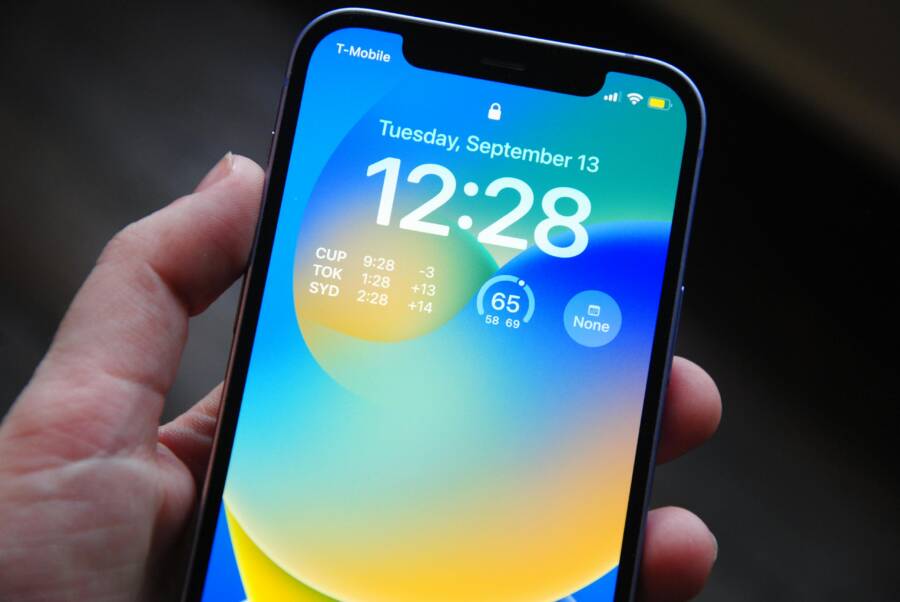
You tiptoe into your child’s room and catch them laughing at late night videos on a glowing screen. The scene is funny, but it nudges sleep schedules off track and leaves everyone groggy in the morning. Blocking YouTube at night can help reset those sleep routines without turning the whole phone into a battleground.
This guide explains why knocking out late night YouTube matters, from blue light affecting sleep to endless scrolling stealing precious rest. You’ll learn how a simple block can improve focus, mood, and family peace. It’s not about policing a smartphone, it’s about helping your child wake up ready for school and daily life.
We’ll walk through practical steps you can take on Android and iPhone devices, plus some reliable tools and apps that fit real families. You’ll see how to set quiet hours, schedule blocks, and tailor rules to your child’s age and needs. The goal is clear control with minimal friction, so bedtime becomes predictable again.
If you’re wondering where to start, this post breaks down the exact steps and quick fixes you can apply tonight. We’ll cover common hiccups, like bypass attempts and sync issues, and how to keep settings consistent across devices. You’ll leave with a straightforward plan that works with your family rhythm.
By the end, you’ll know how to use simple, effective controls to protect your child’s sleep without turning screen time into a fight. A calmer evening routine starts with a clear, reasonable approach to blocking YouTube at night on your child’s smartphone.
Why Late-Night YouTube Use Hurts Kids and How Blocking Helps
Late-night YouTube sessions can feel harmless at first, but they often sneak into a bigger sleep problem. When kids stream videos after bedtime, they’re exposed to blue light, rapid scene changes, and endless recommendations that keep the brain in a plugged-in state. The result is harder to fall asleep, disrupted sleep cycles, and mornings that start with grogginess. Blocking YouTube at night isn’t about punishment; it’s about giving kids a better shot at restorative rest and a steadier daily routine.
Blue light and the sleep connection
Blue light from screens can suppress melatonin, the hormone that tells our bodies it’s time to sleep. This makes it tougher for kids to unwind at the end of the day and can shift their natural sleep window later. Even if they do drift off, lighter, more fragmented sleep can affect mood, memory, and daytime performance. For families, the ripple effects show up as irritability, reduced attention in school, and less energy for after-school activities. See how blue light specifically influences kids’ sleep in reputable sources like Sleep Foundation and pediatric health guidance.
- Key takeaway: Reducing screen exposure in the hour before bed supports easier sleep onset and better sleep quality.
- For more on blue light and kids, see: How Blue Light Affects Kids’ Sleep.
The cascade from late-night videos to daytime symptoms
When YouTube is used late at night, the content itself can keep the mind engaged. Quick cuts, bright colors, and the pull of recommendations can delay winding down. Evening screen time often means kids go to bed later than planned, which shortens total sleep time. Over time, insufficient sleep affects attention, emotional regulation, and academic performance. It also feeds a cycle where fatigue makes screen use seem less objectionable to a tired mind, perpetuating the pattern.
- Reality check: A predictable bedtime routine with a device curfew helps protect sleep quality.
- For broader context on screen time and sleep, see Youth screen media habits and sleep.
How blocking at night helps the whole family
Blocking YouTube at night reduces the cues that trigger endless scrolling. It gives children a clear boundary and helps parents restore a calmer evening atmosphere. When kids know there’s a quiet period, they’re more likely to settle into a relaxing routine, read a book, or prepare for the next day with less resistance. The family benefits go beyond sleep—improved mood, better cooperation, and more meaningful time together before lights out.
- Practical benefit: You create a reliable rhythm that anchors bedtime and reduces power struggles.
- For a broader view of why blocking screen time can support sleep, consider resources that discuss limiting screen time at night for better rest.
Real-world considerations for families
Every household is different. Some children respond quickly to a simple schedule change, while others benefit from a gradual approach. Start with a clear cut-off time, then adjust as needed. If your child uses multiple devices, you’ll want a plan that works across devices and accounts. Consistency is the secret sauce: the more predictable the rules, the less room there is for pushback.
- Actionable tip: Pair blocking with a soothing pre-bed routine like lights low, a warm bath, or reading time.
- If you’re curious about bidirectional effects, explore how screen time before bed relates to sleep outcomes in early adolescence.
Quick reference for parents
- Recognize the signs: trouble waking, daytime sleepiness, mood swings, and short attention spans.
- Set a clear nightly boundary for all apps that feed into late-night viewing.
- Use built-in features or trusted apps to enforce quiet hours and schedules.
For further validation on the sleep implications of late-night screen use, see resources like Does the Light From a Screen Make it Hard to Sleep and blue light guidance from pediatric health sources. And if you want a research-backed overview, you can review studies on bedtime screen use and sleep outcomes in early adolescents.
Block YouTube on Android Phones at Night with Built-in Tools
Blocking late night YouTube usage on Android phones can restore sleep quality and keep morning routines smooth. This section covers two practical, no-fuss approaches using built‑in tools. Each method is explained with clear steps you can follow tonight, plus quick troubleshooting tips if something doesn’t work as planned. You’ll learn how to set predictable night hours, pause YouTube automatically, and verify everything is locked in. Along the way, you’ll see why these options fit real families who want simple, reliable controls without extra apps.
Set Up Bedtime Mode in Digital Wellbeing
Bedtime Mode is a straightforward way to curb nighttime distractions on Android. It mutes notifications, dims the display, and can apply a grayscale look to minimize the pull of late scrolls. Here’s how to set it up so YouTube can be paused during sleep hours.
- Open the Settings app on the Android device.
- Find and tap Digital Wellbeing & parental controls (or simply Digital Wellbeing on some phones).
- Turn on Bedtime Mode and choose a schedule. For example, set it from 10:00 PM to 7:00 AM.
- Enable a Focus mode or a similar option to pause YouTube during the bedtime window.
- Add a passcode or require biometric authentication if your device prompts you for extra protection.
- Test the setup: wait for the clock to reach bedtime, then try opening YouTube to confirm it’s paused or silenced.
- If YouTube isn’t appearing in the list of apps, don’t worry—Bedtime Mode will still apply its global quiet hours and display changes. If you want stricter control, pair with Focus mode to pause notifications from all distracting apps.
Notes and quick checks:
- You can adjust brightness and color settings to reduce stimulation at night.
- Some devices label the feature as “Bedtime” or “Sleep” under Digital Wellbeing; the path is similar across vendors.
- Screenshots in text: tap the clock icon to review the schedule, then confirm the time window is active.
If you’d like to see a deeper dive on setting up Bedtime Mode on Android, this guide offers step-by-step visuals and extra tips: Digital Wellbeing on Android.
Use Google Family Link for Parent-Controlled Limits
Family Link gives you remote control over your child’s Android device, including bedtime rules and app limits. It’s especially helpful if you manage more than one child or want a single dashboard for all devices. Here’s how to implement it for night time YouTube restrictions.
- On your phone, install the Family Link app and either create a new child account or link an existing one.
- On your child’s device, sign in with the same Family Link account or accept the invitation to connect.
- In the Family Link app, go to the child’s profile and open Controls.
- Set a bedtime and configure daily limits for YouTube to zero during the night. You can also enable a quiet hours window that applies to all apps.
- Turn on remote lock so the device can be locked when the timer hits the limit.
- If you’re managing multiple kids, repeat the steps for each profile; the dashboard will show all linked accounts.
- Test the setup by letting your child try to access YouTube during night hours. The app should block access and display a notice or lock screen.
Troubleshooting quick fixes:
- If the limits don’t sync, refresh the Family Link connection on both devices and retry.
- Make sure both devices are connected to the internet and updated to compatible Android versions.
- If a system app blocks differently, review which apps are considered “family-safe” within the app’s Settings.
Helpful pointers:
- Family Link works across Android 7 and up for most core controls. It’s a robust, centralized way to enforce sleep boundaries.
- If you’re curious, Google’s support pages outline how to manage screen time and set limits for your child’s device: Manage your child’s screen time and the Family Link overview: Family Link from Google.
Additional context and validation:
- For a quick overview of Family Link’s basics and setup, you can check the Google Play listing for the Family Link app as a companion tool: Family Link parental controls – Apps on Google Play.
By combining Bedtime Mode with Family Link, you gain two layers of protection: local device behavior and remote account controls. This approach reduces the chance of a child bypassing the rules and keeps your smartphone family routine predictable. It also scales well if you have more than one child, offering a single, consistent process across devices. If you want a broader reference on Android’s built-in wellbeing features, see the official page: Digital Wellbeing – Android.
How to Block YouTube on Your Child’s Phone at Night (Section Focus)
Blocking YouTube at night on an iPhone can stabilize sleep and reduce bedtime battles. This section covers two practical, built‑in approaches you can implement tonight. Both methods stay low fuss while giving you reliable boundaries. Think of your iPhone as a sleep coach for your child’s digital habits. By using Screen Time effectively, you set predictable quiet hours that protect rest without turning the whole device into a prize fight.

Photo by Sarah Blocksidge
Enable Downtime to Stop Apps After Bedtime
Downtime is a straightforward way to pause most apps during your child’s designated night hours. You’ll still be able to call or receive messages, but non‑essential apps like YouTube will be blocked. Here’s how to set it up clearly and securely.
- Open the Settings app on the iPhone.
- Tap Screen Time and then select Downtime.
- Turn on Downtime and set the start and end times. For example, from 9:30 PM to 6:30 AM.
- Choose to block all apps during Downtime except calls. You can specifically ensure YouTube is blocked by adding it to the blocked list.
- Create a passcode for Screen Time if you haven’t already, and require it to change Downtime settings.
- Schedule the days you want this rule to apply (weeknights, weekends, or both).
- Test the block by letting the clock reach bed time and attempting to open YouTube. It should be unavailable or display a quiet notice.
- After testing, review that YouTube stays blocked across the child’s profile and family devices.
Tips for stronger protection:
- If YouTube is open in a browser, Downtime won’t automatically block it there unless you apply the same rule to Safari. Consider Content & Privacy Restrictions for broader control.
- Use a simple, memorable passcode for you, not the one your child knows. This reduces the chance of accidental changes.
- Regularly review Downtime settings as schedules shift with daylight saving time or school calendars.
Why this works: Downtime creates a clear boundary that kids can respect. It reduces the pull of late-night scrolling and helps them wind down with calmer activities like reading. If you want a quick refresher on the official steps, Apple’s guide on setting schedules with Screen Time is a solid reference: Set schedules with Screen Time on iPhone.
Additional reference: Use Screen Time to manage your child’s iPhone or iPad for more nuanced controls like app limits and content restrictions.
Schedule and Verify the Downtime Block
After you set Downtime, a quick verification keeps you confident the rule sticks. This is where a small habit pays off.
- Double‑check the daily schedule: make sure the end time is later than the start time and that the days selected match your plan.
- Confirm YouTube is not exceptioned in Always Allowed apps unless you intend it to be.
- Test again after a few days to ensure routine changes haven’t disrupted the block.
If you need a deeper dive on refining Downtime within Screen Time, Apple’s guide offers additional context and options: Use Screen Time on your iPhone and iPad.
External links for deep dive and validation:
- Use Screen Time on your iPhone and iPad
- Set schedules with Screen Time on iPhone
Add Content Restrictions and App Limits for YouTube
This approach builds on Downtime by tightening what your child can access, even if a slip happens. Content restrictions and app limits give you a second layer of defense, ensuring YouTube stays within set boundaries during the night.
- Open the Settings app and go to Screen Time.
- Tap Content & Privacy Restrictions and turn it on.
- In the same menu, choose Always Allowed and remove YouTube from the list if present. This helps ensure YouTube isn’t accessible during Downtime by bypass.
- Go back and select App Limits. Add a limit for YouTube or for the entire YouTube family of apps. Set the limit to 0 minutes per day or a very low amount that’s consistent with your plan.
- If you use Family Sharing, enable it so you can approve limits remotely. This keeps you in control even when you aren’t holding the device.
- For remote approval, use the parent device to approve or adjust requests from your child. This is handy if your child tries to extend YouTube time.
- If your child uses a web browser to access YouTube, set similar limits at the browser level or through DNS filtering as an added safeguard.
Testing and adjustments:
- After applying the restrictions, attempt to use YouTube during the night to confirm it’s blocked.
- If a request slips through, use the Family Sharing controls to adjust the limit or temporarily override with a time‑bound exception.
- Periodically review the Always Allowed and App Limits to keep them aligned with your family rules.
Benefits and practical tips:
- This approach makes the restriction more durable than a single Downtime setting.
- It supports multi‑device scenarios where you want consistent rules across iPhone and iPad.
- For a comprehensive view of iPhone parental controls, see the official Apple resources on parental controls and screen time.
- If you want a broader set of parental controls, Apple’s Family Sharing overview helps you manage multiple devices from one place.
Helpful resources:
- Use parental controls to manage your child’s iPhone or iPad
- Set up Screen Time for a family member on iPhone
Images credit:
- Photo by Sarah Blocksidge. Photo URL: https://images.pexels.com/photos/13628543/pexels-photo-13628543.jpeg?auto=compress&cs=tinysrgb&dpr=2&h=650&w=940
By pairing Downtime with targeted Content & Privacy Restrictions and precise YouTube app limits, you create a reliable, family‑friendly night routine. This layered approach minimizes the chance of bypass and keeps bedtimes peaceful, while still respecting your child’s privacy and autonomy in age‑appropriate ways. If you’re curious about further refinement, Apple’s official support pages offer step‑by‑step guidance and troubleshooting tips that map directly to these steps.
Top Parental Control Apps for Easy Nighttime Blocks
Blocking late night YouTube isn’t about policing devices; it’s about safeguarding sleep and creating family calm. The right parental control app can automate bedtimes, push helpful alerts, and keep the rules consistent across devices. Below are two reliable options that work well for many families. They’re designed to be easy to set up, across platforms, and provide clear reports so you can track progress without constant nagging. If you’re stepping into this approach for the first time, think of these tools as a responsible coach for your child’s smartphone habits.
Qustodio for Simple Schedules and Alerts
 Photo by Daniel Moises Magulado
Qustodio offers a straightforward way to enforce bedtime rules and keep YouTube off during night hours. Start by creating a single, unified account that syncs across Android, iOS, and other platforms, then set a bedtime schedule that blocks the YouTube app completely when the clock hits bedtime. The dashboard shows you daily activity reports, so you can see when and how often the app would have tried to run after hours. If your child relies on multiple devices, this cross‑device visibility becomes especially valuable.
Key setup steps you’ll follow:
- Create a parent account and add each child’s device.
- Define a nightly rule that blocks YouTube after a chosen time.
- Review activity reports to understand patterns and adjust as needed.
Benefits come with a free trial, followed by paid plans that scale with family size. Qustodio’s cross‑platform compatibility means you won’t have to juggle different apps for Android and iPhone. For many families, this reduces friction and makes nightly rules more predictable. If you want a quick look at the official starting point, you can visit the Qustodio homepage or their app page for quick setup steps: https://www.qustodio.com/en/ and https://play.google.com/store/apps/details?id=com.qustodio.family.parental.control.app.screentime&hl=en_US.
- Tip: Use the parent dashboard to customize alerts. You’ll know when attempts to bypass happen and can address them calmly rather than escalating the moment.
- Fact to know: Qustodio is popular in many households due to its balance of features and ease of use. Learn more on their dedicated page for parental controls: https://www.qustodio.com/en/parental-control-app/.
If you’re prioritizing clear reporting and simple nightly automation, Qustodio is a solid first pick. It allows you to enforce a firm night rule while keeping the rest of the phone usable for essential tasks, which helps maintain trust and reduce power struggles at bedtime.
Norton Family for Tracking and Limits
 Photo by Pexels Stock
Norton Family brings strong tracking capabilities paired with practical limits. It works well when you want a clear boundary that is easy to manage from a single dashboard. Install Norton Family on both your device and your child’s device, then set a bedtime window and configure limits that zero YouTube after hours. The app can filter out risky sites and will alert you if your child tries to bypass rules. You can also monitor the sites and content your child visits, which helps with a broader conversation about online safety.
How to implement quickly:
- Create a Norton Family account and connect the child’s device.
- Set a nightly schedule that blocks YouTube past the chosen bedtime.
- Enable alerts for attempts to override restrictions and review the activity feed.
Norton Family offers tiered pricing, sometimes with family bundles, making it feasible for households with multiple kids. It’s especially useful when you want ongoing visibility into what your child is viewing, which supports conversations about healthy online habits. For more details and official guidance, see Norton’s parental control pages: https://us.norton.com/products/norton-family and https://apps.apple.com/us/app/norton-family-parental-control/id1447157106.
- Note: If a device is offline for a period, Norton’s rules may pause until the device reconnects, so plan a quick reconnection check as part of your routine.
- Practical tip: Use the remote management features to adjust settings without needing to retrieve the device, which can be a big help during busy weeks.
If you’re seeking a robust tracking experience with straightforward nightly limits, Norton Family provides a reliable path. It lets you keep an eye on what’s happening after hours while keeping the rest of the device functional for essential tasks. For a broader overview and user guidance, you can explore Norton’s official pages linked above.
Fix Common Block Issues and Tips for Success
Blocking YouTube at night works best when you anticipate common bypass attempts and tighten the controls accordingly. This section focuses on practical fixes you can apply if your child tries to sidestep restrictions. You’ll learn with simple, clear steps how to curb VPN use, manage browser access, and verify that blocks stay in place. Think of it as tuning a ship’s rudder: small adjustments can keep the course steady across multiple devices and nights. A reliable plan reduces friction and helps your smartphone family routine stay peaceful.
Handle Workarounds Like VPNs and Browser Access
Kids may try to bypass night blocks by using a VPN, switching browsers, or accessing YouTube through an alternate app. Start with a layered approach that makes bypassing harder rather than chasing every new trick. First, identify and restrict VPN apps on devices where you control the settings. This reduces the chance a child can tunnel around restrictions.
Next, tighten browser access. If a kid switches to a different browser to reach YouTube, require the browser itself to follow the same downtime rules. In practice, enable content filters at the network level or within the browser’s own settings, and ensure the night window applies to all browsers on the device. Regularly review app logs to spot attempted bypasses and adjust rules quickly.
Prevent guest accounts and temporary profiles from giving extra access. If the device supports guest modes, disable or lock them during night hours. Keep a simple, verifiable routine: test a few times each week by trying to open YouTube during the scheduled block. If it opens, your blocking layer needs strengthening. For additional guidance on VPN-related restrictions, see trusted resources that cover cross‑platform blocking strategies and parental controls. https://www.techlockdown.com/guides/block-vpn-android
If you’re curious about specific posts on how to manage bypass attempts, Apple and Android communities offer practical tips for keeping controls intact while balancing user experience: https://discussions.apple.com/thread/254077970 and https://www.mysteriumvpn.com/blog/how-to-put-parental-controls-on-iphone-android
Finally, keep a simple log of incidents. A quick note when a bypass occurs helps you refine the rules without turning this into a tug of war with your child. When you combine VPN restrictions, browser controls, and a clear nightly routine, you create a robust defense that stands up to common workarounds.
Conclusion
Blocking YouTube at night is a practical step that can begin to change your child’s sleep patterns in days, not weeks. The fastest wins come from choosing one path that fits your child’s phone—Android built‑in controls, iPhone Screen Time, or a trusted app—then setting a clear night boundary and sticking with it. Quick setup matters because real change happens when rules are easy to follow and consistently applied.
A simple, reliable plan reduces bedtime battles and helps your child wake rested. Start with a single, concrete cut‑off and pair it with a calm pre bed routine. The goal is a well rested smartphone user who sleeps through the night, not a device locked away in a drawer. The calmer evenings you gain extend beyond sleep to better mood and cooperation the next day.
Take action today and share this approach with friends who want fewer power struggles at bedtime. If you have other families relying on you for practical tech tips, a quick tip can make a big difference. With consistent boundaries and a clear plan, your well rested kids will thank you in the morning, and your household will feel the positive shift.