There Is a Frequency That the Wealthiest Families Have Used for Generations and Most People Will Never Know It Exists
>>> Open the Door <<<

Backing up your phone to Google Drive in 2025 is the simplest way to safeguard memories, contacts, apps, and settings across devices. This guide explains what data gets saved on Android and iPhone, how to back up step by step, and how to restore later if you switch phones or reset. You’ll also learn about storage options, privacy basics, and common issues so you can back up with confidence.
Why back up your phone to Google Drive
Backing up your phone to Google Drive keeps your important data safe and makes it easier to restore when you switch devices or reset settings. The process varies by platform, and understanding what gets saved helps you choose the right backup options. Below you’ll find a clear breakdown for Android and iPhone, plus practical tips to minimize surprises during restoration.
What data Android can back up
Android backups to Google Drive and Google One cover a wide range of data, including app data and settings. When you enable Auto Backup, apps can store their data in a private folder in your Google Drive, up to the allotted per-app limit. This means you can restore app preferences, game progress, and other personalized settings after reinstalling apps or moving to a new device. You’ll also find your contacts, call history, and device settings such as Wi-Fi passwords and display preferences included in the backup. If you use Google Photos, photos and videos can also be stored there, which may be the primary media backup path for many users. If you want to review exactly what’s included, check the Android backup details in Settings and the official Auto Backup guidelines.
- Data types commonly backed up: app data and settings, contacts, call history, device settings (including Wi-Fi passwords and display preferences), and photos or videos when Google Photos is enabled.
- How photos fit in: photos can be backed up to Google Photos, which often serves as the main media backup path for many users. This means your gallery might be preserved there even if you choose other backup options.
- Where to review: on your Android phone, Settings > Google > Backup shows what’s included. For app data specifics, see Auto Backup documentation from Android developers.
- Quick tip: if you’re running low on Drive space, rely on Google Photos for media and keep app data backups limited to essential items.
For more details on what data is backed up and how to manage it, see official guides on backing up Android devices and Auto Backup. You can learn more here: https://support.google.com/android/answer/2819582?hl=en and https://developer.android.com/identity/data/autobackup. If you want to confirm or adjust the scope of backups, Google One Help also explains how to view and modify backup contents: https://support.google.com/googleone/answer/9149304?hl=en&co=GENIE.Platform%3DAndroid.
Thousands of People Were Struggling With Money Until They Discovered This One Ancient Secret Hidden in Sound
>>> Unlock It Now <<<

iPhone backups to Google Drive: what works and what doesn’t
iPhone backups do not automatically route to Google Drive. iOS uses iCloud for device backups, and Google Drive does not perform a full system backup of an iPhone like Android does. However, you can use Google Drive or Google Photos to store individual files and media manually. For example, you can export contacts or documents to Drive, or upload specific photos and videos to Google Photos. If you want to keep a broader archive, you’ll typically rely on iCloud for automatic device backups and Google Photos for media, with Google Drive used for selected files you want to keep in Google’s cloud.
- What can be stored: individual files, documents, and media can be uploaded to Google Drive or Google Photos. Contacts can be exported and saved to Drive if needed.
- What cannot be automatically backed up: a complete system or device backup of the iPhone to Google Drive. You’ll still rely on iCloud or manual transfers for broader data sets.
- Recommended workflow: use Google Photos for pictures and videos to ensure a seamless media backup, and manually upload important files to Google Drive as needed.
- Practical tip: regularly export critical contacts or documents to Drive to keep a separate backup outside of Apple’s ecosystem.
For more context on Google storage and how to manage backups, consult these resources: https://support.google.com/googleone/answer/9312312?hl=en and additional guidance on using Google Photos for media backup. If you’re comparing options, it helps to understand that iCloud remains the default for iPhone backups, while Google Drive and Google Photos offer targeted, manual backups for selected data: see the Google storage overview linked above.
Back up Android phones to Google Drive
Backing up your Android device to Google Drive keeps your essential data safe and ready for a quick restore. Whether you’re preparing for a software update, device swap, or a factory reset, a clear backup plan saves time and stress. In this section, you’ll find what to check before you start, a simple step by step for Android backup, and an overview of automatic backups so you know what to expect.
Prerequisites before you start
Before you begin the backup process, make sure you have these essentials in place. First, sign in to a Google account on the phone you’re backing up. Without an active account, Google Drive won’t be able to store your data. Second, check your Google Drive storage. If you’re near the limit, you may need to upgrade or choose what gets backed up to avoid hitting the cap. Third, connect to a stable Wi Fi network. A good connection speeds up the backup and prevents partial saves. Finally, ensure the device is charged or plugged in during the process. If you’re enabling Google One backup for the first time, follow on-screen prompts to turn it on. Also, make sure Find My Device isn’t restricting backups on the device. If it is, adjust the settings so the backup can proceed smoothly.
Key points to verify:
- Google account signed in on the device
- Sufficient Drive storage (consider Google One if needed)
- Stable Wi Fi connection
- Phone charged or plugged in during backup
- Find My Device not blocking backups
For deeper guidance, review Google’s official Android backup documentation and Google One help pages:
- Back up or restore data on your Android device: https://support.google.com/android/answer/2819582?hl=en
- Back up your device – Android – Google One Help: https://support.google.com/googleone/answer/9149304?hl=en&co=GENIE.Platform%3DAndroid
Step by step Android backup to Google Drive
A straightforward sequence helps you capture the most important data with minimal fuss. Follow these steps on the Android phone you want to back up:
- Open Settings
- Tap Google
- Find Backup or Backup by Google One
- Turn on backup
- Choose data to back up
- Tap Back up now
- Keep the device connected to Wi Fi
A useful tip: automatic backups often trigger when the device is charging and connected to Wi Fi. This means you can set it and forget it, with backups happening in the background as your phone sleeps. If you’re using Google Photos, photos and videos may already be stored there, so you can optimize your Drive space by keeping media in Photos and limiting app data backups to essentials.
If you want to see related instructions from Google’s sources, these pages cover the same steps and settings:
- Back up or restore data on your Android device: https://support.google.com/android/answer/2819582?hl=en
- Back up your device – Android – Google One Help: https://support.google.com/googleone/answer/9149304?hl=en&co=GENIE.Platform%3DAndroid
- Back up or restore data on your Pixel device: https://support.google.com/pixelphone/answer/7179901?hl=en
Set up automatic backups and what to expect
Automatic backups provide ongoing protection without daily manual clicks. Here’s how they work and what to expect from the process.
- How auto backups work: When you enable backup, your phone periodically saves important data to Google Drive or Google One. The backup includes app data, settings, and other select information. You’ll see status indicators in the backup settings once the initial backup completes.
- Backup frequency: You can adjust how often backups occur. Typical options include daily or when certain conditions are met. On newer Android devices, Google One often prompts and guides you through choosing a backup cadence that fits your usage.
- Data included in automatic backups: Commonly saved items are app data and settings, contacts, call history, device settings like Wi Fi passwords, and some SMS data. Photos and videos are frequently stored separately in Google Photos, which helps manage media more efficiently.
- Media considerations: If you store large media in Google Photos, your Drive won’t be flooded with copies; you’ll have a linked but separate path for photos and videos. This separation helps you optimize storage across Google services.
- Time to complete: The duration of the initial backup depends on network speed and the amount of data. After that, incremental backups happen in the background, typically when the phone is charging and on Wi Fi.
Practical notes on expectations:
- Large data like photo libraries may live in Google Photos rather than Drive. If you want photos in Drive, you can back them up manually, but Photos often provides a more seamless media backup experience.
- If you’re switching devices, you’ll find your app data, settings, and contacts restored automatically as long as you use the same Google account and the data types are selected in backup settings.
- If you need more control, Google One Help explains how to view and adjust backup contents and settings: https://support.google.com/googleone/answer/9149304?hl=en&co=GENIE.Platform%3DAndroid
For additional details on Android backup specifics, these official resources are useful:
- Back up or restore data on your Android device: https://support.google.com/android/answer/2819582?hl=en
- Back up your device – Android – Google One Help: https://support.google.com/googleone/answer/9149304?hl=en&co=GENIE.Platform%3DAndroid
- Back up or restore data on your Pixel device: https://support.google.com/pixelphone/answer/7179901?hl=en
External resources and related guidance:
- Auto Backup for Apps concept and implementation: https://developer.android.com/identity/data/autobackup
- General Android backup overview and best practices: https://support.google.com/android/answer/2819582?hl=en
Tip: If you’re tight on Drive space, rely on Google Photos for media and keep essential app data backups lean. This keeps backups fast and space efficient while still protecting your important items. For more guidance on storage management across Google services, see Google One storage overview: https://support.google.com/googleone/answer/9312312?hl=en
By following these steps and understanding how automatic backups function, you can create a reliable safety net for your smartphone data. This approach helps reduce downtime and keeps your information portable across devices.
How to Back Up Your Phone to Google Drive (Android and iPhone)
Backing up your phone to Google Drive helps you recover key data when you switch devices or reset. The approach differs between Android and iPhone. This section focuses on what you can back up from an iPhone to Google Drive and practical ways to save important items. You’ll learn what’s possible, what isn’t, and how to keep a reliable, cross-platform archive using Drive and Google Photos.
What can be backed up to Google Drive from iPhone
You can back up a limited set of data from an iPhone to Google Drive or Google One. This is not a full device backup like iCloud provides. Instead, you back up select items that you want to preserve across devices. The most common data types include:
- Photos and videos via Google Photos. This is usually the easiest way to ensure media is preserved without consuming Drive space. If you already store media there, you can keep a cohesive media backup across platforms.
- Contacts via Google Contacts. You can export contacts from your iPhone and upload them as a vCard or sync them through Google Contacts so they appear across devices.
- Calendar events through Google Calendar. Important appointments can be exported or created in Google Calendar to maintain continuity.
- Files such as PDFs, documents, and other attachments using Google Drive. You can upload files you manually save from apps or from your iPhone’s Files app.
What cannot be automatically backed up to Google Drive from iPhone is the full system backup. iPhone backups through iCloud remain the default method, and Google Drive does not replace that for device-wide restoration. If you need a broader archive, keep iCloud or computer-based backups in parallel with your Google-driven backups.
Practical note: because Google Drive backups are manual or semi-manual, expect more steps if you want a broad archive. Think of Drive as a repository for specific, important items rather than a complete mirror of your iPhone. For media, Google Photos often serves as the better fit since it is designed for large photo and video libraries. See official guidance on iPhone backups and Drive use for more details:
- How to back up your device with Google One on iPhone and iPad
- Upload files to Google Drive from iPhone and iPad
For more context on what can be backed up to Google Drive or Google One from iPhone, you can review Google’s support resources and related tips:
- https://support.google.com/googleone/answer/9149304?hl=en&co=GENIE.Platform%3DiOS
- https://support.google.com/drive/answer/2424368?hl=en&co=GENIE.Platform%3DiOS
- https://support.google.com/photos/answer/6193313?hl=en&co=GENIE.Platform%3DiOS
If you’re thinking about keeping contacts organized, export is straightforward: you can create a vCard file from Contacts on your iPhone and then upload it to Drive. This keeps your contact list accessible even if you switch to a different platform later. For a broader view on managing backups and storage across Google services, refer to Google One storage guidance:
- https://support.google.com/googleone/answer/9312312?hl=en
Key takeaway: iPhone backups to Google Drive are best used for selective data you choose to save manually. Rely on Google Photos for media and Google Contacts for contacts to maintain cross-platform accessibility.
Ways to save iPhone data to Google Drive and Photos
There are clear, practical steps to get your important data onto Google Drive and Google Photos. These methods require a bit more hands-on work than automatic Android backups, but they give you control over what gets stored and where.
- Use the Google Drive app to upload files. If you’ve saved important documents, PDFs, or other data on your iPhone, you can upload them directly to Drive. This is ideal for preserving receipts, contracts, or important work files that you want to access from any device. To start, open Google Drive, tap the plus icon, and choose File upload to locate and upload your documents.
- Use Google Photos to back up photos and videos. Google Photos can handle large media libraries and often works more efficiently than storing media in Drive. Turn on Back up & sync in Google Photos to ensure your latest shots are available across devices. This is especially useful when you’re juggling multiple phones or sharing photos with others.
- Consider exporting important contacts or documents to Drive manually. If you need a separate backup of specific contacts or crucial documents, export them as a vCard or a compatible file and upload to Drive. This approach gives you a reliable cross-platform recovery option even if iCloud is your primary backup method.
Why this approach helps: manual backups give you full control over what stays in Google’s cloud. You won’t fill Drive with every photo or app data, but you’ll preserve the essentials you rely on when moving between devices. For most users, media and documents live best in Google Photos and Drive, while contacts can sit in Google Contacts or Drive as needed.
Practical steps to get started:
- Upload files to Drive from iPhone: open Drive, tap Add, then File upload. Select the items you want to save and confirm.
- Back up photos and videos with Google Photos: open Photos, enable Back up & sync, and choose the upload quality. Your media will populate in Photos and can be accessed from any device.
- Export and upload contacts: in iPhone Settings, export contacts to a vCard file, then upload the vCard to Drive or import into Google Contacts on the web.
Helpful resources:
- Upload files & folders to Google Drive – iPhone & iPad: https://support.google.com/drive/answer/2424368?hl=en&co=GENIE.Platform%3DiOS
- Google Drive on iPhone and iPad app page: https://apps.apple.com/us/app/google-drive/id507874739
- Back up photos & videos – iPhone & iPad: https://support.google.com/photos/answer/6193313?hl=en&co=GENIE.Platform%3DiOS
If you ever need a quick reference, these tips help keep your data portable across devices. Always review what you’ve stored and confirm that you can access it from your next device. In a pinch, you can rely on Google Photos for a large media backup and Drive for selected files.
Section takeaway: for iPhone users, Google Drive and Google Photos provide a practical, cross-device backup approach. You’ll keep essential files, documents, and media accessible while avoiding the friction of a full device restore. For more comprehensive guidance on data management and backups across Google services, consult the Google One and Google Drive help centers:
- https://support.google.com/googleone/answer/9149304?hl=en&co=GENIE.Platform%3DiOS
- https://support.google.com/drive/answer/2424368?hl=en&co=GENIE.Platform%3DiOS
This approach aligns with a practical, human-centered way to protect your digital life across iPhone and Android. If you’re curious about how to optimize storage across Google services, the Google One storage overview provides a concise, useful snapshot:
- https://support.google.com/googleone/answer/9312312?hl=en
By building a targeted backup plan that uses Drive for important files and Photos for media, you’ll keep your data accessible and organized across devices. And as you expand or switch devices, you’ll move more smoothly through the process. For those who want a quick refresh on the big picture, Google’s official guides offer a reliable reference point as you tailor backups to your own workflow.
Restoring data and managing storage and privacy
When you back up your phone to Google Drive, restoring data and managing storage becomes a lot smoother. This section breaks down what to expect during restoration on Android and iPhone, and how to balance your storage needs with strong privacy practices. You’ll get practical steps, clear expectations, and easy-to-follow tips to keep your digital life portable across devices.
Restoring on Android
Restoring on Android is designed to be straightforward, especially if you’re transferring to a new device. During setup, sign in with the same Google account you used for backups, then choose the backup you want to restore from. The system will begin downloading apps, settings, and data to your new device. Depending on how much data you have and the speed of your network, the restoration can take some time.
Key steps to follow:
- Sign in to your Google account on the new device during initial setup.
- Select the most recent backup to restore from.
- Wait while apps and data download in the background; you’ll see progress indicators as files are restored.
- After the initial restore, some apps may continue to download in the background, and you can continue using your device as it completes.
Practical note: if you use Google Photos for media, photos and videos may already be available through Photos, which can reduce the pressure on Drive during the restore. For the official flow, see the Android backup guidance and Pixel-specific restoration steps:
He Was Drowning in Bills and Burnout Until a Simple Daily Ritual Rewired His Brain for Wealth in Less Than a Week
>>> Start Your Shift Today <<<

- Back up or restore data on your Android device
- Back up or restore data on your Pixel device
If you want to review the scope of what gets backed up and adjust it, Google One Help explains how to view and modify backup contents:
- Back up your device – Android – Google One Help
External resources:
- Official Android backup guide: https://support.google.com/android/answer/2819582?hl=en
- Pixel restoration steps: https://support.google.com/pixelphone/answer/7179901?hl=en
- Google One backup guidance: https://support.google.com/googleone/answer/9149304?hl=en&co=GENIE.Platform%3DAndroid
Restoring on iPhone or other devices
Full device restoration to Google Drive is not available on iPhone. iOS relies on iCloud for complete device backups, and Google Drive does not offer a full iPhone restore. However, you can access saved Drive files and Photos on an iPhone and re-download apps from the App Store if needed.
What you can do on iPhone:
- Access saved Drive files by opening Google Drive in the iPhone app or via a browser.
- Use Google Photos to view and restore photos and videos.
- Re-download essential apps from the App Store and sign back into your services.
Practical tips:
- Regularly export critical contacts or documents to Google Drive to keep a separate cross-platform backup.
- For media, Google Photos provides a more reliable cross-device library than Drive alone.
Helpful resources:
- How to back up with Google One on iPhone and iPad
- Upload files to Google Drive from iPhone and iPad
- Back up photos and videos on iPhone and iPad
Links for reference:
- Google One on iOS backup: https://support.google.com/googleone/answer/9149304?hl=en&co=GENIE.Platform%3DiOS
- Drive file uploads on iOS: https://support.google.com/drive/answer/2424368?hl=en&co=GENIE.Platform%3DiOS
- Google Photos on iOS: https://support.google.com/photos/answer/6193313?hl=en&co=GENIE.Platform%3DiOS
Takeaway: iPhone backups to Google Drive are best used for selective data you save manually. Rely on Google Photos for media and keep critical items accessible across devices.
Storage options and costs
Google Drive and Google One provide a tiered storage setup. The free tier covers basic needs, while paid plans expand capacity and add perks. Understanding the options helps you prevent backups from hitting your limit and ensures you don’t lose data when you reach capacity.
What you get with Google Drive and Google One:
- Free tier: a starter amount of storage to handle documents, some app data, and smaller backups.
- Paid plans: larger storage pools, often shared with family groups, and sometimes extra benefits like priority support or AI features depending on the plan.
Typical plan options (US markets):
- Basic: 100 GB
- Standard or Mid-tier: 2 TB
- Higher tiers for families or power users: 10 TB and beyond
Tips to manage usage:
- Regularly review what gets backed up and prune unnecessary data.
- Rely on Google Photos for media to save Drive space.
- Consider a Google One plan if your backups grow beyond the free allotment.
If you’re deciding which plan to choose, compare options on the Google One plans page and review any current promotions:
- Plans & Pricing to Upgrade Your Cloud Storage
- Google One: Get More Storage, More AI capabilities, and …
External references:
- Google One plans overview: https://one.google.com/about/plans
- Google One main page: https://one.google.com/about/
Monitoring tips:
- Check Drive storage usage in the Google One app or on the web.
- Use the Drive app’s storage view to identify large items.
- Enable alerts for nearing the limit so you can adjust backups accordingly.
Section takeaway: start with the free tier and scale up as needed. Use Google Photos for media to preserve Drive space. When backups grow, a well-chosen Google One plan keeps you covered without interruptions.
Privacy and security tips
Protecting your backups requires a few solid habits. With sensitive data in the cloud, you want strong protections and regular hygiene practices.
Practical steps:
- Enable two factor authentication on your Google Account. A second factor makes it much harder for attackers to access your backups.
- Review connected devices regularly. Remove any devices you don’t recognize or no longer use.
- Regularly check backup settings. Confirm what data is being backed up and adjust if you change apps or data needs.
- Ensure device encryption is enabled. Encryption protects your data at rest on the device and in transit.
- Avoid granting backup access to untrusted apps. Keep permissions tight and review app access periodically.
Extra tips:
What If the Only Thing Between You and the Life You Deserve Is a Hidden Wealth Code Waiting to Be Activated
>>> Open the Door <<<

- Keep your recovery information up to date. A recent recovery email or phone number makes account restoration easier if you ever get locked out.
- Use a strong, unique password for your Google account and consider a password manager for easy, secure access.
- If you share a device with family or coworkers, consider separate profiles or dedicated backups to avoid mixed data.
Resources:
- Security basics for Google accounts
- Review devices and activity for your Google account
In this section, you’ll find a practical balance of steps and checks to keep your data safe. By staying vigilant about who can access your backups and how your data is stored, you gain peace of mind across both Android and iPhone devices.
External links you may find helpful:
- Google One storage and manage backups: https://support.google.com/googleone/answer/9149304?hl=en&co=GENIE.Platform%3DAndroid
- Drive privacy and security basics: https://support.google.com/drive/answer/245314?hl=en
- Photos privacy and sharing controls: https://support.google.com/photos/answer/6230658?hl=en
End note: with a thoughtful backup plan, you keep important data portable and secure across your smartphone future. As you adjust settings, you can move smoothly between devices while preserving the memories and files that matter most.
Troubleshooting and FAQs
Backups are only useful if they actually work when you need them. In this section, you’ll find practical fixes for common problems and clear answers to questions people frequently ask about backing up Android and iPhone data to Google Drive and Google Photos. Use the tips here to keep your cross-platform archive reliable and easy to restore.
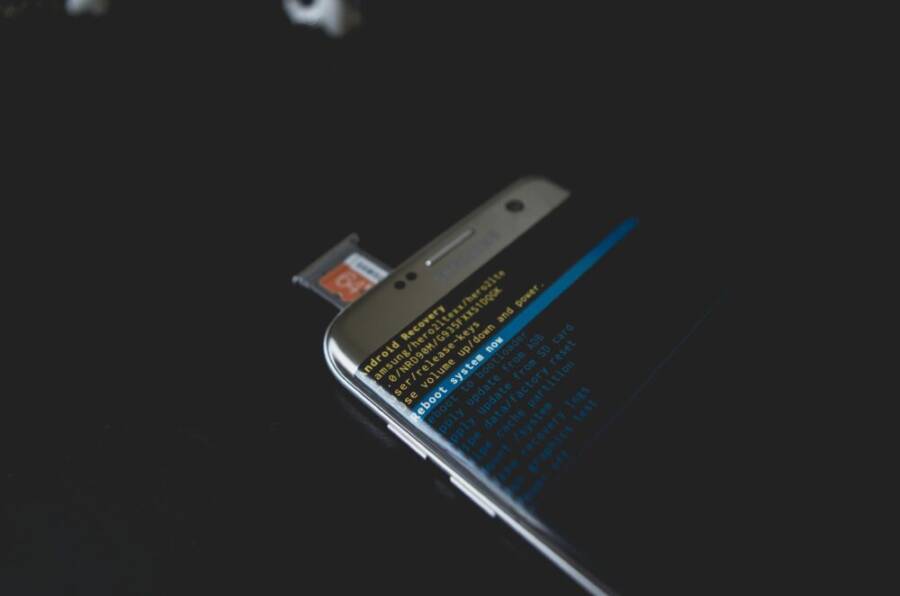
 Photo by Kelvin Valerio
Common backup issues and fixes
Backups can stall, run slowly, or fail due to storage limits or permission errors. Here are straightforward steps to diagnose and fix the most frequent problems.
- Backups stuck or not starting
- Check the network: a stable Wi Fi connection is essential. If the signal is weak, move closer to the router or switch to a more reliable network.
- Pause and resume: in Google Drive or Google One backup settings, toggle the backup off and back on to trigger a fresh run.
- Verify account status: sign out of the Google account on the device, then sign back in to reauthorize backup access.
- Update apps and OS: install any pending Android or iPhone updates and update the Google apps involved in the backup.
- Review app permissions: ensure the backup apps have permission to run in the background and access storage.
- Slow backups
- Prioritize essential data: turn off automatic backups for large media if you only need critical items saved.
- Use Wi Fi only mode: restrict backups to Wi Fi to avoid relying on mobile data, which can slow the process.
- Free up space: delete redundant files from Drive or move large media to Google Photos to reduce the backup payload.
- Check for network congestion: if multiple devices share the same network, pause others during the backup window.
- Insufficient storage in Drive or Google One
- Review what’s backed up: in Settings, inspect which apps and data are included and remove nonessential items.
- Rethink media storage: keep photos and videos in Google Photos, which often frees Drive space for documents and app data.
- Consider a plan upgrade: Google One offers larger storage options if you regularly hit the limit.
- Clean up Drive: delete duplicates and old backups you no longer need.
- Permission errors
- Re sign in: sign out and back into your Google account on the device to refresh permissions.
- Check device administrators: ensure the backup service is not blocked by device administrator settings.
- Confirm background activity: allow the backup app to run in the background and avoid battery optimization blocks.
- Specific tips for Android users
- Examine Auto Backup settings: ensure Auto Backup is enabled for the data types you care about.
- Photos and videos: use Google Photos as the primary media backup to reduce Drive usage.
- Specific tips for iPhone users
- Understand limits: iPhone backups to Google Drive are not full device backups; use Drive for files and Google Photos for media.
- Manual workflows: regularly export key contacts or documents to Drive if you want cross-platform access.
- Photo management: keep your photos in Google Photos for a more seamless cross-device experience.
For more troubleshooting guidance, these official resources are helpful:
- Fix common issues in Google Drive: https://support.google.com/drive/answer/2456903?hl=en
- Stuck on getting ready for backup and related fixes: https://support.google.com/photos/thread/235096732/stuck-on-getting-ready-for-backup?hl=en
- Google One backup guidance: https://support.google.com/googleone/answer/9149304?hl=en&co=GENIE.Platform%3DAndroid
- Android backup basics and Pixel restoration steps: https://support.google.com/android/answer/2819582?hl=en and https://support.google.com/pixelphone/answer/7179901?hl=en
External resources on space management and media handling:
- Auto Backup concept: https://developer.android.com/identity/data/autobackup
- Drive storage and management overview: https://support.google.com/googleone/answer/9312312?hl=en
Key takeaway: identify the symptom first—stalled backup, slow speed, or storage limits—and apply a targeted fix. A quick reboot, re sign in, and a review of backup scopes often resolves most issues.
Frequently asked questions
This quick FAQ covers common concerns about backing up Android and iPhone data to Google Drive and Google Photos. Answers are concise and actionable so you can act fast.
- Can iPhones back up to Google Drive
- Not as a full device backup. iPhone backups to Google Drive are manual and selective. Rely on iCloud for full device backups and use Drive for important files, contacts, and exported data. For media, Google Photos is usually the better cross-device option.
- How should I store photos across devices
- Use Google Photos as the primary media backup. Turn on Back up & sync and choose a high quality setting that fits your storage plan. Photos stay accessible across Android, iPhone, and the web.
- How do I move data to a new phone
- On Android, sign in with the same Google account during setup and choose the most recent backup to restore from.
- On iPhone, use Google Photos for media and Drive for essential files. For contacts, export a vCard to Drive or sync with Google Contacts on the web.
- If you switch ecosystems, keep iCloud or a local backup as your primary restore method and use Drive for cross-platform items.
- What data can be backed up automatically on Android
- App data and settings, contacts, call history, device settings, and sometimes SMS, with photos stored in Google Photos if you enable that path.
- What should I back up manually on iPhone
- Important documents, PDFs, contacts in a vCard, and select files you want to keep in Drive. Use Google Photos for all photos and videos.
- How can I know how much storage I’m using
- Open Google One or Google Drive, then check Storage. The app shows a breakdown by data type and helps you manage backups.
- Is there a cost for backups
- The free tier includes a basic amount of storage. If you exceed it, you’ll need a paid Google One plan to continue saving data. Compare plans at the Google One site.
- How secure are Google backups
- Google uses encryption in transit and at rest. Enable two factor authentication and review connected devices to keep your account protected.
- What if I need to restore later
- On Android, restore during device setup by choosing the most recent backup. Photos can be restored via Google Photos.
- On iPhone, restore from iCloud for the full device. Use Drive and Photos to re access manually saved files.
For further details on backups and storage, explore:
- How to back up your device with Google One on iPhone and iPad: https://support.google.com/googleone/answer/9149304?hl=en&co=GENIE.Platform%3DiOS
- Upload files to Google Drive from iPhone and iPad: https://support.google.com/drive/answer/2424368?hl=en&co=GENIE.Platform%3DiOS
- Back up photos and videos on iPhone and iPad: https://support.google.com/photos/answer/6193313?hl=en&co=GENIE.Platform%3DiOS
Section takeaway: you can rely on Google Drive and Google Photos for cross-device access to key files and media, while iCloud remains the primary tool for full iPhone backups. Use this section as a quick reference to troubleshoot and to answer the FAQs readers are most likely to ask. For broader guidance on storage and privacy, consult the Google One and Drive help centers:
- https://support.google.com/googleone/answer/9149304?hl=en&co=GENIE.Platform%3DAndroid
- https://support.google.com/drive/answer/2424368?hl=en
- https://support.google.com/photos/answer/6193313?hl=en
End of this section.
Conclusion
For Android users, backing up to Google Drive is straightforward: in Settings, open Google backup, enable Back up by Google Drive or Google One, pick the data you want saved, and run Back up now. Automatic backups run in the background when your device is charging and on Wi Fi, keeping app data, contacts, and device settings safe.
iPhone limits matter. A full system backup to Google Drive isn’t possible, so treat Drive and Google Photos as a manual, cross platform archive for files, contacts, and media. Rely on iCloud for a complete iPhone restore and use Drive for essential items you want accessible across devices.
Storage options matter. Start with the free tier and expand with Google One if your backups grow. Media is best kept in Google Photos to save Drive space while keeping your memories accessible.
Take a moment to check your backup settings now. Make sure your Google account is signed in, the right data types are selected, and your media is backed up in Photos. This quick check guards your data as your smartphone life evolves. If you have tips or questions, share them in the comments so others can learn.
She Pressed Play on a Strange Audio Track and Within Days Her Financial Reality Started Shifting in Ways She Could Not Explain
>>> See How It Works <<<
