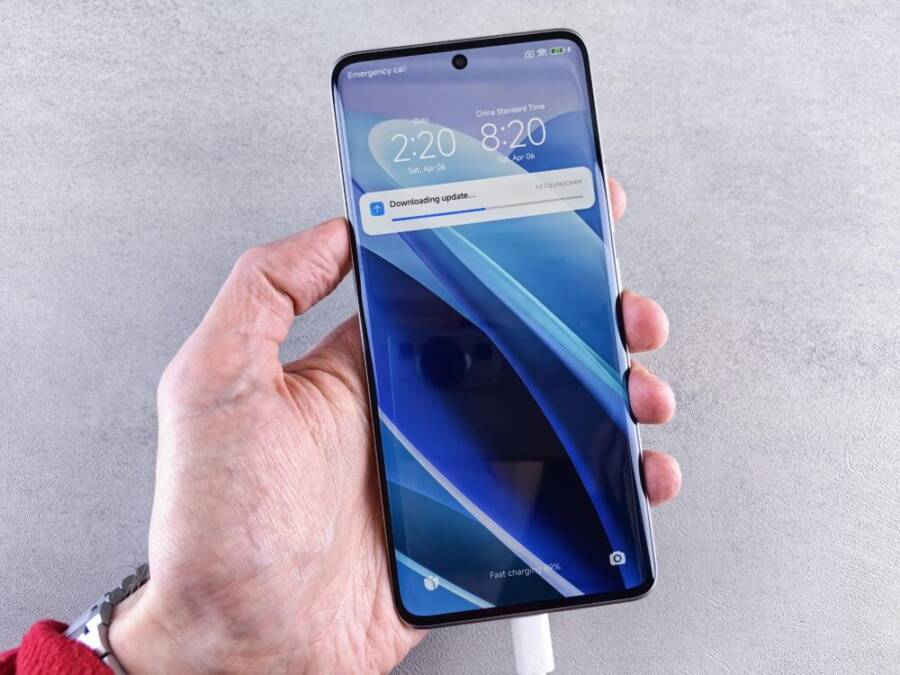
In a world where devices change as fast as apps update, a flexible phone setup saves time and money. This guide shows how to make hardware repairable, keep data portable, and build routines that adapt to new features without buying a new phone every year. Think of it as a practical plan for your smartphone to stay useful longer.
First, let’s talk about the big shifts that make flexibility possible. eSIMs let you switch carriers without swapping SIM cards, and USB-C has become the universal port for charging and data. Cross‑platform apps and cloud storage make your data ready to move between devices with ease, while built in AI assistants help you stay productive as new tools arrive. These trends together reduce friction when you upgrade or switch devices.
Next come simple, real world moves you can start today. If you want to switch carriers or travel internationally, eSIM profiles can be added instantly without a shop visit. When it’s time to upgrade, cloud storage and cross platform apps ensure your apps, settings, and files follow you to the next phone. A repairable design lets you replace a battery or screen without trashing the whole device, extending the life of your smartphone.
Finally, you’ll leave with a clear plan to stay flexible without chasing a yearly gear cycle. Choose devices that support repairability, favor cloud based workflows, and adopt habits that keep your data portable. By embracing these ideas, your phone setup remains nimble as tech changes, helping you stay connected and productive wherever you go.
Section: Create a hardware foundation that stays flexible as tech changes
Building a phone setup that stays useful as technology shifts means choosing parts you can fix or upgrade, not ones you must discard. A durable hardware foundation reduces waste and keeps your data portable across devices. The goal is a practical mix of repairability, adaptable features, and common standards that don’t lock you into a single model or ecosystem. Below are concrete steps and practical considerations to help you lay a flexible groundwork.
Choose repairable and upgrade friendly devices
A phone that opens easily or uses modular components tends to outlast its peers. When you can replace the battery, swap a camera module, or upgrade storage without a full teardown, you extend the device’s usable life. Look for devices with official repair guides and readily available replacement parts. A serviceable design matters more than raw specs because it translates into real world longevity.
Key considerations to guide your purchase:
- Repair guides and parts access: Seek brands that publish official repair manuals or partner with third-party repair sites. This makes DIY fixes straightforward and keeps costs down. Examples include devices with accessible parts and strong repair ecosystems.
- Battery and camera modules: Prioritize phones that offer replaceable batteries or modular camera components. A fresh battery can add years, while a modular camera can preserve image quality without replacing the whole phone.
- Serviceable design: A screw-based back, modular architecture, and clearly labeled components reduce the time and danger of repairs. A design that allows you to keep core components functional longer saves you money.
Practical reader checklist at purchase time:
- Is there an official repair guide available for this model?
- Are replacement parts (battery, screen, camera) readily available from reputable sources?
- Can a local shop or independent technician service the device without voiding the warranty?
- Does the phone use standard, widely supported connectors and parts?
- Is there a readily documented path to a battery or screen replacement without specialized tools?
If you want to explore real-world repairability, check the options from reputable outlets that publish repair guides and part availability, such as iFixit and brand-specific repair resources. These resources help you verify repairability before you buy. For example, you can find genuine parts and repair kits for Google Pixel devices, and you’ll see how a repair-friendly design compares across models. See more about repairable options from Fairphone and Pixel projects to understand what a truly serviceable design looks like.
- Google Pixel parts and repair kits: https://www.ifixit.com/Parts/Google_Phone
- Fairphone repair resources: https://www.ifixit.com/Device/Fairphone
- Smartphone repairability scores and insights: https://www.ifixit.com/repairability/smartphone-repairability-scores
In addition to individual parts, consider overall ecosystem support. Some brands offer longer software support windows, replacement parts availability, and published service manuals that help you keep a device running longer. This aligns with the goal of a flexible hardware foundation that adapts as tech changes.
Use eSIM and multi profile setups
eSIMs unlock real flexibility without changing a physical card. They let you switch carriers or add a second line directly on your phone, which is ideal for travel, school, and family plans. With eSIMs, you can manage multiple profiles on a single device, avoiding the clutter of physical SIM swapping and keeping your setup ready for new plans or regions.
How eSIMs benefit different users:
- Travelers can add a local data plan without hunting for a SIM tray, making trips smoother and more affordable.
- Students can switch plans between semesters or roommates without a new SIM, simplifying billing and access.
- Families can maintain shared devices with separate profiles for each user, keeping personal numbers private and easy to manage.
Steps to enable eSIM on common devices (quick guide):
- Open Settings and go to Cellular or Mobile Data.
- Choose Add Cellular Plan or Setup Cellular.
- Scan the QR code provided by your carrier or enter the activation details manually.
- Name each plan (for example, “Home Carrier,” “Travel eSIM”) and set a default line if needed.
- Manage which apps and services use a particular line for calls, texts, and data.
Tips for managing multiple profiles on one phone:
- Title each eSIM or profile clearly so you can identify them at a glance.
- Keep at least one primary plan for essential services and a secondary plan for data or travel.
- Use a quick switch method in settings to toggle between profiles when needed.
- Periodically review and remove unused profiles to keep the device lean and secure.
This approach supports a flexible phone setup by allowing you to adapt to new carriers, regional restrictions, and changing data needs without buying a new device. For a deeper dive into eSIM setup across devices, see practical guides from Apple and independent resources. Useful guides include:
- Set up eSIM on iPhone: https://support.apple.com/en-us/118669
- How to switch between eSIMs: https://www.getnomad.app/blog/how-to-switch-between-esims
- Step-by-step eSIM activation on iPhone and Android: https://maya.net/travel/activate-esim-on-iphones-and-android/
Stick to universal charging and USB-C where possible
USB-C is becoming the shared language of charging and data. When you standardize on USB-C across devices, you cut cable clutter and gain the ability to borrow chargers from friends or family without hunting compatible adapters. This approach also reduces waste and helps future-proof your setup as more devices use the same port.
Why USB-C matters:
- Cable and charger consolidation: One charger can power phones, tablets, headphones, and even some laptops.
- Wider compatibility: USB-C adapters and hubs are plentiful, making it easier to connect peripherals on the go.
- Future-proofing: As more devices adopt USB-C, you’ll spend less time chasing proprietary cables for new gadgets.
Tips for building a small universal charging kit:
- Start with a compact wall charger that includes a USB-C PD port and at least one USB-C to USB-C cable.
- Add a second USB-C cable and a USB-A to USB-C adapter for older devices or public USB ports.
- Keep a small travel power strip with USB-C PD to charge multiple devices in one place.
- Test chargers for compatibility before relying on them on trips or tight schedules.
How to check charger compatibility:
- Confirm the device supports USB-C charging and, if possible, USB Power Delivery (PD).
- Check the power rating of the charger (the higher the wattage, the faster compatible charging will be).
- Look for certified cables that support PD for safe and efficient charging.
Future proofing through standardization helps when you upgrade devices. If you stay with USB-C for both charging and data, switching phones becomes simpler. You’ll be able to reuse chargers and cables across phones, tablets, and laptops, avoiding a tangle of different connectors.
In summary, a flexible charging setup reduces friction when you upgrade your phone or add new devices. By prioritizing USB-C compatibility and a modular kit, you’ll stay ready for the next generation of devices.
- For concrete examples of repairable devices and repair ecosystems, explore the resources listed above. They illustrate how repairability and standardized charging come together in real products and guides.
Links for further reading
- iFixit repair parts for Google Pixel: https://www.ifixit.com/Parts/Google_Phone
- Fairphone repair resources: https://www.ifixit.com/Device/Fairphone
- Smartphone repairability scores: https://www.ifixit.com/repairability/smartphone-repairability-scores
- Set up eSIM on iPhone: https://support.apple.com/en-us/118669
- How to switch between eSIMs: https://www.getnomad.app/blog/how-to-switch-between-esims
- Activate eSIM on iPhones and Android: https://maya.net/travel/activate-esim-on-iphones-and-android/
By focusing on repairability, multi profile eSIM setups, and universal charging, you create a hardware foundation that remains useful even as new features arrive. Your smartphone becomes a long-term tool rather than a yearly purchase, helping you stay productive and connected through every upgrade.
Use cross platform apps and cloud storage
A flexible phone setup relies on data that moves with you, not trapped inside a single device. Cross platform apps and cloud storage let you pick up where you left off on Android, iOS, or a computer. They reduce friction when you switch devices or share with family, and they keep your work and memories in one accessible place. The goal is a consistent experience no matter which device you use.
Cross platform apps save you from duplicating effort. When your notes, documents, and media live in the same ecosystem across platforms, you don’t waste time syncing by hand or re-creating files. For example, a single note app can capture ideas on your phone, then show the same notes on your tablet and computer. This consistency is especially helpful for families sharing a device or when a teammate needs to review content from a different device.
Cloud storage is the backbone of portable data. It syncs photos, files, and even notes across all your devices. That means your latest photo library, project files, and voice memos are available wherever you are. Choose cloud services that sync automatically and work reliably on Android, iOS, and web/desktop. For a balanced mix of speed, security, and compatibility, consider services that offer cross device apps and browser access, so you aren’t locked into one platform.
When you rely on cross platform apps and cloud storage, you gain practical benefits in everyday life. You can share a project with a teammate in real time, back up trip photos to a shared folder, or review a family calendar from a tablet while traveling. If you’re planning a trip or a busy week, this approach keeps everyone synced and reduces the amount of manual file handoffs. For a quick starting point, explore these reliable cloud options that consistently sync across devices and offer web access to your files:
- The best cloud storage and file sharing services for 2025
- Cloud storage apps that work on every device
To see how these tools fit into real workflows, check out in depth guides and reviews on cross platform apps and cloud services. You’ll find practical comparisons, setup tips, and user experiences that translate into smoother device transitions and more productive sharing.
Suggested reading and sources:
- The Best Cloud Storage and File-Sharing Services for 2025: https://www.pcmag.com/picks/the-best-cloud-storage-and-file-sharing-services
- The 11 best cloud storage apps in 2025: https://zapier.com/blog/best-cloud-storage-apps/
- Best cross platform note taking apps for 2024: https://codewave.com/insights/best-cross-platform-note-taking-app-review/
If you want a privacy-centered option, consider services with strong end-to-end encryption and transparent practices. A well chosen cloud setup reduces the risk of data silos and makes it easier to recover from device loss or failure. As you select apps and services, look for:
- Consistent multi platform support (Android, iOS, web, desktop)
- Reliable automatic syncing with real time updates
- Clear file organization and search features
- Transparent security and backup policies
In short, cross platform apps plus cloud storage create a seamless foundation for a flexible phone setup. Your data remains portable, your workflows stay intact, and you can enjoy a smooth handoff between devices.
Organize data for easy transfer between devices
A consistent data structure speeds up transfers and restores. Start with a simple, predictable folder system and file naming rules, then extend those habits to exports of important data. When files are well organized, you can locate them fast and move them to a new device without guesswork.
Simple folder system and naming rules
- Use a top level folder per project or life area (Work, Personal, Travel, Finances).
- Within each folder, create subfolders for major categories (Documents, Images, Audio, Backups).
- Name files with a clear, date inclusive format (YYYY-MM-DD_Project-Description_Version.ext).
- Avoid special characters that can confuse different platforms.
Consistent tagging and categorization
- Tag critical assets (e.g., “Invoice,” “PassportPhoto,” “Tax2024”) to enable quick finds later.
- Use color codes or emoji sparingly to highlight priority items in your file explorer.
- Create a short, universal tagging glossary so everyone on your network uses the same terms.
Regular exports of important data
- Schedule a quarterly export of essential files and notes to a separate archive.
- Keep a small offline snapshot of your most important items on a USB drive or local NAS as a backup buffer.
- Verify that exports maintain file integrity and can be opened on other devices.
Why data portability matters
- If a device fails or you upgrade, your content moves with you instead of staying behind.
- Sharing with family becomes frictionless when everyone can access the same folder structure and tags.
- You build a personal knowledge base that travels with you, not the device.
Practical example
- A travel folder with subfolders for Itinerary, Tickets, Photos, and Receipts. Each photo is named with date and location, notes are saved in a cross platform note app, and exported PDFs of tickets are stored in the Tickets subfolder. This makes it easy to transfer everything to a new phone or computer without reorganization.
Tools and tips
- Use a cloud service with strong search and tagging support to keep data accessible across devices.
- Align your naming conventions with your most used search terms to speed up retrieval.
- Schedule regular cleanups to remove duplicates and outdated files.
Where to start
- Pick a primary cloud service with good cross platform availability and set up your main folder structure there.
- Create a simple naming rule and apply it to new files.
- Tag important assets as you create or save them.
Links for further guidance and examples:
- Cloud storage options and cross device syncing: https://www.pcmag.com/picks/the-best-cloud-storage-and-file-sharing-services
- Cloud storage apps that work on every device: https://zapier.com/blog/best-cloud-storage-apps/
Tagging and categorization are tiny changes with big payoffs. They reduce time spent searching and increase confidence that you can move data between devices quickly. When your files are easy to locate, you’ll feel lighter during device upgrades or when sharing with family.
Set up simple backups and syncing routines
Backups and syncing routines guard your data against loss and make device changes painless. A light, disciplined cadence keeps things current without feeling like a chore. Think of backups as a safety net and syncing as a live mirror of your everyday life.
Basic backup cadence
- Weekly backups cover routine changes and new files.
- After major changes like a large photo dump or a new project, run a backup to capture the update.
- For critical data, set a quick monthly check to verify backups are intact.
Local backups vs cloud backups
- Local backups provide quick restores and are useful when you have limited internet access.
- Cloud backups protect you from device loss and theft, and enable access from anywhere.
- A combination of both gives you speed and safety. A local backup for on the go, plus cloud backups for peace of mind.
Verifying data restore
- Periodically test restores to ensure you can actually recover data.
- For photos, try restoring a few albums to a secondary device and confirm file integrity.
- For notes and documents, confirm that the most recent edits reappear as expected.
Tips for photos, contacts, and app data syncing
- Photos: Enable automatic photo backups to your cloud service and organize with albums by event or date.
- Contacts: Use a cloud based contacts service to keep numbers current across devices.
- App data: Some apps offer their own sync, while others rely on the system account. Make sure you’re signed in with the same account across devices to keep settings consistent.
A practical routine
- Sunday evening: run a weekly backup of important data.
- After any trip or project milestone: export and back up the latest files.
- Monthly: review sync settings, clear duplicates, and prune unused items.
Trusted resources for backup and sync guidance
- Cloud storage and backup options overview: https://www.cnet.com/tech/services-and-software/best-cloud-storage-software-options/
- Secure cloud storage options: https://www.sync.com/en/
By keeping backups simple and syncing routines straightforward, you minimize downtime when devices change. Your data stays protected and accessible, no matter which phone or computer you use next.
Stay ready for new features and ecosystems
Technology shifts fast, but you can stay ahead by building a plan that welcomes new features without chaos. This section focuses on testing new tools safely, protecting privacy as you explore, and keeping data portable across devices and ecosystems. Think of your phone as a flexible hub that adapts to evolving standards like repairable hardware, eSIM, USB-C, and cloud-centric workflows. The goal is to enjoy early access to useful features while minimizing risk and friction.
Enable and test new features safely
Test one feature at a time to isolate its effects on performance and battery life. Start with a backup so you can revert quickly if something goes wrong. Use a simple, repeatable testing checklist to verify functionality and comfort level with the change.
- Backup first: create a full device backup before enabling anything new.
- Activate one feature at a time: AI helpers, privacy controls, new gestures, or a fresh accessibility option.
- Measure impact: check battery drain, heat levels, and app responsiveness after 24 hours.
- Validate core functions: phone calls, messaging, camera, and biometric unlock should remain reliable.
- Document results: note initial impressions, positives, and any drawbacks.
Simple testing checklist you can reuse:
- AI helpers: Do they improve efficiency without distracting you? Any lag in responses?
- Privacy controls: Are the default permissions sensible for your daily use?
- New gestures: Are gestures intuitive and easily discoverable?
- App performance: Do your most-used apps load normally and run smoothly?
- Battery and heat: Any noticeable change in endurance or device temperature?
When testing, a small, steady approach pays off. If a feature feels off, disable it and reassess before re-enabling later. For a broader framework on testing mobile features, see industry checklists and practical guides like mobile testing and accessibility resources. Link examples to trusted sources and consider checking for accessibility guidelines during testing to ensure inclusive feature use. For example, you can review iPhone and Android feature testing tips here: Move content manually from your Android device to iPhone and Switching From Android to iPhone? How to Easily Transfer Your Data.
Photo to illustrate this phase:
 Photo by Andrey Matveev
Check privacy and security when adding features
As you add new capabilities, review app permissions and tighten data sharing. A cautious approach keeps your important information safe while you explore.
- Audit permissions: regularly review which apps can access location, contacts, photos, microphone, and camera.
- Limit data sharing: avoid enabling broad data collection when it’s not essential.
- Strengthen device security: enable a strong screen lock, biometric unlock, and Finder/Find My style features to locate a lost device.
- Use privacy features: opt for on-device processing when possible and disable unnecessary analytics.
Easy steps to review and adjust settings:
- Android: Settings > Apps & notifications > App permissions. Revoke any unnecessary access.
- iPhone: Settings > Privacy > choose each category (Location, Contacts, Photos, Camera, Microphone) and manage access.
- Regular checks: set a quarterly privacy review to confirm permissions align with your current usage.
A privacy-aware setup doesn’t slow you down. It simply reduces risk while you explore new tools. For practical security checklists, consult official guidance on app permissions and security practices. Useful resources include Android privacy settings and privacy management guides, plus security checklists for mobile apps. Links to reference material include Android privacy settings and general mobile security checklists for iOS and Android.
Photo to illustrate this phase:
Photo by Andrey Matveev
Plan for data portability across devices
A portable data strategy makes upgrading or switching platforms painless. The idea is simple: your contacts, photos, notes, and documents should move with you, not get stuck on one device.
- Export contacts, photos, notes regularly.
- Use cross‑platform apps that sync across Android, iOS, and desktop.
- Prepare a smooth import path for new devices.
Steps to keep data portable:
- Export contacts and calendars from your current device to a standard format (VCF for contacts, ICS for calendars).
- Save photos and documents to a cloud service with cross‑device access.
- Pick a note app that works on all platforms and enables two‑way syncing.
- When you switch devices, import contacts and calendars, then sign into your cloud accounts to restore apps and files.
A practical workflow is to keep a small, portable backup of essential items on a USB drive or a local NAS for quick restores when traveling or in areas with limited connectivity. For background reading on data portability across devices, check resources about switching between Android and iPhone and exporting key data. Examples include guides to moving content between platforms and transferring data securely. See recommended guides here: Switch From iPhone to Android Seamlessly, Move content manually from Android to iPhone, and Switching From Android to iPhone? How to Easily Transfer Your Data.
Photo to illustrate this phase:
Photo by Andrey Matveev
Organize data for easy transfer between devices
A consistent data structure makes transfers painless. Start with a simple folder plan and apply it to everything you export.
- Create a top level for Work, Personal, Travel, and Finances.
- Use clear subfolders for Documents, Images, Audio, and Backups.
- Name files with a predictable format like YYYY-MM-DD_Project-Description.ext.
- Keep a short glossary for tagging so everyone uses the same terms.
Tagging and consistent naming speed up finds and transfers. Regular exports and a small offline backup improve resilience if you ever lose a device. A travel example helps illustrate the approach: a folder for Itinerary, Tickets, Photos, and Receipts, with photos named by date and place, notes saved in a cross‑platform app, and PDFs stored in Tickets.
Useful reading and examples:
- The Best Cloud Storage and File Sharing Services for 2025
- Cloud storage apps that work on every device
If you want to explore this topic in more depth, the following sources provide practical guidance on organizing data and choosing portable cloud solutions: The Best Cloud Storage and File Sharing Services for 2025, Cloud storage apps that work on every device.
Photo to illustrate this phase:
Photo by Andrey Matveev
Set up simple backups and syncing routines
Backups and syncing keep you from scrambling during a device change. A light cadence is enough to stay current without overhead.
- Basic cadence: weekly backups, plus quick backups after big changes.
- Local vs cloud: use both for speed and safety.
- Verify restores: periodically test that you can recover data.
Practical routines you can adopt:
- Sunday evening: run a weekly backup of important data.
- After a trip or big project: export and back up the latest files.
- Monthly: review sync settings and prune duplicates.
Trusted resources for backup and sync guidance:
- Cloud storage and backup options overview
- Secure cloud storage options
By keeping backups simple and syncing routines straightforward, you minimize downtime when devices change. Your data stays protected and accessible, no matter which phone or computer you use next.
Photo to illustrate this phase:
Photo by Andrey Matveev
External reading and resources referenced in this section (for deeper exploration)
- The Only Mobile App Testing Checklist To Release App: https://www.globalapptesting.com/blog/mobile-testing-checklist
- Ultimate Mobile App Testing Checklist for Developers & …: https://dev.to/morrismoses149/ultimate-mobile-app-testing-checklist-for-developers-testers-2499
- Mobile Accessibility Testing: Guidelines, Tools, and Best …: https://www.browserstack.com/guide/accessibility-testing-for-mobile-apps
- Set up eSIM on iPhone: https://support.apple.com/en-us/118669
- How to switch between eSIMs: https://www.getnomad.app/blog/how-to-switch-between-esims
- Activate eSIM on iPhones and Android: https://maya.net/travel/activate-esim-on-iphones-and-android/
Practical routines to maintain flexibility
A flexible phone setup stays useful as hardware and software evolve. These practical routines help you keep your device ready for new features, while protecting your data and simplifying upgrades. Think of it as a maintenance plan for your smartphone that saves time and money in the long run. Below you’ll find concise, repeatable tasks you can perform weekly, plus templates and a budgeting plan to support future upgrades and accessories.
Weekly checks and updates for apps and OS
A simple weekly routine keeps your phone secure, fast, and reliable. Start by updating all apps and the operating system if a patch is available. This minimizes security gaps and compatibility problems when new features arrive.
- Update apps first: open the app store, review pending updates, and install them. This reduces the risk of crashes tied to older app versions.
- Review permissions: scan which apps have access to location, contacts, photos, mic, and camera. Revoke anything that isn’t essential.
- Clear cache if needed: a quick cache purge can smooth out slowdowns on Android devices. It’s not usually necessary on iOS, but removing stale data can help some apps feel snappier.
- Test essential functions: place a quick call, send a text, and check camera performance on your main device. If any service misbehaves, note it and check for app updates or settings reversions.
Why this matters for a flexible smartphone setup: keeping software lean helps you move between devices more easily. When you swap to a newer model or switch ecosystems, you’re not carrying over a pile of outdated app data or permission baggage. For practical guidance on cache management and routine maintenance, see resources that cover Android and iOS maintenance approaches, such as how to clear cache and keep Android devices running smoothly. These practices ensure you’re always ready to switch devices or adopt new features without friction.
- Google Play and iOS app update basics: https://www.makeuseof.com/follow-these-steps-to-keep-your-phone-running-like-new/
Create templates for settings and shortcuts
Templates speed up setup on a new device and reduce the time you spend fiddling with basic configurations. A well-designed template covers home screen layout, notification controls, and quick access to essential apps. When you restore from a template, you land in a familiar, productive state instead of starting from scratch.
- Home screen layout templates: define a grid that fits your routine, with essential apps in the first row and frequently used widgets placed where you can reach them quickly.
- Notification controls: set priority alerts for calls and messages, mute non-urgent apps, and create quiet hours to protect focus.
- Quick access to important apps: place banking, messaging, maps, and a trusted browser in convenient positions. A single tap should get you where you need to go.
Why templates save time: they reduce setup time and help you keep a consistent workflow across devices. If you upgrade or switch to a new OS, you can apply the same template and regain your familiar layout in minutes. For those who customize Android home screens, templates are a practical way to maintain consistency across phones. Look at how top Android users organize the home screen and shortcuts to design your own efficient template. For example, you can arrange essential apps and widgets to mirror your daily routine.
Helpful resources for home screen and shortcuts:
- How to customize your Android home screen like a pro: https://www.techtimes.com/articles/312653/20251112/how-customize-your-android-home-screen-like-pro-best-widget-setup-icon-pack-ideas.htm
- Add apps, shortcuts & widgets to your Home screens: https://support.google.com/android/answer/9450271?hl=en
Budget for future device upgrades and accessories
A small, steady saving plan keeps you ready for upgrades, spare parts, and versatile accessories. Set a monthly target and map out a practical shopping list so you don’t scramble when a repair or new feature becomes important.
- Monthly savings target: aim to set aside a fixed amount for upcoming needs. For many, $25–$60 monthly covers a reasonable upgrade cycle and parts kit over a couple of years.
- Spare parts fund: reserve money specifically for batteries, screens, and other consumables that wear out first.
- Versatile accessories: prioritize items that survive tech changes, such as USB-C cables, multi-port hubs, and portable chargers with PD compatibility.
Shopping checklist to stay prepared:
- Repair parts: battery, display, camera module, and common wear items should be readily available from reputable sources.
- Tools: basic toolkit, spudger, and screwdrivers designed for electronics.
- Universal cables: USB-C PD cables, adapters for older devices, and a compact power strip for travel.
- Protectors and cases: rugged cases or modular cases that can adapt to different devices.
A practical monthly target helps you plan without stress. For example, saving $40 a month achieves $480 in a year, enough for two to three key upgrades or a full spare parts set, depending on the model. When choosing accessories, look for components that stay useful as devices evolve. USB-C, interchangeable cables, and modular charging solutions help you avoid buying new hardware every cycle.
Real-world examples of upgrade readiness:
- A repairable device plus a spare battery and screen kit covers typical wear and extends life.
- A universal charging kit reduces cable clutter and simplifies travel.
- Cloud-first workflows mean you can move data to the next phone easily, reducing the temptation to upgrade purely for software features.
Useful sources for shopping guidance and repair parts:
- Google Pixel parts and repair kits: https://www.ifixit.com/Parts/Google_Phone
- Fairphone repair resources: https://www.ifixit.com/Device/Fairphone
By building a steady savings habit and choosing versatile accessories, you keep your options open as tech changes. You won’t be forced into a yearly device cycle, and you’ll have the parts and cables you need when something wears out.
Section-specific notes
- The templates and budgeting guidance are designed to be practical and actionable. They align with a philosophy of data portability and repairability, so you can keep data portable across devices and minimize waste.
Links for further reading and practical guidance
- The Best Cloud Storage and File Sharing Services for 2025: https://www.pcmag.com/picks/the-best-cloud-storage-and-file-sharing-services
- Cloud storage apps that work on every device: https://zapier.com/blog/best-cloud-storage-apps/
Final takeaways for this section
- Maintain a weekly rhythm to keep apps and OS healthy.
- Use templates to speed up new device setup and keep workflows consistent.
- Build a small, predictable budget for upgrades and spare parts to avoid rushed purchases.
In the next sections, you’ll learn how to keep data portable across devices and stay prepared for new ecosystems without losing control of your setup. The goal is a smartphone that stays useful as technology shifts, not a device you replace every year. For a deeper dive into cross‑platform workflows and data portability, explore the linked guides and trusted resources.
Conclusion
A flexible phone setup saves time and money by focusing on repairable hardware, portable data, and openness to new features. Build a repairable hardware base so parts and batteries stay accessible, and keep data moving with cloud and cross‑platform apps. Stay ready for new ecosystems by testing features carefully and keeping privacy controls tight. Maintain simple routines for backups, templates, and budgeting so upgrades feel planned rather than forced.
Try one tip this week, such as enabling a second eSIM profile for travel or setting up a portable cloud workspace. Share your own strategies in the comments so others can borrow the idea and tailor it to their smartphone lives.