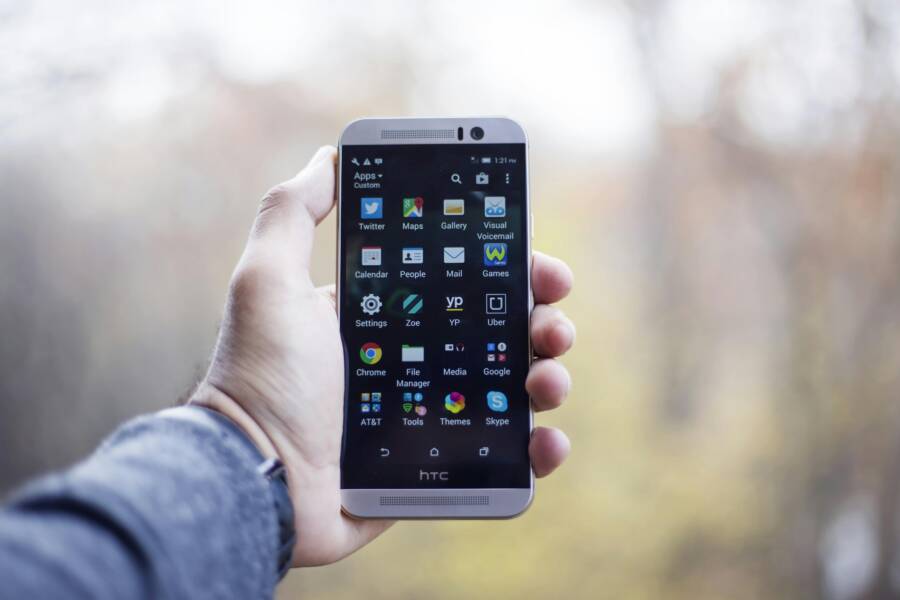
When sound comes from your phone, you expect it to come evenly from both sides. If the left speaker is louder or the right one is silent, it can turn calls, videos, and music into a frustrating experience. This guide walks you through clear steps to identify whether the issue is software related, a loose setting, or a hardware problem. You’ll learn practical checks you can perform at home and when to seek professional help.
Introduction
A shift in speaker balance can feel like a silent glitch in your daily routine. The cause might be simple, such as a wrong setting, a stuck audio channel, or a small piece of debris blocking a speaker grille. On the other hand, it could signal something more serious like water exposure or damaged hardware. This article covers both phones and smartphones in general, with practical steps you can take no matter the brand. The goal is to restore even sound quickly and avoid unnecessary repairs.
Common Causes of Left or Right Speaker Imbalance
- Software settings that favor one channel. A disabled or misconfigured balance slider, or mono audio mode, can make sound skew to one side.
- App or system audio routing glitches. Some apps override general sound settings or misroute audio to a single speaker.
- Debris or moisture in the speaker grills. Dust, lint, or water residue can dampen one speaker and shift the sound balance.
- Hardware damage. A dropped phone, loose internal connections, or a damaged speaker module can cause lasting imbalance.
- External accessories or connections. A faulty headphone adapter, Bluetooth audio routing, or a misbehaving speaker dock can leave the phone playing through a single path.
- Firmware or OS bugs after updates. Occasionally a software update alters audio routing or lowers the sensitivity of a speaker.
Quick checks you can do right away are often enough to rule out most software related issues. If you find nothing there, the problem may be hardware related.
Guided checks you can perform now
- Test with both speakers: Play a ringtone, a short video sound, and a music clip. Listen for which side dominates. If one side is clearly louder, start with settings first.
- Use different apps: Some apps can cause audio routing quirks. Try a video player, a voice memo, and a game with sound. If the imbalance shifts with the app, a software issue is likely.
- Check Bluetooth: If your phone is connected to a Bluetooth device, audio may route differently. Disconnect and test through the phone’s own speaker to verify.
- Inspect for moisture or debris: Look at the speaker grills. If you see dust or lint, gently clean with a dry, soft brush. If moisture is suspected, wipe the area and wait for it to dry before testing again.
- Restart the phone: A simple reboot clears temporary glitches in many cases.
- Update the software: Ensure your OS and essential apps are up to date. Developers fix audio issues in patches as they appear.
Step-by-Step Troubleshooting Flow for iPhone and Android
For most readers, a language simple approach helps. The steps below apply regardless of brand, with notes for iPhone and Android where relevant.
Step 1: Check the key accessibility setting and audio balance
- On iPhone: Open Settings, then Accessibility, then Audio/Visual. Look for Mono Audio and the Balance slider. If Mono Audio is on or the slider is off center, switch it off and set the balance to the middle.
- On Android: Open Settings, Accessibility, then Hearing or Audio. Find Mono audio or Balance. Make sure Mono is off and the left-right balance is centered. If you find a misalignment, fix it and test again.
Step 2: Test in safer software environments
- Soft reset and safe mode help isolate software issues. On iPhone, a quick reset does not wipe data. For Android, boot into Safe Mode to disable third-party apps briefly.
- In safe mode, play sounds from the system app and a couple of native features like the clock alarm and a video clip. If balance remains even in safe mode, a third-party app is not to blame.
Step 3: Clean and inspect the hardware
- Power off the device before you touch it. Remove any case that might cover the speaker grills.
- Use a microfiber cloth to wipe the grills. If debris remains, a soft brush or compressed air can help. Be gentle, and avoid pressing too hard.
- Look for signs of water exposure. In many phones a visible indicator within the SIM tray or a dedicated sensor will show moisture. If you see water damage, stop using the device and seek professional help.
Step 4: Isolate the problem with a wired test
- Use a wired speaker system or earbuds to determine if the issue is only with the built-in speaker. If both external devices and the phone’s own speaker show the same imbalance, the issue is likely within the device itself. If external devices sound fine, the problem may be with the built-in speaker.
- Try a different playback source. A different video app or a game can help confirm consistency across media.
Step 5: Review recent changes
- Have you updated the OS recently? If yes, check online forums or the manufacturer support pages for known audio issues tied to that version.
- Have you installed any new accessibility apps or audio tweaks? If so, remove or disable them to see if balance returns to normal.
Step 6: Reset network and software settings as a last software option
- On iPhone, you can reset settings without erasing data. Go to Settings, General, Transfer or Reset iPhone, then Reset, and choose Reset All Settings. This resets Wi Fi, location, and privacy settings as well as audio routing preferences, but keeps your data intact.
- On Android, you may reset settings or perform a factory reset as a last resort. Factory reset erases data, so back up first.
Step 7: When to seek professional help
- Hardware signs: crackling, buzzing, or a consistent one sided sound with no change after resets.
- Water damage or corrosion: if moisture has entered the device or you see corrosion on the speaker port.
- After all software options are exhausted and the problem persists.
What to Expect From a Repair
If the issue is hardware related, expect one of these outcomes:
- Speaker replacement: A damaged speaker module is swapped for a new one. This is common if testing shows one channel is dead or if there is visible damage.
- Internal cable check: A loose cable or connector can cause uneven sound. A technician will reseat or replace affected cables.
- Cleaning and reassembly: If debris caused the imbalance, technicians clean the speaker path and reassemble carefully.
- Diagnostic test: A post repair test runs the same audio tests you did at home to confirm balance is restored.
In many cases a factory reset or software update can fix a balance issue if it originates from software. But if the sound problem remains after a full software refresh, it’s almost always a hardware issue.
Preventive tips to protect speaker balance
- Keep the phone away from moisture. If you expose your phone to water, dry it promptly and avoid charging while damp.
- Use a protective case with a snug fit. A case that presses on the speaker area can create misalignment or block airflow.
- Clean regularly but gently. A light cleaning every few weeks reduces dust build up that can affect sound.
- Handle the device with care. Dropping it or sitting on it can damage internal components and shift the balance.
- Be mindful of accessories. Cheap adapters and poor quality cables can introduce audio routing issues.
A few practical tests you can perform periodically
- Regular sound test: Play a short, varied audio track and listen for any recurring imbalance. Do this after updates or if you notice a change.
- Speaker grill check: While the phone is idle, lightly tap around the grills. A crackling sound or inconsistency can indicate a loose component that needs attention.
- App check: If you use a specific app often, test its audio with and without the app running in the background to see if it affects balance.
Optional checks for different phone ecosystems
- For iPhone users: If you still hear an imbalance after all steps, consider restoring the phone through iTunes or Finder on a clean backup. This ensures a complete software refresh beyond simple settings.
- For Android users: If your device supports a hardware test menu, run the speaker test directly from the hardware diagnostics. This tool helps confirm which speaker is at fault.
Guardrails for a swift fix
- Don’t push the speaker grills while testing. Forcing a tighter seal can cause more damage.
- Avoid DIY fixes beyond cleaning. If you hear crackling or see visible distortion, stop and seek professional help.
- Back up important data before any reset or repair. A clean restore is safer than risking data loss.
Conclusion
A phone with uneven speaker balance can feel like a small puzzle, but the path to a fix is straightforward. Start with software checks, move to controlled hardware tests, and then assess whether a repair is needed. Most balance issues are solvable without a full teardown, especially when you rule out software misrouting and debris. If the problem persists after careful testing, a professional repair is the safest course. You’ll recover balanced sound, whether you’re listening to music, taking calls, or watching videos on your smartphone.
Takeaway tips to remember
- Start with the simplest check: adjust the balance and turn off mono audio if it’s on.
- Clean the speaker grills gently and test with multiple audio sources.
- If software steps fail, test with wired audio to separate device from hardware.
- Reserve a repair for confirmed hardware issues or moisture exposure.
With these steps, you can restore balanced sound on your phone and keep your smartphone experience smooth. If you encounter terms you don’t recognize during testing, note them and look up model specific guides from the manufacturer. A calm, methodical approach saves time and protects your device.
Would you like a quick checklist you can print or save as a reminder for future reference?