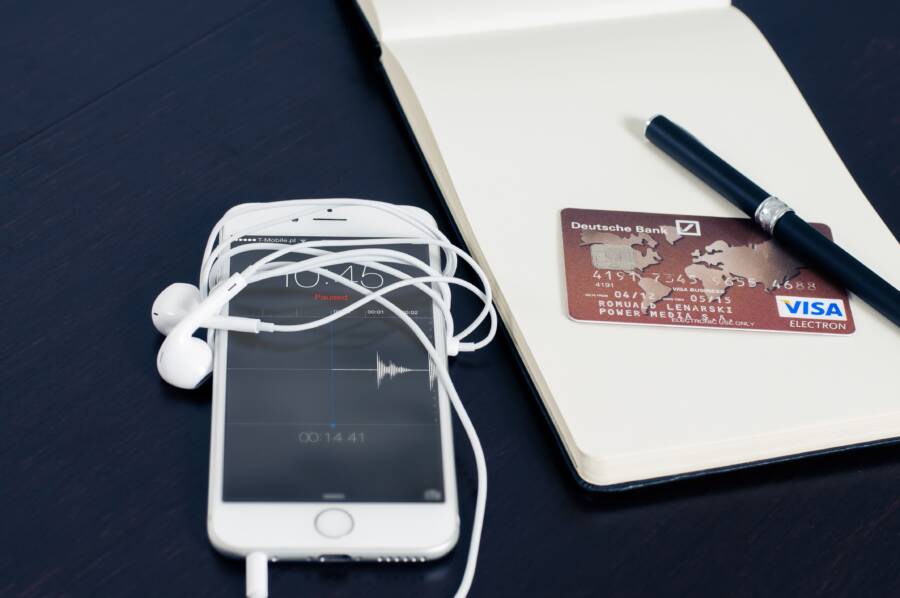
When your wallet app repeatedly asks for identity verification, it usually happens because of a misconfigured security setting or a temporary sync error between your payment provider and your smartphone. You don’t have a broken device, and you don’t need to replace your hardware to stop these constant prompts.
These verification loops occur when your security token expires prematurely or your payment network requires a re-authentication handshake that fails to save properly. Often, a quick refresh of your account sync settings or a simple app update clears the conflict for good.
Let’s look at the specific steps to stabilize your payment settings and keep your digital wallet ready for use.
Why Your Wallet App Keeps Asking for Verification
Your smartphone is a vault for sensitive payment information, so the app often errs on the side of extreme caution. When you receive repeated prompts for verification, the system is attempting to confirm that you are the authorized owner of the linked cards. This process acts as a digital checkpoint, ensuring that unauthorized individuals cannot use your stored credentials. While these interruptions feel annoying, they often stem from specific security protocols triggered by your bank or the operating system.
Security Token Expiration
Each card you add to your digital wallet uses a unique token rather than your actual credit card number. This tokenization protects your privacy during transactions by masking your real account details. Sometimes, these tokens expire or become invalidated by your financial institution for security maintenance. When the token is no longer recognized by the merchant terminal, your smartphone initiates a re-verification request to issue a fresh token for your account.
Bank Fraud Protection Policies
Financial institutions monitor transaction patterns to identify potential theft. If you recently traveled to a new location, made a large purchase, or added your card to a new device, your bank may trigger a hold on the digital wallet token. This hold forces you to verify your identity again to prove you still possess the physical card. Banks prioritize these extra steps to prevent fraudulent charges, even if the security check seems excessive to you.
Software and Sync Conflicts
Your smartphone relies on a constant sync between the wallet app and your cloud account. If the app cannot communicate with the server, it may default to a locked state. Common technical triggers include:
An outdated version of the operating system that fails to support current security certificates.
A corrupted app cache that holds onto old authentication data.
Mismatched region settings between your bank account and your device location.
Unstable network connectivity during the initial handshake with the payment gateway.
Data Security vs. User Convenience
The tension between security and ease of use is a permanent feature of mobile payments. If your smartphone continuously asks for verification, the app is likely failing to store your authentication session locally. You can often resolve this by signing out of your account, clearing the app cache, and logging back in to re-establish a secure connection. These steps force the device to generate a clean, updated record of your identity, which stops the constant pop-up requests.
Simple Steps to Fix Constant Verification Requests
If your payment app persists in asking for verification, the solution often resides in your device security configuration or the stored payment tokens. You can resolve these interruptions by auditing your biometric settings and refreshing your card data. These procedures reset the handshake between your smartphone and the financial network, which stops the loop of manual password prompts.
Check Your Biometric Settings
Your smartphone utilizes biometric data, such as Face ID or fingerprint scanning, to confirm your identity during transactions. When you experience a mismatch between your device security settings and the wallet app requirements, the system defaults to a mandatory manual password entry. This happens if your biometric authentication fails repeatedly or if the security software detects a change in your facial geometry or fingerprint profile.
If the app fails to recognize your biometric input, check these settings to regain functionality:
Verify that your fingerprint or facial profile is still registered correctly in the system security menu.
Disable and re-enable biometric access specifically for the wallet app to force a configuration refresh.
Ensure your smartphone software is updated, as outdated security patches often break the communication link between hardware sensors and payment services.
When the device cannot confirm your identity through these physical markers, it triggers a security protocol that demands a passcode for every purchase. Updating your biometric profile or toggling the permission switch often resolves this conflict. If you recently changed your passcode, the system might need a fresh authentication attempt to associate the new credentials with your biometric data.
Remove and Re-add Your Payment Cards
Persistent verification requests often indicate that the digital token assigned to your card has become corrupted or expired. Each payment card inside your smartphone represents a unique token rather than your actual bank account number. If this token falls out of sync with your bank server, the app forces a re-verification request every time you attempt a transaction.
You can refresh this connection by deleting and manually adding your cards again:
Open your wallet app and select the card currently causing verification loops.
Choose the option to remove the card from the device.
Restart your smartphone to clear any residual cache associated with that specific payment token.
Re-add the card by scanning it or entering the details manually.
This process forces the device to request a fresh token from your bank, effectively cleaning the digital slate. A new token usually contains updated security certificates that align with current bank policies, which prevents the app from flagging your account for unnecessary verification. If the issue remains after this step, confirm with your bank that they do not have a temporary fraud block on your digital credentials.
Advanced Troubleshooting for Persistent Wallet Issues
When standard fixes like re-adding cards fail, deeper system conflicts are likely to blame. These stubborn errors usually stem from corrupted temporary files or misconfigured network handshakes that refuse to update automatically. Addressing these requires a more direct approach to your smartphone software, but these steps remain safe for your private financial data.
Clearing App Cache and Data
The wallet app stores temporary information to speed up transactions. Sometimes, this cache becomes outdated or corrupted, causing the app to trigger verification loops because it cannot read your current security tokens correctly. Clearing this cache forces the app to rebuild its local records from the server without affecting your actual bank accounts or saved payment cards.
Follow these steps to clear the cache on your device:
Open your device settings and navigate to the application manager or list of installed apps.
Find your wallet app in the list and select it.
Tap on the storage section.
Select the option to clear cache.
If the app continues to prompt for verification, return to this menu and select clear data or clear storage.
Performing this action resets the app to its factory state. You will likely need to sign back into your account, but your payment card information stays securely linked to your bank account on their server side. Once you log in again, the app pulls a fresh copy of your wallet configuration, which resolves most sync errors.
Resetting Network Settings on Your Smartphone
Persistent verification prompts sometimes indicate that your smartphone has trouble maintaining a stable connection with the payment gateway servers. When your device holds onto invalid network configurations or corrupted DNS settings, the handshake required for secure payments fails to complete. A network reset clears these specific issues by returning your cellular, Wi-Fi, and Bluetooth settings to their original state.
You should perform this reset if you experience connection drops, slow data speeds, or recurring errors in apps that rely on real-time server communication. Because this process removes saved Wi-Fi networks and paired Bluetooth devices, it is a secondary troubleshooting step used only when lighter methods do not work.
To refresh these connections, find the reset options in your general system or backup settings menu. Select the option to reset network settings and confirm your choice. Your device will restart, and you must reconnect to your Wi-Fi networks as if the device were new. This clean slate allows your smartphone to re-establish a stable, error-free link with the payment service provider, effectively stopping the cycle of repeated verification requests.
When to Contact Your Bank or Support
Most verification loops result from minor settings conflicts on your smartphone. However, if you have cleared your cache, re-added your cards, and checked your security settings without success, the issue likely sits with your financial institution or the digital wallet provider. External intervention is necessary when the error originates from the server side rather than your local device configuration.
Identifying Server Side Restrictions
Your bank maintains strict fraud protocols that may silently block your ability to use a digital wallet. If your card was recently reported lost, or if you triggered a fraud alert during a transaction, the bank may require a manual override to release the digital token. Check your banking app or the official website for any pending notifications or alerts regarding your card status.
Sometimes, the bank must manually verify your identity through a phone call or a secure message before the digital wallet will accept the card again. If the bank confirms your card is active, ask them specifically if they have placed a restriction on your “digital wallet provisioning” or “tokenization services.”
Contacting Payment Service Providers
If your bank confirms your card is in good standing and functional for online payments, the conflict often lies with the company behind your wallet app. Providers like Apple, Google, or Samsung manage the infrastructure that connects your bank to your device. When this connection fails, standard troubleshooting steps fail to resolve the problem.
You should reach out to the support team for your wallet service if you notice:
Persistent error codes during the verification step that reference “Server Error” or “Connection Failed.”
A consistent inability to connect to the payment gateway despite having a strong cellular or Wi-Fi signal.
Inconsistencies between your device region settings and the bank’s operational territory.
Support agents for these services have access to logs that reveal if your smartphone is failing to establish a secure handshake with the payment servers. Be prepared to provide the specific error message, your device model, and your current operating system version. This information helps them identify if a recent software update introduced a known compatibility conflict between your device and their payment platform.
Preparing for Your Support Call
Gathering the right information before you contact support saves time and increases the likelihood of a quick resolution. Have your card details, your device information, and a record of the steps you already attempted ready for the representative. Explain that you have already tried removing the card and clearing the app cache, as this prevents the agent from suggesting the same basic fixes you already completed.
Always ask for a reference number if the issue requires further investigation. If the problem involves an interaction between the wallet provider and your bank, you might need to act as the liaison between the two. Keep a record of who you spoke with and the specific advice they provided, as you may need to share these details if the initial solution does not stop the verification prompts.
Conclusion
Solving persistent verification prompts in your wallet app usually requires addressing the local sync between your smartphone and the payment gateway. By clearing your cache, checking biometric configurations, or refreshing your card tokens, you effectively reset the secure handshake required for mobile payments. These steps address the most common software conflicts that trigger unnecessary security checks.
Maintain a stable and updated environment on your device to prevent these issues from returning. Regularly updating your operating system ensures your device supports the latest security certificates, while keeping your biometric profiles accurate helps the app verify your identity without manual password entry. If these efforts do not stop the prompts, contacting your financial institution is the best way to determine if a server side security hold is active. A proactive approach to your device maintenance keeps your payment tools ready for daily use.