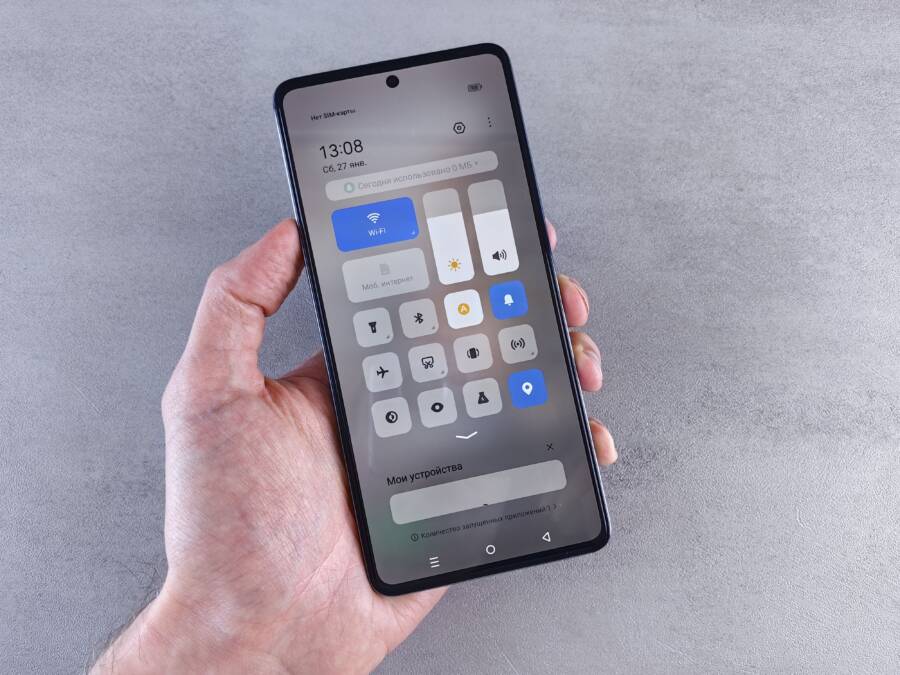
When your phone battery percentage jumps around or drops suddenly, the software is simply miscalculating the actual charge left in the cell. This mismatch between the system display and the physical energy remaining happens when the battery management system loses track of the true capacity.
You don’t need a new device to fix this common calibration issue. Recalibrating the battery allows your smartphone to re-establish an accurate link between the chemical state of the hardware and the digital readout you see on the screen.
If you are ready to stop the guessing game and see an accurate percentage again, follow these steps to reset your system.
Understanding Why Battery Levels Become Unpredictable
Your smartphone relies on a sophisticated system to track energy levels, but this process is not always perfect. When your device shows a jumpy battery percentage, it usually stems from a communication breakdown between the battery chemistry and the software reporting system. This mismatch creates confusion for the user, as the onscreen indicator fails to reflect the actual energy remaining in the cell.
How Voltage Fluctuations Cause Display Errors
Smartphones estimate remaining charge by measuring the voltage output of the lithium-ion battery. As the battery discharges, its voltage drops in a predictable curve. The software inside your smartphone monitors this voltage and maps it to a percentage value. When a battery is healthy, this measurement remains consistent and reliable.
However, voltage is not always a steady stream. High-demand tasks such as gaming, camera usage, or signal searching can trigger a temporary voltage drop. If the battery is aged or has a high internal resistance, the voltage dips significantly under these sudden loads. The smartphone operating system might misinterpret this momentary dip as a sign that the battery is nearly empty.
Once the high-demand task finishes, the voltage may bounce back to its previous state. The operating system then recalibrates the display, causing the percentage to jump suddenly. This behavior is common in aging batteries because they lose the ability to maintain steady voltage under pressure. The software expects a certain level of stability that the hardware can no longer provide, which results in the unpredictable readouts you see on your screen.
The Role of Operating System Software Bugs
System software sometimes struggles to translate hardware signals into accurate user data. Background processes constantly run to maintain connectivity and sync applications, which creates a complex environment for the battery management system. If a specific application behaves poorly or crashes in the background, it can create power consumption spikes that confuse the reporting software.
Corrupted cache files also play a significant role in reporting errors. Your operating system stores temporary data to speed up battery management calculations and power usage tracking. When these cache files become corrupted or outdated, the software may rely on inaccurate information to estimate your charge level. This leads to erratic jumps where the percentage seems to skip numbers or drop prematurely.
System updates or deep-seated bugs can exacerbate these issues by interfering with the communication between the kernel and the power management chip. If the software logic responsible for interpreting battery statistics fails to clear old data, it carries over incorrect calculations from previous charge cycles. Regularly clearing system caches or installing software patches often fixes these reporting discrepancies by forcing the system to refresh its internal battery usage logs.
Simple Steps to Recalibrate Your Smartphone Battery
Calibration fixes the tracking errors that occur when your device loses sync with its battery capacity. You can restore this connection by performing a full drain and charge cycle or by adjusting how your software manages background power consumption. These methods force the operating system to re-evaluate the actual charge level of the hardware.
The Full Drain and Charge Cycle Method
A full discharge and recharge cycle serves as a factory reset for your battery reporting data. This process forces the operating system to map the absolute zero point and the full capacity of your battery, effectively clearing out stored errors.
Follow these steps to complete the cycle:
Use your smartphone normally until the device powers off on its own.
Attempt to turn the device back on one more time to ensure the battery is completely exhausted.
Plug the phone into a wall charger while it remains powered off.
Leave it connected to power until it reaches a full 100 percent charge.
Keep the phone plugged in for an additional hour after it reaches full capacity.
Turn the phone on and use it as usual.
Avoid interrupting this process while the device charges. If you unplug the phone before it reaches 100 percent, the system logs an incomplete data point. This prevents the software from accurately identifying the top end of your battery capacity. Once you finish this cycle, the internal battery management system should track your percentage with much higher precision.
Managing Background Apps for Better Accuracy
Apps that pull power sporadically often cause the battery management software to guess at your remaining energy. When an app suddenly requests a large burst of current, the voltage drops and tricks your software into reporting a lower percentage than what actually remains.
You can improve reporting accuracy by limiting how apps behave in the background:
Review your battery settings to identify which apps consume the most power over a 24-hour period.
Restrict background activity for apps that you do not need to sync constantly.
Disable location services for applications that do not require precise tracking to function.
Update all your applications to the latest version to ensure they contain optimizations for efficient power management.
Managing these background tasks keeps the voltage output from your battery stable throughout the day. When the power draw is consistent, the operating system finds it easier to calculate an accurate percentage. By reducing these sudden power spikes, you allow the software to provide a reliable readout, which stops the battery indicator from jumping or dropping without warning.
When a Software Fix Is Not Enough
Software calibration addresses the logic behind the readout, but it cannot repair the physical components inside your device. If your battery percentage continues to fluctuate after you finish a full charge cycle and manage your background applications, the hardware itself likely requires attention. You must recognize when your smartphone hardware is failing so you can avoid safety hazards and further damage to your device.
Identifying Signs of Physical Battery Degradation
Batteries contain chemical components that break down over time. As these materials lose their effectiveness, they may produce gas as a byproduct. This gas accumulation often leads to internal pressure that changes the shape of the battery pack.
You should inspect your smartphone for these physical warning signs:
Screen lifting: If your screen begins to pull away from the chassis or shows bright pressure spots, the battery might be pushing against the display panel from the inside.
Chassis distortion: Look for any slight bulging on the back cover of the device. Even a minor gap between the rear glass or metal and the frame is a clear indicator that the battery has expanded beyond its original size.
Overheating during inactivity: While phones warm up during intense tasks, a battery that gets hot while the device sits idle on a table is struggling to maintain chemical stability.
Surface damage: If the back of your phone feels soft or moves slightly when you press it, the battery has likely swelled.
Stop using the device immediately if you see these physical symptoms. Swollen batteries contain volatile chemicals that can pose a fire risk if the outer casing sustains a puncture. Place the phone in a non-flammable container and bring it to a professional technician as soon as possible.
Options for Professional Battery Replacement
When physical degradation is present, you cannot fix the issue with software adjustments. A replacement is the only reliable way to restore normal performance and ensure your safety.
You have three primary paths for professional repair services:
Manufacturer Service Centers: Official support channels use genuine components and provide warranties for their work. This is the safest option for maintaining the long-term value of your smartphone.
Authorized Service Providers: Many companies partner with third-party shops to perform repairs using certified parts. Check your manufacturer website to find a location that meets their quality standards.
Independent Repair Shops: These shops often offer faster turnaround times and lower prices. Research the reputation of the shop and ask if they use high-quality, third-party cells that match the voltage and capacity specifications of your original battery.
Attempting to remove or replace a swollen battery yourself is dangerous because of the risk of accidental puncture. Specialized tools and precise handling procedures are necessary to remove these components without damaging the internal circuits of your phone. Choosing a professional technician ensures the job is performed correctly while keeping you safe from the potential hazards of volatile lithium-ion hardware.
Common Questions About Smartphone Battery Health
Users often notice unusual behavior in their battery percentages and immediately worry about their hardware. Confusion regarding capacity, charging habits, and natural degradation is normal. Understanding these concepts helps you differentiate between temporary software glitches and actual hardware failure.
Does leaving my smartphone plugged in overnight damage the battery?
Modern devices are smart enough to manage their own power intake. Once a smartphone reaches 100 percent charge, the internal power management chip stops the flow of electricity to the battery. It then powers the device directly from the wall outlet. Leaving your phone plugged in while you sleep does not overcharge the battery because the system prevents that from happening.
The main concern with overnight charging is heat. If your case traps heat or your charger is inefficient, the battery sits in a warm state for hours. Elevated temperatures are the primary enemy of lithium-ion health over time. As long as your device stays in a cool, well-ventilated area, keeping it plugged in overnight is perfectly safe.
Is it necessary to drain my battery completely before charging it?
Many people believe they must reach zero percent to calibrate their devices properly, but this is a relic of older battery technologies. Lithium-ion batteries used in every modern smartphone do not have a memory effect. They actually prefer staying within a comfortable range of 20 to 80 percent.
Draining your battery to zero puts unnecessary stress on the chemical cells. You should only perform a full discharge when you need to recalibrate the software because of jumping percentages. For daily use, frequent partial charges are better for your battery health than consistently letting it die completely.
How does my environment affect battery performance?
Extreme temperatures change how your battery delivers power. When a smartphone operates in freezing cold, the chemical reactions inside the battery slow down. The system may detect this drop in performance and display a lower battery percentage than you actually have. Your device might even shut down to protect the hardware from the cold.
Heat is even more destructive than cold. High temperatures cause the chemical components to break down faster, permanently reducing the total capacity of your battery. Keeping your phone out of direct sunlight and away from hot surfaces extends the lifespan of the cell significantly. If you notice your phone getting hot during standard tasks, try removing the protective case to help it dissipate heat more effectively.
What is the difference between battery health and cycle counts?
Battery health is a percentage-based estimate of your current maximum capacity compared to when the device was brand new. A new phone usually starts at 100 percent. Over time, that maximum capacity naturally decreases due to chemical aging.
A charge cycle refers to the total amount of energy used over time. You complete one cycle when you use 100 percent of your battery capacity, even if you do it in smaller chunks over two or three days. Most manufacturers design batteries to retain roughly 80 percent of their original capacity after 500 complete charge cycles. Monitoring these metrics helps you set realistic expectations for how long your smartphone should last on a single charge.
Conclusion
Most percentage fluctuations occur because the software loses sync with the physical state of the battery. You can resolve this issue in almost every case by performing a full calibration cycle. By draining the battery to zero and charging it back to full without interruption, you force the system to remap its capacity statistics accurately.
Occasional jumps remain a normal part of how a smartphone tracks aging hardware. You should monitor your battery health periodically to catch signs of physical swelling or rapid degradation before they become a safety hazard. Proper charging habits and clean software management keep your device reporting energy levels correctly for years to come.