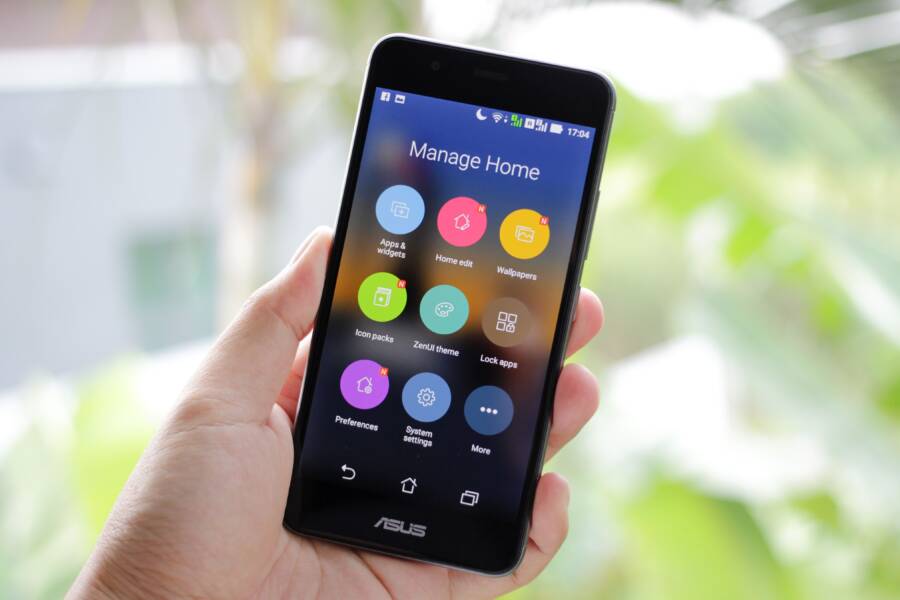
A crashing home screen immediately after an update is almost always a temporary software glitch rather than a permanent hardware failure. You can fix this issue on your smartphone by clearing corrupted cache files or resetting specific system settings.
Most users resolve this annoyance without losing any personal data or needing professional repairs. This guide provides clear, actionable steps to restore your home screen stability whether you use an Android or iOS device.
Why Your Home Screen Stops Responding
When your smartphone updates, the system installs new code while trying to preserve your existing personal settings. Sometimes, these two layers fail to communicate, causing the interface to loop or shut down unexpectedly. This conflict creates a software error that disrupts your primary navigation experience.
You should know that this crash does not mean your device is broken. It is a common post-update reaction that happens when cached files conflict with the new system architecture. By following the troubleshooting steps below, you can isolate the software error and stabilize your phone quickly.
Essential Steps to Resolve System Crashes
The most effective way to address a frozen home screen is to force a restart to clear the temporary memory. If the screen continues to crash after a reboot, you may need to clear the cache partition or remove recently installed widgets.
Restarting Your Device
A forced restart often clears the temporary conflicts causing the crash. On most modern devices, you perform this by holding the power and volume buttons until the manufacturer logo appears on the display. This action terminates all background processes that might be hindering the home screen startup.
Managing Third-Party Launchers
If you use a custom launcher on your Android smartphone, the app might be incompatible with the latest system update. You can verify this by booting your phone into Safe Mode, which disables third-party applications. If your home screen functions normally in Safe Mode, you should update or remove the launcher application entirely.
Quick Comparison of Recovery Methods
These methods target different levels of software interference. Most users find success within the first two options, meaning they can avoid more drastic measures like a factory reset.
Commonly Asked Questions
Is my data at risk when the home screen crashes?
Your personal files remain secure because the crash usually only affects the user interface layer. You can still access your data through recovery modes or by connecting the device to a computer.
How do I prevent this from happening again?
Check for secondary system updates immediately after the initial install, as manufacturers often release small patches to fix known UI bugs. Keeping your essential apps updated also minimizes compatibility gaps.
Final Steps for a Stable Interface
Getting your home screen back to normal involves patience and systematic testing. If you find that the software remains unstable after trying these fixes, check for official support documentation from your device manufacturer. Most updates are designed to improve performance, so resolving this initial conflict ensures you get the full benefit of the new features.
Why Your Smartphone Home Screen Keeps Crashing
Home screen instability after an update typically stems from a conflict between new system files and existing cached data. When your phone installs a major update, the operating system attempts to merge new code with your current personalized settings and app configurations. If this process hits a snag, the user interface layer often becomes unstable and shuts down. You might experience a repetitive loop where the screen turns black or freezes, then reloads, without ever allowing you to interact with your icons or widgets.
System File Corruption
During the update installation, a small amount of data can become corrupted or misaligned. Your home screen relies on specific system processes to load icons, wallpapers, and active widgets. If the update script fails to replace an old file with the newer version correctly, the system attempts to call upon broken code. This forces the interface to crash as a protective measure to prevent further system damage. Clearing the system cache partition often resolves this, as it removes temporary junk files that might be interfering with the startup sequence.
Incompatible Third-Party Widgets
Widgets are active mini-applications that run directly on your home screen. When you update your smartphone, the internal framework that supports these widgets might change significantly. An older, unoptimized widget can suddenly conflict with the new system architecture, leading to frequent interface crashes. You can test this theory by booting your device into safe mode. If the home screen remains stable while in this restricted state, a problematic widget or background service is likely the culprit.
Insufficient Storage Space
An update requires a significant amount of temporary space to decompress files and complete the installation process. If your device storage is nearly full, the system may fail to write the final update files correctly. This leads to fragmented code that causes the home screen to hang upon startup. Check your settings menu to ensure you have at least several gigabytes of free space. Removing unused large files or clearing cached data from your heaviest apps can provide the breathing room the operating system needs to function properly.
Common Factors Leading to Instability
The table below identifies frequent triggers that cause a home screen to crash after an update.
Identifying the correct trigger helps you avoid unnecessary steps. Most users find that addressing one of these specific software conflicts restores full functionality without needing to wipe personal data from their smartphone. Focus on isolating whether the issue stems from an active background element or a deeper system-level file error.
First Aid Steps for a Crashing Home Screen
When your home screen becomes unresponsive, you need immediate, effective fixes to regain control of your device. These steps target the software layers responsible for your interface, allowing you to bypass errors without the need for a full factory reset.
Perform a Hard Restart on Your Device
A standard restart simply shuts down active apps and reboots the operating system while keeping some temporary processes in memory. In contrast, a hard restart, often called a forced reboot, physically cuts power to the processor for a split second or triggers a low-level interrupt. This process flushes the temporary memory entirely, which is essential when the system interface enters a crash loop.
Because the home screen is a system-level process, it often hangs when it tries to load corrupted temporary files from your last session. A hard restart clears these files, forcing the phone to reload the interface from scratch upon startup.
Locate the power button and the volume down button on your smartphone.
Press and hold both buttons simultaneously for about 10 to 15 seconds.
Release the buttons once the manufacturer logo appears on the screen.
Wait for the phone to finish the boot sequence and check if the home screen remains stable.
If the phone continues to cycle or freeze, the error likely persists within your cached system data. This method is the safest first step because it does not delete your personal files, photos, or app data.
Clear the Cache for the Launcher or System UI
The system cache contains temporary data that helps your phone load menus and icons faster. However, if an update changes the underlying code, this old cache can conflict with new instructions, resulting in a crashing home screen. Clearing this data effectively resets the visual layer of your smartphone without affecting your actual user data like contacts or saved messages.
You should target the System UI or the default launcher app when you notice the interface failing to respond. These components manage the desktop environment, status bar, and app drawer.
Go to the Settings menu on your device.
Select the Apps or Application Manager section.
Tap the three-dot menu icon to select the option to Show System Apps.
Locate System UI or your specific Launcher in the list.
Select Storage and tap Clear Cache.
Performing this task removes the mismatched temporary files that cause the interface to hang. Your device will automatically generate new, compatible files the next time you use the home screen. This simple maintenance task often solves display bugs immediately, as it removes the specific junk data blocking the system from rendering your interface correctly.
Advanced Troubleshooting When Updates Go Wrong
When basic restarts and cache clearing fail to stop your home screen from crashing, the issue often sits deeper within your apps or system configurations. These problems frequently surface after an update because new system requirements conflict with existing user-set preferences. You can resolve these persistent loops by testing for software conflicts or returning internal settings to their original state. These methods focus on isolating the software layer that refuses to cooperate, allowing you to regain control of your smartphone without losing your personal data.
Booting Into Safe Mode to Identify Bad Apps
Safe Mode is a diagnostic environment that loads only the core operating system and pre-installed factory software. It temporarily disables every third-party application you downloaded, which provides a clean slate to check if an external app is causing your home screen instability. If your phone works perfectly while in this mode, you have confirmed that a recently installed or updated app is the source of the crash.
To enter this mode on most modern Android devices, hold the power button until the power menu appears on your screen. Tap and hold the Power Off option until the Safe Mode prompt appears, then tap OK to confirm. Your device will reboot with a Safe Mode watermark visible in the corner. If your home screen remains stable here, navigate to your settings and uninstall recently added apps one by one. Restart the device normally after each removal to see if the crashing stops. This systematic process helps you pinpoint the exact culprit among your installed applications.
Resetting App Preferences to Default
Sometimes a system update creates a mismatch between your customized app permissions and the new operating system requirements. This conflict can trigger a crash loop because the system tries to grant or deny access to files that the new version handles differently. Resetting your app preferences clears these broken links and returns all app settings to their factory state without deleting any actual data or media files.
You can perform this reset through your settings menu. Open the Apps or Application Manager and access the menu represented by three dots or a gear icon. Select the option labeled Reset App Preferences. This action will reset all disabled apps, notification restrictions, and background data limitations to their default settings. Your phone will then require you to re-grant certain permissions as you open each app, which ensures that the system correctly maps every application to the updated software architecture. This approach often resolves deep-seated interface errors that a simple cache clear cannot touch, making it a powerful tool for restoring a stable smartphone experience after a major software rollout.
When to Consider a Factory Reset or Technical Support
Most home screen crashes resolve through simple troubleshooting steps like clearing a cache or deleting an unstable app. If your phone still fails to load the interface after you have exhausted all software-based fixes, you must determine whether the issue requires a factory reset or external help. These solutions represent the final options for restoring your device to a functional state.
Evaluating the Need for a Factory Reset
A factory reset wipes your data, returning your smartphone to its original out-of-the-box configuration. You should only perform this action if persistent crash loops occur across multiple system versions or after you have confirmed that no single app is causing the instability. If you can still navigate the settings menu, back up your photos, contacts, and personal documents to a cloud service or an external drive first.
Once you confirm your data is safe, navigate to your phone settings and search for the reset menu. Choosing to erase all data effectively removes the deep-seated system corruption that standard cache wipes cannot reach. After the process finishes, your device will require a fresh setup. This often eliminates the conflicting code entirely, providing a stable foundation for the operating system to run again.
Determining When to Contact Technical Support
Sometimes a home screen crash indicates a deeper problem that software fixes cannot resolve. You should seek professional support under the following conditions:
The phone continues to crash even after a full factory reset.
The screen remains unresponsive to all touch inputs despite a clean system install.
The device overheats frequently during the boot process.
The hardware shows signs of physical damage or moisture exposure.
If your smartphone is still under warranty, contact the manufacturer directly to discuss a repair or replacement. Attempting to force additional software fixes when a hardware component is the actual point of failure only increases your frustration. A technician can perform specialized diagnostics to see if the internal storage chip, display ribbon, or processor exhibits physical faults.
Preparing Your Device for Professional Repair
Before you hand over your phone to a support center, take a moment to prepare the device and protect your privacy. Even if the home screen crashes, you can often connect your device to a computer via USB to pull important files. If the screen is completely black or unresponsive to touch, a technician might need to use secondary tools to bypass the lock screen.
If you are sending the device away for service, remove your SIM card and any external memory cards to keep your data local. If your device is encrypted, you may choose to initiate a remote wipe through your account dashboard if you fear for your security. Most manufacturers provide specific instructions on how to package your smartphone safely for shipping, so follow their guidelines to prevent further transit damage. These precautions keep your information secure while ensuring the repair process remains efficient.
Conclusion
Most home screen crashes result from temporary conflicts between new software and existing cached files. You can resolve these issues by performing a hard restart, clearing the system cache, or removing incompatible applications in Safe Mode. These methods restore stability without sacrificing your personal data.
Consistent maintenance helps avoid these errors during future updates. Keep your smartphone storage clean, remove outdated widgets, and check for minor patches following any major system release. Following these practices ensures your interface remains functional after every update.