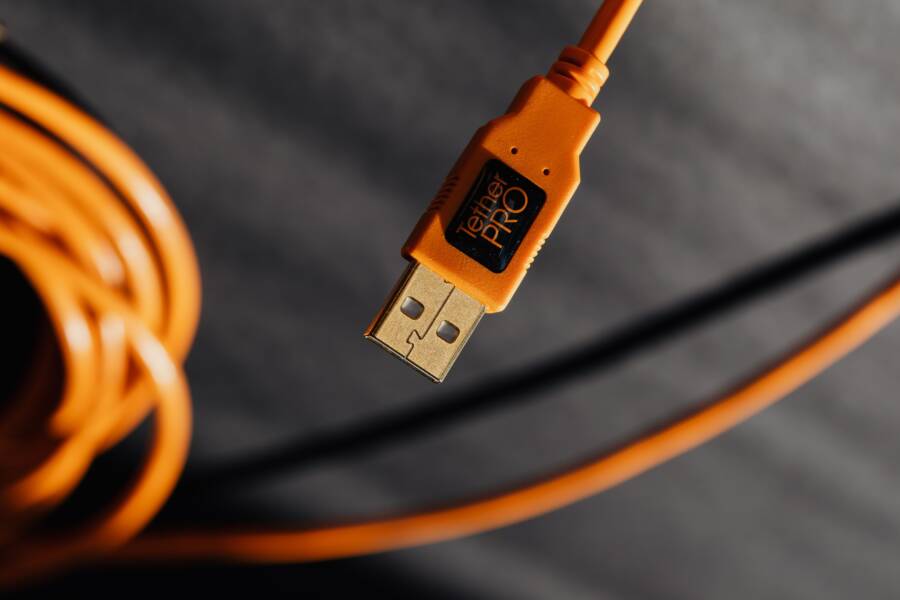
A broken USB file transfer is usually the result of a faulty cable, debris inside the charging port, or a minor software glitch. You can often fix this unstable connection yourself at home without needing a professional repair technician.
Managing your photos, videos, and essential backups on a smartphone requires a consistent data link. When the connection drops mid-transfer, it creates data corruption risks and constant frustration.
The following steps explain how to diagnose the hardware and software culprits behind your transfer issues. Once you identify the specific barrier, you can restore your device to full functionality.
Quick Fixes for Unstable USB Connections
When your smartphone fails to maintain a steady connection with your computer, you should first inspect your hardware. Most transfer issues stem from physical limitations that prevent data packets from traveling properly. By addressing these basic hardware bottlenecks, you can stop frequent disconnections and complete your file transfers without errors.
Finding the Right Data Cable
Many people assume that any cord with a matching plug will facilitate data transfer, but this is a common misunderstanding. Cables frequently fall into two categories: power-only and data-capable. A power-only cable contains only the wires necessary for charging, which means it physically cannot transmit photos or files from your smartphone to a PC.
If your cable came inside the box with your smartphone, it is almost certainly a data-transfer cable. Use this original accessory whenever possible, as manufacturers test these specific units for signal integrity. If you need a replacement, look for labels that explicitly mention “data transfer” or “USB 3.0/3.1/3.2” support. Avoid cheap, unbranded cables found in clearance bins, as these often lack the internal shielding required to prevent signal interference during high-speed transfers.
Cleaning Your Device Port Safely
Pocket lint, dust, and debris often accumulate inside the charging port of your smartphone over time. This buildup acts as a physical wedge, preventing the connector pins from making solid contact with your cable. When the connection remains loose, the system constantly drops the signal, causing your file manager to crash or report an error.
To clear these obstructions, use a thin, non-metallic tool like a wooden toothpick or a soft plastic dental pick. Gently scrape the interior of the port to loosen any packed dust, then tilt the device so the debris falls out. If you have a can of compressed air, blow short bursts into the port to clear out loose particles.
Avoid using metal needles or paperclips, as these can easily scratch the delicate internal contact pins or cause a short circuit.
Shine a flashlight into the port before you begin so you can clearly identify where the lint is hiding.
Ensure your phone is powered off before you start cleaning to protect the internal electronics from potential movement.
Maintaining a clean, unobstructed connection port is a simple habit that prevents the vast majority of physical signal drops. If the cable fits snugly and clicks into place after cleaning, your transfer speeds should remain consistent throughout the entire process.
Adjusting Software and Settings for Stable Transfers
Even when your hardware is clean and your cable is high quality, your smartphone may still fail to maintain a steady link with your computer. Software communication protocols govern how your device interacts with your operating system, and a mismatch here is a frequent source of disconnection. By ensuring your device is configured to the correct mode and your computer recognizes the hardware, you can stabilize your file transfers.
Selecting the Correct USB Mode
Many users connect their smartphone and wait for files to appear without checking the notification panel. Android devices default to a charging-only state for safety, which prevents your computer from accessing internal storage. You must manually prompt the device to open its data gates whenever you plug it into a new port.
Follow these steps to ensure your device is ready for data exchange:
Connect your smartphone to your computer using a data-capable cable.
Unlock your screen and swipe down from the top to open the notification shade.
Look for a notification labeled USB charging this device or USB for charging.
Tap that notification to open the USB preferences menu.
Select File Transfer or Media Transfer Protocol (MTP) from the list of available modes.
Once you toggle this setting, your computer will recognize the smartphone as an external storage drive. If the folder window does not pop up automatically on your PC, you can open your file explorer and look for the device name in the sidebar. Remember that switching modes while a transfer is in progress can corrupt your files, so always finish existing tasks before changing these settings.
Troubleshooting USB Debugging and Drivers
Sometimes the issue exists between your smartphone and the computer operating system. USB debugging is a developer tool that allows deeper access to the file system, but you rarely need it for basic photo or document transfers. If you have this mode enabled for app development or testing, it can occasionally interfere with the standard MTP connection and cause the link to drop. If you encounter persistent stability issues, try turning off USB debugging in your developer options menu to see if the standard connection stabilizes.
Outdated or corrupted drivers on your computer are another common culprit for unstable transfers. Your PC needs the correct software to communicate with the specific hardware identifier of your phone. If Windows or macOS cannot properly identify the device, the connection will often time out during large file copies.
You can resolve driver issues by checking your computer device manager:
Open the Device Manager on your PC and look for your smartphone listed under Portable Devices or Other Devices.
If you see a yellow warning icon next to the name, right-click the device and select Update driver.
Choose the option to search automatically for drivers, which allows your computer to pull the latest configuration from the internet.
If the issue continues, uninstall the device from the list, unplug your phone, and restart your computer before reconnecting the cable.
Updating these drivers forces your computer to re-establish a handshake with the smartphone, which often clears up lingering communication errors. These small software tweaks solve most connection drops that occur even when your physical cable and port are in good condition.
Advanced Troubleshooting When Problems Persist
When you have exhausted standard software settings and verified your hardware, connection stability issues often point to deeper physical limitations within your computer architecture. Unstable smartphone file transfers frequently trace back to how your computer handles USB power delivery and data throughput. Addressing these structural factors can eliminate the final barriers preventing a secure link between your devices.
Comparing Desktop USB Port Performance
The physical location of the USB port on your desktop computer affects the quality and consistency of your data connection. You will notice that rear-facing ports located directly on the motherboard offer superior reliability compared to the ports on the front or top panel of your PC case.
Front-panel ports connect to the motherboard through thin, internal extension cables. These extra wires act as antennas for electromagnetic interference, which degrades the signal quality of high-speed data transfers. Furthermore, these internal cables often lack the high-quality shielding found on the motherboard itself, making them susceptible to noise from other internal components like your power supply or cooling fans.
Rear-facing ports, by contrast, are soldered directly into the motherboard. This short, rigid connection path minimizes electrical resistance and signal loss. When you plug your smartphone into a rear port, the device communicates through a cleaner signal path. This direct connection reduces the likelihood of interrupted transfers or disconnected drives during large file movements.
If you struggle with intermittent signal drops, move your cable to one of the ports located on the back of the computer tower. You should also check for USB 3.0 or 3.1 ports, which are usually color-coded blue or red. These ports provide better power management and faster data throughput than the older black USB 2.0 ports. By bypassing the front-panel internal wiring, you provide your smartphone with the most stable electrical environment possible, which is a necessary step for reliable file management.
Alternative Ways to Move Files Without USB
You do not need a physical cable to transfer files between your computer and your smartphone. When USB connections remain unstable, wireless transfer methods often provide a more reliable path for your data. These solutions bypass hardware limitations entirely by using your local network or cloud infrastructure to move photos, documents, and videos.
Using Cloud Storage Services
Cloud services offer the most straightforward way to sync files because they do not require your devices to be in the same room. You upload your files to a provider like Google Drive, Dropbox, or OneDrive from your phone, then download them on your PC.
Sync automatically: Enable automatic camera uploads in your chosen cloud app to ensure every photo you take saves to the cloud instantly.
Manage storage: Keep an eye on your free tier limits, as high-resolution video files can fill up your cloud quota quickly.
Maintain security: Use two-factor authentication on your accounts to protect your private data while it resides on external servers.
This method works well because it relies on your internet connection rather than your physical hardware. If your smartphone has a faulty port, cloud syncing becomes your primary way to manage backups without needing a functional wired link.
Transferring Files Over Wi-Fi
Local area network transfers are significantly faster than cloud uploads because the data never leaves your home. Many file management applications allow you to host a temporary web server on your phone. You then access this server through a standard web browser on your PC to drag and drop files.
Some popular tools for this include:
These apps generate a specific IP address that you type into your computer browser. As long as both devices share the same Wi-Fi signal, the connection remains private and swift. This approach avoids the signal interference issues common with front-panel USB ports on desktop computers.
Sending Files via Email or Messaging Apps
For smaller files like individual documents or a handful of photos, email remains a quick solution. You can attach files to an email, send it to yourself, and open the attachment on your desktop.
Messaging platforms like Telegram or Signal also facilitate quick transfers. You can send files to a saved messages folder or your own contact, allowing you to access the content on any linked device. This method is best for single items because most apps have limits on file sizes or the number of concurrent attachments.
Summary of Alternative Methods
Choosing the right method depends on your file size and the frequency of your transfers. Consider these trade-offs to decide which path fits your workflow best.
Cloud services provide convenience and automatic backups for your entire photo library.
Local Wi-Fi transfers offer superior speed for large video collections without using your internet data.
Email and messaging apps work best for quick, one-off document transfers.
These options effectively neutralize the frustration caused by hardware-related transfer issues. By shifting to wireless protocols, you ensure that your smartphone remains a flexible tool regardless of the condition of your physical connection ports.
Conclusion
You can resolve most file transfer issues by methodically checking your hardware and software configurations. Start by inspecting your cable and cleaning the phone port, as physical obstructions are the most frequent causes of a failed connection. These simple steps often restore the stable link necessary for managing your data without frustration.
If hardware checks don’t fix the problem, move on to verifying your software settings and USB driver status on your computer. When you eliminate these common barriers, your smartphone will maintain a consistent connection throughout the entire transfer process. Feel free to try these solutions in order, starting with the simplest physical fixes, to regain control over your file management today.