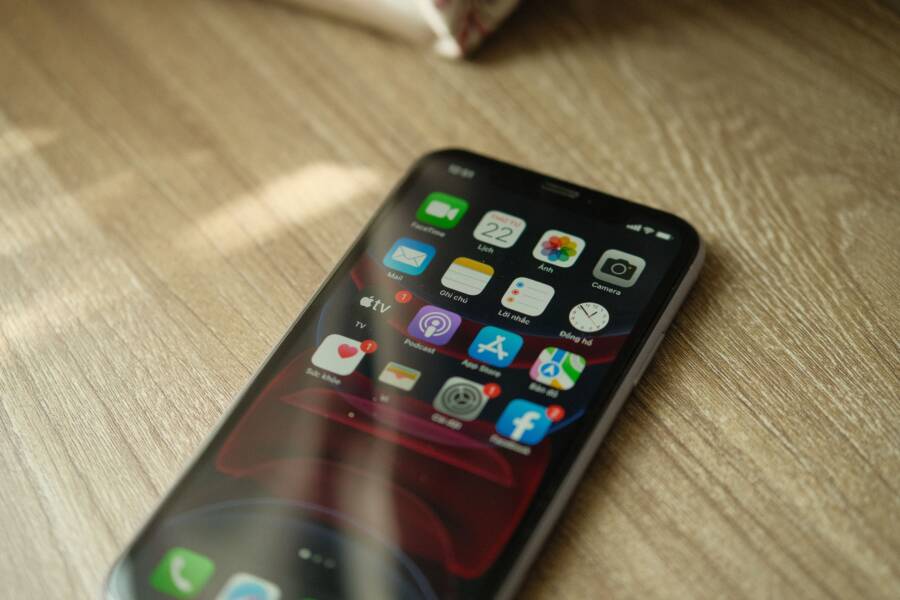
Delayed notifications on your smartphone often occur because your device is trying to conserve battery life rather than because of a hardware fault. You can usually resolve this problem by adjusting power management settings or checking your network connection.
Most people find that their apps stop syncing instantly because of aggressive background activity limits. You don’t need to replace your device to fix this issue, as simple software tweaks typically restore your alerts to real-time status.
Follow the sections below to identify why your alerts are lagging and how to apply the right settings to keep your connectivity consistent.
Check Your Battery and Power Saving Settings
Most modern smartphones prioritize battery life over instant app syncing. When your device detects low power or recognizes an app is consuming too much energy, it automatically restricts that app’s ability to run in the background. This is often why you notice a significant lag in notifications. You can regain control by adjusting power management settings for your specific apps.
Adjusting Background App Refresh on iPhone
iOS handles background activity through a feature called Background App Refresh. If this feature is disabled globally or specifically for an app, your notifications will only arrive once you open the app manually. You can customize these settings to ensure critical messaging or email apps stay updated.
Open your device Settings and tap General.
Select Background App Refresh to see your current configuration.
Verify that the feature is set to Wi-Fi & Cellular Data instead of Off.
Scroll down the list of installed applications and toggle the switch to the On position for any apps that currently suffer from delayed notifications.
If you want to keep your battery life as long as possible, only enable this setting for apps that require real-time alerts. Apps like social media feeds or games do not need constant background access. Keeping this list short prevents your smartphone from wasting power on unnecessary background tasks.
Turning Off Battery Optimization for Android Apps
Android uses a battery management system that identifies apps draining resources. Once an app hits a specific threshold, the operating system limits its network access and background processes. To stop this from affecting your notifications, you need to manually change the optimization status for these specific apps.
Open your Settings menu and select Apps or Applications.
Tap the specific app that is causing trouble.
Select Battery or App Battery Usage.
Change the setting from Optimized to Unrestricted.
The Unrestricted setting tells your smartphone to ignore battery consumption rules for that specific app. This allows the application to stay active in the background, which significantly improves notification delivery speeds. You should perform this step for your primary communication tools, such as WhatsApp, Slack, or your preferred email client. Be aware that granting unrestricted access to too many apps may lead to faster battery drain throughout the day. Monitor your usage for a few days to see if the trade-off is worth the increased performance.
Optimize Your Network Connection for Faster Alerts
Your smartphone relies on a stable network link to pull data from servers the moment an event occurs. When your connection fluctuates or suffers from high latency, the server cannot push updates to your device immediately. This delay often creates a backlog where notifications arrive in clusters once the connection stabilizes. Improving your network reliability is a primary step to ensure your apps stay synchronized with real-time events.
Solving Problems with Unstable Wi-Fi
Wi-Fi interference frequently causes temporary drops in connectivity that you might not notice while browsing the web. However, your notification system requires a persistent connection to receive push packets. If your Wi-Fi signal is weak or your router is overwhelmed by other devices, your smartphone may struggle to maintain the handshake needed for instant alerts.
You can verify if your Wi-Fi is the culprit by switching your connection method. Follow these steps to test your network performance:
Disable Wi-Fi in your settings to force your device onto mobile data.
Observe if your notifications arrive on time while using your cellular network.
If the delay disappears, your local Wi-Fi configuration or signal strength is likely the source of the trouble.
If mobile data fixes the issue, try restarting your router to clear out cached data or address IP conflicts. Placing your router in an open area, away from other electronics or thick walls, also improves signal stability. If your phone consistently struggles with Wi-Fi, consider switching to the 5GHz frequency band, which is often less congested than the 2.4GHz band in crowded home environments.
Disabling Data Saver and Low Data Modes
Operating systems include features designed to minimize bandwidth usage when you aren’t actively using an app. These modes act as a gatekeeper, preventing background processes from reaching out to the internet to save on your monthly allowance or battery life. Unfortunately, these restrictions often block the delivery of incoming push notifications.
When data saver modes are active, your smartphone suspends background syncs for most applications. You might find that your email or messaging apps only update when you open them, which defeats the purpose of an alert.
To prevent these features from interfering with your notifications, check the following settings:
Android Data Saver: Go to your network settings and confirm that Data Saver is turned off. If you prefer to keep it active, you must add your essential communication apps to the allowed list so they can bypass the restriction.
iOS Low Data Mode: Open your Wi-Fi or cellular settings, tap on your active connection, and ensure Low Data Mode is toggled off. This setting is specifically designed to stop background tasks, making it a common reason for delayed alerts on iPhones.
Disabling these modes allows your apps to maintain an open communication channel with their respective servers. While this consumes slightly more data and power, it is the most reliable way to receive time-sensitive alerts without interruption. If you remain concerned about data usage, check your app-specific settings instead of enabling a global restriction.
Manage Notification Settings and App Conflicts
Adjusting your system configuration often resolves notification delays when standard battery and network fixes fall short. Sometimes your smartphone settings interfere with specific applications, or software corruption prevents alerts from reaching your screen on time. By refining your notification permissions and addressing app-specific conflicts, you restore the reliable connectivity your device provides.
Reviewing Do Not Disturb and Focus Modes
Focus modes and Do Not Disturb settings are common culprits for missing alerts. These features silence incoming pings to prevent distractions, but users frequently enable them by mistake or forget to deactivate them after a scheduled period ends. If your notifications stop appearing during specific times of the day, your device is likely following a pre-set schedule.
To check these configurations, navigate to your sound or notification settings menu. Look for the Focus or Do Not Disturb section to see if a schedule is currently active. You should verify that no automatic activation rules are set to trigger based on your location, time of day, or while using specific apps.
If you still miss important alerts, check your allowed apps list within these modes. Most smartphones allow you to whitelist essential contacts or applications so they bypass silence rules even when a mode is active. Adding your primary messaging or email tools to this list ensures that you never miss a critical communication while keeping your device otherwise quiet.
Clearing App Cache and Updating Software
Outdated software and corrupted temporary files often cause app performance to stutter, which impacts how quickly you receive notifications. When an app gathers too much cache, it slows down background processes and prevents the timely handshake between your device and the server. Regularly maintaining your apps keeps these communication channels open and responsive.
Start by checking for pending updates in your app store. Developers frequently release patches specifically designed to fix syncing issues or background activity bugs on specific smartphone models. Keeping your apps updated is the simplest way to maintain compatibility with your current operating system version.
If an app remains sluggish after an update, clearing its cache usually resolves the issue. This action deletes temporary data stored by the app without removing your personal settings or login information. Follow these steps to refresh your application data:
Open your device settings and select Apps.
Locate the app that is causing delays.
Tap Storage or Storage and Cache.
Select the option to Clear Cache.
Performing this task removes old, potentially corrupt data fragments that block new notifications. If the problem persists after clearing the cache, try uninstalling and reinstalling the app entirely. A fresh installation forces the application to re-establish a clean connection with the server, which often fixes long-standing delivery lags.
When to Consider a Factory Reset
A factory reset is the final option for fixing delayed notifications on your smartphone. Because this process erases your personal data and restores the device to its original out of box state, it is not a step to take lightly. You should reserve this action for moments when you have exhausted all other troubleshooting methods and the issue persists across multiple applications.
Assessing Persistent Software Conflicts
If you have already cleared your app caches, updated your operating system, and verified that your power management settings are not suppressing background processes, a deeper software conflict likely exists. Sometimes, registry errors or remnants from older system updates create persistent bugs that simple setting adjustments cannot fix. This level of corruption often impacts more than just notification delivery, potentially causing the smartphone to run slower or experience unexpected crashes.
Before choosing to reset, verify if the notification problem occurs in safe mode. Most mobile devices allow you to boot into a restricted environment that disables third party apps. If your notifications arrive on time while in safe mode, a recently installed app is almost certainly the cause of your troubles. You can identify and remove that specific application to resolve the delay without needing a full device wipe.
Preparing for a Full Device Reset
When you reach the point where a reset is the only remaining option, data security becomes your priority. A factory reset removes all photos, contacts, and account information from the internal storage. You must create a complete backup of your smartphone before starting this process.
Connect your device to a reliable Wi-Fi network to avoid data charges during the backup process.
Use your device cloud service, such as iCloud for iPhones or Google Drive for Android, to save your current state.
Verify that your two factor authentication codes or authenticator apps are backed up separately to avoid losing access to your accounts.
Export any important local documents or media files to a computer or an external drive to ensure nothing is lost during the transition.
After the backup finishes, you can initiate the reset through your system settings. Once the process completes, your phone will prompt you to set it up as a new device. Choose the option to restore from your recent backup. This restores your apps and settings while discarding the corrupted system files that were causing your notification delays. If the problem returns immediately after a restore, consider setting up the device as new to avoid bringing back the underlying software conflict.
Conclusion
Delayed alerts usually stem from aggressive power management features that restrict background processes to save energy. Prioritizing battery life often causes your smartphone to silence apps until you manually open them.
Test your settings one by one to find the exact cause. Start by disabling battery optimization for your most important messaging and email apps. If the problem continues, check your network configuration and disable any active data saving modes. This systematic approach effectively restores real-time notifications on your device.