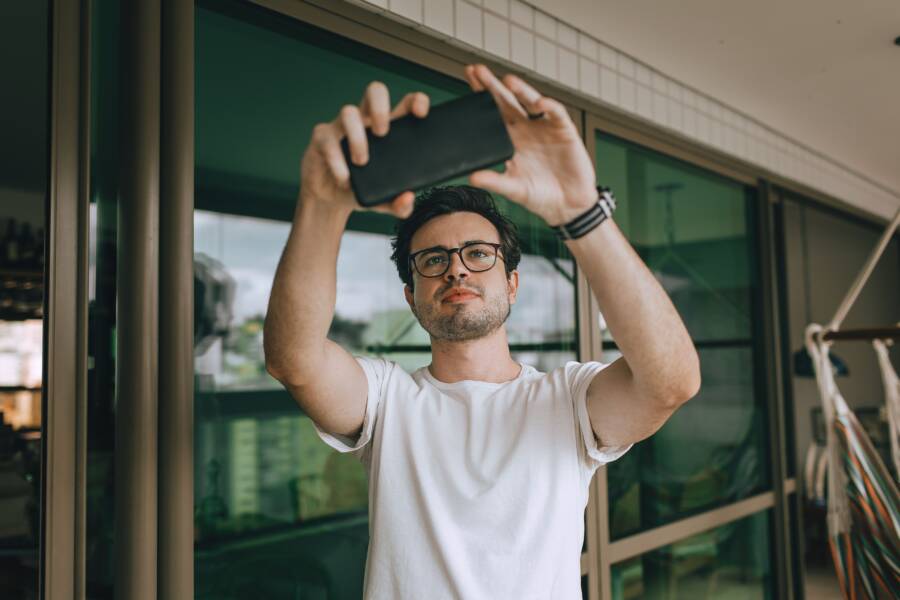
If your photos look blurry or Portrait mode refuses to activate, you likely have a software glitch rather than a broken lens. Most smartphone camera issues stem from outdated software, dirty sensors, or incorrect focus settings.
You can resolve these problems quickly without a professional repair. Simple adjustments to your camera app settings or a quick system update usually fix the blurriness.
Follow these steps to restore your smartphone camera to its best condition.
Quick Fixes for Portrait Mode Not Working
Portrait mode relies on precise data to separate your subject from the background. When your smartphone fails to apply the depth effect, the issue often stems from basic physical or environmental obstacles. You can usually restore function by adjusting how you handle your device and the environment around you.
Cleaning Your Smartphone Camera Lens
A smudge on your lens acts like a fogged window for your camera sensors. Portrait mode requires a clear view to calculate the distance between your subject and the background. When oil from your fingers or dust particles cover the lens, the software struggles to detect depth boundaries. This often results in a flat image where the background stays in focus instead of blurring.
You should wipe the camera lenses with a clean microfiber cloth before every shooting session. Avoid using your shirt or rough paper towels, as these materials can leave tiny scratches or deposit more lint. A clean lens allows the autofocus and depth sensors to identify your subject accurately. If the hardware cannot see the subject clearly, it simply defaults to standard photo mode.
Managing Distance and Lighting Requirements
Portrait mode requires specific physical conditions to function correctly. Most smartphone cameras need a set amount of distance between you and the subject to establish a depth map. If you stand too close, the camera cannot lock onto the subject. If you stand too far away, the software fails to differentiate the foreground from the background. Most devices provide an on-screen prompt when you are in the correct range, so keep an eye out for these indicators.
Lighting plays an equally important role in achieving a professional bokeh effect. Sensors require high levels of light to calculate the complex geometry of your scene. If the room is dark, the software often disables portrait features to prevent excessive image noise or blur. You can often fix this by moving to a brighter area or using a steady light source.
Consider these quick tips to improve your success rate:
- Position your subject at least two to eight feet away from the lens.
- Ensure the subject has more light on them than the background.
- Check that your phone screen displays the depth effect preview before you press the shutter.
If you struggle to get the effect to trigger, move the subject slightly closer to a window or a lamp. Proper illumination gives the smartphone processor the contrast it needs to identify edges. When the environment is too dim, even the most advanced cameras will struggle to generate a clean separation. Consistency in distance and lighting makes the difference between a sharp portrait and a failed shot.
Advanced Troubleshooting for iPhone and Android
Software issues often cause Portrait mode malfunctions even when your hardware remains perfectly functional. When the camera software fails to interpret depth data correctly, the bokeh effect might look patchy or fail to activate entirely. System glitches, background process conflicts, or outdated camera drivers frequently trigger these performance hurdles. Addressing these technical gaps requires a systematic approach to your device software.
Updating Software to Maintain Camera Performance
Manufacturers release firmware updates to address bugs that affect image processing. These updates often contain critical patches for the computational photography algorithms responsible for Portrait mode. If your smartphone runs an older version of the operating system, the camera app may lack the instructions to process depth layers accurately.
Updates also improve communication between the camera sensor and the main processor. As developers refine how the device maps distances, your photos will show better edge detection around hair and thin objects. You should check for system updates if your camera performance degrades suddenly. Go to your settings menu and look for the software update section to ensure your device runs the latest version. Installing these patches often resolves software-level conflicts without needing further intervention.
Resetting Camera Settings and Cache
Sometimes the camera application stores temporary data that prevents it from accessing specific features like Portrait mode. Clearing this cache forces the application to rebuild its temporary files and revert to its default behavior. This process is particularly effective for Android users who experience frequent app crashes or lag.
To clear the cache on an Android device, follow these steps:
- Open the Settings app on your smartphone.
- Select the Apps or Application Manager menu.
- Find the Camera app in your list of installed applications.
- Tap on Storage.
- Select the option to clear the cache.
If you use an iPhone, you cannot manually clear the app cache in the same way, but you can reset your camera configuration. Navigate to Settings, choose the Camera menu, and ensure all features like Lens Correction or Smart HDR remain enabled. If issues persist, check your device restrictions. Go to Settings, Screen Time, and Content & Privacy Restrictions to confirm that the camera app has full permission to operate. Disabling third-party camera apps temporarily can also reveal if another program interferes with your default settings. Resetting these preferences clears out misconfigured rules that might block the Portrait mode trigger.
Common Reasons Your Portrait Photos Look Blurred
Blurry portraits often suggest a technical fault, but the issue frequently starts with simple user error. If your photos lack the expected sharp focus, you likely need to adjust your shooting habits or camera configuration. Understanding how your smartphone processes images helps you identify why these errors occur.
Understanding Depth and Focus Selection
Portrait mode relies on software to simulate a shallow depth of field. This process requires the camera to identify the primary subject and blur everything else. When a photo looks blurry, the camera likely locked focus on the wrong plane.
Your smartphone calculates depth based on the specific point you tap on the screen. If you tap the background instead of your subject, the camera adjusts its focus settings to match that distance. The subject then appears soft while the background looks sharp.
You can improve your results by checking these factors before you press the shutter:
- Always tap the subject on your screen to confirm the focus box settles on their face or eyes.
- Wait for the camera interface to confirm it identified the depth effect. Most devices change the text color or add an icon when they are ready.
- Review your composition if the subject remains blurry. Sometimes the camera software selects a high-contrast object near the subject instead of the person.
The device does not fail, but the software needs your guidance to know where to prioritize sharpness. If you struggle with focus, move your subject further away from complex backgrounds. Simple backgrounds allow the camera to map the scene without confusing the foreground and the back area.
The Role of Motion and Subject Movement
Portrait mode captures multiple frames to build a depth map. If your subject moves while the smartphone processor works, the final image often looks smeared or blurry. This happens because the camera cannot align the subject position across those separate frames.
Subjects who talk, laugh, or shift their weight cause the software to struggle. The camera sensor needs a stable target to detect the edges of the person accurately. When the subject moves quickly, the background separation fails to match the subject, creating an unnatural blur around the edges.
You can handle movement by using these strategies:
- Ask your subject to pause for a second while the camera finishes its processing.
- Use a faster shutter speed if your camera app allows manual control.
- Check your lighting, because cameras often use longer exposures in dim settings. Longer exposures increase the risk of blur when a subject moves slightly.
If you cannot avoid subject movement, you might achieve better results using the standard camera mode instead. You can then add a blur effect later with photo editing tools. This gives you more control over the final appearance without relying on real-time depth mapping during a movement-heavy scene.
Frequently Asked Questions About Portrait Mode
Users often have questions about why their device behaves in specific ways when capturing photos. Understanding the basics helps you get better results with your smartphone camera. Here are answers to common concerns regarding the Portrait mode feature.
Can I change the blur intensity after I take the photo?
Many modern smartphones allow you to adjust the blur level after you save the image. Look for an edit icon or a depth control button inside your photo gallery app. You can usually slide a bar to increase or decrease the background softness. This feature works because the device saves depth data alongside the original image file. If you do not see these options, your specific model might not support post-shot depth adjustment.
Why does my hair look blurry in some portraits?
The software often struggles to distinguish fine details like loose hair strands from the background. Computational algorithms must identify every edge of the subject to apply the blur mask correctly. If the background has similar colors or complex patterns to your hair, the sensor may accidentally blur parts of your head. You can minimize this issue by placing the subject in front of a simple or neutral wall. High contrast between the subject and the background makes the job much easier for the camera processor.
Does Portrait mode work on inanimate objects?
Most newer smartphones support Portrait mode for non-human subjects. You can use it to capture detailed shots of food, flowers, or small items. Some older models limit this feature to human faces and will refuse to trigger unless a person is in the frame. If your device supports object detection, you should see the same depth preview on your screen as you do when photographing people. Try moving closer to the object if the effect does not activate automatically.
Is it normal for my phone to heat up during long sessions?
Processing high-quality depth maps requires significant power from the smartphone processor. If you take many photos in quick succession, the system works hard to calculate and render the blur for every shot. This activity often creates noticeable warmth near the camera module. This behavior is normal and does not indicate a hardware failure. However, if the device becomes too hot to hold, give it a few minutes to cool down before you continue shooting.
Conclusion
Most Portrait mode issues on your smartphone stem from simple environmental or configuration errors rather than permanent hardware damage. A clean lens, proper distance from your subject, and sufficient lighting resolve the vast majority of these problems.
Test your camera today by photographing a static object under bright, natural light. This quick experiment confirms whether your software settings or physical conditions need further adjustment.
Mastering these basic techniques allows you to capture professional results consistently. Once you understand how your camera interprets depth, you will spend less time troubleshooting and more time taking high-quality photos.