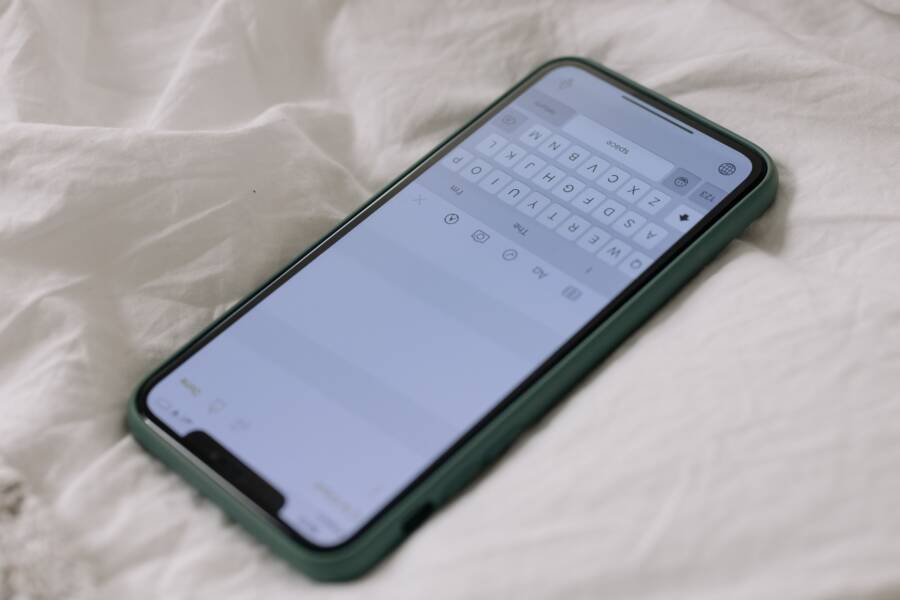
It is frustrating when your smartphone keyboard blocks the very text box you are typing into. This happens because the software on your device fails to adjust the screen layout when the virtual keyboard slides upward. Most of the time, this glitch results from a miscommunication between the operating system, your chosen keyboard app, and the specific application you are using.
You can usually resolve this problem by adjusting your display settings, switching your keyboard app, or clearing temporary cache files. These quick fixes often restore the natural flow between your input field and the text interface. Follow these steps to regain full visibility of your text while you type.
Quick Fixes for Keyboard Display Issues on Your Smartphone
When your keyboard covers the text box, your smartphone is likely struggling with a software conflict. These display errors occur when the operating system fails to register the keyboard height correctly or when an application hangs during the layout transition. Most users find that refreshing the system or cleaning up temporary data resolves the issue without needing advanced technical skills.
Performing a Hard Restart to Refresh System UI
A hard restart forces your smartphone to shut down and start again from a blank state. This is different from a standard power cycle because it cuts power to the hardware components and clears the RAM immediately. While a normal shutdown allows apps to save their current state before closing, a forced restart bypasses these routines. This process kills frozen background processes and clears out corrupted display data that might be causing the keyboard to overlap your input field.
The exact method for a hard restart depends on your specific model. Most devices follow a similar sequence to trigger this interruption:
Press and hold the volume down button and the power button simultaneously.
Continue holding both buttons for about 10 to 15 seconds until the screen goes black and the manufacturer logo appears.
Release the buttons once the device begins its boot sequence.
This action acts as a hard reset for the system UI, which often corrects minor layout bugs. After the device reboots, the operating system reloads its graphical components and recalculates the screen dimensions. If the keyboard still covers your text box, the issue likely resides within a specific app rather than the system as a whole.
Clearing Cache for Keyboard and Messaging Apps
Corrupt cache files are the most frequent cause of layout display errors on a smartphone. Applications save temporary data to speed up performance, but this data can become outdated or conflict with new app updates. When the cache for your keyboard app or your messaging app becomes corrupted, it can cause the interface to render incorrectly. You can often fix this by clearing the stored data for both the keyboard and the messaging app you are using.
Follow these steps on your Android device to clear the cache:
Open the Settings app and select Apps or Application Manager.
Find your keyboard app in the list (such as Gboard or SwiftKey) and tap it.
Select Storage and tap Clear Cache.
Go back to your app list, find the messaging app where you noticed the issue, and repeat the process by selecting Storage and Clear Cache.
Do not worry about losing your personal settings, as clearing the cache only deletes temporary files and not your saved words or preferences. Many users notice an immediate improvement in layout behavior after taking this step. If the problem persists, check the settings of the keyboard app itself to ensure it is set to display in its default mode rather than a floating or resized state.
Adjusting Keyboard Settings and Display Preferences
Many users experience interface conflicts because their keyboard behavior or system display settings force UI elements into awkward positions. When these settings shift, the keyboard might overlap your text box, making it impossible to see what you type. By checking these specific areas, you can return your smartphone to its intended layout and regain full control over your input field.
Disabling Floating Keyboard Mode
A floating keyboard is a common feature on many modern devices. While this mode allows you to move the keyboard anywhere on your screen for easier one-handed typing, it often loses its anchor point. Once it detaches from the bottom edge, it frequently obscures text boxes that sit in the middle of your screen.
You can return the keyboard to its docked position by following these steps:
Locate the toolbar icon on your keyboard, which is usually found at the top left or right of the input area.
Look for an icon that resembles a window with an arrow or a small rectangle representing a floating state.
Tap the icon to disable the floating mode.
The keyboard will immediately snap back to its fixed, docked position at the bottom of your screen.
If you don’t see a specific icon, tap the three-dot menu icon on the keyboard toolbar. This menu often holds a button labeled “Floating” or “Mode” that allows you to toggle the setting back to “Standard.” Once the keyboard is locked to the bottom, the application interface should automatically adjust to keep your text box visible.
Changing Font Size and Display Scaling
Your smartphone allows you to adjust the system-wide font size and display scaling to make reading easier. However, setting these values too high can cause UI elements to expand beyond their containers. When text boxes or buttons become larger than their allocated space, the operating system may force them off-screen or hide them behind the keyboard.
If you recently increased your text size or enabled display magnification, follow these steps to re-examine your settings:
Open the Settings app and search for “Display” or “Accessibility.”
Look for options labeled “Font Size,” “Display Size,” or “Zoom.”
Adjust these sliders back toward the default or “Small” setting to see if the text box becomes visible again.
Save your changes and return to your messaging or note-taking app to test the layout.
Higher display scaling often pushes input fields upward as the phone tries to accommodate larger text. If the layout returns to normal after you lower the scaling, you know the issue is a result of the display preferences. Many users prefer a larger font but find that a medium setting provides the perfect balance between readability and consistent interface behavior. If you still need larger text, try increasing the font size while keeping the display zoom at the default level to minimize the impact on your keyboard positioning.
Troubleshooting App-Specific Compatibility Problems
Sometimes your smartphone settings are perfectly fine, yet the keyboard continues to obscure your text field in one specific app. This happens because some developers fail to implement proper support for dynamic screen resizing. When an app does not follow standard interface guidelines, it remains static even when the system keyboard slides into view.
Identifying Apps That Fail to Resize
You can confirm if an app is the source of your trouble by testing your keyboard in a different program. If you switch to your browser or a messaging app and the keyboard behaves normally, the issue is restricted to that specific application. Poorly coded apps often exhibit predictable symptoms when they cannot handle the presence of a virtual keyboard.
Common indicators of an app-specific compatibility issue include:
The text box remains fixed at the bottom of the screen instead of shifting upward.
The UI elements jitter or flash when you tap into a field.
Scrolling functionality disappears while the keyboard is active.
The keyboard covers the input field entirely, forcing you to type blindly.
Verify this behavior by opening a standard app like Notes or a web browser to see if the keyboard pushes content up as expected. If the keyboard works correctly everywhere else, your system software is likely functioning as intended. In these cases, the problem resides entirely within the code of the third-party app. Unfortunately, you cannot fix this at the system level since the app itself ignores the request to resize.
Contacting Developers for Fixes
When you determine that only one app has this flaw, reporting the bug to the developer is the most effective path forward. Developers often rely on user feedback to identify bugs that do not appear during their internal testing phases. A detailed report allows them to reproduce the issue and include a fix in a future update.
Follow these steps to submit a report through the major app stores:
Open your app store and search for the specific application.
Scroll down to the contact information section.
Look for the link labeled Developer Contact or Email.
Send a clear message describing your device model and the exact steps to reproduce the keyboard overlap.
Be specific about your hardware because some bugs only trigger on devices with specific aspect ratios or screen resolutions. Mentioning that your keyboard covers the text box helps the developer prioritize this UI issue. Most developers appreciate this information, as it helps them improve the experience for everyone using their software. If many users report the same behavior, the developer is much more likely to prioritize a patch for the next version.
Alternative Keyboards and Advanced Solutions
When standard troubleshooting fails, the issue often stems from the internal rendering engine of your chosen keyboard software. If your smartphone continues to obscure text boxes, you should evaluate whether the problem is limited to your current input method. Modern mobile operating systems allow you to install third-party keyboards that may handle UI layouts differently than the default version.
Trying a Different Keyboard Application
Switching your keyboard application is an effective way to determine if a specific piece of software is causing the rendering glitch. Different keyboards use unique code to interact with the system UI, and some are more effective at communicating their dimensions to the host application. If you currently use the Samsung Keyboard, installing Gboard or Microsoft SwiftKey provides a clean slate for your text input.
You can swap your keyboard by following these steps:
Download a new keyboard app from your preferred app store.
Open your smartphone settings and navigate to the Language and Input section.
Select Manage Keyboards and toggle the switch for your newly installed app to the on position.
Open the keyboard in any app, tap the keyboard icon at the bottom of the screen, and select the new option from the list.
Once you switch, test the keyboard in the specific app where you previously encountered the display issue. If the text box stays visible, the original keyboard likely had a compatibility conflict with your device or the specific app. Many users find that Gboard, in particular, offers superior integration with most Android applications because of its consistent updates and standard layout engine.
Checking for Operating System Updates
If changing your keyboard does not solve the problem, your smartphone might have an outdated firmware version containing known display bugs. Manufacturers release software updates that patch UI rendering errors and improve the interaction between system components and third-party apps. Running a version that is several months old often leaves your device susceptible to glitches that developers have already addressed.
You can verify your current status and install any pending updates by checking your system settings:
Open the Settings app on your smartphone and scroll to the System or About Phone menu.
Tap Software Update or System Update to check for the latest available patches.
Select Download and Install if your device finds a new package.
Restart your phone once the installation finishes to apply the changes to the system UI.
Updates often refine how the system handles window resizing and keyboard elevation, which directly fixes the overlap issue. If your device is up to date and you still face the same frustration, ensure that the individual apps you use are also current. Developers frequently push updates to their own applications specifically to address how they display on newer screen resolutions or custom aspect ratios. Staying current with both your firmware and your individual applications ensures that your display environment remains stable.
Conclusion
Most keyboard display issues occur because of minor software conflicts or outdated cache files within your smartphone system. You can usually resolve these problems by performing a hard restart, clearing your app cache, or resetting display scaling preferences without needing help from a professional technician.
If the keyboard continues to obscure your input field, switching to a different keyboard application or checking for firmware updates often fixes the underlying rendering error. Taking these simple steps restores your ability to type accurately and helps you regain full control over your device.