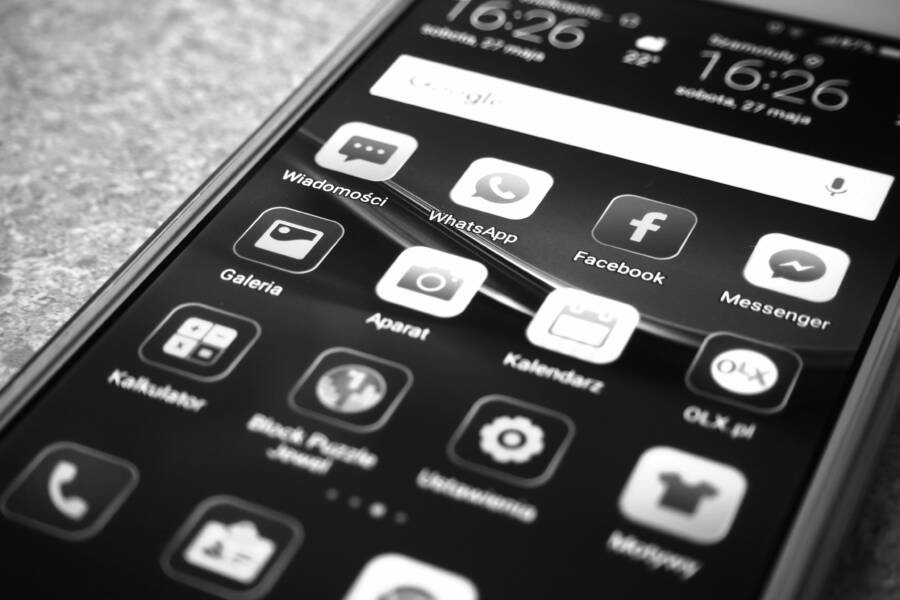
Broken app layouts in dark mode happen when your smartphone forces a system-wide color inversion on apps that were never designed to support it. This aggressive override often causes white text to disappear against white backgrounds or creates jarring UI elements that clash with your chosen theme.
You can typically resolve these display errors by disabling the dark mode override for specific applications within your settings menu. If individual app toggles fail, adjusting the developer options or resetting your display preferences often restores the intended visual hierarchy on your device.
Understanding Why Dark Mode Breaks Your Smartphone Interface
Dark mode is a popular feature on every modern smartphone, yet it often creates visual chaos instead of the intended sleek aesthetic. When a developer builds an application, they define specific color palettes and contrast ratios. Problems arise when the system forces its own dark theme onto an app that does not have an official dark mode toggle. The software essentially guesses which elements should be dark and which should be light, which often leads to errors in the visual hierarchy of the screen.
The Difference Between System Dark Mode and App Overrides
Native dark mode is a feature built into an application by its developers. These designers manually select high-contrast colors and ensure that text remains readable against darker backgrounds. When you enable the system-wide setting on your smartphone, the app recognizes this command and switches to its pre-built dark interface. Everything stays legible because the design team tested these specific color combinations during production.
Forced dark mode functions in an entirely different way. Operating systems sometimes include an override option for apps that lack native dark mode support. This process uses an algorithm to flip the colors of the user interface automatically. The software identifies light areas and converts them to dark shades, while attempting to invert text color to match. This happens at the system level rather than within the application code itself. Because the algorithm lacks context about which parts are buttons, background images, or decorative icons, the results are frequently unpredictable.
Common Layout Issues You Might Be Seeing
When an automated override struggles to interpret an app interface, several distinct visual bugs appear on your screen. You might notice text that matches the background color perfectly, making it invisible until you tap or highlight it. Other times, the forced inversion turns icons into white blobs that vanish into a white background, or it leaves buttons with dark borders on dark backgrounds. These issues happen because the software treats every element as a simple layer rather than recognizing the functional intent of each component.
Overlapping elements represent another frequent symptom of these forced theme changes. Some applications use complex layering or shadows to show depth, but the automated process often flattens these into a single color block. This removes the visual cues that tell you where one button ends and another begins. If your smartphone displays menus with unreadable text or buttons that fail to show up, the forced dark mode is likely trying to override a custom design that the system cannot accurately process. You can identify these problems by checking if the app looks normal when you switch the system back to light mode.
Quick Fixes to Restore Your App Layouts
When a screen looks broken after activating dark mode, you do not need to accept the visual clutter. Many apps include internal controls that override system-wide color schemes. Adjusting these local preferences often fixes display issues without requiring advanced technical knowledge. If those internal settings are absent, your smartphone might allow you to modify how the operating system handles specific applications. Taking control of these settings restores the intended layout and improves your experience.
Check In-App Appearance Settings First
Most well-designed applications provide an internal menu to manage theme preferences independently from your smartphone settings. This internal control is the most reliable way to maintain a clean interface. Developers who include these options ensure their color palettes remain functional and accessible, even when your system settings change.
To find these controls, look inside the app settings menu for labels like “Appearance,” “Theme,” or “Display.” Some apps offer three choices: light, dark, or system default. If an app displays layout errors in dark mode, try switching the internal setting to match your system theme manually. Alternatively, selecting the light theme inside that specific app often prevents the system from attempting an incorrect color inversion.
Using the app-provided setting is always safer than letting the system force a change. When you select an option within the app, you use the interface tested by the design team. This avoids the unpredictable results of automated color flipping. If you cannot find a theme toggle in the settings, check if the app has a “High Contrast” or “Accessibility” menu that might offer similar visual adjustments.
Manage Per-App Overrides in Developer Settings
If an app lacks its own theme controls, your smartphone may be forcing a dark mode that causes these layout problems. Android devices include a hidden menu for developers that manages these aggressive overrides. You can disable this feature for problematic apps while keeping dark mode active for the rest of your system.
First, enable Developer Options if you have not done so. Navigate to your phone settings, select “About Phone,” and tap the “Build Number” seven times until a message confirms your access. Once active, return to the system settings and open the Developer Options menu. Look for a section titled “Hardware Accelerated Rendering” or “Override Force-Dark.”
You will find a list of installed apps within these settings. Find the app causing your layout issues and toggle the switch to off. This action tells the system to stop applying the automated dark mode filter to that specific application. Once disabled, the app reverts to its original color scheme immediately. This method is effective because it targets only the problematic software, allowing you to keep a dark interface on your system while restoring proper visibility to apps that struggle with color inversion.
Troubleshooting Persistent Layout Glitches
Layout glitches often persist even after adjusting basic display settings. When your smartphone fails to render an app correctly, the underlying software environment is frequently the culprit. Resolving these issues involves updating your core software and managing hidden data files that dictate how apps appear.
Updating Apps and Your Operating System
Outdated software is a common cause of visual bugs. Developers release patches regularly to improve how their applications interact with system-wide themes. If you run an old version of an app, it might lack the specific code required to handle dark mode requests from your operating system. Without these updates, the app defaults to its original light-themed assets while the system tries to invert them, which leads to the layout clashes you see on your screen.
Keeping your smartphone software current provides the most effective defense against these display errors. System updates often contain refinements for the display engine, improving its ability to recognize app elements accurately. You should check for pending updates by visiting your app store and the system settings menu.
Open your app store to view available updates for all installed programs.
Select the option to update all apps to ensure you have the latest compatibility patches.
Check the system settings on your smartphone to confirm the operating system itself is fully updated.
Restart your device after installing these updates. A fresh start forces the system to re-evaluate how it displays each application, which often clears up remaining graphical artifacts.
Clearing App Cache to Refresh Display Settings
Sometimes an application remembers its previous display configuration even after you change your system settings. This happens because the app stores temporary files, known as a cache, to load content faster. If the app saved a “light mode” configuration while that was your active preference, it might continue to force those visual rules upon the interface. Clearing this cache is a standard fix to resolve conflicting display instructions.
When you clear the cache, you remove temporary data without deleting your personal account information or settings. The app will regenerate these files the next time you open it, effectively forcing it to acknowledge the current dark mode status of your smartphone.
To clear the cache on most Android devices, navigate to your device settings and select the Apps menu. Find the problematic application in the list and open its storage details. You will see a button labeled “Clear Cache.” Tap this button, then perform a force stop on the application before opening it again. If the display errors continue, some users find success by choosing “Clear Data” instead, though be aware that this often resets the app to its original state, requiring you to log in again. This process resets the visual baseline for the app and often restores the correct layout.
When to Contact App Developers for Support
You should reach out to app developers when standard troubleshooting steps fail to resolve your dark mode display errors. If you have already updated your software, cleared the app cache, and disabled system-wide overrides without success, the problem likely stems from the application code itself. Professional support teams can verify if the visual glitch is a known bug that their engineering team needs to address in a future release.
Identifying When a Bug is Code-Related
Many layout issues on your smartphone originate from how an application interacts with your specific operating system version. If the interface elements overlap, text color renders incorrectly, or buttons remain invisible despite your best efforts, you have likely encountered a compatibility bug. Developers rely on user reports to track these issues across different device models. You should contact them if you notice the app functions perfectly on other platforms but fails specifically while using dark mode on your current device.
Provide clear evidence when you submit a support ticket to help the team reproduce the error. Take a screenshot of the broken layout and describe the specific settings you have applied. Mention your exact smartphone model and current operating system version, as these details allow developers to determine if the conflict is hardware-specific or universal.
Utilizing Official Support Channels
Most developers maintain dedicated channels to handle user feedback and technical inquiries. Check the app store listing for a direct link to their support website or a contact email address. Using these official channels ensures that your report reaches the people responsible for maintenance rather than falling into an automated queue.
Check the official website: Search for a help center or a feedback form where you can submit detailed descriptions of your experience.
Review social media accounts: Some companies monitor their public social media channels for urgent bug reports.
Consult public forums: Check community discussion boards to see if other users report the same visual bugs on your device.
When you share your findings with the developer, you contribute to a better product for the entire user base. A detailed report often leads to a quick update that fixes the dark mode implementation, allowing you to enjoy your preferred display settings without further compromises. If the developer confirms they are aware of the issue, you can simply wait for their next patch while reverting to light mode in the interim.
Conclusion
The most reliable way to fix broken app layouts is to disable forced system overrides and rely on native application settings. When you permit each app to handle its own theme, you ensure that text remains readable and interface elements stay exactly where developers intended.
You can maintain a clean, functional interface on your smartphone by prioritizing internal theme toggles over broad system settings. If an app continues to misbehave, check for updates or clear the cache to resolve lingering visual bugs. Managing these preferences puts you in full control of your display experience.