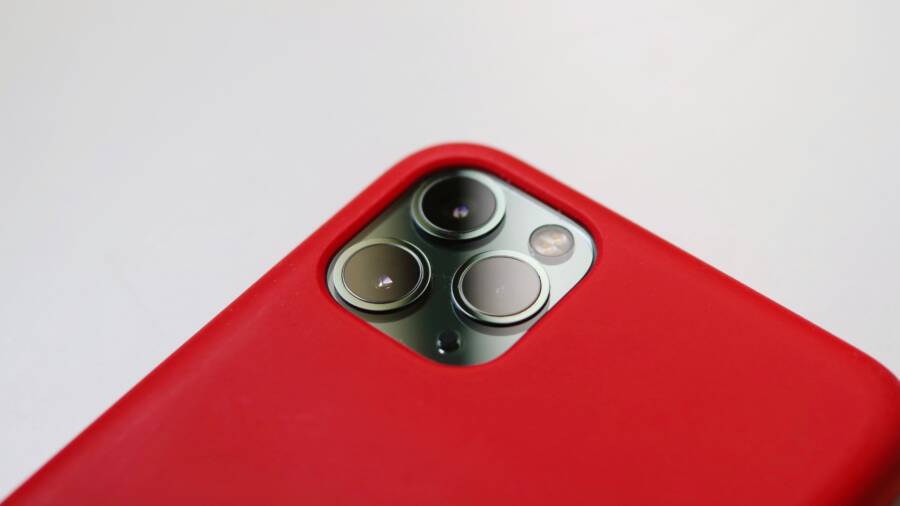
It is frustrating when you open your camera app on a smartphone only to find that it refuses to grant access to the lens. This issue often stems from software glitches, overly restrictive privacy settings, or corrupt app permissions that need a manual reset.
You can typically resolve these permission loops by clearing the cache of the camera app or toggling your system-wide security settings. Addressing these common configuration errors ensures your camera functions whenever you need it.
Read on to identify the specific setting that is preventing your device from keeping these permissions active.
Why Your Smartphone Fails to Keep Camera Permissions
Permission conflicts often arise because of how a smartphone manages access to sensitive hardware. When your device loses track of which apps can reach the camera, it usually points to a mismatch between stored user settings and active system policies. Identifying the root cause requires looking at how software updates and third-party tools interact with your privacy controls.
How Background Software Updates Impact Settings
Operating system patches serve to fix security holes, but they occasionally trigger a reset of specific app permissions. When a manufacturer releases a major security update, the system might revert certain settings to a default “Ask every time” state to protect user data from unauthorized access. This behavior acts as a safety barrier. If an app tries to access the camera after an update, the system treats it as a first-time request, causing the smartphone to “forget” your previous authorization.
In many cases, these updates modify the internal permission architecture. Developers sometimes change how apps identify themselves to the operating system, which invalidates existing permission tokens. If your camera app hasn’t received a corresponding update to match the new system protocol, the smartphone will refuse access to prevent a potential security exploit.
You can often spot this happening if your permissions vanish immediately following a system restart or a large software download. The OS effectively wipes the slate clean to ensure that only apps meeting the new, stricter security requirements can access your hardware. While this keeps your data safe, it creates a recurring need to manually re-approve access for your most used camera applications.
Identifying Conflicting Third-Party Applications
Beyond system updates, software installed on your device might interfere with camera access. Security applications, antivirus scanners, and privacy-focused tools are common culprits. These apps often operate by placing a layer of protection between your hardware and other programs. If an antivirus app identifies a suspicious pattern in your camera usage, it might block the camera completely, overriding your previous settings to maintain a secure environment.
Alternative camera apps or advanced photo editors also cause issues. When you install an application that offers custom lens controls or filters, it may demand primary access to the camera hardware. If two apps compete for that control, the smartphone operating system typically defaults to a locked state to avoid hardware crashes or data corruption.
Consider the following signs that a third-party app is the source of your permission failure:
New app installation: Did the camera failure start right after you downloaded a new editing suite or a security tool?
Persistent notifications: Does a security app send you alerts about camera usage whenever you open your photo software?
App behavior changes: Does the camera work in the system app but fail inside specific social media platforms?
If you suspect a conflict, try booting your smartphone into safe mode. This temporary state disables all non-essential third-party apps. If the camera functions perfectly while in safe mode, you know an installed application is the clear cause of your frustration. You can then systematically remove recent installations until the camera permissions return to their normal, stable state.
Practical Troubleshooting Steps for Camera Permission Issues
Resolving camera permission problems often requires a direct approach within your system settings. When your smartphone blocks the camera, the quickest fix usually involves resetting the internal data that tracks app permissions. These steps clear away outdated configuration files that cause the system to deny access incorrectly.
Resetting Permission Defaults in Settings
Most permission errors reside in the app manager where the operating system stores specific data for each installed program. You should start by clearing the cache and data for the camera app itself. This action forces the app to re-establish its connection with the camera hardware, essentially starting from a clean slate.
To reset permissions on a standard Android smartphone, follow these steps:
Open the Settings app and select Apps or Application Manager.
Find your primary camera app in the list of installed programs.
Tap on Storage or Storage and Cache.
Select Clear Cache first, then choose Clear Data to reset the app settings.
Restart your smartphone and open the camera app again to trigger a new permission request.
If the issue persists, you might need to reset the app preferences globally. This feature reverts all apps to their default state regarding permissions, notifications, and background data restrictions without deleting your personal files. Look for this option under the three-dot menu inside your App Manager. It often resolves deep-seated conflicts that prevent specific apps from accessing the camera sensor.
Managing Privacy Settings for Sensitive Apps
Many modern smartphones include a master privacy switch that disables camera access globally. This feature exists to block all apps from using the camera for security reasons. You might have toggled this switch accidentally while exploring your device settings. Checking this control is necessary before you assume the camera hardware itself is faulty.
You can verify your global camera access status by reviewing the privacy section of your settings. Most manufacturers place a Camera Access toggle directly in the Privacy menu. When this switch is off, no app on your smartphone can use the camera, even if you previously granted specific permissions.
If you find that your camera works in the native app but fails in third-party software, examine the app-specific permission list. Navigate to Settings, then Privacy, and tap on Permission Manager. Select the Camera category to see a complete list of every app authorized to reach your lens. If an app appears under the denied list, manually change its status to Allowed.
Reviewing these settings ensures that your smartphone maintains a consistent balance between your privacy requirements and the functionality you expect from your apps. Always test the camera immediately after changing these toggles to confirm the system recognizes your new configuration.
Advanced Fixes When Simple Methods Fail
Sometimes clearing a cache or checking basic toggles does not restore camera access on your smartphone. If you still encounter permission errors after trying standard troubleshooting, the issue likely resides deeper within the software environment. Persistent permission failures often stem from conflicting third-party background processes or corruption within the core operating system files. You should look toward specialized diagnostic modes and system-level resets to pinpoint these hidden culprits.
Using Safe Mode to Detect Rogue Applications
Booting into safe mode provides a clean environment where only essential system software runs. This state automatically disables every third-party application you installed after purchasing the phone. If the camera functions normally while in this mode, you have definitive proof that a recently downloaded app is causing the permission instability.
To enter safe mode on most modern smartphones, hold the power button until the power menu appears. Press and hold the “Power Off” option on the screen until a prompt asks if you want to reboot into safe mode. Once your device restarts, look for a “Safe Mode” indicator in the corner of your screen.
If the camera works now, follow these steps to isolate the offending app:
Restart your device normally to exit safe mode.
Identify the most recent apps you installed or updated before the camera issues began.
Uninstall these apps one by one.
Test the camera after each removal to see if the permission error resolves.
This process eliminates guesswork by narrowing down the conflict to a specific piece of software. You often find that screen filters, unauthorized privacy tools, or unofficial camera add-ons are the root cause. Once you remove the culprit, the system permissions usually stabilize and function as intended.
When to Consider a Factory Reset
A factory reset is the final option for resolving persistent camera permission issues. You should only use this method if you have exhausted every other troubleshooting step and suspect deep system file corruption. This process wipes all data from the device and restores it to its original out-of-the-box state, which effectively removes any software conflicts interfering with hardware access.
Before performing a reset, you must back up your data. This includes your contacts, photos, messages, and important files. Sync your information to a cloud service or transfer it to a computer, because a factory reset permanently deletes everything stored on the internal memory.
Once your backup is complete, navigate to your settings menu to initiate the reset:
Open your device settings and search for “Reset” or “Erase all data.”
Choose the option to perform a factory data reset.
Confirm your choice and enter your device passcode when prompted.
Wait for the process to complete, as the phone will reboot and present the initial setup screen.
Restoring from a backup after the reset often resolves the permission loops. However, if the issue returns immediately after you reinstall your old apps, the conflict likely exists within an app configuration file that your backup restored. In this case, you may need to set up the phone as a new device and manually reinstall your applications to ensure a clean start.
Preventing Future Camera Permission Glitches
You can minimize recurring camera permission errors by adopting a structured approach to app management and system maintenance. Preventing these glitches is mostly about keeping your software environment stable and avoiding conflicts between your security settings and third-party tools. If you follow a few simple habits, you will rarely need to troubleshoot camera access again.
Keeping Software and Permissions Synchronized
Frequent system updates often reset sensitive permissions to protect your privacy. You can manage this by checking your permission settings after every major OS update. If you notice the camera refuses to open, verify the toggle in your privacy dashboard immediately. Most modern devices provide a dedicated notification or a summary of changed settings following a patch.
Staying on top of app updates is another way to stop permission loops. Developers often release patches specifically to align their apps with new security requirements from your phone manufacturer. If you keep your applications updated via the app store, you prevent the outdated handshake protocols that lead to access denials.
Organizing Your Privacy Controls
Managing your privacy settings helps you identify exactly which applications have access to your hardware. You should audit your permission list every few months to remove access for apps you no longer use. This practice lowers the risk of unauthorized background processes competing for your camera sensor.
Consider these habits to maintain a stable smartphone environment:
Grant camera access only to trusted apps you use regularly.
Check the global privacy toggle before assuming your camera hardware has a failure.
Limit background data for apps that do not require constant internet connectivity to function.
Review third-party security apps to ensure they do not have overlapping permission policies with your default camera settings.
Avoiding Software Conflicts
Third-party software often causes permission issues when apps perform similar functions. If you have multiple photo editors or camera filters installed, your smartphone may struggle to manage which program claims the camera hardware. To prevent these conflicts, use the native camera app for standard photography and reserve external apps for specific editing tasks.
If you test a new app that asks for camera access, pay attention to your device performance afterward. If you notice unusual lag or persistent permission requests, remove that software promptly. Keeping your device free of redundant applications ensures that your system resources remain focused on essential tasks, preventing the software glitches that frequently block your camera.
Conclusion
Fixing a smartphone camera that won’t keep permissions active is usually a matter of refreshing system settings rather than dealing with permanent hardware damage. By clearing app caches, resetting global privacy toggles, or auditing third-party software, you resolve most permission loops effectively.
These troubleshooting steps provide a reliable path to restoring your camera functionality without requiring a technician. If you follow these procedures, your device will consistently respect your privacy settings while keeping your photography tools ready for use at any moment.