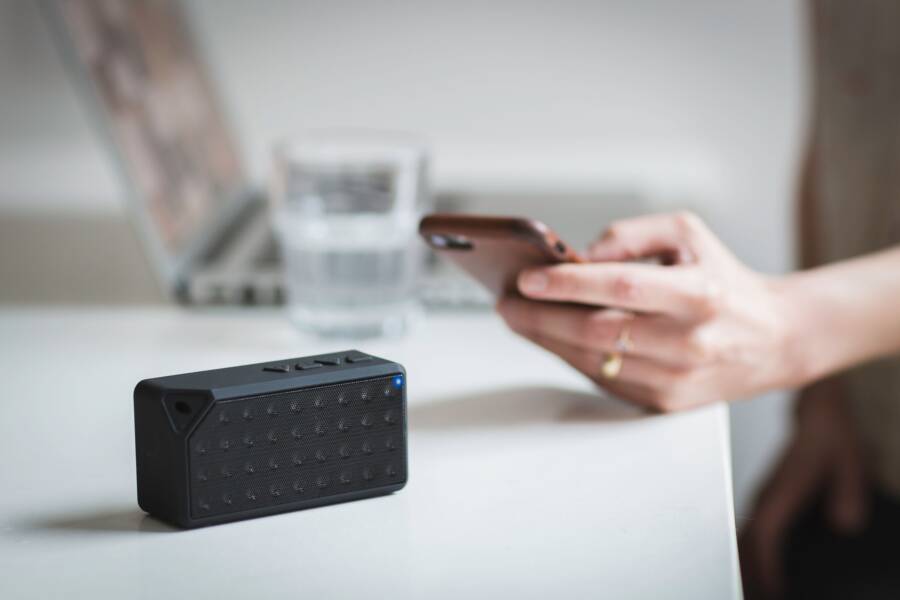
It is frustrating when your smartphone connects to a speaker or car for phone calls but stays silent while you play music. This issue is almost always a settings mismatch rather than broken hardware. Your device treats calls and media as separate connections using different audio profiles.
Bluetooth relies on specific protocols to handle these tasks. The hands-free profile manages your phone calls, while the advanced audio distribution profile handles your music and podcasts. When one profile fails to engage, you lose sound for media playback even though calls remain active.
A quick toggle or re-pairing your device usually fixes this problem for any modern phone. These steps will restore your audio and help you get your music playing again.
Understanding How Bluetooth Audio Profiles Work
Your smartphone uses specific sets of instructions, known as profiles, to manage different tasks over a wireless connection. When you pair a device, the phone negotiates which features it can use. Think of these profiles as dedicated lanes on a highway; each lane only allows specific types of traffic. If a lane is blocked or the phone chooses the wrong one, you experience audio issues even if the initial connection seems successful.
The Role of A2DP and HFP Profiles
The system relies on two primary profiles to handle audio output. The first is A2DP, or Advanced Audio Distribution Profile. This handles high-quality stereo sound for your music, videos, and podcasts. When your smartphone streams media, it sends data through this specific channel to ensure you hear clear audio.
The second profile is HFP, or Hands-Free Profile. This manages your voice communication, including phone calls and voice assistant commands. Because voice data requires less bandwidth but needs a constant connection to stay active, the phone switches to this profile the moment you pick up a call.
Problems often arise because your phone keeps the HFP channel open for calls while failing to engage the A2DP channel for your media. Since your phone treats these as separate tasks, the device might show as connected in your settings while the media player remains silent. If your smartphone mistakenly defaults to the HFP channel for all audio, you lose the high-quality sound playback meant for music.
Why Your Smartphone Gets Confused
Technical glitches often occur when the software on your smartphone struggles to manage these two profiles simultaneously. Several factors can cause this confusion, ranging from simple configuration errors to temporary background glitches.
- Software bugs within the operating system can cause the Bluetooth stack to hang. This often happens after a major update, which can reset how your phone handles specific audio profiles for connected accessories.
- Signal interference creates issues if other devices compete for the same frequency. While Bluetooth uses frequency hopping, too much noise in the area can cause the phone to drop the A2DP connection while keeping the more stable HFP connection for calls.
- Incorrect device settings are a frequent culprit. You might have accidentally toggled off the media audio switch in the Bluetooth menu for a specific device. Your phone remembers this preference, so it will continue to block music playback until you manually re-enable that permission.
- Battery optimization features sometimes interfere with background processes. If your smartphone puts the media player or the Bluetooth service to sleep to save power, the link required for music playback can break even while the call feature remains ready for use.
Check your device settings if you face this issue regularly. Often, you simply need to toggle the media audio setting off and on again to force the smartphone to renegotiate the connection with your speaker or car audio system. This simple action refreshes the profile handshake and restores your music streaming capabilities.
Quick Fixes for iPhone Bluetooth Audio Issues
If your music refuses to play through your Bluetooth device despite calls working, your smartphone likely has a routing error. Your phone keeps the call profile active while the media profile remains stuck or disabled. These quick adjustments often restore your audio output without requiring advanced technical knowledge.
Adjusting Output Settings in the Control Center
Sometimes your smartphone defaults to its internal speaker for media playback even when a Bluetooth device is connected for calls. You can force the audio output back to your external speaker using the Control Center. This interface acts as a remote for all sound output on your device.
- Swipe down from the top-right corner of your screen to open the Control Center.
- Locate the media playback card in the top right area of the screen.
- Tap the icon that looks like a triangle with concentric circles radiating outward, usually located in the top right corner of the music widget.
- A list of available devices appears. Look for your speaker or car audio system in the list.
- Tap the specific device name to route the music signal away from your internal speaker.
Check if your media begins to play immediately after you select the correct device. If the device is not listed here, your smartphone might have lost the A2DP profile connection entirely. You should then move to a full reset of the Bluetooth handshake to fix the underlying communication error.
Resetting the Bluetooth Connection Completely
A full reset of your connection clears out corrupted cache data that prevents the music profile from engaging. This process forces your smartphone to negotiate a fresh handshake with your peripheral, which often resolves hidden software conflicts.
- Open the Settings app on your smartphone and select Bluetooth.
- Find the problematic device in your list of connected items.
- Tap the blue “i” icon located next to the device name.
- Choose “Forget This Device” and confirm the action when prompted.
- Turn off Bluetooth on your phone for ten seconds to clear the system memory.
- Toggle Bluetooth back on and set your speaker or car system into pairing mode.
- Select your device from the “Other Devices” list on your screen to re-establish the connection from scratch.
This fresh pairing instructs your smartphone to recognize the device as a new audio partner. During the setup, ensure that all media and call permissions remain enabled for that device. If the problem persists after this, verify that no other nearby devices are automatically intercepting the connection signal.
Troubleshooting Android Bluetooth for Media Streaming
When your phone works for calls but stays silent for music, the issue often stems from specific permission settings or temporary system glitches. Android manages media and phone audio as distinct tasks. If the software misidentifies how to route your audio data, the connection remains active for one function while failing for the other. These manual adjustments and cache refreshes help your smartphone regain full control over your wireless audio output.
Checking Individual Device Audio Permissions
Android provides granular control over what a connected device can do. If you accidentally disable the media toggle during the initial pairing process, your smartphone keeps that restriction in place for every future connection. You can check this quickly within your device settings to confirm if the media profile is active.
- Open the Settings app on your smartphone and select Connected devices or Bluetooth.
- Find your speaker or car system in the list of previously paired devices.
- Tap the gear icon or the “i” symbol located next to the device name.
- Look for a menu labeled Device details or Profile settings.
- Verify that the toggle for Media audio is set to the on position.
If the switch was already on, toggle it off for a few seconds and turn it back on. This simple action forces the smartphone to renegotiate the connection with your accessory. Once the toggle engages, test your music playback again to see if the audio routes correctly to your external device.
Clearing Bluetooth Cache for Persistent Issues
Sometimes the background processes responsible for managing Bluetooth connections become corrupted. This often happens after system updates or long periods of usage without a restart. Clearing the Bluetooth system cache removes these temporary files and resets the underlying service to its default state without deleting your actual pairing data or personal files.
- Navigate to your Settings menu and tap Apps or Application Manager.
- Tap the menu icon in the top corner and select Show system apps.
- Locate Bluetooth in the long list of installed services and tap on it.
- Select Storage or Storage and cache.
- Tap Clear cache to remove the temporary files that might interfere with your connection.
- Restart your smartphone to allow the system to rebuild the Bluetooth process from scratch.
This process stops the service momentarily, which can resolve hanging connection states that prevent music streaming. After your phone reboots, it will re-establish the connection to your paired device with a clean slate. Most users find that their media audio begins playing normally once the Bluetooth service stabilizes after this quick reset.
Advanced Steps if Basics Do Not Work
If the standard troubleshooting steps fail to restore your media playback, your smartphone might have deeper configuration conflicts or hardware mismatches. These situations require more thorough interventions to isolate the source of the trouble. You can move past simple toggles to perform system-wide resets or physical tests that determine exactly where the connection breaks down.
Resetting Network Settings Safely
Sometimes the hidden files that control your radio connections become corrupted or stuck in an incompatible state. Resetting your network settings clears these internal configuration files and forces the operating system to rebuild its communication map from scratch. This is often the final software step to resolve persistent Bluetooth issues on your smartphone.
You should know that this action removes more than just Bluetooth records. It deletes all saved Wi-Fi networks and passwords, cellular network preferences, and VPN configurations. Your phone will return to its factory state regarding these wireless connections, so you will need to re-enter your home and work Wi-Fi passwords afterward.
- Open the Settings app and search for Reset or Transfer in the menu.
- Select the option labeled Reset Network Settings.
- Confirm your choice by entering your passcode if asked.
- Allow the smartphone to reboot automatically once the process finishes.
After the device restarts, keep your Bluetooth peripheral nearby and attempt to pair it again as if it were a new item. This clean slate ensures that old, broken connection profiles no longer conflict with your current attempts to play music.
Identifying Hardware Failures in Speakers or Headphones
If you have tried every software fix and your smartphone still fails to stream music, the issue might reside within the external audio device itself. Bluetooth speakers and headphones can suffer from internal failures that prevent them from accepting the A2DP music signal while still allowing the HFP call signal to function.
The most effective way to test this is to use a different source device. Grab a friend’s phone, a tablet, or a laptop and attempt to pair it with your speaker or headphones. If the second device experiences the exact same problem, you have confirmed that the speaker or headphone hardware is the culprit.
If the other device plays music without issue, the problem remains tied to your specific smartphone configuration. In that case, you might look for pending firmware updates for your phone or consider if a recent operating system change introduced a bug. Identifying that the external hardware works perfectly with other sources allows you to focus your efforts back on your primary device without wasting time on settings that are not actually broken.
Conclusion
Most Bluetooth audio issues involving media playback happen because of minor software conflicts rather than hardware failure. Since your smartphone separates call and media audio profiles, a simple toggle or a fresh pairing sequence usually corrects the routing error.
If these steps fail to restore your sound, contact the manufacturer of your speaker or your phone support team for further diagnostics. You now have the knowledge to troubleshoot and resolve these connection gaps whenever they occur.