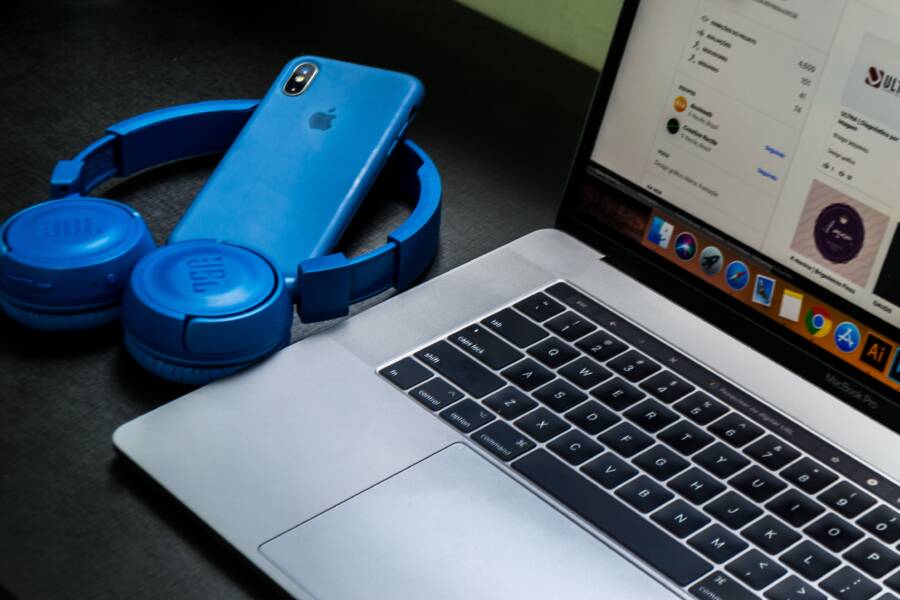
When your smartphone plays music through headphones but fails during phone calls, the issue usually stems from a software handshake error rather than broken hardware. You can fix this by clearing the connection and resetting your audio profiles.
This problem often occurs because your device maintains separate protocols for media and voice. While the connection stays active for audio streaming, the phone fails to route cellular traffic correctly to the accessory.
Follow the troubleshooting steps below to reset your Bluetooth settings and restore call functionality to your device.
Checking Your Bluetooth Settings for Voice Audio
Bluetooth devices often maintain separate connections for media and voice. If your smartphone links to your headphones for music but drops when a call arrives, the phone settings might restrict the device to media only. Correcting this requires a quick check of your specific connection profiles to ensure both audio types are active.
Verifying Phone Audio Permissions on Android
Android manages different audio profiles through the paired devices menu. If your headset is restricted to media playback, the phone cannot route call audio to it. You can adjust these permissions manually to regain full functionality.
- Open the Settings app on your smartphone and tap on Connected devices.
- Select the gear icon located next to your paired Bluetooth device.
- Look for a list of toggles under the device name.
- Verify that the switch for Phone calls or Call audio is turned on.
If you find that the toggle is already active, try switching it off and back on again. This action forces the smartphone to refresh its handshake with the accessory. Restarting this connection often resolves minor software glitches that prevent voice traffic from routing correctly.
Adjusting Device Settings on iOS
Apple manages audio routing through the Bluetooth device details and system accessibility settings. When your iPhone connects to a device, it assigns it a specific role that dictates how it handles incoming and outgoing calls.
To check your specific device settings, navigate to Settings and tap Bluetooth. Find your device in the list and tap the blue info icon beside its name. Ensure that the device type is correctly identified and that no restrictions prevent it from acting as an audio output for calls.
In addition to the device menu, check your Call Audio Routing settings to see if your phone is forcing audio to the handset or speaker instead of your Bluetooth accessory. You can find this by following these steps:
- Open Settings and go to Accessibility.
- Tap on Touch and look for the Call Audio Routing option.
- Set this to Automatic so your smartphone selects the most appropriate output for your voice calls.
If the settings are correct, disable Bluetooth on your phone and wait a few seconds before turning it back on. This simple reset allows the iPhone to re-establish its connection protocols with your accessory. Most audio routing issues disappear after this quick refresh.
The Universal Fix: Forget and Re-pair Your Device
When your smartphone refuses to route call audio through your wireless headset, a total connection reset acts as the most reliable fix. Bluetooth profiles can accumulate corrupted cache files over time, which prevents the phone from initiating the correct voice handshake. Removing the device entirely from your system forces the software to treat the accessory as brand new. This process clears out old handshake errors and allows the hardware to negotiate fresh communication protocols.
Proper Steps for Resetting Bluetooth Connections
You must remove every trace of the old connection before you attempt a new pairing. Follow these steps to ensure your smartphone clears the memory associated with your audio accessory.
- Open the Settings menu on your smartphone and navigate to the Bluetooth section.
- Find your specific device in the list of paired items.
- Tap the gear icon or the “i” symbol to open the device details.
- Select the option labeled “Forget this device” or “Unpair” to delete it from your history.
- Turn off Bluetooth on your smartphone and wait for about ten seconds.
- Toggle Bluetooth back on to initialize the radio.
- Place your audio accessory into discovery or pairing mode according to the manufacturer instructions.
- Scan for new devices in your phone menu and tap the device name to re-establish the connection.
This sequence removes outdated configuration files that often block voice traffic. By forcing a fresh connection, you create an opportunity for the smartphone to correctly identify the device as both a media and call-capable accessory.
Why a Smartphone Restart Matters
Restarting your smartphone serves as the final step in flushing out stubborn background processes. Bluetooth communication relies on a system-level service that runs continuously in the background of your operating system. Sometimes this service hangs or enters a limited state where it stops accepting new instructions for voice calls.
A full power cycle closes all active processes and stops any software conflicts that might interfere with audio routing. When the device boots back up, it reloads the Bluetooth stack from scratch. This clean state ensures the smartphone can accurately communicate with your accessory. It forces the phone to recognize the full set of device capabilities again, which often resolves the issue where music works but calls remain silent. A quick restart is often the difference between a failing connection and a perfectly functional hands-free setup.
Handling Conflicts with Other Bluetooth Devices
Bluetooth signals exist in the same frequency band as many other wireless tools. When your smartphone tries to maintain a phone call, other active electronics can create signal interference or connection drops. This competition for airtime often confuses the audio handshake, leading to silent calls or garbled voices.
Identifying Sources of Wireless Interference
Multiple devices operating near your workspace often trigger Bluetooth dropouts. High-traffic areas with many active gadgets force your smartphone to compete for bandwidth. You can test for this by moving away from common sources of interference.
Common household culprits include:
- Wireless routers or Wi-Fi range extenders operating on the 2.4 GHz band.
- Smart home hubs or wireless security cameras.
- Microwave ovens active while in use.
- Older wireless keyboards or mice that lack frequency-hopping technology.
If you find that your calls stabilize in a different room, another device is likely causing the radio congestion.
Managing Active Bluetooth Connections
Your smartphone often tries to connect to multiple devices at once. If your car infotainment system, a smart speaker, and your headphones all fight for dominance, your phone may struggle to route the audio. One device might grab the call audio profile before your headset can register it.
Check your current list of connected items to see if others are active. If you notice unwanted devices connected, turn off Bluetooth on those items. This ensures your headset holds the exclusive channel for your phone calls. In many cases, turning off the Bluetooth feature on a secondary device resolves the routing conflict immediately.
Understanding Frequency Congestion
Bluetooth technology uses frequency hopping to avoid static and dropped signals. However, it still encounters limits when too many devices attempt to transmit data in a small area. If you live in an apartment building or work in a crowded office, these signals overlap.
When your phone experiences persistent call quality issues, prioritize a direct line of sight between the smartphone and your headset. Thick walls, metal desks, and large appliances block signal paths. Reducing the distance between the devices allows the Bluetooth signal to remain stronger than the background interference. If the problem persists, turning off Wi-Fi on your phone temporarily can also help reduce the radio load, as many devices share the same internal antenna for both Wi-Fi and Bluetooth.
Advanced Troubleshooting for Persistent Connection Issues
When standard repairs like unpairing your device or restarting your smartphone fail to resolve Bluetooth call issues, your system may suffer from deeper configuration errors. These problems often reside in hidden network caches or outdated software layers that interfere with how your smartphone communicates with peripherals. You can resolve these stubborn conflicts by addressing the root software environment rather than just the individual connection.
Resetting Network Settings to Restore Bluetooth Stability
Your smartphone stores complex network data to manage Wi-Fi, cellular, and Bluetooth connections efficiently. Over time, these settings can accumulate corrupt entries that block normal call audio routing. Performing a full network reset clears these specific caches and returns your radio hardware to its factory-default state.
This process offers a high success rate for persistent audio issues, but it carries a specific trade-off. It wipes all stored network information from your device. You must be prepared to handle the following consequences after the reset:
- All saved Wi-Fi networks and their passwords disappear.
- Paired Bluetooth devices are removed from the system memory.
- VPN configurations and custom APN settings for cellular data will reset.
Before you proceed, ensure you have your home and work Wi-Fi passwords ready to re-enter. To perform this reset on Android, go to Settings, find System or General Management, select Reset, and choose Reset Wi-Fi, mobile, and Bluetooth. iPhone users should go to Settings, tap General, select Transfer or Reset iPhone, then choose Reset Network Settings. Your smartphone will restart, and you can then perform a fresh, clean pairing with your headset to see if the call functionality returns.
Software Updates and Firmware Considerations
Compatibility gaps between your smartphone and your Bluetooth peripheral often arise from mismatched software versions. Wireless audio protocols evolve regularly to support clearer voice quality and lower latency. If your phone runs a modern operating system while your headset uses outdated firmware, the two devices may struggle to negotiate a stable call handshake.
Check your smartphone for pending system updates first. Manufacturers frequently release patches that fix bugs within the Bluetooth stack. You can usually find these in your Settings menu under Software Update or System Update. Installing the latest security patch or OS version provides your phone with updated drivers that resolve known communication errors.
Next, look at your Bluetooth accessory. Many modern headsets and car systems have companion apps that manage firmware updates. Download the official app for your device and check if a newer version is available. If your peripheral lacks an app, visit the manufacturer website to check for a support tool you can use with a computer. Updating the internal software on both devices ensures they speak the same language, which almost always fixes persistent audio routing problems during calls.
Conclusion
Most Bluetooth call issues on your smartphone stem from simple software conflicts or mismatched audio profiles. Toggling your call audio settings or re-pairing the device is often enough to restore proper functionality.
After you perform these steps, test your microphone and speaker settings during a real call. This ensures your hardware is correctly communicating with the network.
If you still face silence, check for pending system updates on both your phone and your audio peripheral. Keeping these devices updated prevents recurring handshake errors.