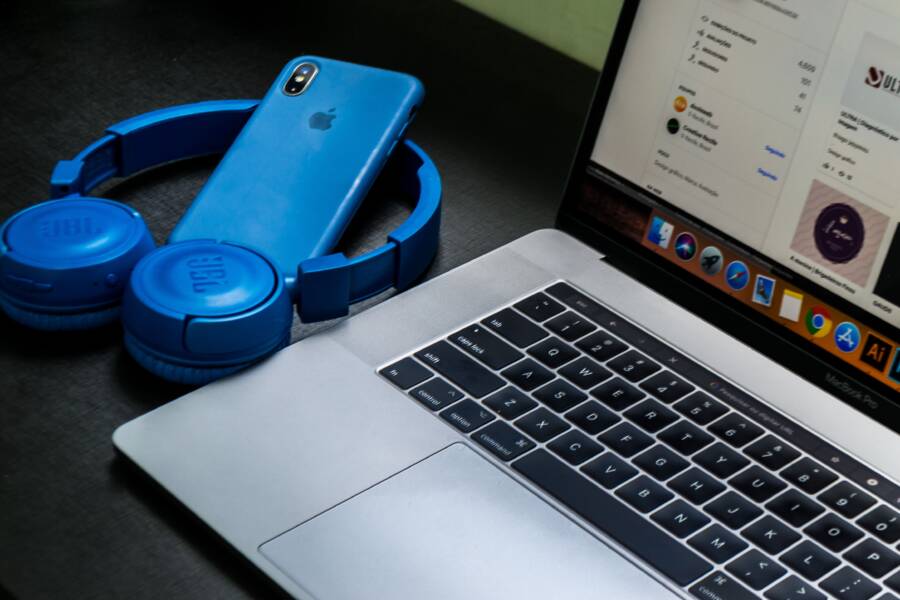
If your smartphone keeps dropping Bluetooth connections, toggle Airplane mode on and off to reset the wireless radios immediately. This quick action forces your device to refresh its connection attempts without requiring a full reboot.
Software glitches are usually the cause when your signal cuts out unexpectedly. These problems rarely stem from broken hardware, so you can likely fix the behavior with a few simple adjustments to your settings.
Below are the most effective methods to stop your Bluetooth from disconnecting while you use your mobile device.
Quick Fixes for Bluetooth Connectivity Issues
Bluetooth problems often stem from minor software bugs or conflicting background processes on your smartphone. You can fix many connection errors by refreshing your device settings without needing technical expertise or external tools. These immediate steps often restore stable communication between your phone and your peripherals.
Toggling Radio Settings on Your Device
Refreshing your wireless radios is the fastest way to clear out persistent connection bugs. This process forces your smartphone to end its current attempts to find a signal and start a fresh handshake with your accessories.
You can trigger this refresh easily using your control center:
- Swipe down from the top or up from the bottom of your screen to open the control center.
- Tap the Bluetooth icon to turn it off.
- Wait at least 10 seconds to allow the radio to fully power down.
- Tap the icon again to reactivate it.
If your connection remains unstable, try the Airplane mode trick. Activating Airplane mode shuts down all wireless communication, including cellular, Wi-Fi, and Bluetooth, at the same time. Toggle it on for 15 seconds, then turn it off. This clears the communication state for every antenna on your smartphone and often resolves issues that a simple Bluetooth toggle misses.
Performing a Soft Reset of Your Smartphone
A soft reset is more thorough than simply toggling your settings. This process performs a clean reboot of your operating system, which effectively clears out temporary cache files and stops background processes that might conflict with your Bluetooth signal. It does not erase your personal data or photos, so you can perform this task as often as needed to maintain system stability.
To perform a soft reset on most modern devices, hold down the power button and the volume down button at the same time until the screen turns black and the manufacturer logo reappears. Once the phone restarts, the operating system clears out the system memory and reloads your drivers.
This step is particularly useful if your phone stops recognizing previously paired devices or if the connection menu freezes. By giving your smartphone a fresh start, you eliminate residual glitches that build up during long periods of continuous operation. If your Bluetooth menu continues to malfunction after a restart, there may be deeper issues with your current OS build or corrupted configuration files that require further troubleshooting.
Troubleshooting Software Interference and Updates
Bluetooth stability often depends on the underlying software health of your smartphone. When your connection drops frequently, the problem frequently originates from outdated system files or conflicting applications that disrupt wireless signals. Addressing these software layers often resolves persistent connectivity issues without requiring hardware repairs.
Checking for System Updates
Manufacturers regularly release firmware patches to improve wireless radio performance. These updates fix known bugs that cause Bluetooth to turn off or disconnect from paired devices. Keeping your smartphone software current ensures that your device handles incoming signals and peripheral data with the latest stability improvements.
On an Android device, open the Settings app and look for Software Update or System Update. Tap Check for Updates to see if your manufacturer has released a new patch. If an update appears, download and install it immediately, then restart your phone to apply the changes.
For iPhone users, navigate to the Settings menu and select General. Tap Software Update to view pending installations. If an update is available, follow the on-screen prompts to update your iOS. Apple frequently bundles Bluetooth stability fixes into minor OS releases, so even small updates can solve your connection problems.
Identifying Apps That Might Conflict with Bluetooth
Background applications sometimes interfere with your wireless hardware by requesting too many resources. If you installed a new app shortly before your Bluetooth issues began, that program might be the culprit. These applications often drain battery life or conflict with the system processes that manage your Bluetooth radio.
Check your recent activity by opening the battery usage menu in your settings. If an app consumes a disproportionate amount of power while running in the background, consider force-closing it or removing it from your smartphone entirely. You can test this by putting your device in safe mode, which temporarily disables third-party software. If your Bluetooth functions normally in safe mode, a specific app is certainly causing the interference.
You should also look for apps that manage other wireless connections, such as smart home controllers or fitness trackers. These programs occasionally conflict with the OS Bluetooth stack. Updating these specific apps to their latest versions often resolves compatibility gaps. If the problem persists after an update, try uninstalling and reinstalling the app to clear any corrupted configuration data.
Clearing Outdated Connections and Settings
Old pairing data often creates conflicts that interrupt your wireless signal. When your smartphone stores outdated configuration profiles, it may struggle to re-establish a handshake with your accessories. Cleaning these files allows the hardware to start the pairing process with a blank slate, which frequently resolves recurring drops.
How to Properly Forget and Re-pair Devices
Removing an accessory from your saved list forces the system to delete any potentially corrupt handshake keys. This simple act resets the communication link between your devices entirely.
Follow these steps to clear the connection data:
- Open the Settings app on your smartphone.
- Select the Bluetooth menu to view your list of paired devices.
- Find the name of the accessory that keeps disconnecting.
- Tap the info icon or the settings gear located next to the device name.
- Choose the option labeled Forget This Device or Unpair.
- Confirm your choice to remove it from the list.
- Turn your Bluetooth off and back on using the toggle switch.
- Put your accessory back into pairing mode according to the manufacturer instructions.
- Select the device from your smartphone list to initiate a new connection.
Once you re-pair the accessory, your phone creates fresh security keys. This process often fixes problems where the phone recognizes the device but fails to maintain a steady signal.
Resetting Network Settings to Factory Default
If you still experience persistent disconnects after unpairing your devices, a deeper issue might exist within your network configuration files. You can perform a network settings reset to return your wireless radio parameters to their original factory state.
This action is effective because it deletes stored Wi-Fi passwords, saved VPN configurations, and Bluetooth pairing history. You should only use this method after trying other quick fixes, as you will need to reconnect to your home networks manually after the phone restarts.
To perform this reset on most Android smartphones, navigate to the System or General Management menu in your settings. Find the Reset options and select Reset Network Settings, then confirm the action. For iPhone users, go to Settings, tap General, select Transfer or Reset iPhone, choose Reset, and finally tap Reset Network Settings.
After your phone finishes this task, it will restart automatically. This procedure clears hidden configuration bugs that simple toggles cannot reach. You can then pair your peripherals again, knowing that any corrupted background data has been completely erased from the system.
When to Consider Hardware Repairs or Support
Sometimes you exhaust every software fix and your Bluetooth connection still fails to stay active. If you have updated your firmware, reset your network settings, and verified that no third-party apps are interfering, you might face a physical hardware issue. Identifying when your smartphone requires professional inspection helps you avoid unnecessary troubleshooting and gets you back to a stable wireless experience faster.
Testing Your Device in Safe Mode
Safe mode acts as a diagnostic tool that isolates your operating system from any third-party software. When you boot your smartphone into this mode, it ignores every app you installed since the day you purchased it. This environment runs only the factory-installed software necessary for basic operation.
If your Bluetooth signal stays stable while in safe mode, you know an application you downloaded is causing the conflict. Many users find that a recently added background utility or a buggy launcher app is the culprit behind intermittent drops. Once you confirm the hardware works perfectly in this restricted state, you can exit safe mode and systematically remove your most recent apps until the problem disappears.
To enter safe mode on most Android devices, follow these general steps:
- Press and hold the power button until the power menu appears on your screen.
- Tap and hold the power off or restart option until a prompt asks if you want to reboot to safe mode.
- Select OK to confirm.
- Your device will restart with a “Safe Mode” indicator in the corner of your display.
If your Bluetooth keeps turning off even while in safe mode, the issue is likely deeper than a simple software conflict. This often suggests a physical defect within the internal Bluetooth antenna or the radio chip itself. If your device recently suffered a drop, liquid damage, or extreme temperature exposure, those events might have physically compromised the hardware. At this stage, professional repair is the most effective path forward for your smartphone.
Conclusion
Most Bluetooth connection issues on your smartphone stem from minor software conflicts or temporary glitches rather than permanent hardware failure. Toggling your wireless radios and clearing old pairing data will resolve the vast majority of these interruptions.
Staying current with system updates remains the best way to prevent future connection drops. Manufacturers release regular firmware patches to address known compatibility bugs and improve radio stability.
If you have tried every software step without success, your device might require a physical inspection. Contact your manufacturer or an authorized service center to diagnose potential damage to the internal Bluetooth antenna.