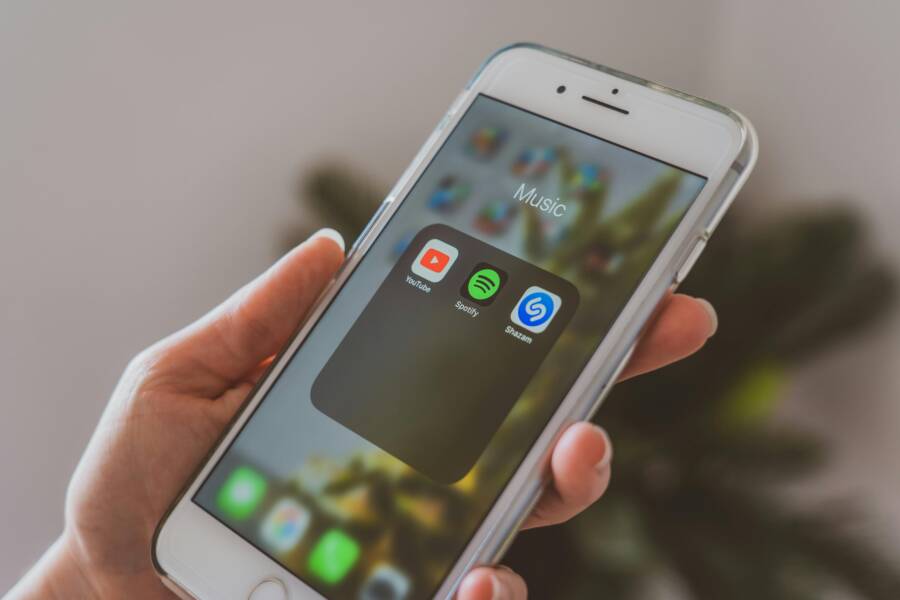
Your streaming app can buffer on your smartphone even when the Wi-Fi looks fine on every other device. That usually means the problem is tied to the phone, the app, the Wi-Fi band, or a background setting that’s slowing playback down.
Maybe your speed test looks good, but the video still pauses, stutters, or drops quality the moment you hit play. This guide walks through quick fixes first, then moves into the deeper checks that can stop buffering on a phone for good.
Start with the fastest checks that solve the problem most often
Before you change settings or dig into network details, start with the simplest checks. Buffering on a phone often comes from one app, a stale connection, or a temporary glitch that clears in minutes.
See if the buffering happens in one app or all of them
Open two or three streaming apps on the same phone and test the same kind of video in each one. Try a short clip or a live stream, then watch for pauses, blurry playback, or long load times.
If only one app buffers, the issue is likely inside that app. A damaged cache, an outdated version, or a server problem can slow it down while other apps work fine. In that case, close the app, clear its cache if the app supports it, and update it from the app store.
If every app buffers on the same phone, the cause is broader. That points to the device, the Wi-Fi band, or a network setting that affects this smartphone across the board. A quick comparison saves time, because it tells you whether to fix the app or keep moving down the network checklist.
Restart the phone and reconnect to Wi-Fi the simple way
A restart clears stuck background processes and can reset weak network behavior. It also helps when the phone has been asleep for a while, moved between rooms, or switched between Wi-Fi networks.
Do it the simple way:
- Turn Wi-Fi off on the phone.
- Wait a few seconds.
- Restart the phone.
- Turn Wi-Fi back on and reconnect to your network.
That small reset often fixes playback that looked random a few minutes earlier. If streaming improves right after reconnecting, the phone likely had a bad connection state, not a true Wi-Fi problem.
Check the phone settings that quietly slow streaming down
When Wi-Fi looks fine but video still buffers, the phone itself often needs a look. A few settings can limit data use, reduce background activity, or lower video quality without making it obvious.
That can be helpful for battery life. On a smartphone, though, those same controls can make streaming feel sluggish, especially on older devices that already work harder to keep up.
Turn off battery saver, low power mode, and data saver
Battery saver and low power mode are designed to stretch charge, so they often reduce what the phone does in the background. That can include slower refresh, fewer app updates, and less network activity while video is playing. Data saver can do something similar by restricting how much data apps use, which may push streaming apps to load at a lower quality or pause more often.
Look in your phone’s settings for names like Battery Saver, Low Power Mode, or Data Saver. On some phones, these settings sit under Battery, Connections, or Mobile Network. If you see a toggle that limits background data, turn it off for a quick test and try the stream again.
If video plays better right after you switch these off, the phone was likely holding back network use to save power.
You do not need to leave these settings off all the time. They help when the battery is low. Still, for streaming, they can act like a handbrake. If your smartphone buffers more than it should, test playback with these features disabled and see whether the app settles down.
Review VPN, proxy, and private DNS settings
VPNs, proxies, and custom DNS settings can add a small delay before video starts, and that delay can turn into stutter during playback. They route traffic through extra steps, so the stream may need more time to connect or keep a steady flow of data.
Some streaming apps also behave better when location-related tools are off. If a VPN is set to another region, or if a proxy changes how the app sees your connection, the app may load the wrong catalog or struggle to hold a stable stream.
A simple test helps here. Turn off the VPN, proxy, or private DNS briefly, then reopen the app and play the same video again. If buffering improves, you found the weak link.
If streaming gets smoother after that test, keep the setup simple while you watch. A direct connection is often the best choice for video, especially when you want your phone to focus on playback instead of rerouting traffic.
Clear out phone app problems that build up over time
Streaming apps can slow down little by little. Cached files pile up, old bugs stick around, and a damaged install can start to drag on playback even when your Wi-Fi looks stable.
That is why app cleanup matters. A phone can have a strong connection and still struggle if the app itself is clogged or outdated. When buffering keeps showing up, this is one of the best places to look.
Clear the app cache and remove old temporary files
Most streaming apps save cache so they can load faster the next time you open them. That helps when everything is working well, but too much cached data can start to work against you. Old thumbnails, playback data, and temporary files may get in the way of smooth video loading.
Clearing cache gives the app a fresh start. It removes the clutter without wiping out your account, saved preferences, or watch history in most cases. That makes it one of the safest troubleshooting steps on a phone.
If your app keeps buffering, open the app settings on your smartphone and look for Clear Cache or Storage. Then test the same video again. If playback improves, the app was probably trying to read too much old data at once.
Cache should help an app move faster. When it gets too crowded, it can slow the app down instead.
A quick cleanup is often enough to smooth out stutters and loading delays. If the app still feels sluggish after that, move on to the next fix.
Update or reinstall the streaming app when it keeps lagging
App updates often fix bugs, playback errors, and compatibility issues with newer phone software. If your streaming app buffers after a system update, an older app version may be the reason. Open the app store, check for an update, and install it before trying anything more complex.
If updating does not help, reinstall the app. That removes damaged files and gives you a clean copy. On many phones, this clears out problems that updates alone cannot fix.
Use these steps:
- Delete the app from your device.
- Reinstall it from the app store.
- Sign back in.
- Verify your subscription access if the app asks for it.
After reinstalling, test a few minutes of playback. If your smartphone starts streaming normally again, the issue was inside the app, not your Wi-Fi.
Fix Wi-Fi band, signal, and router issues that affect phones first
When streaming buffers on a phone but other devices seem fine, the problem often sits in the wireless path between your phone and the router. A small shift in band choice, signal strength, or interference can change playback a lot.
Start with the connection your phone is actually using, then move to the room and the router itself. These checks are quick, and they often explain why one smartphone struggles while everything else looks normal.
Use the faster band when your phone supports it
Many routers broadcast on two common bands, 2.4 GHz and 5 GHz. The 5 GHz band is usually faster and better for streaming, but it does not travel as far. The 2.4 GHz band reaches farther, yet it is often slower and more crowded because more devices use it.
If your router gives each band a separate network name, test both on your phone. One may stream smoothly while the other pauses every few minutes. That simple switch can make a big difference.
A good rule is this:
- Use 5 GHz when you are close to the router and want smoother video.
- Use 2.4 GHz when distance or walls are the bigger problem.
- Test both if your streaming app keeps buffering and you are not sure which band the phone picked.
A strong connection name does not always mean the best band for video.
Also check whether your phone supports 5 GHz Wi-Fi. Most newer phones do, but older models may not. If your device supports it and you are close to the router, 5 GHz is often the better choice for streaming.
Move closer to the router or reduce interference
Walls, heavy furniture, and floors can weaken the signal before it reaches your phone. A microwave oven, cordless phone, Bluetooth speaker, or nearby wireless device can also add noise that slows the stream. Even if your signal bars look high, the connection can still drop packets and make playback stall.
Move your smartphone into the same room as the router and try the same video again. That quick test tells you a lot. If buffering improves right away, distance or interference is part of the problem.
A few small changes can help:
- Keep the router off the floor and out in the open.
- Move it away from microwaves and thick walls.
- Reduce the number of wireless devices near it during streaming.
- Avoid placing the phone behind metal objects or inside a crowded cabinet.
If the stream becomes stable in the same room, the issue is not the app. It is the path between the phone and the router. That points you toward better placement, less interference, or a stronger Wi-Fi band for the room you use most.
Tune the streaming app and video quality to match your connection
Even a solid Wi-Fi signal can struggle when the app tries to push more video than your phone can handle. High-resolution playback needs more steady data, and on a small screen, that extra detail often adds load without much visible gain.
A few quick app changes can smooth things out fast. Start with video quality, then check any background features that may be sharing the same connection.
Lower video quality when the app keeps trying to load too much
4K and very high HD settings can trigger buffering on a phone, even when the connection looks decent. The app may keep asking for more data than the network can deliver at that moment, so playback stalls while it waits for the next chunk.
Try Auto or Medium quality first. On a smaller screen, the drop in sharpness is often hard to notice, but the drop in buffering can be immediate. That makes this one of the fastest fixes for smoother playback on a smartphone.
If the app lets you choose quality manually, test one step down from your current setting. For example, if you are on the highest HD option, move to the next lower tier and watch the same scene again. A slight reduction in resolution often gives the app enough breathing room to keep video moving.
A good starting point looks like this:
- Auto when you want the app to adjust on its own.
- Medium when you want steady playback and fewer spikes.
- High or 4K only when the connection is strong and stable.
Lower quality can look like a small tradeoff, but it often removes the stop-start feel right away.
If the stream becomes stable after lowering the setting, the connection may still be fine. The app was simply trying to load too much at once.
Pause downloads and background streaming features
Streaming apps often do more in the background than they show on screen. Downloads for offline viewing, sync tasks, auto-play previews, and similar features can all use the same bandwidth as the video itself. When that happens, your stream has to compete for space on the connection.
Open the app settings and pause any active downloads before watching. Also turn off background features that keep fetching clips, trailers, or previews while you browse. Those hidden tasks can make streaming feel slow even when the Wi-Fi is working normally.
A few settings are worth checking:
- Offline downloads that are still running
- Auto-play previews on home or browse pages
- Library sync or watch-list updates
- Any option that keeps the app refreshing content in the background
If the app has a download queue, let it finish later or pause it during playback. The same goes for other devices on the network that may be syncing files in the background. Less competition means more room for the video, and that often means fewer pauses.
Once those extra tasks are out of the way, test the stream again. In many cases, the app feels faster immediately because the connection can focus on one job instead of several.
When the problem may be the phone itself
If Wi-Fi looks stable but the stream still buffers, the phone may be the weak link. A full storage drive, too many open apps, an old software build, or excess heat can slow playback even when the network is fine.
That matters because streaming apps need room to work. They rely on memory, storage, and steady processing power, so a phone that feels overloaded can act like a crowded desk, papers everywhere and no space to move.
Free up storage and close apps running in the background
A nearly full phone can slow app performance and make streaming less smooth. When storage gets tight, the device has less room for cache, temporary files, and app tasks, so video may pause or take longer to start.
Too many open apps can strain memory as well. Heavy background tasks, such as file syncing, social apps, or navigation tools, can compete with your streaming app and trigger playback stalls. On a smartphone, that extra load shows up fast.
A simple rule of thumb helps:
- Remove apps you no longer use.
- Clear out large videos, downloads, and duplicate photos.
- Close heavy background apps before you start streaming.
- Pause cloud backups or file transfers if they are running.
If your phone storage is almost full, streaming apps often lose the breathing room they need.
Check your storage settings and look for the biggest space users first. Then reopen the streaming app and try the same video again. A lighter phone often feels faster right away, even when Wi-Fi never changed.
Update the phone software or check for overheating
System updates can improve Wi-Fi handling, app performance, and video playback support. If your phone has been sitting on an old version, the streaming app may not work as well as it should. A quick update can fix bugs that affect how the device handles network traffic.
Heat can also slow things down. When a phone gets too hot, it may reduce performance to protect the hardware, and that can lead to buffering, lag, or delayed taps. You may notice it after long streaming sessions, especially in warm rooms or while charging.
Try these quick fixes if the phone feels hot:
- Let it cool down for a few minutes before streaming again.
- Remove a thick case if it traps heat.
- Avoid charging while streaming if the device keeps warming up.
- Lower screen brightness if the phone is already hot.
If the stream improves after the phone cools off, heat was part of the problem. That can happen even when Wi-Fi is solid, because the app is waiting on the phone itself, not the connection.
Conclusion
When a streaming app buffers on your phone but Wi-Fi seems fine, the cause is usually a mix of app issues, phone settings, Wi-Fi band choices, and device limits. Start with the fastest fixes first, like restarting the phone, reconnecting Wi-Fi, and checking whether the problem is limited to one app.
Next, clear app cache, update or reinstall the app, then test battery saver, data saver, VPN, and private DNS settings. If the problem still shows up, check the Wi-Fi band, signal strength, storage, background apps, and phone heat on your smartphone.
Most buffering problems like this can be fixed without replacing your router or buying a new phone. A steady stream usually comes from a clean app, a simple connection, and a device that has enough room to work.