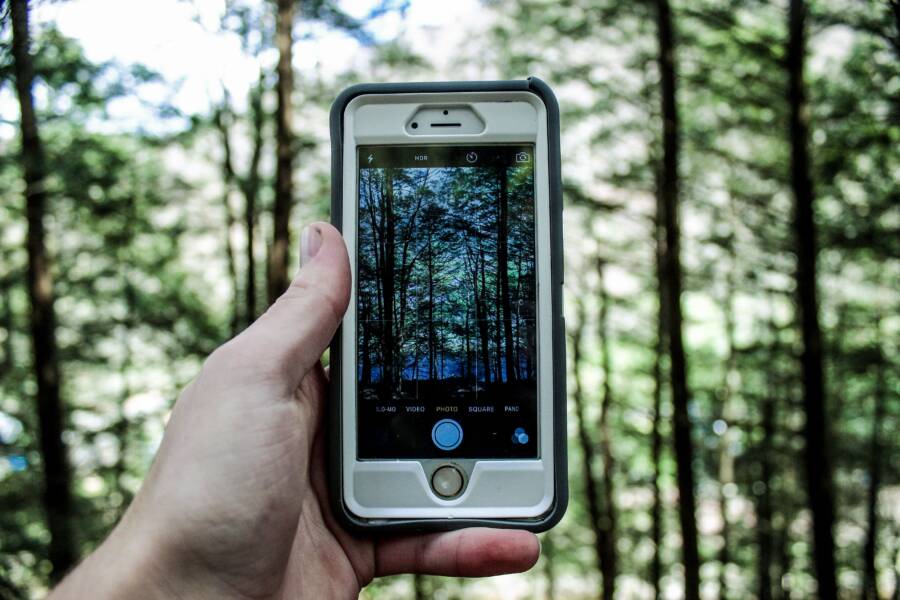
If your phone camera refuses to open from the lock screen, you are likely dealing with a minor software glitch or a restrictive setting. A quick restart often resolves these temporary hiccups on your smartphone. You can also regain access by updating your operating system or checking camera permissions in the settings menu.
These issues are common and rarely indicate serious hardware damage. Most users can fix the problem in a few minutes without needing professional repair services. Follow these steps to diagnose the cause and get your camera working again.
Quick Fixes for a Phone Camera That Won’t Open
When your camera shortcut fails to launch from the lock screen, the problem often stems from temporary software conflicts rather than hardware failure. Your smartphone relies on complex background processes to trigger the camera instantly. If one of these processes hangs or encounters a memory error, the interface will freeze or fail to respond entirely. Addressing these software-level bottlenecks is the first logical step toward restoring normal functionality.
Performing a Power Cycle to Reset Processes
A hard restart forces your smartphone to clear its temporary memory, also known as the cache. This process shuts down every background application and service, including those that handle camera requests, before reloading the operating system from scratch. Unlike a standard power down, a hard restart bypasses the typical software shutdown sequence to cut off power to the processor briefly.
To perform this on most modern devices, you need to follow a specific button sequence. The exact combination varies by model, but it usually involves holding the volume down button and the power button simultaneously for ten to fifteen seconds. Your screen should go black, and you should keep holding until the manufacturer logo appears on the display. Once the device boots up, try opening the camera from the lock screen again. This simple action often clears the frozen background state that prevented the application from initializing.
Checking for Conflicting Background Applications
Third-party software frequently interferes with camera access because only one app can use the camera sensor at a time. If a video chat app, a social media filter tool, or an augmented reality game hangs in the background, it might still hold an active claim on your camera permissions. When this happens, the system blocks the lock screen shortcut from opening the camera because it detects the sensor is already busy.
You can identify the culprit by closing all recently used applications. Swipe up from the bottom of your screen or press your recent apps button to view the list of active tasks. Swipe away every application to ensure no secondary software is running in the background. If the camera starts working immediately after closing these apps, you have found the source of the conflict. You may need to update those specific apps or restrict their background permission settings to prevent the issue from returning.
Updating System Software to Resolve Known Bugs
Software updates fix hidden code errors that block your smartphone camera from launching. Developers release these patches to repair specific malfunctions affecting the operating system or its interface. When the camera shortcut fails, the system might have a compatibility error that only an update can fix. Applying the latest software release often clears these roadblocks by replacing buggy files with stable versions.
Checking for Available System Updates
Your smartphone runs a series of checks to see if the manufacturer has issued a patch. You should start by opening your settings menu and locating the section labeled software update or system update. If your device shows a notification for a pending download, start the process immediately. The installation replaces outdated system components that might interfere with lock screen shortcuts.
Follow these steps to check for updates:
Open the Settings app on your smartphone.
Scroll down until you find System or Software Update.
Tap Check for updates to see if a newer version is available.
Select Download and Install if the system finds a new package.
Wait for the phone to restart after the installation finishes.
Connecting your device to a stable Wi-Fi network before you start this process is wise. Updates often contain large data files, and a sudden connection drop can lead to incomplete installations. You should also ensure your battery has at least fifty percent charge to prevent the phone from powering off mid-update.
Reinstalling or Resetting System Settings
Sometimes a specific setting gets corrupted, which prevents the camera from accessing the lock screen trigger. If you have already updated your software and the problem remains, resetting your system preferences often corrects the behavior. This action does not delete your personal photos or apps, but it returns system-level settings to their factory state.
You can initiate this reset through the system management menu on your device. Look for options labeled Reset all settings or Reset system preferences. Once you confirm the action, your phone will reboot with its original configuration. After the device restarts, you may need to reconfigure basic preferences like your display brightness or notification sounds. This procedure effectively wipes away the silent software glitches that block the camera from opening when the screen is locked.
Adjusting Camera Permissions and Settings
Accessing your camera from the lock screen requires specific permissions and active shortcut settings within your smartphone operating system. If these configurations are incorrect, the system blocks the camera app for security reasons. Correcting these settings allows the camera to bypass the lock screen security barrier safely.
Verifying Shortcut Access in Settings
Both iOS and Android include built-in features to keep the camera accessible without unlocking the device. You should first confirm these shortcuts are active in your settings menu.
On an iPhone, go to the Settings app and select Screen Time. Choose Content & Privacy Restrictions and ensure the Camera is allowed. If you use a third-party camera app or if the lock screen icon is missing, check your control center settings to confirm the shortcut is enabled for the lock screen. You can also re-enable the camera icon by removing any restrictions that might limit app access while the phone is locked.
On Android, the process often lives within the lock screen settings. Open your Settings menu and search for Lock screen or Display. Locate the Shortcuts or App Shortcuts section. Make sure the Camera icon is selected as an active shortcut. Some manufacturers place this under advanced security settings, so look for a toggle switch labeled Quick launch camera. If you find the feature active, try toggling it off and on again to refresh the setting. This simple action often forces the smartphone system to recognize the shortcut path once more.
Clearing App Cache for the Camera Utility
Every application on your smartphone stores temporary data files, known as cache, to help it launch quickly. Sometimes these cache files become corrupt or conflict with recent system updates. Clearing the cache removes these damaged files without deleting your personal photos or videos, giving the app a fresh start.
Android users can perform this task easily through the application manager. Follow these steps to clear the data:
Open your phone Settings and tap on Apps or Application Manager.
Find Camera in the list of installed applications.
Tap on Storage or Storage & Cache.
Select Clear Cache.
Restart your smartphone to apply the changes.
While iOS does not offer a direct Clear Cache button for the stock camera app, you can achieve a similar result by forcing the app to close. Swipe up from the bottom of your screen to reveal the app switcher, then swipe the camera preview off the top of the screen to close it entirely. This clears the active memory session for the app. If the issue persists, ensure your camera app is not restricted by your current focus or digital wellbeing settings, as these can occasionally block camera use during specific times of the day.
Conclusion
Most lock screen camera issues are temporary glitches that respond well to basic troubleshooting. A quick power cycle, checking for background app conflicts, or clearing your cache often restores access. These steps fix the vast majority of software-related errors on your smartphone without the need for advanced technical skills.
If you still cannot launch the camera after performing these updates and resets, a deeper system conflict might exist. Persistent failure after a factory reset or software update suggests an underlying issue with the device firmware or physical hardware.
In these rare cases, visit an authorized service center or contact the manufacturer for professional support. A technician can test your camera hardware directly to rule out physical damage or sensor failure.